Create a Perfect 4K Loop Video for Your Mac
Your Mac desktop gets more screen time than half the apps in your dock, yet a lot of people leave it frozen on the same image for months. Then you open the lid for the fiftieth time, shuffle windows around, answer messages, and keep staring at a background that stopped being interesting sometime around your last personality reboot. A high-fidelity 4K loop video fixes that in a way static wallpaper never can. It gives you motion, texture, and enough detail to hold up on a Retina panel without turning the whole desktop into a casino sign.
That balance is the whole job.
A good wallpaper loop needs to feel alive while staying out of the way. If it pulls focus every three seconds, it fails. If compression smears the shadows or the motion stutters at the reset point, it also fails. For a Mac live wallpaper, the standard is annoyingly high because Retina screens are rude about imperfections. They show every mushy edge, every color band, every tiny mistake in the timing. Which is unfair, but also why a great loop looks absurdly good.

The demand for moving desktop backgrounds is easy to understand even without dragging in shaky stats. Once you've used a properly looping video on a Mac, a JPEG can feel weirdly dead. The catch is that a lot of free 4K clips are built for demo reels, YouTube intros, or giant event screens. They look flashy for ten seconds and then fall apart as wallpaper. Different job. A desktop loop has to survive repetition for hours, usually in your peripheral vision, while text and app windows sit on top of it all day.
That changes what counts as good footage. Slow rain, fog, water, embers, clouds, distant traffic, and abstract motion tend to work because they keep moving without demanding a plot. For this use case, "cinematic" is less important than "can I watch this 400 times without noticing the reset?" I have wasted enough evenings on almost-good clips to say that with feeling.
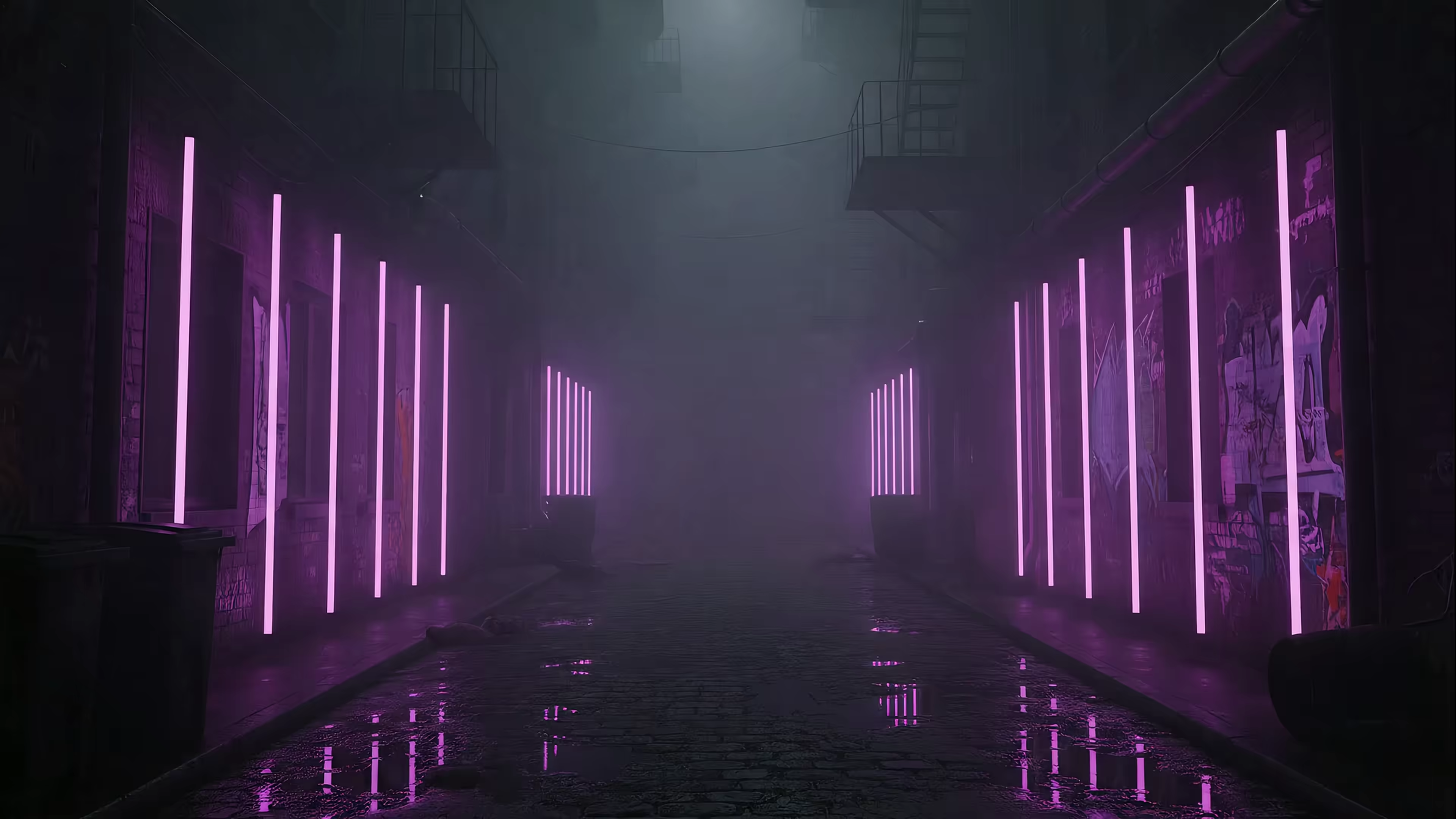
If you want the look without spending your weekend nudging edit points by single frames, there are also one-click options made for Mac wallpaper use. That is part of the appeal here. Some people want to build the perfect loop by hand. Some people want purple neon rain behind their Finder windows in thirty seconds. Both are valid hobbies.
To set the mood, here's the sort of thing people are usually chasing when they search for this stuff.
Introduction
The first bad surprise in this hobby is that most videos don't loop. They end. Very rudely. A proper wallpaper loop has to survive repetition, which means the motion can't announce its own seam every few seconds like a drummer falling down a staircase.
Start with footage that wants to cooperate
If you're sourcing clips instead of filming them, look for scenes with these qualities:
- Continuous motion. Rain, waves, smoke, embers, cloud drift, and abstract particles hide edits better than anything with a clear path.
- Stable framing. Camera drift is the enemy. A locked shot gives you a fighting chance.
- Even lighting. Passing shadows or auto-exposure adjustments will betray the loop even if your cut is technically clean.
- No entrances or exits. If a bird flies in but never flies out, your loop now has plot. Plot is bad for ambient wallpaper.
Practical rule: If the clip would still make sense when watched from a random point in the middle, it can probably become a wallpaper loop.
Filming your own isn't hard in the cinematic sense. It's hard in the monk-copying-manuscripts sense. Use a tripod. Turn off anything automatic that changes the image over time if your camera allows it. Let the scene run longer than you think you need. Ambient motion needs room to breathe before you start cutting it into a circle.
The visual target is simple enough to say out loud. You want a moving image that doesn't feel repetitive, doesn't look compressed, and doesn't slap you in the face every time the loop resets. Easy sentence. Slightly cursed process.
Finding Footage That Actually Loops
You set a beautiful 4K clip as your Mac wallpaper, close the laptop feeling smug, open it the next morning, and there it is. A tiny hitch every few seconds. On a Retina display, that hitch might as well be a fire alarm.
For desktop wallpaper use, "loopable" is a much stricter standard than "fine in a promo reel." A loop for a webpage can get away with a lot because nobody stares at it for hours. A loop on a Mac desktop has to survive idle time, window changes, and the weird punishment of being half-watched out of the corner of your eye.

Stock sites also love the phrase "continuous loop." Sometimes they mean it. Sometimes they mean "nobody checked frame 1 against the last frame at full size." For a personal live wallpaper, that difference matters. The clip can look polished on first pass and still become intolerable once it has repeated behind your apps for twenty minutes.
If you're downloading footage
Stock footage is usable. It just needs inspection, not trust.
Check these before you download anything in 4K:
- Loop point camouflage. Scrub the last second into the first second several times. Watch the motion vectors, not the subject. Water, smoke, particles, and fog can still jump if the flow pattern resets too cleanly.
- Compression scars. Retina panels are rude little truth machines. Banding in gradients, smeared highlights, and blocky low-light texture all become more obvious when the clip sits full-screen.
- Real duration. Eight seconds can be enough for signage. It gets repetitive fast on a desktop. Longer clips give the wallpaper room to feel ambient instead of robotic.
- Edge behavior. Corners and frame edges reveal bad loops first. Drift, flicker, or a repeating splash pattern near the bezel is hard to ignore once you notice it.
Generated footage can help if you want motion designed to repeat from the start instead of footage that needs to be rescued later.
If you're filming your own
This is often the better route because you control the variables that ruin loops.
A few subjects are consistently forgiving:
| Subject | Why it works | What ruins it |
|---|---|---|
| Rain on glass | Random motion hides cuts | Focus hunting |
| Waterfalls | Constant flow masks resets | Camera shake |
| Tree canopies | Natural oscillation feels organic | Gusts that change the whole pattern |
| Fireplace embers | Flicker stays interesting for longer | Exposure shifts |
| Abstract projections | Motion without narrative loops well | Hard lighting changes |
The best footage for a Mac wallpaper has no obligation to tell a story. It just needs to remain pleasant at 2 p.m. on Tuesday when you're six tabs deep and only seeing ten percent of it. That is a strange artistic brief, but it is the correct one.
A loop works like patterned paper wrapped into a cylinder. If the texture and motion line up, your eye accepts the trick. If one line slips, your brain files a complaint and never shuts up about it.
For the desktop setup side, this guide to making moving wallpapers connects the edited video to an actual Mac wallpaper workflow. And if you'd rather skip the whole "stare at two nearly identical frames until your soul leaves your body" phase, there is a one-click route later in this guide.
Nature footage still wins more often than anything else. Water, mist, snowfall, and slow branches give you randomness without chaos, which is exactly what a good wallpaper loop needs. That is also why a lot of reliable ambient options end up in nature wallpaper collections. They are calm, forgiving, and they do not beg for attention.
The Dark Art of the Seamless Edit
Your Mac desktop is where bad loops get exposed. A jump that feels minor in an edit bay becomes impossible to ignore when it repeats all afternoon behind your browser windows. On a Retina display, the punishment is harsher. Tiny shifts in edges, grain, or brightness read like a glitch, not atmosphere.

A perfect loop depends on one boring, stubborn requirement. The last frame and first frame need to feel like neighboring moments from the same shot. Not cousins. Neighbors. If the motion, exposure, or texture shifts too much, your wallpaper starts blinking at you like it wants credit for existing.
The classic edit that works
The standard fix is simple in concept and annoyingly fussy in practice. Cut the clip at a useful point, move the back half to the front, then blend over the new middle so the exported beginning and ending sit close to the same visual state.
A common workflow:
-
Duplicate the clip.
Put a copy after the original on the timeline. -
Find a cut point with forgiving motion.
Gentle drift, falling snow, rippling water, floating particles. Those are friendly. A bird entering frame or a branch snapping sideways is not. -
Move the latter section to the front.
This places the problem area in the middle, where you can hide it with overlap instead of leaving it at the loop point. -
Crossfade the overlap.
Keep it short enough to avoid mush, long enough to hide the switch. There is no magic number. Ten frames might do it. Thirty might be safer. Your eyes decide.
The software matters less than people pretend. Resolve, Premiere, and Final Cut all handle this fine. What matters is patience and source quality. If the shot has micro-jitter, compression blocks, or exposure breathing, the edit becomes a repair job.
For a Mac wallpaper, I also check the composition against common MacBook wallpaper dimensions and aspect ratios before I commit to the cut. A loop can be technically perfect and still fail once the menu bar crops the sky or the Dock eats the interesting part.
Let the loop run for a few minutes, not once. Wallpaper footage lives in peripheral vision, and that is exactly where tiny mistakes become weirdly loud.
Where edits usually fail
The timeline can look clean and still betray you in playback.
Common failure points:
- Micro camera movement. Stabilization wobble, handheld drift, or a tiny pan can create a visible hitch.
- Strong directional motion. Cars, people, smoke, or waves with a clear left-to-right push are hard to reset cleanly.
- Compression damage. Blocky source footage falls apart during blends, especially in gradients and shadow detail.
- Overcorrection. Heavy warping, speed ramps, or fake motion blur often draw more attention than the original problem.
This is why good loop footage often looks a little humble under technical inspection. That is a compliment. Wallpaper video is supposed to sit there and behave.
The reverse and crossfade trick
Some clips respond well to a duplicate, reverse, and crossfade approach. The motion returns toward an earlier state, which can hide the reset without a hard visual snap. It works best with abstract light, soft particles, distant clouds, and other movement that does not advertise direction too clearly.
It works badly on anything your brain can map as cause and effect. Fire that curls one way, water that splashes outward, traffic, people, animals. Reverse those and the result feels cursed, which is impressive in its own way but rarely the goal.
One last practical note. Zooming to 800% and obsessing over a single pixel is normal at this stage. Slightly ridiculous, yes. Still normal. Because when the loop is right, your desktop stops looking like a video file and starts looking like a window, and that is the whole point.
Exporting for Retina Without Losing Your Mind
You finish the edit, export it fast, set it as your wallpaper, and your beautiful 4K loop suddenly looks like it got dragged through a toaster. That usually happens at export, not in the timeline.
For a Retina Mac wallpaper, the job is simple in theory. Keep the image sharp, keep motion clean, and avoid turning gradients into banded soup. A GIF is not built for that. It throws away color, bloats file size, and makes expensive source footage look weirdly cheap.
Export settings worth caring about
Start with the display target. Export at 3840×2160 if you want a true 4K file, and check your desktop scaling before you commit. macOS can be a little sneaky about how it maps wallpaper to the panel, so checking the MacBook wallpaper size guide is worth doing before the final render.
A few settings do most of the work:
- Resolution: 3840×2160. Keep the full frame unless you are cropping for a specific monitor layout.
- Frame rate: 60fps for rain, particles, drifting light, and other motion that benefits from extra temporal detail. 30fps is often enough for slower atmospheric scenes and cuts file size hard.
- Color depth: 10-bit if your pipeline supports it. Gradients in dusk skies, fog, neon, and shadow transitions hold together much better.
- Codec: H.264 is smaller and easier to play back. ProRes preserves more detail and survives re-exports better, but the files get large fast.
Those trade-offs matter more on a wallpaper than people expect. Desktop video sits behind everything, all day, on a very sharp screen. Tiny compression mistakes that would pass in a social clip become impossible to ignore once they are living under your icons for eight hours.
I usually favor quality first, file size second. One bad night-sky export can permanently turn a person into an irritating bit-depth snob.
Loop length also changes the export decision. For wallpaper use, 30 to 45 seconds is a practical sweet spot because repetition stays low without creating a giant file that macOS has to keep decoding in the background. Longer clips can work, but they are harder to store, slower to encode, and less fun to troubleshoot when one artifact appears on frame 1432 and mocks you personally.
If the source has soft gradients, low light, fog, water reflections, or glowing edges, cheap settings fail first there. Test the exported file full-screen before you install it as wallpaper. Look at the dark areas. Look at the sky. If you can see banding or mosquito noise from a normal sitting distance, export again and stop pretending it is fine.
For personal wallpaper use, that is the whole game. Preserve detail, respect the display, and choose a codec your Mac can play comfortably without turning your desktop into a tiny ongoing compression crime.
The One-Click Solution for Mac Live Wallpapers
If all of that sounds like a respectable hobby you'd rather not adopt, that's reasonable. Making a perfect wallpaper loop is fiddly. Checking seams is fiddly. Exporting for Retina without introducing fresh crimes is also fiddly.

There's a simpler route for Mac users who want the result without spending the weekend courting frame alignment. gifPaper for Mac uses Apple's native Aerial wallpaper format, the same high-fidelity system Apple uses for its own cinematic video wallpapers in macOS Sonoma and later. It sets the lock screen and desktop as the same wallpaper in one action, matching the native behavior.
A few details matter because vague wallpaper talk is useless:
- The site has 150+ seamlessly looping 4K live wallpapers with ambient music. Free to browse.
- The app sets lock screen, desktop, and screen saver.
- The lock screen slows down as you unlock, like Apple's own implementation.
- It's a $4.99 one-time purchase, not a subscription.
- There's a 7-day free trial, no credit card required, plus a 30-day money-back guarantee.
- It requires macOS 26 Tahoe or later and is distributed by direct download because Apple's sandboxing gets in the way of live lock screen wallpapers. The app is notarized by Apple.
That isn't a sermon about lifestyle optimization. It's just a neat answer to an oddly stubborn technical problem.
Your 4K Loop Video Questions Answered
Why does my loop still have a visible jump
Because your eye is better at spotting pattern breaks than your timeline is at flattering you. The usual causes are tiny camera movement, a bad cut point, or compression damage introduced during export. If a scene has directional action, the seam often becomes obvious only after several repeats.
The real test is repetition. Let the loop play long enough that you stop admiring it and start ignoring it.
What's the best software for making a 4K loop video
Use the editor you already trust enough to trim frame by frame. DaVinci Resolve, Final Cut Pro, and Adobe Premiere Pro all work. The winning factor isn't brand loyalty. It's whether you can inspect the seam carefully, shift clips precisely, and export with control over codec, bitrate, frame rate, and color.
Can I use a YouTube video as a live wallpaper
Technically, you can turn many videos into wallpaper assets if you have the file and the rights to use it. Practically, most YouTube videos are terrible candidates. They have built-in starts and endings, camera moves, cuts, compression, on-screen text, or all five if the editor was feeling energetic.
How long should a wallpaper loop be
For ambient desktop use, moderate length works better than either extreme. Very short loops feel mechanical. Very long loops are harder to edit cleanly and heavier to manage. The sweet spot is usually enough motion to feel alive without turning your desktop into performance art.
Do I need 4K for a Mac wallpaper
If you're using a Retina Mac and you care about detail, yes, 4K is the sensible target. Fine textures, gradients, smoke, rain, and neon all look worse when the source falls apart. You don't need excess for the sake of bragging rights. You do need enough resolution that the wallpaper survives being looked at closely.
If you want the moving-wallpaper effect without spending your evening crossfading waterfalls like a Victorian clockmaker, browse the free gallery at gifPaper. If you want the Mac side of it, the app handles the lock screen, desktop, and screen saver with Apple's native wallpaper system. About 150 wallpapers right now, more coming. A combination nobody asked for, and yet here we are.