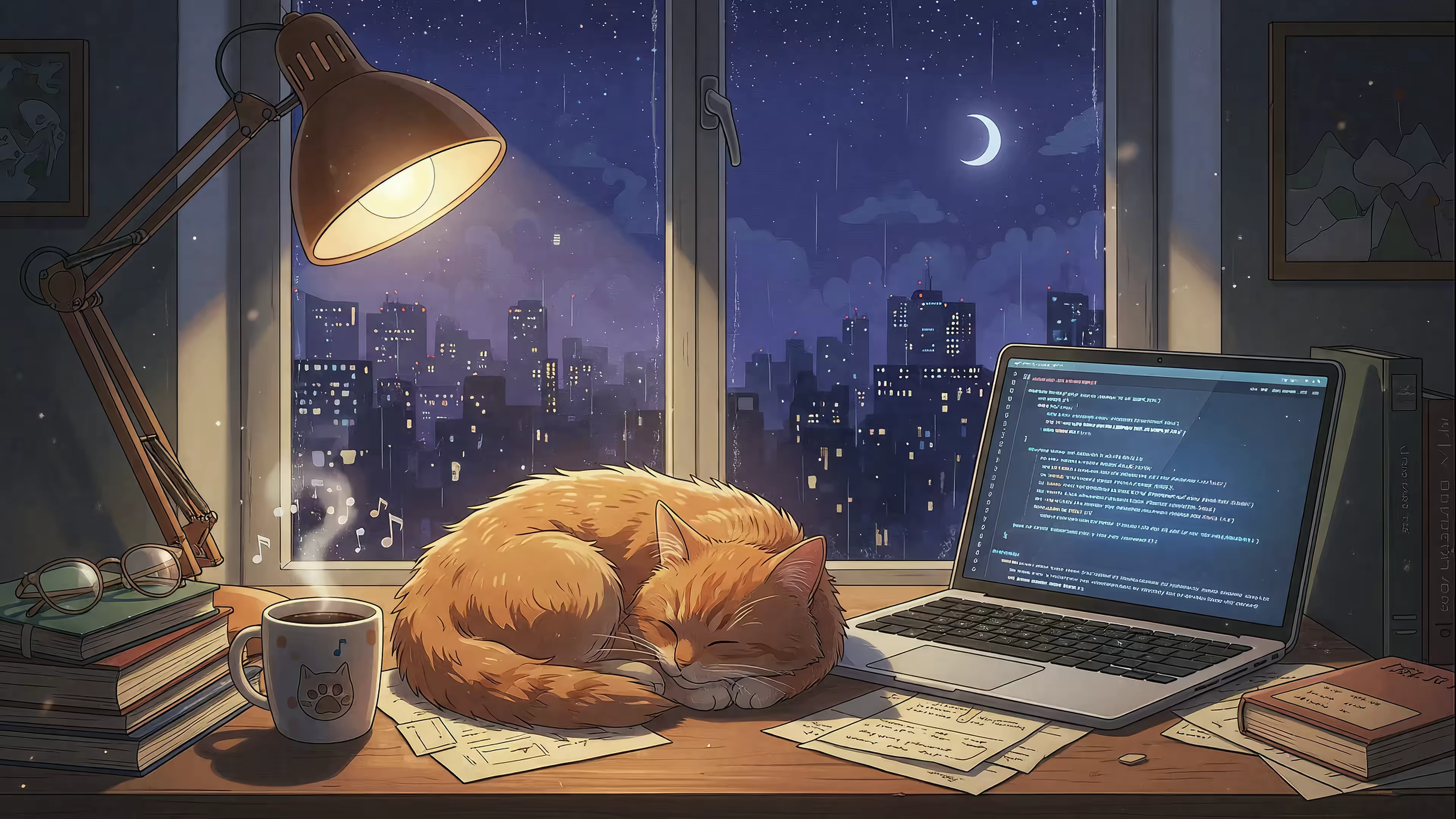
Your Guide to Aesthetic Mac Backgrounds That Actually Look Good
Your Mac's desktop background isn't just decoration. It's a mood. You're going to stare at this thing for hours, so making it something you actually like looking at isn't frivolous—it's smart.

Why Your Mac Background Matters
Your Mac's desktop is some of the most valuable real estate you own. It's where you start your day, where you pretend to be productive, and where you inevitably vanish for three hours reading about the history of sporks. Treating it as an afterthought is a missed opportunity.
Choosing an aesthetic background is like picking the right playlist. It sets a tone. It can be a clean, minimalist workspace that helps you focus, or a cozy corner that just makes you feel at home. It's a small act of control over your digital environment.
A Tiny Act of Self-Care
Think of it as a simple form of self-care. A calming nature scene gives your eyes a micro-break during a marathon work session. A vibrant neon cityscape might give you that jolt of energy you need at 3 PM when you're flagging.
You're validating your own taste by personalizing your space. People are actively investing in making their digital spaces feel better.
You wouldn't stare at a blank wall for eight hours a day. Why should your digital wall be any different?
Completing the Look
This commitment to a specific look often extends beyond the screen. It's common to see people personalizing their device's physical appearance with things like stylish MacBook sleeves. It's all part of the same impulse: making the tools you use every day feel more like your own.
Your wallpaper is the backdrop to your entire digital life. It might as well be a good one.
Finding Your Vibe with Popular Wallpaper Aesthetics

Your Mac's default wallpaper has overstayed its welcome. Good. The next step is figuring out which aesthetic actually matches your style, instead of grabbing the first pretty image you find.
An aesthetic is more than a color palette; it's a collection of visual cues that creates a specific feeling. This is the backdrop for your work, your procrastination, and everything in between. It should feel right.
Here's a quick breakdown of the most popular aesthetics.
Find Your Perfect Aesthetic Wallpaper
| Aesthetic | The Vibe | Best For | gifPaper Category |
|---|---|---|---|
| Lofi | Cozy rooms, rainy windows, sleepy cats. Warm, nostalgic, and quiet. | Late-night study sessions, deep work, or just chilling. | Lofi |
| Neon / Cyberpunk | Glowing cityscapes, slick chrome, moody purples and blues. | Coding, design, or feeling like you're in the future. | Neon, Cyberpunk |
| Nature | Misty forests, serene lakes, vast starry skies. | A mental reset, reducing screen fatigue, and a dose of tranquility. | Nature, Space |
| Dark / Minimal | Clean lines, subtle gradients, abstract textures. | Maximum focus, reducing eye strain, and a distraction-free setup. | Dark, Abstract |
The Lofi Study Vibe
Lofi is the internet's comfort food. It's all about nostalgia, warmth, and a quiet sense of focus. Visually, this means cozy rooms, rainy windows, sleepy cats, and maybe a gently spinning record player.
It's the perfect backdrop for late-night study sessions or deep work. It's calming, unassuming, and never screams for your attention—just a quiet companion that makes your desk feel a little less lonely. It's for pretending you're the main character in an anime who is, for some reason, always doing homework.
Neon and Cyberpunk Energy
If Lofi is for quiet focus, Neon and Cyberpunk are for when you need to feel like you're living in the future—ideally a cool, rainy one. This aesthetic is all glowing cityscapes, slick chrome, and a color palette heavy on purples, blues, and pinks. It's moody, atmospheric, and buzzing with energy.
This vibe is perfect for programmers, designers, or anyone working late and fueled by the glow of their screen. It turns your Mac into a command center for a cyberpunk future that, thankfully, doesn't require you to fight rogue androids.
Calming Nature and Landscapes
Sometimes you just need a breath of fresh air, even if it's digital. Nature aesthetics bring the outdoors to your desktop, from misty forests and serene lakes to snowy mountains and cosmic expanses. These backgrounds are all about tranquility and scale.
Think of it as a mental reset button. A vast, starry sky or a gentle snowfall can make your cluttered desktop feel a little less chaotic, giving your eyes a place to rest that isn't a spreadsheet. For a deeper dive into finding the perfect wallpaper aesthetic, check out the full collection.
Minimal and Dark Mode Focus
For the purists, there's the minimal or dark aesthetic. This style prioritizes function over flash, using clean lines, simple textures, and muted colors to create a distraction-free environment. Think subtle gradients, abstract shapes, or a simple, elegant dark texture.
A good dark wallpaper reduces eye strain and makes the other elements on your screen pop. The appeal here is a feeling of control and clarity—your wallpaper gets out of the way so you can get to work. It's the digital equivalent of a perfectly clean desk.
Going Beyond Static Images with Live Wallpapers

A static JPEG is fine. It does the job. But after you've spent all this time dialing in your perfect aesthetic, a still image can feel like settling. Live wallpapers are the next step, turning your desktop from a static picture frame into a window on another world.
Think about it: a background that actually moves. A gently crackling fireplace. Rain trickling down a windowpane. Stars drifting through a nebula. It creates a powerful mood without actively demanding your attention. It's ambient, not distracting. This isn't a gimmick; it's the final piece of the puzzle, bringing the entire vibe to life.
Aren't Live Wallpapers Distracting and Resource-Hogs?
This is the big myth, a holdover from the days of clunky, pixelated GIFs that would make your old laptop fan scream for mercy. Modern live wallpapers are a completely different beast. They're built for subtlety and efficiency.
Today's high-quality live wallpapers use seamlessly looping 4K video, designed to be a gentle, ambient presence. The key is in the execution. They don't flash or jerk; they flow. They're less like a video playing on your desktop and more like an open window.
A live wallpaper should be felt more than it is seen. The moment you stop consciously noticing the motion is the moment it's doing its job perfectly.
The goal is to create an atmosphere, not a distraction. The best ones add depth and life to your screen without ever pulling focus from the work—or procrastination—you're actually there to do.
Even Apple Is All In on Motion
Apple itself has been leaning heavily into dynamic and live wallpaper experiences. It's a clear signal that motion is becoming central to the modern desktop.
From the slow-motion drone footage of Hawaii to the real-time 3D renders of Sonoma, Apple gets it. Their marketing for new product launches is often defined by these unique moving wallpapers. It validates what so many of you already feel: your Mac's background is a key part of the experience.
A live wallpaper is simply the most complete way to make that happen.
Live Wallpaper Examples You Can Use Right Now
Theory is one thing. Actually seeing it on your screen is another. You've thought about the mood you want. Now for the fun part: picking the wallpaper.
Here are a few examples from the gifPaper collection. These aren't just pictures. They're seamlessly looping 4K videos made to bring a specific vibe to your Mac's desktop, lock screen, and screen saver.
For Cozy Focus and Late-Night Vibes
You need to get work done, but you also want to feel like you're tucked into a quiet corner of the world. The lofi aesthetic is unbeatable for this. It sets a mood of calm focus without yelling for your attention.
The point isn't just to look good. It's about making your digital space feel more like your space.
The girl who's always studying would approve. All the focus, none of the pressure.
For Escaping into Nature
Sometimes the best thing for your productivity is to stare at something that isn't a spreadsheet. A nature scene is a digital breath of fresh air. It's a tiny escape hatch that can make a long day at the desk feel a little less like a prison sentence.
These backgrounds work because they add a sense of calm and depth. A gentle snowfall or a quiet forest stream can make your entire desktop feel bigger and more peaceful. The subtle, constant motion is surprisingly soothing—far more than a static image. It's a small window to a quieter world, right on your screen.
The right aesthetic Mac background does more than just sit there; it turns your screen from a tool into a place you actually enjoy being.
How to Set a Live Wallpaper on Your Mac
Alright, you've picked your vibe and you're ready to graduate from static JPEGs. The good news is that setting a live wallpaper is absurdly simple. The bad news? You'll probably spend the next hour just waking up your Mac to see the lock screen animation.
Here's how to do it with the gifPaper for Mac app. The whole process takes about three clicks. Seriously.
The Three-Click Installation
First, you need the app. It's a direct download—not from the Mac App Store—because Apple's sandboxing rules stop other apps from properly accessing the live lock screen feature. The app is notarized by Apple, so it's completely safe.
- Download and Install: Grab the app from the website. Drag it to your Applications folder like you've been doing since 2009.
- Open the App: You'll see a new menu bar icon (a little "g"). Click it to open the wallpaper gallery.
- Choose a Wallpaper and Click "Set": Find one you like. Click the big "Set Wallpaper" button. That's it. You're done.
One click sets your chosen live wallpaper as your lock screen, desktop, and screen saver all at once. No more fiddling with three separate settings panels.
What Makes This Different
You've probably seen other wallpaper apps. Most are just playing a video in a window behind your desktop icons. It's a hack, and it often means no live lock screen, or a janky one that doesn't feel native.
gifPaper is the first and only app that uses Apple's native Aerial wallpaper format. It's the same system Apple uses for its own moving wallpapers, which means the lock screen experience is perfect.
This is why, when you wake your Mac, the live wallpaper gracefully slows to a stop as you type your password. It's seamless and fluid, exactly like Apple's own, because it's using the same technology.
Your New Wallpaper Trifecta
Once you set a wallpaper, gifPaper takes over three key areas, giving you a complete aesthetic overhaul without you having to lift another finger.
- Lock Screen: This is the main event. Wake your Mac to a living, breathing scene that makes a statement before you even log in. It's a small moment of delight that starts your session off right.
- Desktop: By default, the wallpaper appears as a beautiful still frame. This saves resources and—let's be honest—avoids distraction. Want the full motion experience? Just toggle on the video animation from the menu bar.
- Screen Saver: Remember screen savers? They're back, and they're finally worth looking at. Your chosen scene will play in full 4K glory whenever your screen saver kicks in.
The goal was to create the best possible live wallpaper experience for Mac. No subscriptions, no ads, just a one-time purchase to make your screen look incredible. Ready to give it a shot? The 7-day free trial gives you full access to the entire collection.
Frequently Asked Questions About Live Wallpapers
You're about to give your Mac a personality transplant, so it's fair to have a few questions. Let's get the common ones out of the way.
Will Live Wallpapers Drain My Mac's Battery?
This is the number one question. The short answer: no, not in any meaningful way.
The gifPaper for Mac app is built to be smart about when it animates. By default, the animation is paused and your desktop just shows a crisp still frame. The full 4K video only plays in two situations:
- On the Lock Screen: The motion is active only when you first wake your Mac. The moment you start typing your password, it gracefully slows to a stop.
- As a Screen Saver: When your screen saver kicks in, the full video plays. But at that point, you aren't using your Mac anyway.
This means the app uses virtually zero resources during your normal workflow. You get all the beauty of an aesthetic Mac background without sacrificing battery life.
Can I Use My Own Videos or GIFs?
Right now, you can't, and that's a deliberate choice. I curated a collection of over 150 seamless, 4K looping wallpapers to make sure the experience is premium from the start.
The goal is to give you perfectly optimized videos that loop without a single stutter and look incredible on a Retina display. I'm focused on regularly adding new, high-quality wallpapers to the collection, from cozy fireplace scenes to moody cityscapes.
Why Isn't gifPaper on the Mac App Store?
This comes down to giving you a better experience. Apple's sandboxing rules for the Mac App Store are strict, and they prevent apps from getting the deep system access needed to create a truly seamless live lock screen.
To get that perfect, native-feeling lock screen—the one that slows down as you unlock, just like Apple's own—the app needs to be installed directly. It's a trade-off: a slightly different installation for a massively better feature.
The app is still notarized by Apple, which means they've scanned it for malicious content and confirmed it's safe to install. You can learn more about the specifics of the Mac app here.
Is This a Subscription?
Absolutely not. I'm not a fan of subscription fatigue, and I don't expect you to be either.
gifPaper is a one-time purchase. You pay once and own it forever, including all future updates and any new wallpapers added to the gallery. The launch price is just $4.99. That's less than two fancy coffees for a permanently more pleasant Mac. You can try everything for free for 7 days, no credit card required.
Ready to stop staring at a boring screen? gifPaper has a library of 150+ live wallpapers waiting to make your Mac's lock screen, desktop, and screen saver actually worth looking at. Download the free trial and see for yourself at gifpaper.com/macos-app.