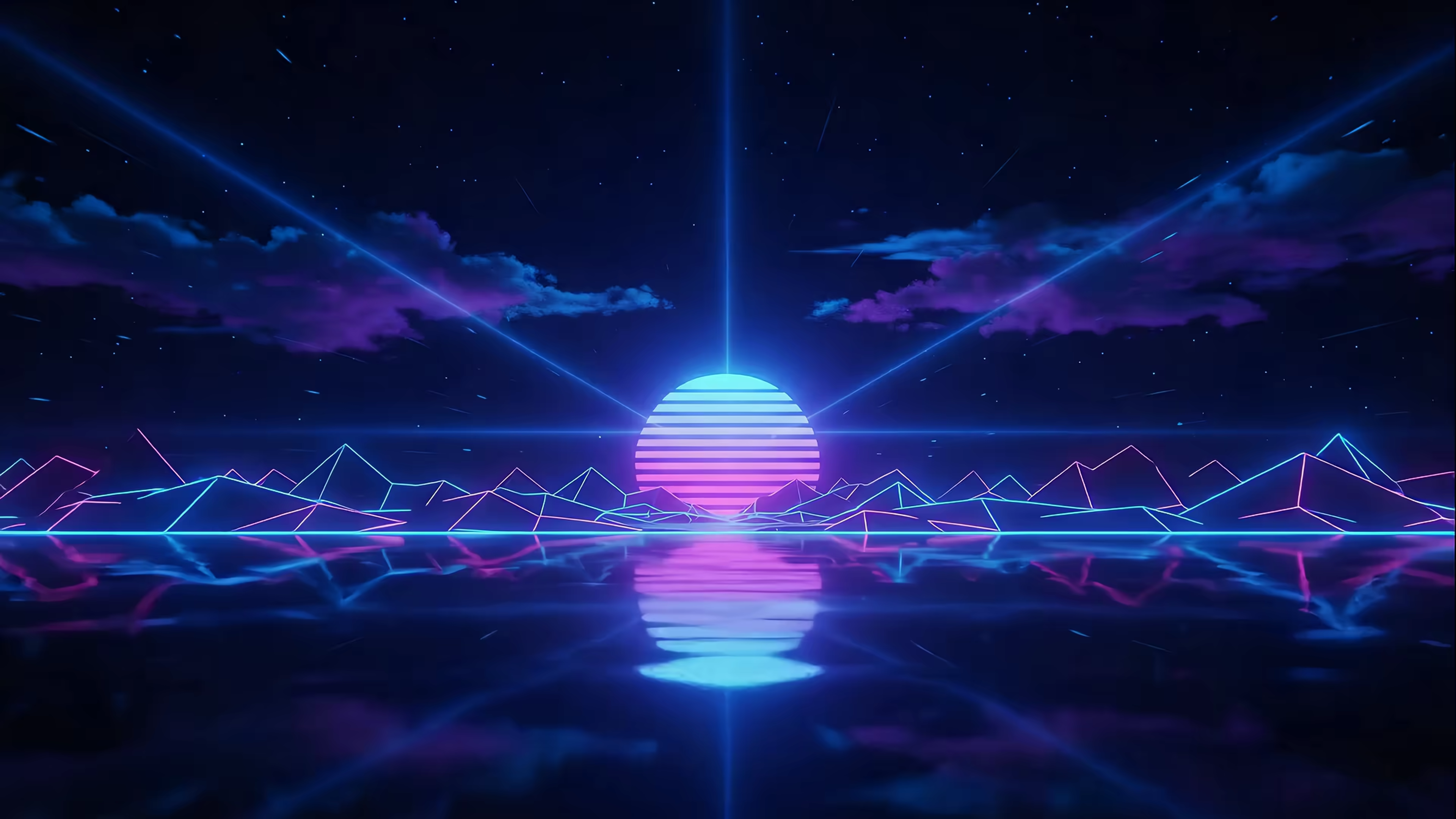
How to Change Your Mac Lock Screen (Wallpaper, Video & More)
Your Mac's lock screen is the first thing you see every morning. Before coffee, before Slack, before the existential weight of your inbox. And right now, it's probably showing you... a gradient. Or some drone footage of Hawaii you didn't ask for.
Let's fix that.
The Quick Answer
System Settings → Wallpaper → pick an image → done.
That image becomes both your desktop and lock screen wallpaper. On Mac, they're the same — one setting controls both.
If you want video on your lock screen instead of a static image, skip to Video Lock Screen with gifPaper.
Step-by-Step: Change Your Lock Screen Wallpaper
- Click the Apple menu () in the top-left corner
- Select System Settings
- Click Wallpaper in the sidebar
- Choose from Apple's built-in options, or click Add Photo or Add Folder to use your own images
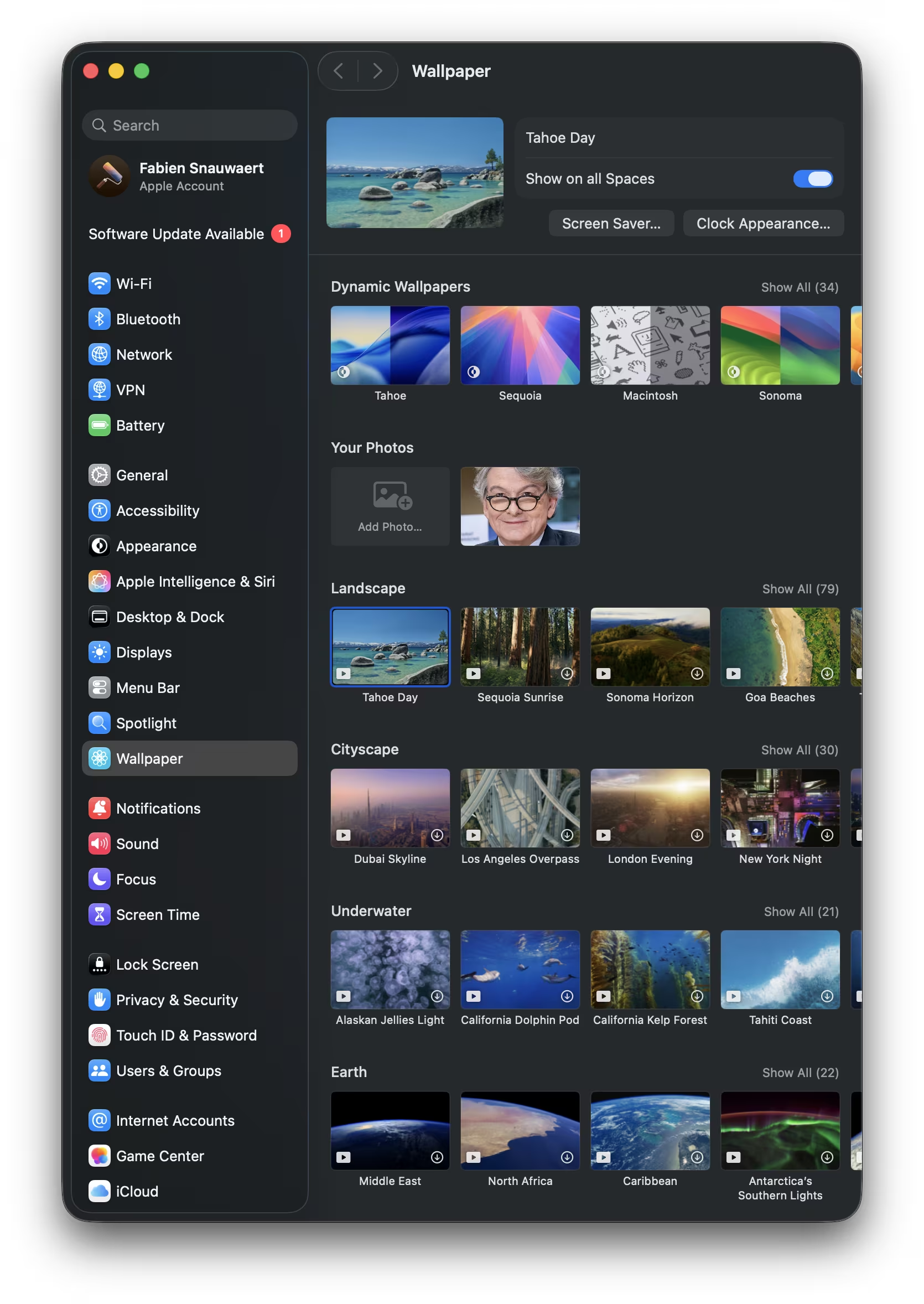
Your new wallpaper applies immediately to both your desktop and lock screen.
What Apple's Wallpaper Categories Actually Mean
| Category | What It Does |
|---|---|
| Dynamic Desktop (Big Sur, Catalina, etc.) | Still images that shift based on time of day. Not video — Apple's naming is confusing. |
| Aerial | Actual video wallpapers — Apple's drone footage of cities, landscapes, underwater scenes. The only native video option. |
| Sequoia / Sonoma / etc. | Real-time 3D renders that change lighting throughout the day. Pretty, limited selection. |
| Colors | Solid colors. Minimalist. |
| Photos / Folders | Your own images. |
One Thing to Know
On Mac, your lock screen and desktop share the same wallpaper. You can't set them separately — unlike iPhone, where they're independent.
Change your wallpaper once, it changes everywhere: lock screen, desktop, all your Spaces.
Bonus: How to Lock Your Mac Quickly
While you're thinking about your lock screen, here's the keyboard shortcut to actually lock it:
⌃⌘Q (Control + Command + Q)
Or press the Touch ID button if your Mac has one. Your new wallpaper will be waiting.
The Limitation
Apple's Aerial wallpapers are beautiful — slow-motion waves, city skylines at dusk, the obligatory drone-over-Hawaii footage. But they're the only video option.
You can't add your own.
Want a crackling fireplace on your lock screen? A rain-streaked coffee shop window? A neon cityscape that isn't San Francisco? Apple says no.
Everything else in System Settings is static. Photos. Gradients. Stills that shift colors but don't actually move.
That's where gifPaper comes in.
Video Lock Screen with gifPaper
I built gifPaper because I wanted exactly this — video on my lock screen that wasn't Apple's curated selection.
gifPaper uses Apple's own Aerial format. The same system Apple uses for their drone footage. Your Mac treats gifPaper wallpapers as native Apple wallpapers — not a floating window, not a hack, not a workaround.
What that means in practice:
- Lock screen video: When you wake your Mac, the wallpaper is already playing. It gently slows to a stop as you unlock — like a movie settling into its opening frame.
- One click to set: Pick a wallpaper, click, done. No multi-step setup in System Settings.
- Doesn't break when you quit: The wallpaper is written to the system. Close gifPaper, wallpaper stays.
150 wallpapers. All 4K. All looping seamlessly — the kind of loops where you forget you're watching an 8-second video on repeat.
What Your Lock Screen Could Look Like
A few examples from the collection:
Fireplaces, neon cities, cozy lofi rooms, space stations, nature scenes — browse the full collection in the app.
FAQ
Can I have different wallpapers for my lock screen and desktop on Mac?
No. Unlike iPhone, Mac uses one wallpaper for both your lock screen and desktop. When you change your wallpaper in System Settings, it applies everywhere — including all your desktop Spaces.
Does this work on MacBook Air / MacBook Pro / iMac?
Yes. Any Mac running macOS Ventura (13) or later uses the same System Settings → Wallpaper flow.
For video lock screens with gifPaper, you'll need macOS Tahoe (26) or later — that's when Apple's Aerial system became flexible enough to support custom videos.
Can I use my own video as a Mac lock screen wallpaper?
Not with Apple's built-in options. You're limited to their Aerial collection.
gifPaper lets you set video wallpapers on your lock screen, though you're currently choosing from the included collection rather than uploading your own. Custom video uploads are planned for a future update.
Get gifPaper
gifPaper for Mac — $5 one-time. 150 wallpapers, all 4K, all seamlessly looping.
Your lock screen's been showing you the same gradient for months. Maybe years. It deserves better. So do you.