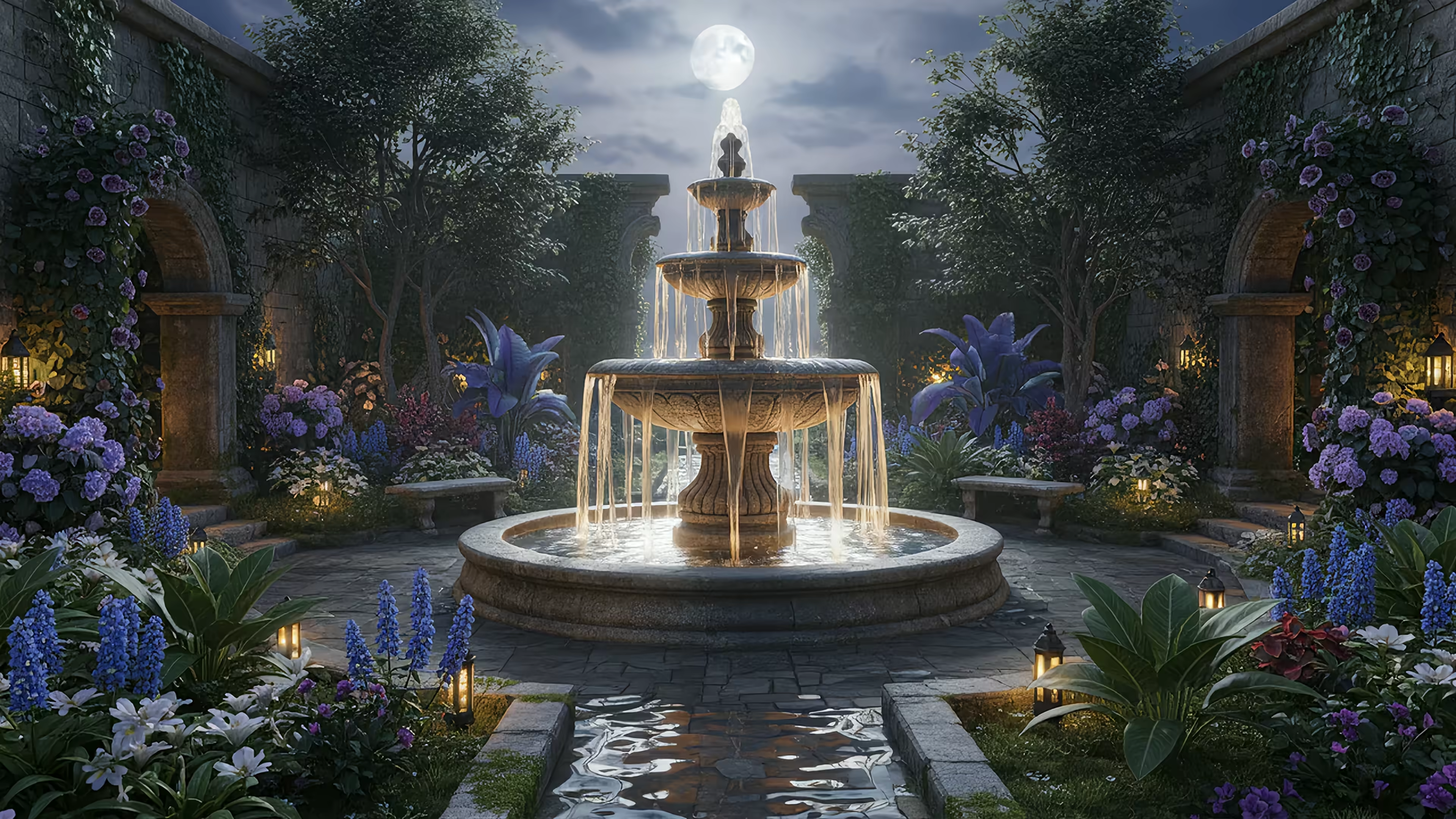
8 Calming Ways to Get That Perfect Ripples Water Effect on Your Mac
You spend a lot of time staring at your Mac. Work, procrastination, googling whether a cat's purr can mend human bones (the jury is still out). Whatever the reason, that screen deserves to be more than just a static image. A good ripples water effect—that gentle, mesmerizing, endlessly looping motion—is the visual equivalent of a deep breath. It's calming, it's beautiful, and it makes your high-tech slab of aluminum feel a little more organic.
But not all ripples are created equal. Some are lazy, some are jittery, and some look like they were made in 1998. This guide is for the Mac user who notices the difference between a seamless loop and a jarring jump-cut. I'm covering the best, most realistic, and most artful water effects you can find—and more importantly, how each one gets made.
This roundup showcases eight different methods for creating a ripple effect, from pre-made scenes to DIY coding projects. I'll break down what makes each effect work, from lighting and loop perfection to the software used. You'll learn how to pick the right scene for your Retina display and get practical tips for setting it up as a dynamic lock screen or a subtle desktop background using gifPaper. No coding required unless you want it, no complicated setup, just great-looking water.
1. The Subtle Stream: Zen Garden Ripples
This is the "less is more" school of thought for a dynamic desktop. Imagine a perfectly still pond in a Kyoto garden, its surface broken only by a single, slow disturbance. The resulting ripples water effect is concentric, gentle, and almost hypnotic. It's a study in tranquility, not drama, making it an ideal background for focused work.
The magic of this effect hinges entirely on a flawless loop. The moment your brain detects the seam where the animation repeats, the illusion of an endless, gentle disturbance shatters. I obsess over making these loops invisible, ensuring the meditative quality is never broken. It's perfect for a desktop where you want subtle movement that won't steal focus from your spreadsheets about other spreadsheets.
Why This Ripple Effect Works So Well
- Subtle Motion: The slow, predictable movement is calming rather than distracting, making it a fantastic choice for a primary work display. It adds life to your screen without demanding attention.
- Minimalist Aesthetic: These scenes often feature clean compositions and muted colors, which pair beautifully with macOS's dark mode or any minimalist setup.
- Loop Perfection: A seamless loop creates a perpetual, mesmerizing state. It's the difference between a cheap-looking GIF and a high-quality live wallpaper.
A great subtle ripple is one you forget is even moving. It becomes part of the atmosphere, like the hum of a computer or the soft ticking of a clock, providing a sense of calm continuity without conscious effort.
Setting It Up in gifPaper
To get the most out of this serene effect, head into your gifPaper settings. For your Desktop, make sure the "Animate on Desktop" toggle is on. The subtle motion is excellent for concentration. For your Lock Screen, the wallpaper will animate automatically when you wake your Mac, slowing to a stop as you log in. Look for these scenes in the nature-wallpaper or minimal collections to find the perfect zen moment.
2. Three.js Water Effect Library
Moving from pre-rendered loops to real-time generation, the Three.js library is the powerhouse behind some of the most dynamic and interactive water effects on the web. It's a robust JavaScript toolkit for creating 3D graphics in a browser, and its built-in water simulation tools are exceptional. This is for the creators, the coders, and anyone who's ever wanted to build their own custom ripples water effect from the ground up, rather than using a pre-made video.

This method isn't about finding a perfect loop; it's about creating an infinitely variable one. The library simulates water physics, allowing for realistic wave patterns, light refraction, and even convincing caustics (the shimmering light patterns on the bottom of a pool). While you can't run JavaScript directly as a Mac wallpaper, you can use these tools to generate your own perfect, seamless video files. It's the ultimate DIY approach for a one-of-a-kind desktop.
Why This Ripple Effect Works So Well
- Ultimate Customization: You control everything: water color, wave size, sun direction, and ripple intensity. You can create a placid lake or a turbulent ocean.
- Realistic Physics: It simulates light and motion, producing effects that look incredibly lifelike. The refractions and caustics add a layer of depth that pre-rendered videos often lack.
- Infinite Variety: Because the effect is generated programmatically, it never truly repeats. You can export a long-form video that feels endlessly unique and organic.
Three.js turns your browser into a digital water basin. It's less about finding a wallpaper and more about becoming the artist who crafts the perfect, endlessly flowing scene yourself.
Setting It Up in gifPaper
Once you've created and exported your custom water scene as a high-quality video file (MP4 or MOV), bringing it to your desktop is straightforward. The gifPaper app doesn't support custom user uploads yet, but this is the exact technique I use to create many of the wallpapers in the collection. You can see the results in the nature wallpapers to see what's possible with these techniques.
3. After Effects Water Ripple Plugin (Built-in & Turbulent Displace)
For the motion designer who wants total control, we leave pre-made loops behind and head into Adobe After Effects. This is the "build-it-yourself" approach, combining the native ripples water effect with the powerful Turbulent Displace plugin. It's less about finding a perfect scene and more about creating one from scratch, giving you granular control over every aspect of the animation. This method is how professional, broadcast-quality water effects are made.
The combination of these two tools allows for incredible organic complexity. The standard Ripple effect creates clean, concentric circles, but Turbulent Displace adds the chaos of natural water movement. By layering and animating them together, you can design anything from a hyper-realistic pond surface to an abstract, lofi-style ripple animation. It's the ultimate playground for anyone who wants their desktop to be a custom piece of motion art.
Why This Ripple Effect Works So Well
- Ultimate Control: You dictate the speed, size, complexity, and evolution of the ripples. This allows for perfect, seamless loops tailored to your exact aesthetic, whether it's subtle or dramatic.
- Organic Complexity: Layering Turbulent Displace with different settings and seed values creates a ripples water effect that feels far more natural and less computer-generated than a single-layer effect.
- Creative Freedom: This technique isn't limited to water. You can apply it to text, logos, or abstract shapes, combining it with textures and color overlays for unique desktop art that no one else has.
A truly great custom ripple effect is one that perfectly matches the mood you want to create. It's the difference between picking a wallpaper and commissioning a piece of digital art for your screen.
Setting It Up in gifPaper
Once you've perfected your animation in After Effects, render it out as a high-quality video file (ProRes 422 HQ is a solid choice). While custom uploads aren't supported in gifPaper yet, you get the satisfaction of knowing the professional-grade scenes in the app are made with these very tools.
4. Blender Mantaflow Fluid Simulation
For those who want to move beyond pre-made loops and take complete creative command, Blender's Mantaflow engine is the answer. This isn't just a filter; it's a full-fledged physics simulation tool used by VFX artists. It lets you create an intensely realistic ripples water effect from scratch, controlling everything from fluid viscosity to the exact force of an object hitting the surface. You can craft photorealistic rain, slow-motion droplets, or complex wave patterns that interact with their environment.

The power of Mantaflow is in its precision. While it requires more technical know-how, the payoff is a completely unique, photorealistic scene tailored to your exact vision. The process involves setting up a 'domain' for the water, defining collision objects, and 'baking' the physics simulation, which calculates the water's movement frame by frame. If you've ever wanted to create your own live wallpapers, this is an excellent place to start.
Why This Ripple Effect Works So Well
- Ultimate Realism: Mantaflow calculates real-world physics, resulting in water behavior that looks and feels authentic. The splashes, waves, and secondary ripples are physically accurate.
- Total Creative Control: You can dictate the entire scene, from the water's properties to the lighting and camera angles, allowing for infinite artistic possibilities.
- Seamless Loop Potential: While it takes planning, you can configure Mantaflow simulations to loop perfectly, creating high-quality, seamless video files ideal for a wallpaper.
Creating a ripple in Blender is like being a digital god of a very small puddle. You get to decide the rain, the plink, and the final, serene stillness, all before you even hit render.
Setting It Up in gifPaper
Once you've rendered your custom water simulation as a high-quality video, bringing it into your Mac's ecosystem via gifPaper is straightforward. For your Desktop, you'll be able to toggle the animation on or off. The real magic is on the Lock Screen, where your custom creation would animate fluidly upon waking your Mac. It's the perfect way to showcase a piece of art that you built yourself, turning your login experience into a personal gallery.
5. Processing Ripple Algorithm with p5.js
For the creative coders and DIY enthusiasts, this is the ultimate power move. Instead of finding a pre-made wallpaper, you create your own ripples water effect from scratch using algorithms. Processing and its JavaScript counterpart, p5.js, offer accessible libraries for simulating wave physics. You're not just playing a video; you're programming the math that governs the disturbance, a digital god poking a pond of pixels.
This approach gives you total control. You can generate minimalist geometric patterns, color-mapped visualizations where wave height dictates hue, or even interactive ripples that respond to a mouse. The end result is a perfectly lightweight, custom animation. Once you're happy with the simulation, you render it as a seamless video file, ready to become a wallpaper. It's the perfect solution for anyone who finds existing options too limiting and wants to build something truly unique.
Why This Ripple Effect Works So Well
- Infinite Customization: You control everything from the ripple's speed and decay to its visual representation. Map ripple height to brightness, color, or even transparency for unique artistic effects.
- Lightweight Performance: A rendered video from a p5.js sketch is just a video file. It's often more efficient than complex, real-time rendering apps because the heavy lifting is done upfront.
- Creative Expression: This is a fantastic way to learn creative coding. The process, popularized by educators like Daniel Shiffman, is a rewarding project in itself. The final wallpaper is just a trophy.
Building your own ripple algorithm is about appreciating the underlying beauty of the physics. Adjusting a damping coefficient to get the decay just right is its own kind of zen, a quiet conversation between you and the code.
Setting It Up in gifPaper
Once you've exported your custom animation as a high-quality video (MP4 or MOV), adding it to gifPaper is a feature I'm still working on for custom user uploads. For now, the spirit of this approach is reflected in many of the procedural and abstract wallpapers in the gallery. Explore the minimal-wallpaper and abstract collections to find scenes born from similar algorithmic principles.
6. TouchDesigner Ripple Operator Chain
This is where things get gloriously technical. For creators who want to build a ripples water effect from scratch, TouchDesigner is the digital sandbox. It's a node-based visual programming environment, meaning you connect building blocks (operators) to create complex visual systems without writing traditional code. Think of it as a motion graphics laboratory for crafting perfectly synthetic, yet organic-looking, water disturbances.
The results can be astonishingly complex. Instead of a single ripple, you can build systems with multiple, interacting feedback loops that create self-evolving patterns. You can combine a base wave with layers of noise, displacement maps, and custom shaders to achieve a level of unpredictability that mimics real water. It's how motion graphics professionals build those hyper-detailed, futuristic water effects you see in high-end product visuals and interactive art installations.
Why This Ripple Effect Works So Well
- Infinite Customization: Because you're building the effect from the ground up, the only limit is your imagination. You can create gentle rain, chaotic storms, or sci-fi energy fields.
- Procedural Generation: The effect is generated by a system of rules, not a pre-recorded video. This allows for incredibly long, non-repeating animations and a deeply organic feel.
- Real-Time Feedback: Creators can see changes instantly as they adjust parameters, allowing for rapid iteration and fine-tuning until the effect is just right.
TouchDesigner lets you move beyond simple loops and into the realm of generative art. It's for the creator who doesn't just want a ripple, but wants to define the physics of the water it exists in.
Setting It Up in gifPaper
Scenes created in TouchDesigner are exported as high-quality video files, often in ProRes format for perfect Mac compatibility. I then convert these into the native format gifPaper uses. In your gifPaper settings, these complex animations are a fantastic candidate for the Desktop. Turn on "Animate on Desktop" to let the procedural magic unfold in the background. On the Lock Screen, the intricate motion will animate as you wake your Mac before settling down.
7. Shadertoy Ripple Effect Collection & Remixing
This one is for the coders, the tinkerers, and anyone who looks at a cool visual effect and immediately wants to tear it apart to see how it works. Shadertoy is an online playground for creating and sharing GLSL shaders, and it's an absolute goldmine for stunning, mathematically pure ripples water effect animations. These aren't video loops; they are real-time generative effects born from pure code, capable of simulating everything from a single drop to a roiling ocean.
The beauty of Shadertoy is its open-source spirit. You can find a masterpiece, click "Show Code," and see the exact logic that brings it to life. This makes it an incredible learning resource and a launchpad for creating your own unique wallpapers. You can take a classic like Iñigo Quilez's water ripple shader, tweak a few variables, and create a completely new aesthetic without starting from scratch.
Why This Ripple Effect Works So Well
- Infinite Variation: Because these effects are generated by code, they can be endlessly complex and never truly repeat. The math behind the simulation creates a truly organic and unpredictable motion.
- Performance: A well-written shader can be incredibly efficient, often using less CPU power than a high-resolution video file. It's pure GPU magic.
- Deep Customization: You have direct access to the source code. Want the ripples to be faster? The light to reflect differently? The water to be green? You can change it all.
The most captivating generative ripples feel alive because, in a way, they are. They're not replaying a recording; they're calculating a new state of being for every single frame, resulting in a perfectly imperfect, natural-looking disturbance.
Setting It Up in gifPaper
While gifPaper doesn't directly run GLSL shaders, the spirit of Shadertoy is all about creation and inspiration. Many of the most mesmerizing scenes I've created were born from techniques pioneered in the shader community. You could capture a screen recording of your favorite shader and loop it perfectly, but for now, you can browse the collections to find pre-made wallpapers that capture that same generative magic.
8. Houdini Ripple FX Digital Asset
This is the nuclear option for ripple creation, straight from the digital toolkits of Hollywood visual effects studios. SideFX Houdini is a procedural 3D application used to create the stunning visual effects you see in films. Its approach allows for generating an almost infinite variety of ripples water effect scenes, from a single raindrop to a full-scale tsunami, all with photorealistic precision. This is where the big-budget, can't-believe-it's-not-real water comes from.
The power of Houdini lies in its procedural, node-based workflow. Instead of hand-animating a ripple, you build a system of rules that simulates physics. This means I can create a single master effect, then generate hundreds of unique variations just by tweaking parameters like viscosity, speed, and collision objects. This is how a gallery like gifPaper can offer a deep collection of water effects that feel related but are never identical.
Why This Ripple Effect Works So Well
- Photorealistic Simulation: Houdini's solvers simulate real-world fluid dynamics, resulting in interactions, reflections, and refractions that are physically accurate and breathtakingly real.
- Endless Variation: The procedural nature means you can generate endless unique loops. This is perfect for building large, diverse collections without visual repetition.
- Professional Polish: This is the same software used by studios like Pixar and ILM. Effects created with it have an undeniable professional quality that stands out, even on a desktop.
Using a tool like Houdini is about building a system, not just a single animation. The goal is to create a digital asset that can produce a thousand perfect, unique ripples on command. It's the difference between catching one fish and building an automated fishing fleet.
Setting It Up in gifPaper
You don't need to be a VFX artist to enjoy the results. These complex simulations are rendered into seamless video loops for you to use in gifPaper. On your Desktop, toggle on "Animate on Desktop" in the settings for continuous, film-quality motion. When you wake your Mac, the Lock Screen will come alive with these intricate ripples, slowing to a perfect still as you log in. Look for these advanced simulations in the most detailed wallpaper scenes.
Water Ripple Effects: 8-Tool Feature Comparison
| Item | Implementation complexity | Resource requirements | Expected outcomes | Ideal use cases | Key advantages | Key limitations |
|---|---|---|---|---|---|---|
| WebGL Water Ripple Shader by Evan Wallace | High — requires WebGL/GLSL knowledge and shader debugging | GPU-accelerated; moderate VRAM; browser/WebGL support needed | Smooth, mathematically accurate ripples; seamless looping at high resolution | Interactive 4K wallpapers, shader-based apps, retina displays | Precise physics, highly customizable, scales well to 4K | Steep learning curve; platform-specific shader compilation; GPU-dependent |
| Three.js Water Effect Library | Medium — JS familiarity, library abstracts low-level shaders | Moderate to high; larger bundle size; GPU recommended | Realistic ocean/pool surfaces with caustics and presets | Web-based 3D scenes, complex water visuals without custom shaders | Faster development, good docs, built-in optimizations and presets | Larger footprint, less fine-grained physics control, can be overkill |
| After Effects Water Ripple Plugin (Ripple + Turbulent Displace) | Low–Medium — UI-driven, familiar to motion designers | CPU/GPU for previews; requires Adobe CC subscription | Professionally composited ripple animations and loopable footage | Motion design, compositing footage, broadcast or wallpaper sequences | Rapid iteration, compositing tools, resolution-independent output | Subscription cost, CPU-intensive previews, less physical accuracy |
| Blender Mantaflow Fluid Simulation | High — requires simulation and Blender proficiency | Very high CPU/GPU, long bake and render times | Photorealistic fluid ripples and interactions suitable for film-quality renders | Photorealistic droplets, slow-motion ripple loops, integrated 3D scenes | Physically accurate results, free/open-source, full scene integration | Long simulation/render times, steep learning curve, heavy hardware needs |
| Processing Ripple Algorithm with p5.js | Low — beginner-friendly coding and examples | Lightweight; browser or desktop; needs optimization for 4K | Stylized, efficient ripple visuals; highly customizable but less photorealistic | Creative coding, educational projects, lightweight interactive wallpapers | Easy to learn, minimal code, active community, simple export paths | Not photorealistic, requires optimization for high-res, limited object interaction |
| TouchDesigner Ripple Operator Chain | Medium–High — node-based but requires learning the UI and workflows | GPU-accelerated; licensed software for commercial use | Real-time, complex ripple compositions with fast iteration | Interactive installations, live visuals, rapid prototyping for motion work | Fast visual feedback, no-code basics, powerful operator flexibility | Paid license, initial UI learning curve, can be overkill for simple effects |
| Shadertoy Ripple Effect Collection & Remixing | Variable — browsing is easy; remixing needs GLSL skills | Browser GPU; performance varies by shader complexity | Rapid prototyping and access to diverse cutting-edge ripple shaders | Learning shaders, prototyping, finding reference implementations | Massive searchable library, in-browser preview, community sharing | Quality varies, licensing and attribution concerns, some shaders costly to run |
| Houdini Ripple FX Digital Asset | Very high — professional procedural and solver knowledge required | Very high compute and memory; commercial license often required | Film-quality procedural ripple systems and scalable variation generation | Studio VFX, procedural galleries, large-scale production pipelines | Unmatched control, procedural variation at scale, industry-standard tools | Expensive, extremely steep learning curve, heavy compute and long render times |
Okay, Stop Staring and Start Setting
You've now completed the advanced course in digital water physics. You can spot a shoddy loop from across the room and can probably write a surprisingly moving essay on the existential difference between a rain puddle ripple and a gentle shoreline ripple. This knowledge is a great and terrible power. It means you're now cursed to notice every low-quality GIF and every jarring animation loop on the internet. My apologies.
The journey through WebGL shaders, Three.js libraries, and the deep, dark arts of Blender's Mantaflow wasn't just for academic curiosity. It was to show you the craft behind a truly convincing ripples water effect. The difference between a mesmerizing, calming loop and a distracting, cheap-looking animation lies in the details we've covered:
- Lighting and Reflection: How light scatters across the water's surface is everything. A good ripple effect isn't just about the movement; it's about how that movement breaks up and distorts reflections, whether from a neon sign or a cloudy sky.
- Physics and Realism: The propagation of waves, the dampening over time, the interaction with boundaries – these are the subtle rules that make a digital effect feel real. Even stylized effects borrow from these principles to feel grounded.
- Seamless Looping: The technical artistry required to make a scene begin again without a single noticeable jump. It's the most important detail for a wallpaper that's meant to be on for hours. A bad loop is like a dripping faucet; once you notice it, you can't un-notice it.
You now possess the critical eye to appreciate the good stuff. The logical next step is to stop analyzing these effects and actually put one on your Mac. You've earned it. After all that reading, you deserve a desktop that doesn't just sit there.
This is exactly why I built gifPaper. It takes all the guesswork and technical wrangling out of the equation. You find a scene you love, and with one click, it becomes your desktop, lock screen, and screen saver. No complicated settings, no hacky overlays that eat your battery for lunch. The app uses Apple's native system for its own video wallpapers, which means waking your Mac to a living lock screen feels exactly as it should: smooth, integrated, and frankly, a little bit magical.
You're going to be staring at your Mac for the next eight hours anyway while you pretend to be productive. It might as well be beautiful.
Ready to trade your static desktop for something a little more alive? gifPaper for Mac is a one-time purchase of $4.99 with a 7-day free trial (no credit card needed) that brings the entire collection of looping water scenes, from serene lakes to rain-slicked city streets, directly to your Mac's lock screen and desktop. You can try every single wallpaper and feature to see how a proper ripples water effect can change the feel of your workspace. Find your perfect scene at gifPaper.