13 MacBook Pro Live Wallpaper: A Guide for Retina Screens
You're probably reading this on a 13-inch MacBook Pro right now. Maybe in a coffee shop with overhead lights doing their usual interrogation-lamp routine. Maybe at a desk where you've already accepted that you'll be staring at this screen for most of the day, so the screen might as well stop pretending it's just a spreadsheet delivery device.
That's why the 13-inch MacBook Pro is such a funny little machine to talk about. It's compact, practical, and highly overqualified for looking nice. Apple gave this thing a display lineage that started with a real jump in sharpness, then kept refining the formula until the screen became one of the laptop's main reasons to exist. If you care about live wallpapers, that matters more than most generic "customize your Mac" guides admit.
A good live wallpaper on a 13-inch Pro can look calm, crisp, and expensive in the best way. A bad one looks like a YouTube compression artifact wandered onto your desktop and decided to stay.
Understanding Your 13-Inch MacBook Pro Display
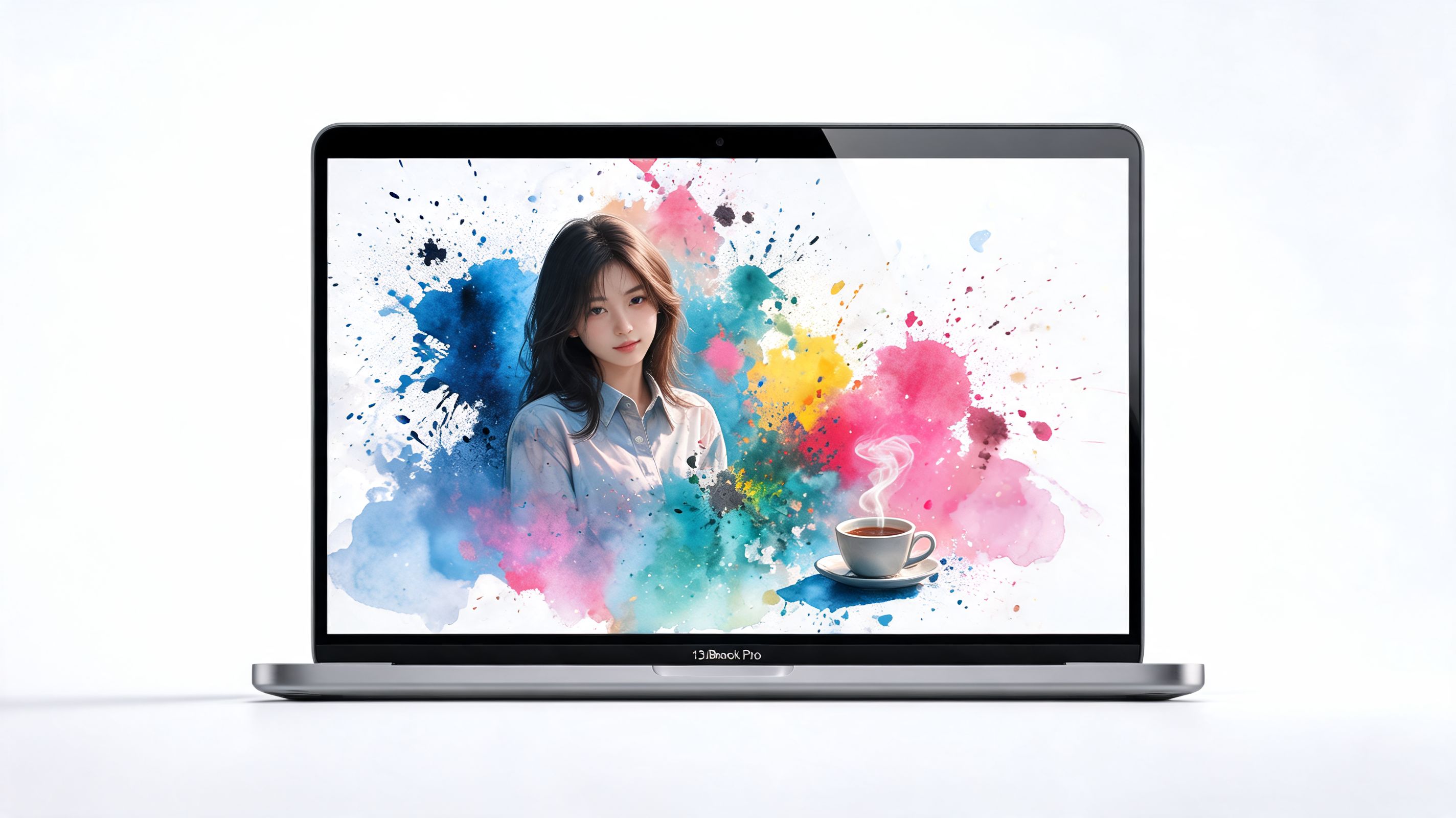
The 13-inch Pro earned its aesthetic snob credentials back in 2012, when Apple introduced the first Retina 13-inch model with a 2560 x 1600 display at 227 ppi, replacing the older 1280 x 800 panel. That same shift also made the machine thinner and lighter, which was Apple's way of saying, "yes, you may carry better pixels with less shoulder pain" (MacBook Pro history on Wikipedia).
What Retina means when you actually use the thing
"Retina" gets tossed around like everyone signed a blood oath to understand pixel density. In practice, it means the screen is sharp enough that text, icons, and high-quality visuals stop looking like tiny staircases made of regret.
On a 13-inch display, that sharpness matters more than it does on a larger panel. Everything sits closer to your face. You notice edges. You notice bad compression. You notice when a wallpaper was clearly made for a random generic monitor and then stretched onto a Mac.
That's why wallpaper quality on this machine isn't some niche design-person problem. It's basic self-respect.
Practical rule: If your wallpaper looks soft or noisy on a 13-inch Retina panel, the wallpaper is the problem, not your eyes.
Why this model still feels special
The 13-inch Pro has always been the Mac for people who want portability without giving up screen quality. It isn't the biggest canvas Apple makes, but it's a very unforgiving one. Good visuals look polished. Cheap visuals get exposed immediately, like burnt espresso under café lighting.
That's also why sizing matters. If you want the right fit before you start changing anything, check this guide to MacBook wallpaper sizes. It saves you from the classic mistake of using an image that technically fills the screen but somehow still looks wrong.
A lot of people buy a 13-inch MacBook Pro because it feels sensible. Fair enough. But the display has never been boring, and that's the part worth leaning into.
Live Wallpaper Performance on Intel vs Apple Silicon Macs
The nervous question is always the same. "Can my Mac handle this, or am I about to turn my desktop into a tiny heated drama?"
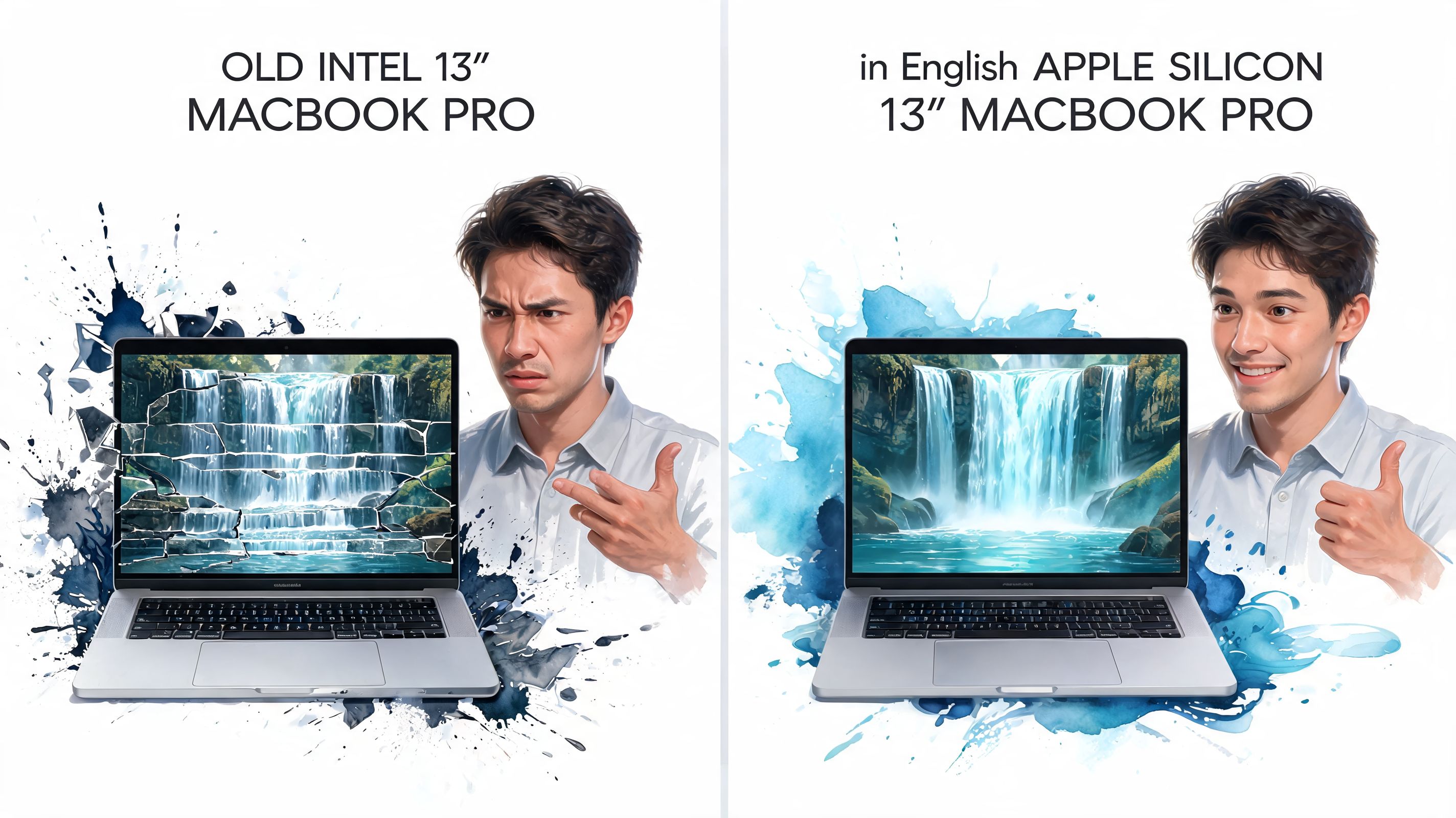
Short answer: it depends on which 13-inch Pro you have, and the gap between Intel and Apple Silicon is real.
What Intel models do well and where they complain
Intel 13-inch MacBook Pros can run live wallpapers. That's the good news. The less glamorous news is that Intel machines are more sensitive to sloppy apps, poorly encoded video, and anything else that keeps asking the CPU to do work it shouldn't be doing.
In real use, Intel models tend to be fine with a well-made loop and much less fine with hacky wallpaper tools that behave like they were assembled in a basement during finals week. You notice it in heat, fan noise, and the occasional feeling that your laptop is protesting with passive-aggressive warmth.
That doesn't mean "don't try." It means be selective.
Why Apple Silicon changed the experience
The 13-inch MacBook Pro with M2 has a media engine with hardware-accelerated H.264 and HEVC decoders that can offload 80 to 90 percent of CPU usage, allowing smooth 4K at 60fps playback at under 5 percent GPU utilization (M2 hardware details on ProductChart).
That's the difference between "my wallpaper is moving" and "my wallpaper is moving without starting a small weather event under the keyboard."
Here's the practical comparison:
| Mac type | Live wallpaper experience | Main trade-off |
|---|---|---|
| Intel 13-inch Pro | Works best with efficient apps and clean video files | More heat sensitivity, more fan involvement |
| M1 13-inch Pro | Smoother and quieter in everyday use | Still worth choosing lighter scenes if you're battery-conscious |
| M2 13-inch Pro | Handles high-quality loops with much less fuss | You'll mostly be limited by your own taste |
Older Intel Macs can still look great with live wallpapers. They just reward restraint more than bravado.
What works and what doesn't
A few rules hold up across models:
- Use proper video loops: Cleanly encoded H.264 or HEVC files behave better than random converted clips.
- Match the screen's character: Small, detailed displays punish blur and compression.
- Don't confuse movement with quality: A wallpaper with subtle motion usually looks better on a 13-inch panel than something screaming for attention in every corner.
- Assume old "live wallpaper hacks" are the wrong benchmark: Modern Mac wallpaper tools can be far lighter than the old nonsense people remember.
If you own an Apple Silicon 13-inch Pro, performance anxiety is mostly outdated. If you own an Intel model, the right wallpaper still works. You just don't want to pick the visual equivalent of a nightclub LED wall and act surprised when the fans object.
The Truth About Battery Life and Live Wallpapers
Yes, a live wallpaper uses more power than a still image. That part isn't controversial. A moving 4K scene asks your Mac to decode video, keep it ready, and render motion. A static JPEG just sits there, contributing nothing except vibes.
The useful question is whether the extra battery use is reasonable. On a 13-inch MacBook Pro, it usually is, if the wallpaper system is built sensibly and the scene itself isn't obnoxious. A gentle snowfall, dim city lights, or a fireplace loop tends to be a much more practical daily choice than a hyper-busy clip with constant motion everywhere.
The real trade-off
Battery cost from live wallpaper is easier to understand if you compare it to familiar behavior. It's closer to "my Mac is playing back a small video task in the background" than "my laptop is now in full creative-studio distress."
That matters because people often imagine live wallpaper drain in the most dramatic possible way. Meanwhile, they're running a video call, a dozen browser tabs, messages, music, and one note-taking app they swear they'll organize later.
A live wallpaper is a conscious luxury, not an electrical disaster.
What I'd actually do on a 13-inch Pro
If you care about aesthetics but don't want to bleed battery, these habits work:
- Pick calmer scenes for everyday use: Darker loops and slower motion feel better over long sessions.
- Use animation selectively: A still frame on the desktop with motion where it matters can be the saner choice.
- Treat battery mode differently from plugged-in mode: At a desk, go prettier. On the move, go simpler.
- Avoid low-quality clips: Bad encoding wastes your patience before it wastes your battery.
In this context, practicality beats purity. You bought a nice screen. It's reasonable to use it for something more interesting than the default wallpaper from three operating systems ago. Just don't pretend physics took the day off.
Setting Up The Perfect Live Wallpaper with gifPaper
A 13-inch Pro rewards polish. That's the whole game. If you're setting a live wallpaper on a Mac this sharp, the method matters almost as much as the video.
The current 13-inch MacBook Pro display setup includes 500 nits brightness, Wide color (P3), and True Tone, which is exactly why high-quality ambient scenes look so good on it when the source material is clean. Rich color helps neon scenes, warm interior shots, winter skies, and low-light loops feel intentional instead of washed out.
A setup that respects the hardware
The simple approach is this:
- Choose a wallpaper with motion that reads well at small size.
- Prefer scenes with clean color separation and no obvious compression.
- Use a tool that treats the lock screen, desktop, and screen saver like parts of one system, not three unrelated accidents.
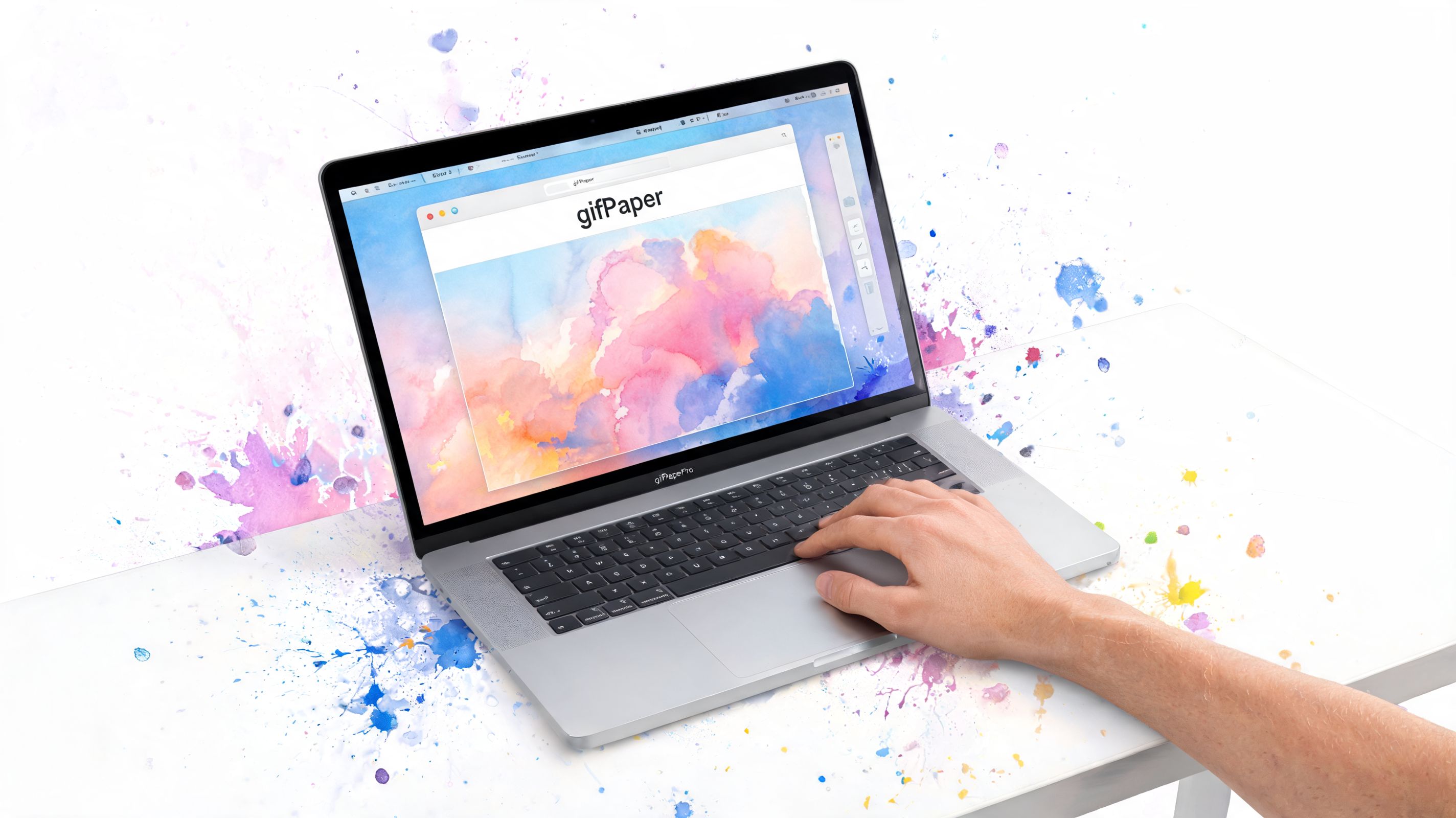
That last point is where gifPaper fits. It's a Mac app for setting live wallpapers on the lock screen, desktop, and screen saver using Apple's native Aerial wallpaper format. That matters because native behavior usually feels more like macOS and less like you installed an elaborate loophole.
Good source material beats dramatic source material
A lot of people make the wrong optimization. They chase maximum motion instead of maximum quality. On a 13-inch Retina panel, the better move is often a cleaner loop with depth, texture, and restrained movement.
If you're making your own animated assets before turning them into wallpaper-ready media, this guide to a high-quality GIF upscaler for creators is useful. Not because every wallpaper should start life as a GIF. Please no. But because cleanup and source quality matter, especially on a compact Retina screen that spots flaws like a judgmental museum curator.
Practical setup choices that look better
Use this checklist before you set anything:
- For work setups: Pick darker or minimal scenes. They stay elegant behind windows and menus.
- For lock screen use: Choose loops with a clear focal point. Its appearance after access looks cleaner.
- For ambient audio fans: Match the mood to your space, not your fantasy self. Fireplace, snowfall, train window. Less "cyber chaos at 2 p.m. budget review meeting."
- For color lovers: Neon and purple-heavy scenes benefit from the display's P3 color support.
The best live wallpaper on a 13-inch Pro isn't the loudest one. It's the one that still looks good after the fifth hour of your day.
Wallpaper Picks Tailored for the 13-Inch Screen
Small screen, sharp panel, close viewing distance. That combination changes what works. On a 13-inch MacBook Pro, wallpapers with clear composition and disciplined motion almost always beat overly busy scenes.
If you want a broader shortlist first, this roundup of the best MacBook Pro wallpapers is a useful starting point. For live wallpapers specifically, sort by mood and by how much visual noise you can tolerate before lunch.
For the person who wants calm without looking asleep
Lofi scenes are almost cheating on a 13-inch Pro. They suit the size, they don't overwhelm the desktop, and they make a small display feel intimate instead of cramped. A train window scene works especially well because the movement is readable in a compact space. You get motion, depth, and atmosphere without turning your desktop into a screensaver from a casino lobby.
For color addicts and tasteful neon goblins
Neon wallpapers are where the 13-inch Retina panel gets a bit smug. Good color and strong contrast look fantastic here, especially if the scene has defined shapes instead of chaos for chaos's sake. The trick on a smaller screen is keeping the focal point obvious. One alley. One skyline. One sign reflected in rain. If the frame has too many competing details, the desktop starts to feel crowded fast.
For people who want comfort, not spectacle
Winter and fireplace loops fit the 13-inch Pro absurdly well because they read clearly at a glance. You don't need to "study the image." It just works in your peripheral vision while you answer emails and pretend your tea hasn't gone cold.
A final note on selection. The 13-inch screen rewards restraint. Wallpapers that feel cinematic and composed tend to age well. Wallpapers trying to impress you every second get old in about the time it takes to finish one coffee.
Answering Your Niche MacBook Pro Questions
Does this work on Touch Bar models?
Yes, the Touch Bar itself isn't the issue. The bigger factors are your Mac's chip, the quality of the wallpaper app, and whether the video source is clean. A Touch Bar 13-inch Pro can still look excellent with the right setup.
Will it look weird in a coffee shop or shared office?
It can, depending on angle. Apple describes its IPS panels as having a 178° viewing angle, but some users still report brightness dropping off when viewed off-center in real use (MacRumors discussion on MacBook viewing angles). Sharpness usually holds up better than brightness, so the wallpaper may remain crisp while looking less vivid from the side.
That mostly matters if someone else is seeing your screen at an angle, or if you use the laptop off-center on a crowded table. For solo use straight on, it's rarely a problem.
What about an external monitor?
Usually fine, but match expectations to the monitor. Your 13-inch MacBook Pro screen is often the prettier display in the relationship. If the external panel has weaker color or worse contrast, the wallpaper won't look identical across both.
How do I show it off properly in a demo or tutorial?
If you're recording your desktop to show a wallpaper setup, use a tool built for clean capture instead of relying on whatever happens to be lying around in your Applications folder. This guide to recording professional Mac screen demos is a practical reference for getting a cleaner result.
If you want to try this on your own Mac, gifPaper is the direct path. You can browse the wallpaper gallery first, pick a mood that suits your 13-inch Pro, and then decide if your lock screen deserves more than the same static image it's been wearing like an office lanyard.