
15 Inch MacBook Pro Charger: The Definitive Guide (2026)
Meta description: Confused about which 15-inch MacBook Pro charger to buy? Here's the no-nonsense guide to MagSafe 2, USB-C, wattage, and one weird port gotcha.
Losing a MacBook Pro charger produces a very specific kind of annoyance. Not a tragedy. Not a crisis. Just that low-grade, expensive-feeling irritation where you realize Apple has made several physically incompatible charging systems, all of which are somehow called "for MacBook Pro."
If you're shopping for a 15 inch MacBook Pro charger, the mess usually starts the same way. You search, see a magnetic charger, see a USB-C brick, see a cable that looks almost right, and then spend ten minutes wondering whether "almost right" is how you end up buying electronics twice.
The good news is that this is fixable fast. The bad news is that Apple made two very different 15-inch MacBook Pro eras, and the chargers do not politely cooperate with each other.
That Awkward Moment with a Dead MacBook Pro
Your charger frays. The brick disappears into a hotel room dimension. The dog develops a sudden interest in cables. Now the Mac is at 7%, and you're trying to figure out whether you need a flat magnetic connector or a USB-C adapter that looks like every other USB-C adapter on earth.
That confusion is normal. Apple split the 15-inch MacBook Pro line into two charger families that look nothing alike and are not interchangeable. The older machines use MagSafe 2. The later Intel models use USB-C. Buy the wrong one and you don't get "close enough." You get a charger that doesn't solve your problem.
If your machine has started acting flaky around power—not just undercharging but disconnecting or refusing to charge properly—repair shops see this stuff constantly. A practical local example is this guide to MacBook Pro charging issues in Perth, which covers the kinds of failures people run into after the cable, brick, or charging path starts misbehaving.
There's also a second layer of confusion if you've been around Macs for a while. Apple had MagSafe, then MagSafe 2, then USB-C only, then MagSafe came back on newer models that are not the ones this article is about. Very normal product history. Very calm and sensible. No notes.
If your 15-inch machine is old enough to overlap with the unibody era, this separate guide to the 2011 MacBook Pro may help you avoid buying a charger for the wrong generation entirely.
The expensive mistake isn't usually buying a bad charger. It's buying the right charger for the wrong Mac.
First Identify Your MacBook Pro Model
Before buying anything, check the exact model. This takes about half a minute and saves a lot of pointless browser tabs.
The fastest way to check
If the Mac still turns on:
- Click the Apple menu
- Choose About This Mac
- Read the model name and year
You're looking for something like MacBook Pro (Retina, 15-inch, Mid 2015) or MacBook Pro (15-inch, 2018). That year matters more than often realized.
If you're comparing old and newer 15-inch generations, this model-specific guide to the 15 Apple MacBook Pro is useful for lining up the hardware era before you buy accessories.
15-inch MacBook Pro charger guide by model year
| Model Year Range | Port Type | Required Apple Charger |
|---|---|---|
| 2012 to 2015 | MagSafe 2 | 85W MagSafe 2 Power Adapter |
| 2016 to 2019 | USB-C | 87W USB-C Power Adapter |
That's the short version. Many will find that table sufficient.
What to look at on the machine itself
If the Mac won't boot, inspect the charging port shape.
- MagSafe 2 models have a dedicated magnetic charging port. The connector is thin and wide.
- USB-C models don't have a separate charger port at all. They charge through the same oval USB-C ports used for accessories and displays.
Practical rule: Don't shop by "15-inch MacBook Pro" alone. Shop by year plus connector type.
Once you know the year, the whole charger question gets much less mysterious. It stops being "Which charger fits a 15-inch MacBook Pro?" and becomes "Do I need the 85W magnetic one or the 87W USB-C one?" That is a much nicer problem to have.
For the MagSafe 2 Crew (2012-2015)
If your Mac is a Retina 15-inch MacBook Pro from 2012 through 2015, the charger you want is the 85W MagSafe 2 adapter.
Not MagSafe 1. Not USB-C. Not "some magnetic Mac charger" from a listing that uses all the words at once and hopes nobody notices.
How to recognize MagSafe 2
MagSafe 2 is the wider, flatter magnetic connector Apple used on the Retina generation. It's different from the older MagSafe 1 plug, which had the chunkier T-shape or L-shape look on earlier non-Retina machines.
The easiest buying mistake here is assuming all magnetic Apple laptop chargers are basically cousins. They aren't. The connector has to match.
Why the 85W rating matters
For the older 15-inch MacBook Pro, industry guidance commonly places the required adapter at about 85W, and Apple's USB-C charging guidance makes the broader point that charger wattage affects charge speed and behavior. On a 15-inch Pro, dropping below the recommended power can turn "charge now" into "charge sometime before your next meeting" according to Apple's charging guidance.
That's the practical issue. The machine may still respond to a weak or mismatched setup in some edge cases, but "it reacts" is not the same as "it powers the laptop properly."
- Use the correct wattage: The 15-inch model is the hungrier one in that generation.
- Check the connector shape carefully: MagSafe 2 is thinner than older MagSafe.
- Inspect the cable strain points: Older Apple adapters often fail where the cable meets the brick or connector.
There's also the reason people still miss MagSafe. The magnetic breakaway design was useful. You could catch the cable with your foot, swear creatively, and the laptop usually stayed on the desk instead of launching itself into orbit.
If you have a 2012 to 2015 15-inch Retina MacBook Pro, the boring answer is the right one. Buy the 85W MagSafe 2 charger and move on with your life.
For the USB-C Camp (2016-2019)
The 2016 through 2019 15-inch MacBook Pro switched to USB-C charging, which sounded simple on paper. One port for power, data, displays, and accessories. Very elegant. Very modern. Also the beginning of "sure, the plug fits" becoming a trap.
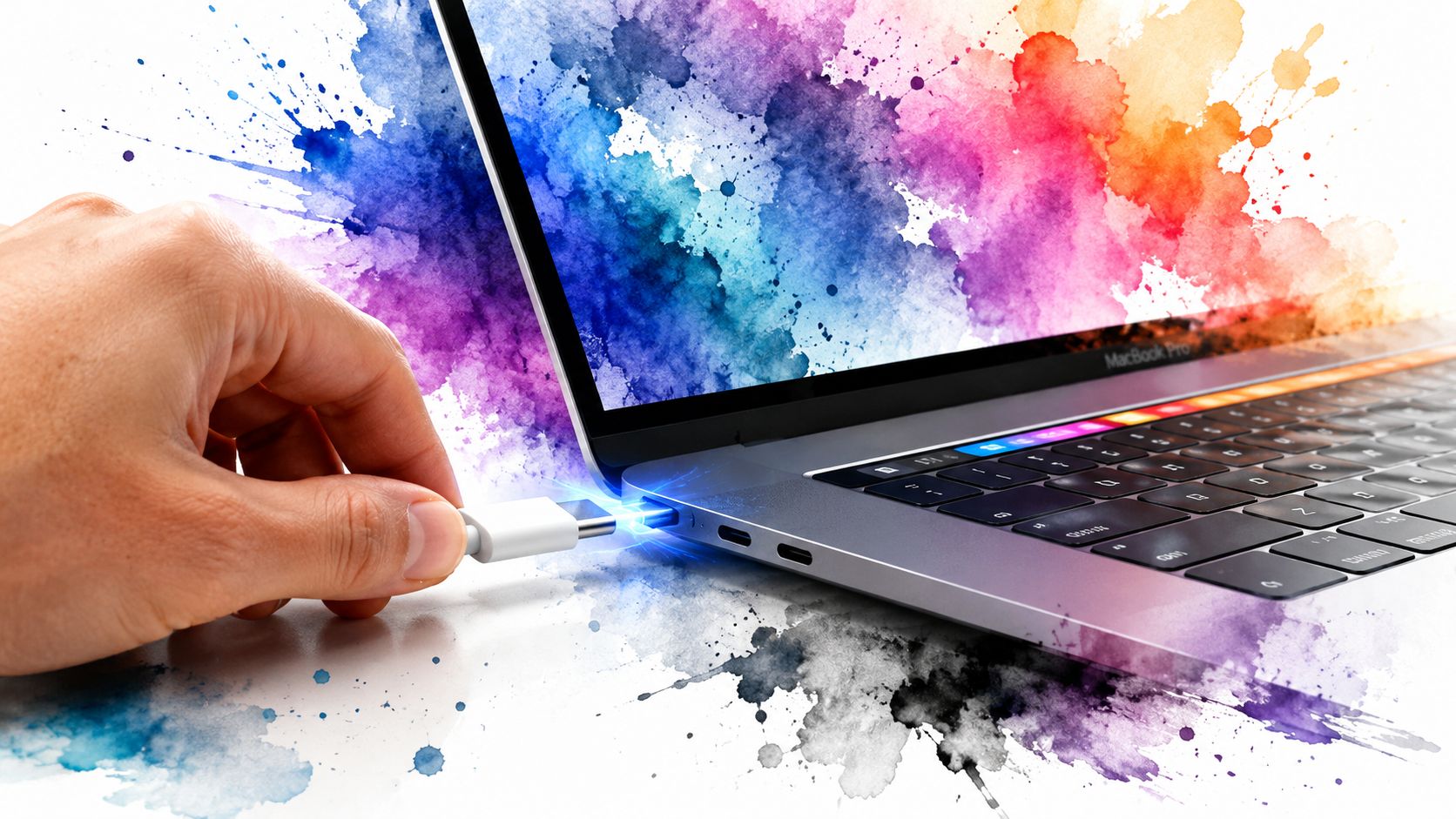
USB-C fit is not the same as USB-C performance
A lot of chargers and cables use USB-C. That does not mean they all deliver the power a 15-inch MacBook Pro expects.
The core rule is wattage = volts × amps, and USB-C charging works properly only when the charger, cable, and laptop negotiate the right USB Power Delivery profile. Reputable charger guidance from Anker lists the 15-inch MacBook Pro as needing 87W, which is the practical baseline for consistent full-speed charging on these models in Anker's charger wattage guide.
That's why a tiny phone charger or a low-power travel adapter can technically connect and still feel useless in real life.
What actually works well
For a 15 inch MacBook Pro charger in this USB-C generation, the sane options look like this:
- 87W USB-C charger: This is the baseline match for the machine.
- Higher-watt USB-PD charger: Also fine, as long as it's compliant.
- Lower-watt USB-PD charger: It may charge slowly, and under heavier use the battery can still drain.
People often get tripped up. They hear "any USB-C charger works" and interpret that as "my tablet charger is close enough." It usually isn't if you want the laptop to behave like a laptop instead of a houseplant on life support.
Higher wattage is usually the easier answer
A higher-watt USB-PD charger doesn't force excess power into the Mac. The laptop draws what it negotiates. So if you already have a stronger compliant charger, that's usually a good outcome, not a problem.
The part that matters is quality and proper USB Power Delivery support. The brick needs to be more than physically compatible. It needs to be electrically appropriate.
Buying shortcut: For a 2016 to 2019 15-inch MacBook Pro, look for a reputable 87W USB-C PD charger first. If you buy above that, fine. If you buy below that, expect compromises.
The Secret Rule of USB-C Ports
Here's the weird part nobody mentions in the cheerful "USB-C is universal" speeches.
On some Intel-era MacBook Pros, which side you use for charging can affect thermals. Not charging speed. Thermals.
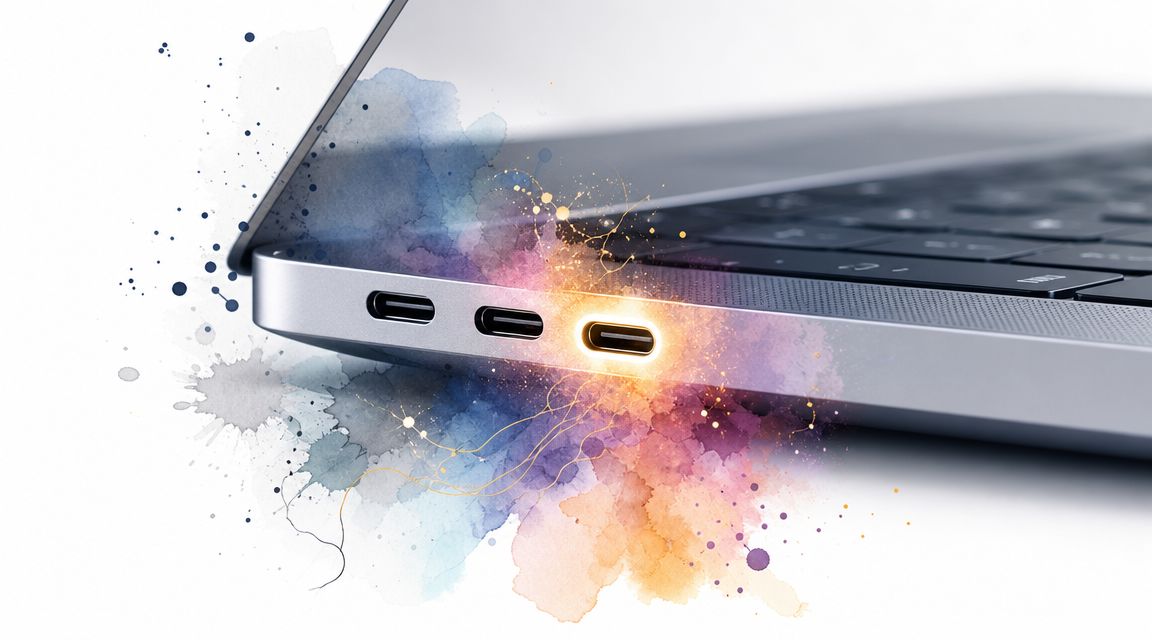
The left-side problem
Real-world testing found that using the left-side USB-C ports for power on some Intel-era MacBook Pros could trigger a high-temperature sensor alert, leading kernel_task to throttle the machine. Charging from the right side avoided the issue in that testing, as documented by MacSales on right-side charging behavior.
If you've ever had your Mac suddenly crawl while connected to power, a monitor, storage, and a dock, this may be why.
The practical fix
This doesn't mean the left ports are broken. It means desk setups can stack heat and I/O load in ways that produce dumb results.
Try this:
- Charge from the right side: Especially if the Mac runs hot when docked.
- Split accessory load: Put charging on one side, peripherals on the other when possible.
- Watch for
kernel_taskspikes: If the Mac gets weirdly sluggish under load, this clue matters.
If you're building a larger desk setup with displays involved, this guide on using 3 monitors with a MacBook Pro pairs well with the charging-port advice, because the trouble usually shows up when power and accessories pile onto the same side.
USB-C gave us flexibility. It also gave us the privilege of discovering that "any port" sometimes means "any port, but one of them makes your laptop act haunted."
Apple Chargers vs Reputable Alternatives
Do you need an Apple-branded charger? No. Do you need a decent charger from a brand with a real reputation? Absolutely.
That's the line.
When the Apple charger makes sense
Apple's own adapters are the simple answer. Compatibility is rarely a mystery, the power profile is what you expect, and you don't have to decode a listing written by someone who thinks punctuation is optional.
If you want the least amount of decision-making, buy the Apple one that matches your model and be done with it.
When a third-party charger is the smarter buy
Good third-party chargers are often more practical, especially if you want a smaller travel brick or a multi-port GaN charger for a desk bag.
The key is not to buy the cheapest anonymous block with suspiciously heroic product photos. Buy from a reputable maker, confirm the right wattage, and make sure it supports USB Power Delivery if your machine is in the USB-C era.
A useful sanity check comes from real charging performance. In one test on a 15-inch Mac, a 96W adapter reached full charge nearly an hour faster than a 35W adapter, which shows how much matching charger power affects actual use, not just spec-sheet theory, in this 15-inch Mac charging test on YouTube.
A simple buying standard
Use this filter and you'll avoid most nonsense:
- Match the connector first: MagSafe 2 and USB-C are different worlds.
- Match the wattage second: Don't cheap out on power delivery.
- Choose reputable brands: Apple is safe. Established accessory brands can also be safe.
- Treat bargain-bin no-name chargers as a warning sign: The savings vanish fast if the experience is flaky.
For USB-C owners, compact GaN chargers are especially handy. They're easier to carry, often better for mixed-device setups, and don't feel like you packed a decorative brick from a small dam project.
Your Charger Is Sorted. Now What Are You Staring At?
Once the charger problem is fixed, the desk starts looking suspiciously complete. The Mac powers on. The battery icon stops being dramatic. The cable situation is under control.
And then you notice you're still staring at the same static wallpaper Apple gave you ages ago.
That's not a technical problem, obviously. It's just mildly sad. You went through the trouble of sorting the right power adapter, the right port, and the right setup. The machine works. It might as well look like you enjoy owning it.
If you want one more practical reference before you buy, this guide on how to select the right MacBook Pro charger is a decent cross-check. Then close the charger tabs and do something more interesting with the screen itself.
A Mac is something you look at for hours. There's no prize for keeping the wallpaper boring.
If your taste runs calmer than blade-runner-in-an-alley, the nature wallpaper collection is full of quieter options. If you prefer glowing city nights and a little tasteful electricity, the neon wallpaper collection is right there waiting to make the desktop less beige.
And if your screen could use actual motion instead of a still image pretending to be enough, that's the part gifPaper for Mac handles. It lets you set fluid 4K live wallpapers on your desktop, lock screen, and screen saver using Apple's native Aerial format. It's a one-time $4.99 purchase, not a subscription, with a 7-day free trial and a 30-day money-back guarantee. If you're going to spend all day looking at a Mac, you might as well give it something better to wear.