3D Picture Effect: Create a Parallax Video Wallpaper for Mac
Your Mac is sitting there right now with a perfectly capable display, an expensive panel, and the personality of dry toast. Maybe you set a nice still wallpaper months ago. Maybe you never changed the default. Maybe you tried one of those fake "live wallpaper" apps and got a choppy mess that looked like it was being powered by a hamster with a grudge.
The 3d picture effect is the fix for that particular sadness.
Done well, it turns a flat image into something with believable depth and motion. Not gimmicky theme-park nonsense. More like a subtle parallax shift that makes the subject feel separated from the background, as if your wallpaper has layers and a tiny bit of life. Most tutorials stop at "cool Instagram post." That's fine, I guess. But the more satisfying outcome is turning that effect into a continuous looping video wallpaper for your Mac. If you're going to stare at a screen for hours, it might as well stare back with some effort.
What Is This 3D Picture Effect Anyway
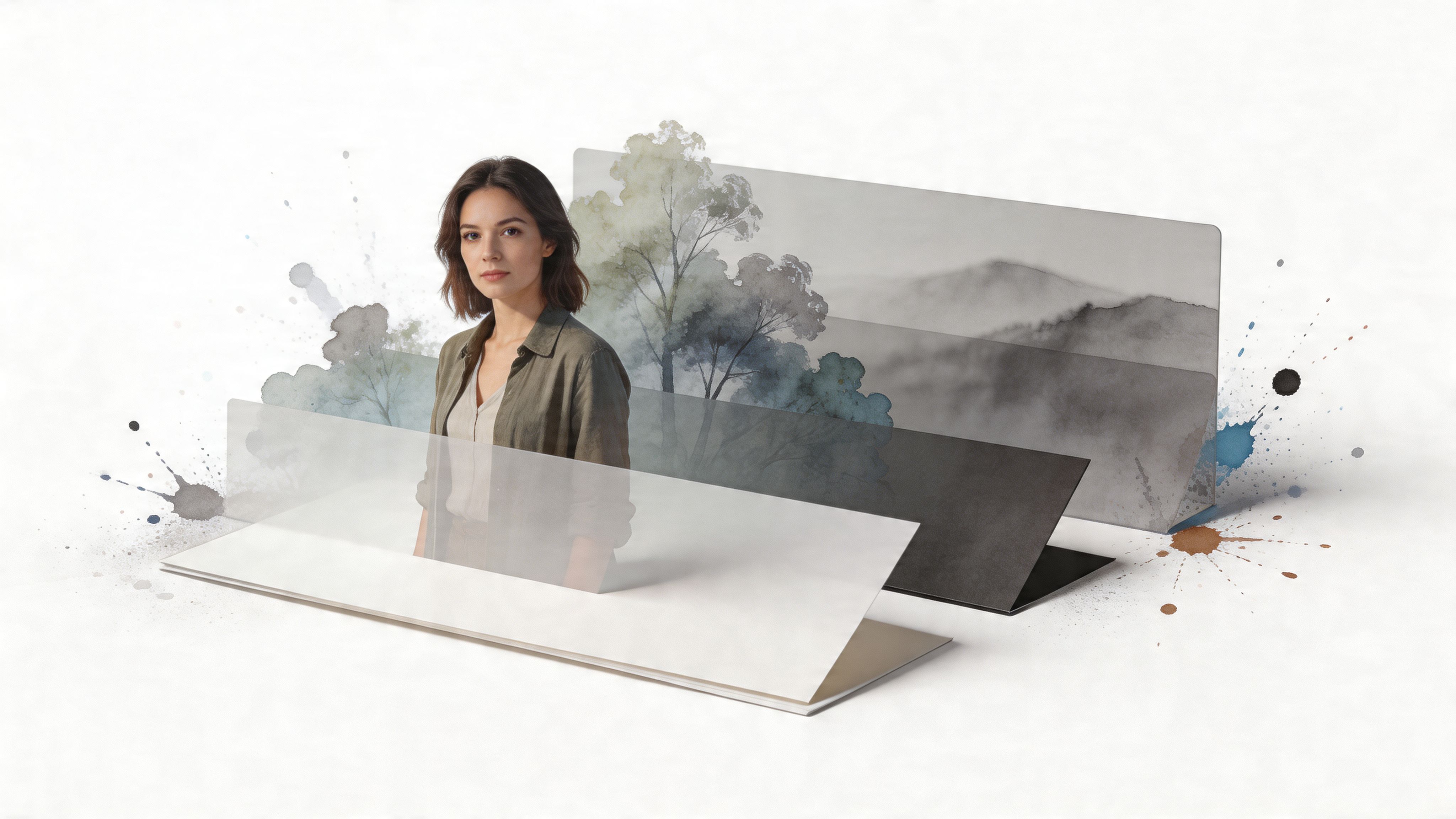
The easiest way to understand a 3d picture effect is to think of a photo as a stack of paper cutouts. Foreground in one layer. Midground in another. Background in the back. Once those layers move at slightly different speeds, your brain reads that separation as depth.
That illusion is called parallax. Nearby things appear to shift more than distant things. You already experience it every day when you move your head and objects at different distances slide relative to each other. The digital version just fakes that movement with layers.
Here's the visual metaphor in one frame:
The old trick behind the modern one
None of this is new. The stereograph was the dominant form of 3D visual entertainment for over a century before 3D cinema emerged, and the New York Public Library preserves more than 40,000 stereographs. They created depth by showing each eye a slightly different photo of the same scene, using the same optical principle Euclid theorized in ancient Greece, as described in this history of old-school 3D photography.
The modern version skips the wooden viewer and uses software instead. Less Victorian contraption, more "my laptop is pretending to understand depth."
The secret sauce is the depth map
Most modern tools build the effect from a depth map. That's a grayscale image where lighter areas are treated as closer and darker areas as farther away. Once software has that map, it can shift pieces of the image horizontally or vertically to simulate perspective.
A helpful way to understand this is:
- Original photo: The colors and details you see
- Depth map: The hidden instruction sheet for distance
- Animation: Tiny movement applied based on that distance data
Practical rule: The best 3d picture effect is subtle. If the movement screams "look, an effect," it usually stops looking deep and starts looking broken.
Good candidates have obvious subject separation. A person in front of a soft background works. A train window scene works. A neon alley with signs, rain, and layered perspective works beautifully. A flat beige wall with one potted plant is asking a lot from software and from God.
The Easy Way with AI Apps and Web Tools
Few relish the thought of spending an evening masking hair in Photoshop. Reasonable. The fastest route is to let an AI tool estimate the depth and generate motion for you.
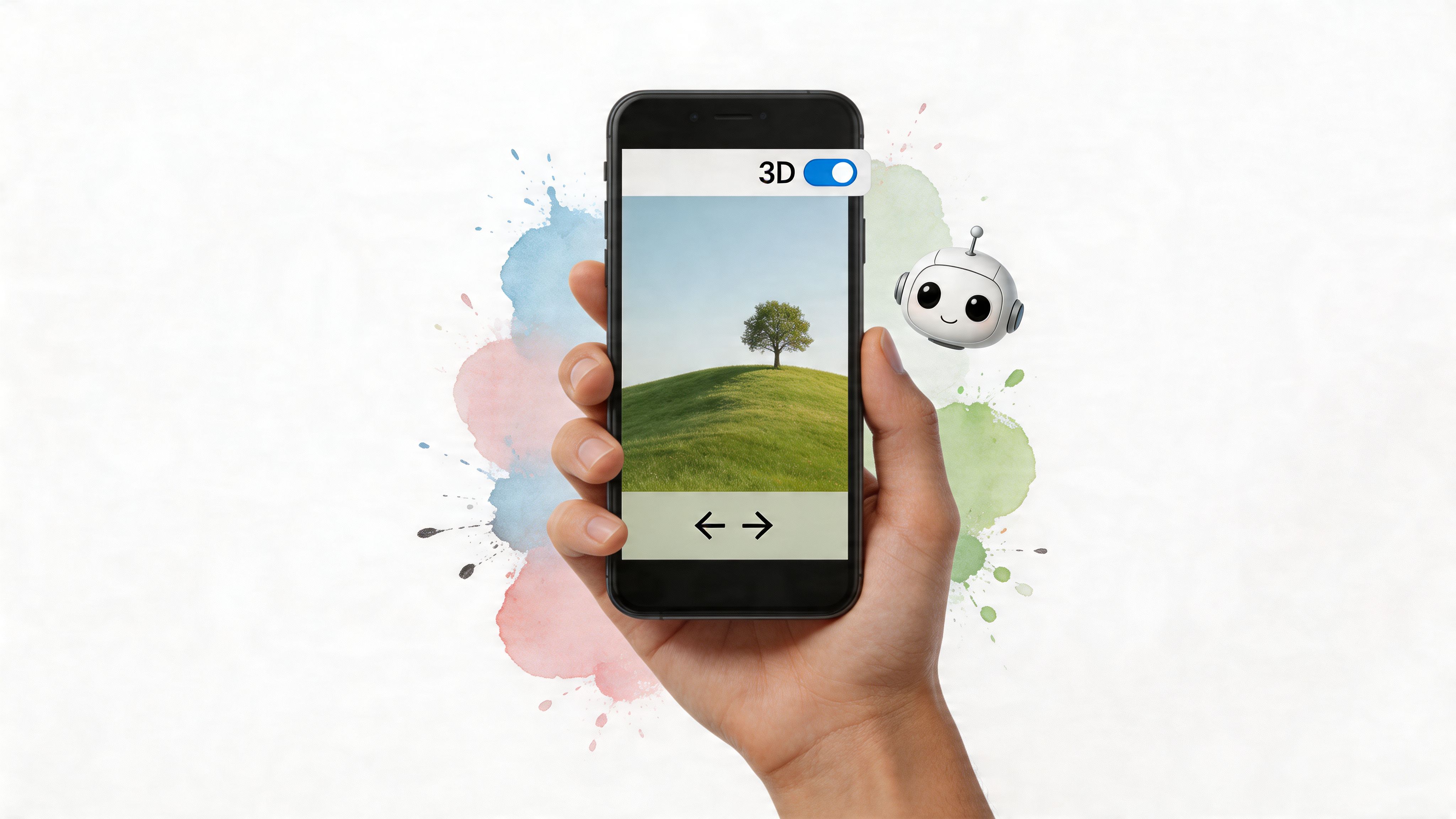
That process is usually simple. Upload a photo, let the tool calculate depth, tweak the motion amount, then export a short animation. That's it. You press a few buttons and hope it doesn't decide your dog is part of the sofa.
What the AI is actually doing
AI-driven 3D image generation computes a depth map from a single photo and uses grayscale values to estimate distance. According to Meta's explanation of how 3D photos work, neural nets trained on millions of image pairs can reach up to 95% depth accuracy for foreground subjects, but success drops when the shot has motion blur. That's why a steady capture matters.
If you're taking a fresh photo for this effect, keep it still for a moment. Portraits, windows, streets, plants, interiors, and scenes with obvious foreground separation tend to behave well. Fast movement, busy reflections, and low-contrast mush are where things go feral.
Choosing Your 3D Picture Effect Method
| Method | Ease of Use | Cost | Control Level | Best For |
|---|---|---|---|---|
| Mobile AI app | Very easy | Usually low or freemium | Low | Quick tests, social clips, casual use |
| Web-based parallax tool | Easy | Varies | Medium | Fast exports on desktop without learning pro software |
| Photoshop plus motion app | Moderate | Higher | High | Clean subject cuts and custom animation |
| Photoshop plus After Effects | Harder | Higher | Very high | Wallpaper-grade results and seamless looping |
A good starting point is any platform for next-gen AI imaging that lets you test depth-based image generation quickly before you commit to a full edit. The point isn't brand loyalty. It's finding out whether your image has enough separation to be worth the effort.
What works and what doesn't
AI tools are great at instant proof of concept. They're less great at edge discipline. Hair, glasses, tree branches, chair arms, smoke, and reflective surfaces often come out with weird halos or torn edges.
Keep these in mind:
- Pick layered scenes: A subject in front of a background gives the model something to work with.
- Avoid motion blur: The depth estimate gets mushy fast when the original shot isn't clean.
- Watch the edges: If the outline flickers, the effect won't survive full-screen desktop use.
- Don't overcrank motion: Big camera moves expose mistakes immediately.
One easy sanity check is to make a rough AI version first, then compare it against a longer workflow for anything you care about. If you want a broader workflow for motion assets, this guide on how to make moving wallpapers fills in the practical export side.
The AI version is the sketch. Sometimes the sketch is enough. Sometimes it gives your subject a haunted extra ear and you move on to the grown-up tools.
The Pro Way with Photoshop and After Effects
This is the method for people who got an AI result back and immediately said, "No, absolutely not." Fair. If you want a 3d picture effect that holds up on a big Retina display, manual work still wins.
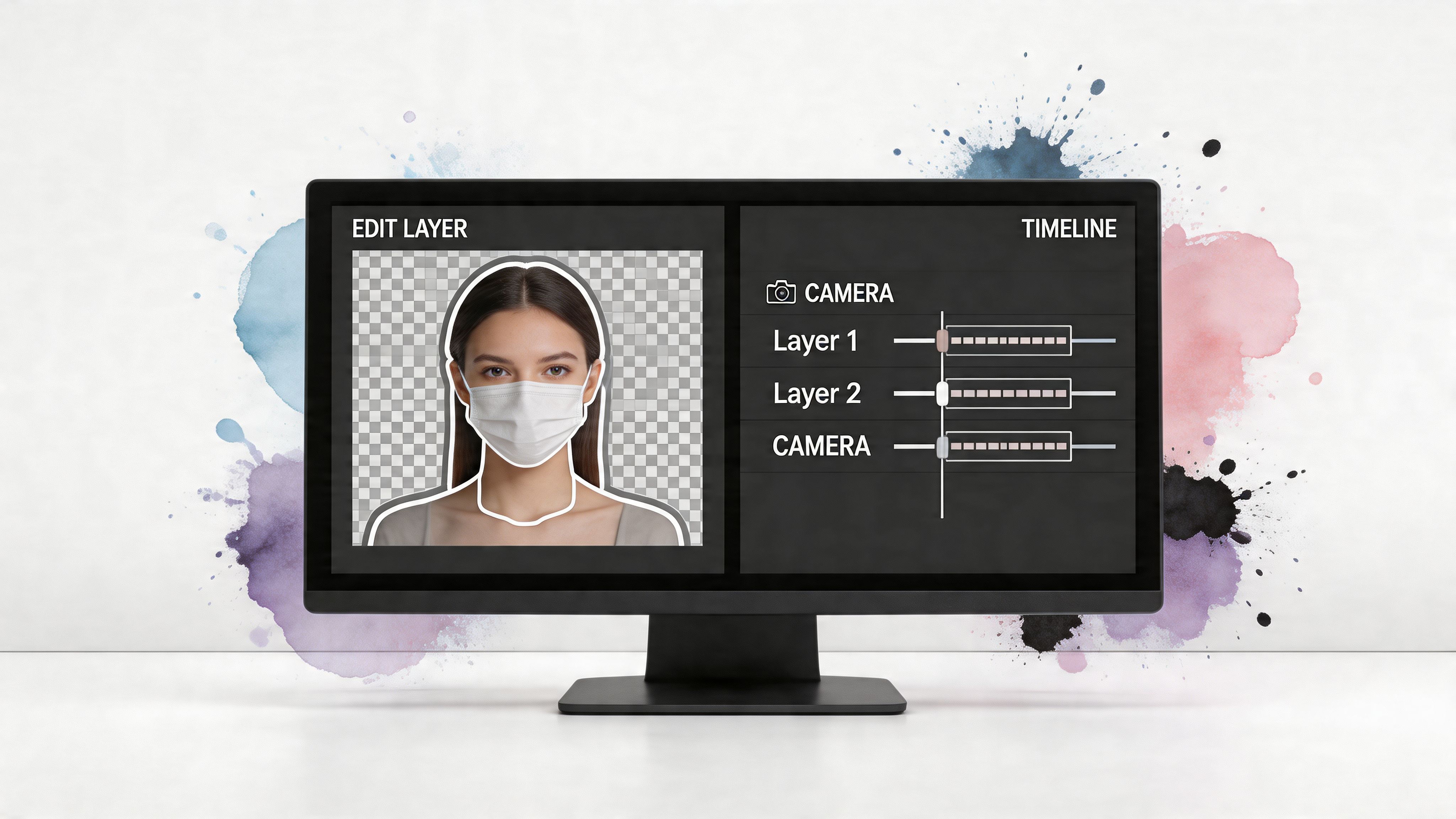
The whole game is layer separation. You isolate the foreground subject, rebuild the missing background behind it, then animate those layers in 3D space. It sounds fussy because it is. It also looks much better.
Start in Photoshop with surgery, not enthusiasm
Open the image in Photoshop and duplicate the base layer. One version becomes your subject cutout. The other becomes your clean background.
The basic workflow:
-
Select the subject carefully
Use Select Subject as a starting point if you want, but refine by hand. Hair, fingers, glasses, and thin objects need attention. -
Mask instead of deleting immediately
A mask lets you fix mistakes without destroying the original image. This saves you later when you notice a shoulder has been partially erased into another dimension. -
Fill the hidden background
Once the subject is isolated, remove it from the background layer and rebuild the missing area with Content-Aware Fill, clone stamp, or healing tools. -
Split into believable depth groups
Sometimes two layers aren't enough. A foreground person, middle furniture, and rear wall will animate more naturally as separate planes.
Manual 3D work lives or dies on precision. In the manual workflow described by Format, excessive offset causes double vision in 40% of viewer reports, and reflective surfaces can induce ghosting artifacts in up to 75% of cases. The same source notes that dual-camera rigs achieve 95% synchronization for capture, but with single-photo depth effects, careful post-processing matters most in practice, as explained in this guide to making 3D photos.
Then build depth in After Effects
Import the separated layers into After Effects as a composition. Convert them to 3D layers. Spread them apart on the Z axis just enough to create depth. Then animate a camera with a very small push, pan, or tilt.
That "very small" part matters.
- Tiny motion feels real
- Big motion reveals fake edges
- Slow speed feels expensive
- Fast speed feels like a slideshow trying to escape
A common beginner mistake is placing layers too far apart. That creates exaggerated perspective, broken edges, and the digital equivalent of seasickness. Gentle movement is what sells the illusion.
If you can clearly see the trick, the trick has gone too far.
A cleaner workflow than AI can usually manage
What manual editing buys you is control over what AI guesses badly:
- Hair and soft edges can be refined instead of smeared
- Background reconstruction can be painted intentionally
- Complex objects like lamps, railings, and window frames can be layered properly
- Motion paths can be art-directed instead of chosen by a slider
If the image is important, this is the route. It's slower, but it gives you something that still looks good when it's covering your entire desktop instead of hiding in a phone-sized preview.
From 3D Photo to Seamlessly Looping Video
A lot of tutorials commit a tiny crime here. They show a nice three-second parallax animation, clap politely, and leave you with a clip that looks good exactly once.
Wallpaper needs a loop. Not an obvious restart. Not a hard jump. A loop. Something that can play all day without announcing its seam like a man in a cheap suit.
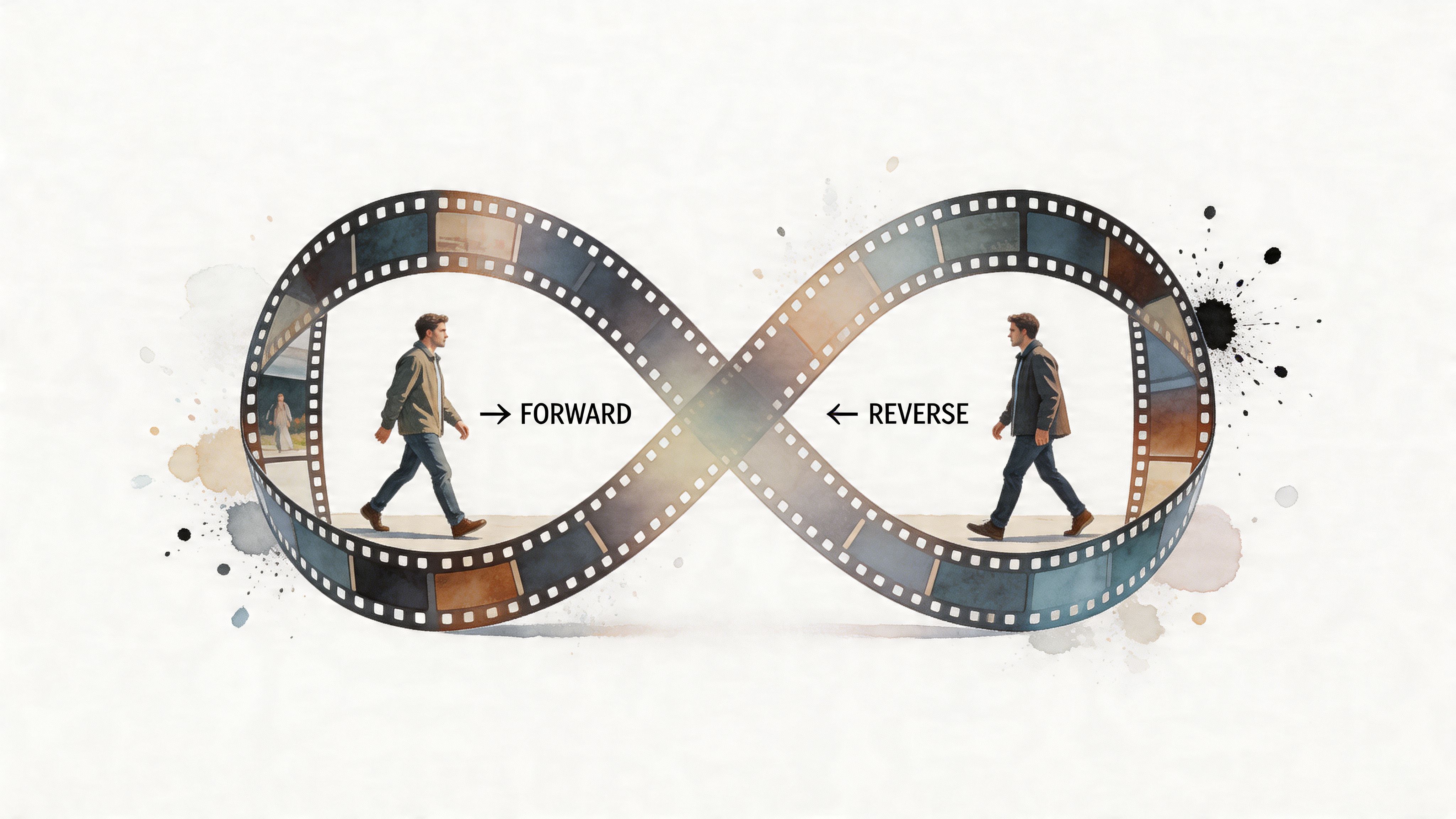
The simplest loop is the ping-pong
The easiest method is a forward animation followed by the same motion in reverse. Push in, then drift back out. Pan left, then return right.
This works best when the camera movement is smooth and subtle. If the effect has floating particles, smoke, or lighting changes, ping-pong can look oddly mechanical. For pure parallax, though, it's a solid first pass.
The cleaner loop is a hidden seam
A more polished method is to create a clip where the first and last frames match closely enough to crossfade without detection. This takes more patience, but it avoids that "boomerang" feeling.
Useful approaches:
- Use symmetrical motion: A small arc or drift that returns near the starting composition
- Blend the ends: Overlap the first and last seconds and dissolve between them
- Keep movement slow: Fast moves make seams obvious
- Avoid dramatic perspective changes: Those are harder to hide on the loop point
There's a real content gap here. According to the source behind this niche trend analysis, "3D wallpaper Mac" searches show 40% year-over-year growth in 2025, while 90% of results point to Windows-only options or low-resolution workarounds, which leaves Mac users underserved, as noted in this discussion of the Mac 3D wallpaper gap.
That tracks with reality. There are endless tutorials for social clips. Very few bother with the part where the motion needs to survive constant replay on a desktop.
Export for a desktop, not a feed
When you export, think like wallpaper software, not like social media.
Use these practical defaults:
- Match your display resolution: A 4K export gives the effect room to breathe on larger screens
- Choose a modern codec: H.264 is broadly compatible, HEVC is often more efficient
- Keep frame pacing smooth: Inconsistent motion ruins the whole illusion
- Check the loop full-screen: Tiny edge problems look much larger on a desktop
For inspiration, the depth effect wallpaper collection shows the kind of layered motion that works well when the goal is calm, continuous depth rather than "look what my editing app can do."
Optimizing for Retina Displays and Performance
This is the boring part that decides whether your wallpaper looks elegant or acts like a tiny denial-of-service attack on your laptop.
High-DPI screens are unforgiving. Bad masks look worse. Compression looks worse. Fake depth looks worse. And if your file is bloated, your Mac reminds you with heat and battery drain. Very rude of it, but fair.
What matters more than people think
A live wallpaper doesn't need brute force. It needs restraint.
Focus on these:
- Codec choice: HEVC usually gives better efficiency for high-resolution loops.
- Motion complexity: Slow, simple parallax compresses better than chaotic movement.
- Clean edges: Jagged masks shimmer on Retina displays.
- Reasonable bitrate: More data isn't automatically more beauty.
If you're unsure about the target dimensions, this guide to MacBook wallpaper size helps you match the export to the screen you're using.
Why some wallpapers feel smooth and others feel cursed
Performance is one of the least discussed parts of the 3d picture effect on Mac, even though it should be near the top. According to the source tied to this issue, 70% of 2,000 Mac user forum queries in 2025 complained about lagging 3D wallpapers, while optimized 4K loops can run at 60fps with less than 5% CPU usage when done properly, as summarized in this discussion of viewpoint-based 3D display work.
That gap is the whole story. The problem isn't "live wallpapers are bad." The problem is bad live wallpapers are bad.
A good wallpaper should be visible to your eyes and nearly invisible to your system.
For desktop use, subtle parallax often beats flashy movement. A train window with layered depth. Falling snow with foreground and background separation. A dark scene with one soft camera drift. Those look richer, compress better, and don't turn your machine into a lap warmer.
Bring Your 3D Wallpaper to Life with gifPaper
After all that editing, looping, and fiddling, you hit the final stupid obstacle. macOS still doesn't make it easy to use your own video as a proper live wallpaper across the places you care about.
That's the gap gifPaper fills.
It's the practical end of this whole 3d picture effect rabbit hole. You make the motion piece, then use gifPaper for Mac to put it where it belongs. Lock screen, desktop, and screen saver. One setup, not some duct-taped overlay pretending to be part of the system.
A few reasons it makes sense for this specific use case:
- It uses Apple's native Aerial wallpaper format, which is the same system Apple uses for its own video wallpapers.
- Lock screen and desktop can match, so your custom parallax loop doesn't disappear the second you log in.
- The desktop can stay on a still frame by default, with full animation available when you want it.
- It's a direct download and notarized by Apple, which matters because Apple's sandbox rules get in the way of this kind of feature.
If you want examples that lean into layered lighting and depth, the neon wallpaper collection is full of scenes that suit parallax absurdly well.
Frequently Asked Questions
Can any photo work for a 3d picture effect
No. Some photos are basically begging for depth, and some are a flat legal document with clouds. The best images have a clear foreground subject, visible separation between layers, and enough texture for software to understand what's near and far.
Portraits, interiors, streets, windows, and layered scenes usually cooperate.
Why does my parallax effect look warped
Usually one of three things happened:
- The depth map is wrong: AI guessed poorly around edges or overlapping objects.
- The movement is too strong: Big camera shifts reveal missing background and broken masks.
- The image is a bad candidate: Reflections, blur, and flat lighting make depth estimation harder.
Try reducing the motion first. That fixes more problems than people expect.
Is AI good enough, or do I need Photoshop
AI is good enough for quick results and rough concepts. Photoshop and After Effects are better when you care about edge quality, background reconstruction, and loop polish.
If the wallpaper is just for fun, AI may be enough. If it's going to live on your Mac every day, manual cleanup pays off.
What's the best loop style for a wallpaper
For most parallax scenes, either a very soft ping-pong or a carefully crossfaded loop works best. The goal is to avoid a visible restart. If you notice the seam immediately, keep editing.
Will a live 3D wallpaper slow down my Mac
A badly made one can. An optimized one usually behaves much better. Keep the motion subtle, export efficiently, and avoid needlessly heavy files.
Can I use ambient scenes instead of dramatic 3D motion
Yes, and they often look better. A little depth goes a long way. Snow through a window, rain in a neon street, a soft fireplace glow, or a lofi scene with foreground framing usually feels more convincing than aggressive fake-camera acrobatics.
If you've made it this far, you're exactly the kind of person who notices when a desktop feels dead. That's a noble and slightly ridiculous instinct, and I support it. Browse gifPaper for looping wallpapers, then try the Mac app if you want your lock screen, desktop, and screen saver to stop looking like an afterthought. It's a small fix for a screen you're going to stare at anyway.