
How to Add Printer to Mac: USB, Wi-Fi & IP Setup
Your Mac is on the desk. The printer is on the floor. The paper is loaded, the Wi-Fi light is blinking like it has secrets, and macOS still acts like the printer belongs to a witness protection program. If you're trying to add a printer to Mac and the printer list is blank, the fix is usually not "restart everything and pray." It's picking the right path: USB, Wi-Fi or AirPrint, network by IP, or a manual driver when the nice auto-discovery fairy has gone home early.
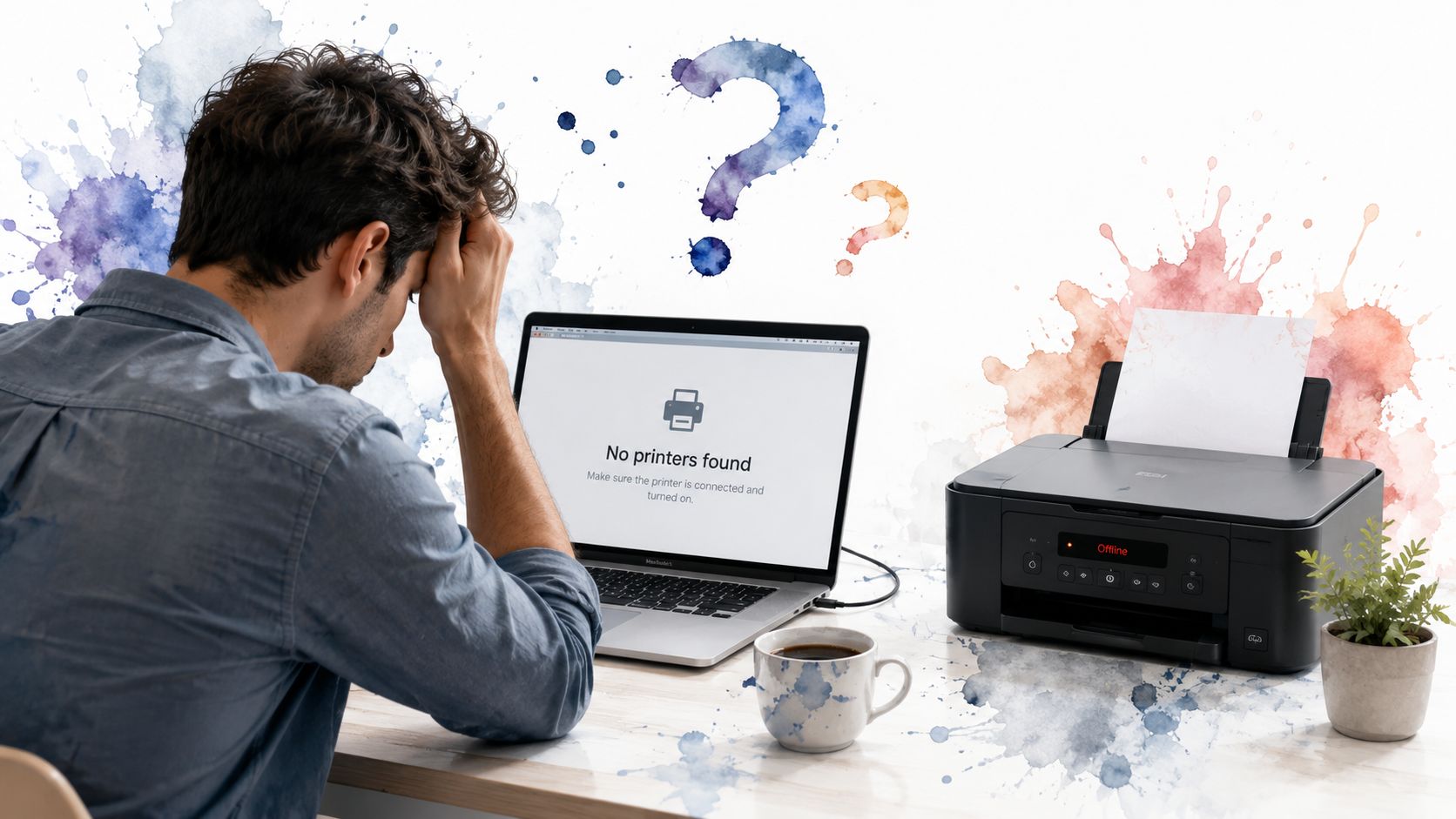
The main annoyance is that macOS printing is built around discovery first, which is great when it works and maddening when it doesn't. Apple's current flow lives in System Settings > Printers & Scanners, and that's exactly where most printers should show up after a short wait, but not all printers are generous about advertising themselves on a network. If you're switching from Windows, this little ritual may feel familiar in the same way a recurring villain feels familiar. A few of the rough edges are explained well in this Mac switching guide, especially if you're still translating old habits into macOS muscle memory.
Why Adding a Printer to a Mac Still Feels Hard
The happy path is simple enough. You open Printers & Scanners, click Add Printer, Scanner, or Fax, and macOS finds the device on the local network or over USB. The problem is that this only feels simple if the printer shows up, and that's where people get stuck staring at an empty list like it personally offended them.
There are really four different setup paths hiding under the same search query. USB is the old reliable cable-in-the-back option. Wi-Fi and AirPrint cover the standard home setup. IP-based network setup is the grown-up fix for printers that refuse to advertise properly. Manual driver installs are the fallback for older devices or picky manufacturers that act like macOS is a suggestion, not an operating system.
Practical rule: if the printer appears, use the normal discovery flow. If it doesn't, stop poking the same button and switch to IP setup or a driver check.
Apple has made Mac printing much less annoying than it used to be. It no longer lives in the era of endless driver scavenger hunts, and modern Macs treat printers more like network services than random beige boxes. That's the upside. The downside is that a single network issue, band mismatch, or missing driver can make the whole thing look broken even when the printer is technically fine.
If you want a quick sanity check from a real-world setup perspective, wireless printer setup Melbourne is a handy reference point for how messy home and office Wi-Fi printer installs can get when discovery behaves badly. Keep that in mind while you work through the cleaner Apple path first.
Setting Up a Wi-Fi or AirPrint Printer on macOS
If your Mac shows an empty printer list, that is the actual problem. The setup itself is usually simple, but discovery is what falls apart. Open System Settings > Printers & Scanners, click Add Printer, Scanner, or Fax, and wait for the network list to populate. Apple says the printer can take a minute or two to appear, which is the part people usually skip because they expect instant results Apple printer setup guide.
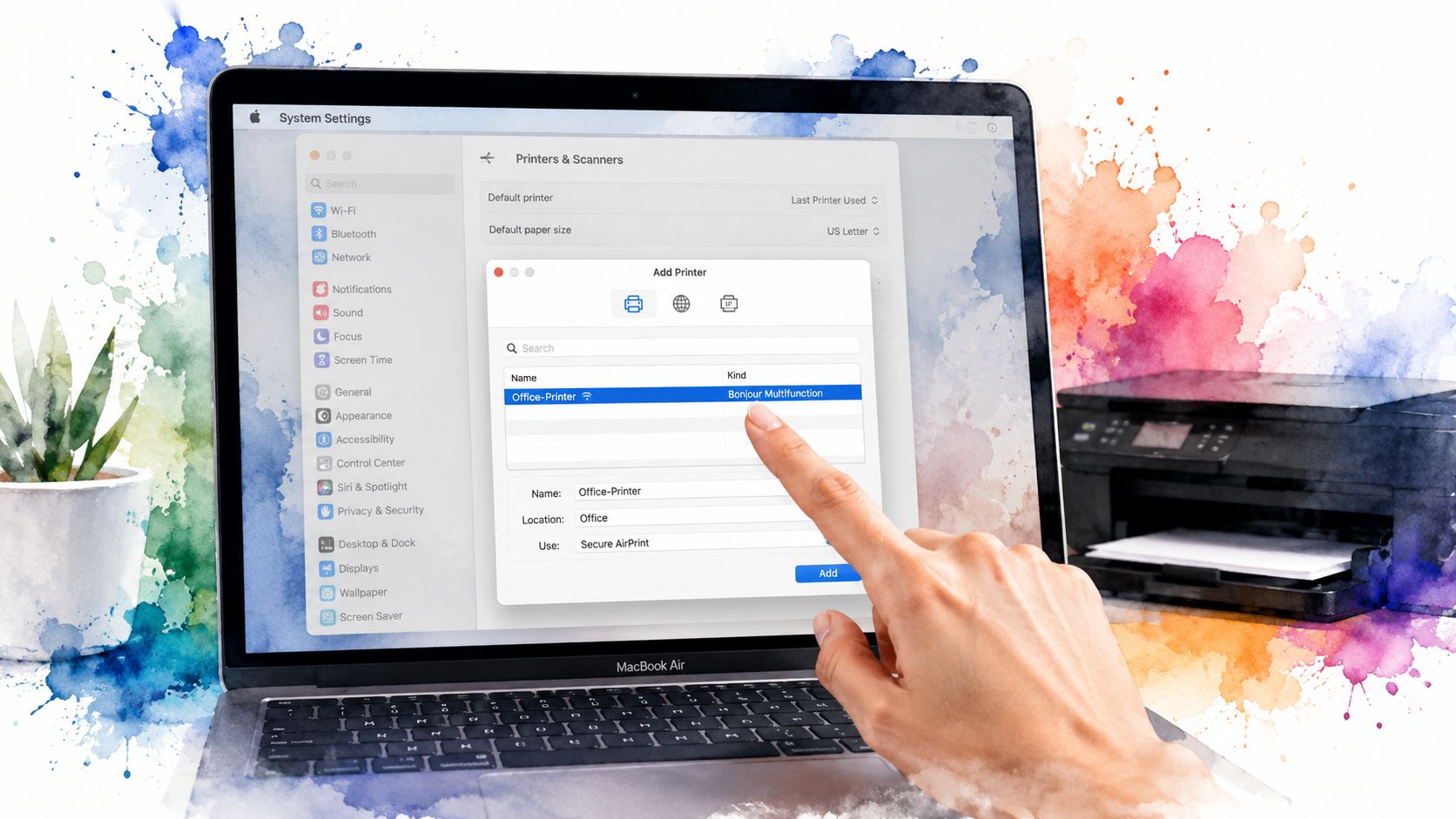
When the printer finally shows up, select it and check the fields macOS fills in automatically. The Kind or Use field should point to an Apple driver, AirPrint, or the manufacturer's own option. AirPrint printers usually identify themselves without much fuss, and profile-based printers are a sign that macOS is seeing the device as a managed network service rather than a basic accessory.
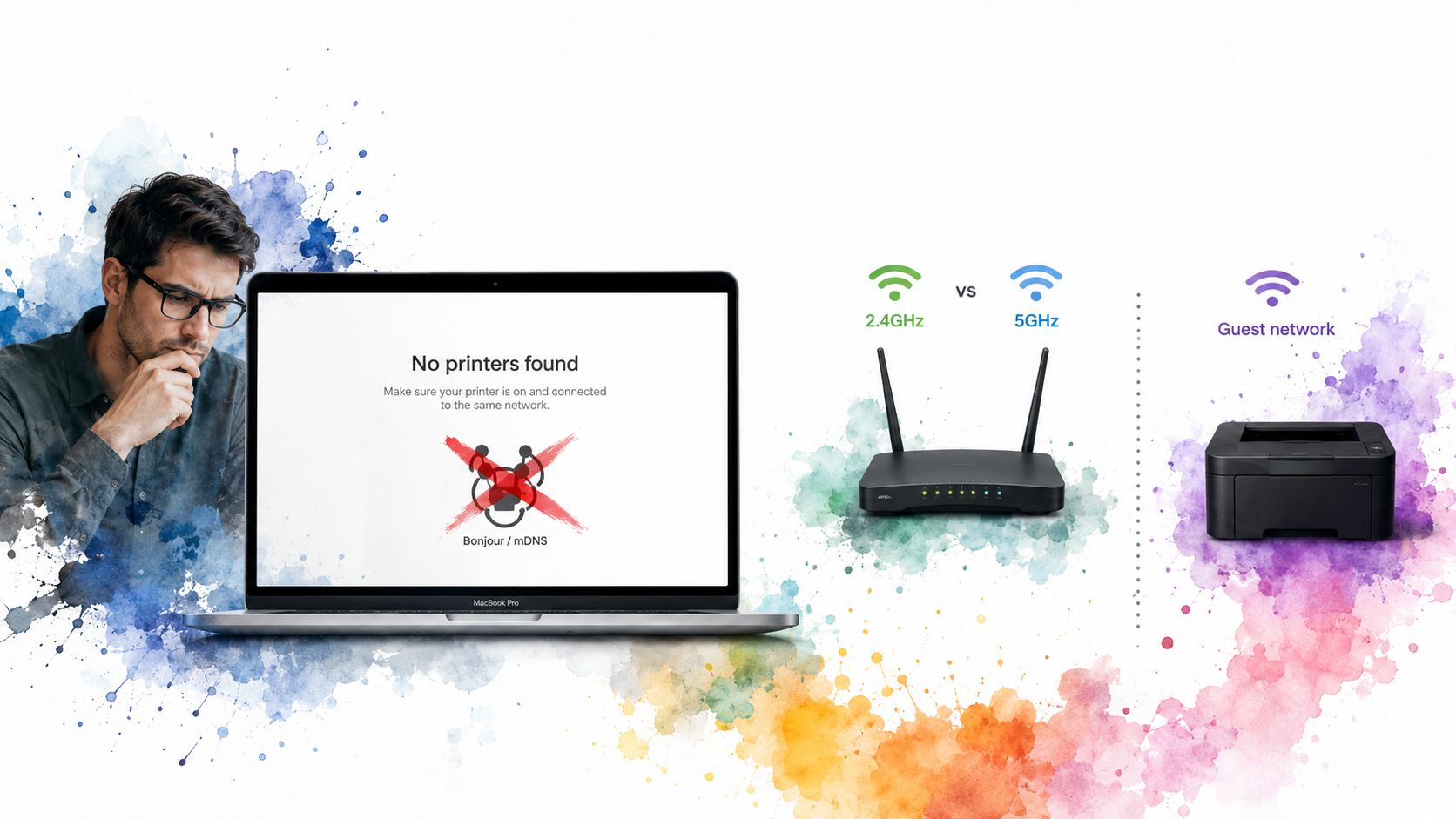
Before you keep clicking around, check the boring details that break setup. The printer needs to be on the same Wi-Fi network as the Mac, not on a guest network, not split onto a separate office VLAN, and not sitting on a router band the Mac never uses. If the printer has a display, read the network name there and confirm it matches the one your Mac is using.
If the printer appears but acts weird, remove it once, then add it again after checking the network and driver.
A common home and office pattern is a printer that works in theory and then hides in practice. For a real-world example of how messy wireless installs get, wireless printer setup Melbourne is a useful reference because it deals with the same discovery problems people hit on ordinary networks.
If the list stays empty after a short wait, stop forcing the same step. Discovery has failed, and the next move is IP setup.
Adding a Network Printer by IP Address
Use IP setup when the printer never appears in the list, sits on a different subnet, or lives in a managed office where discovery is intentionally blocked. This is not a hack. It's a standard Mac printing path, and in mixed environments it often works better than waiting for Bonjour to behave itself University of Minnesota guidance.
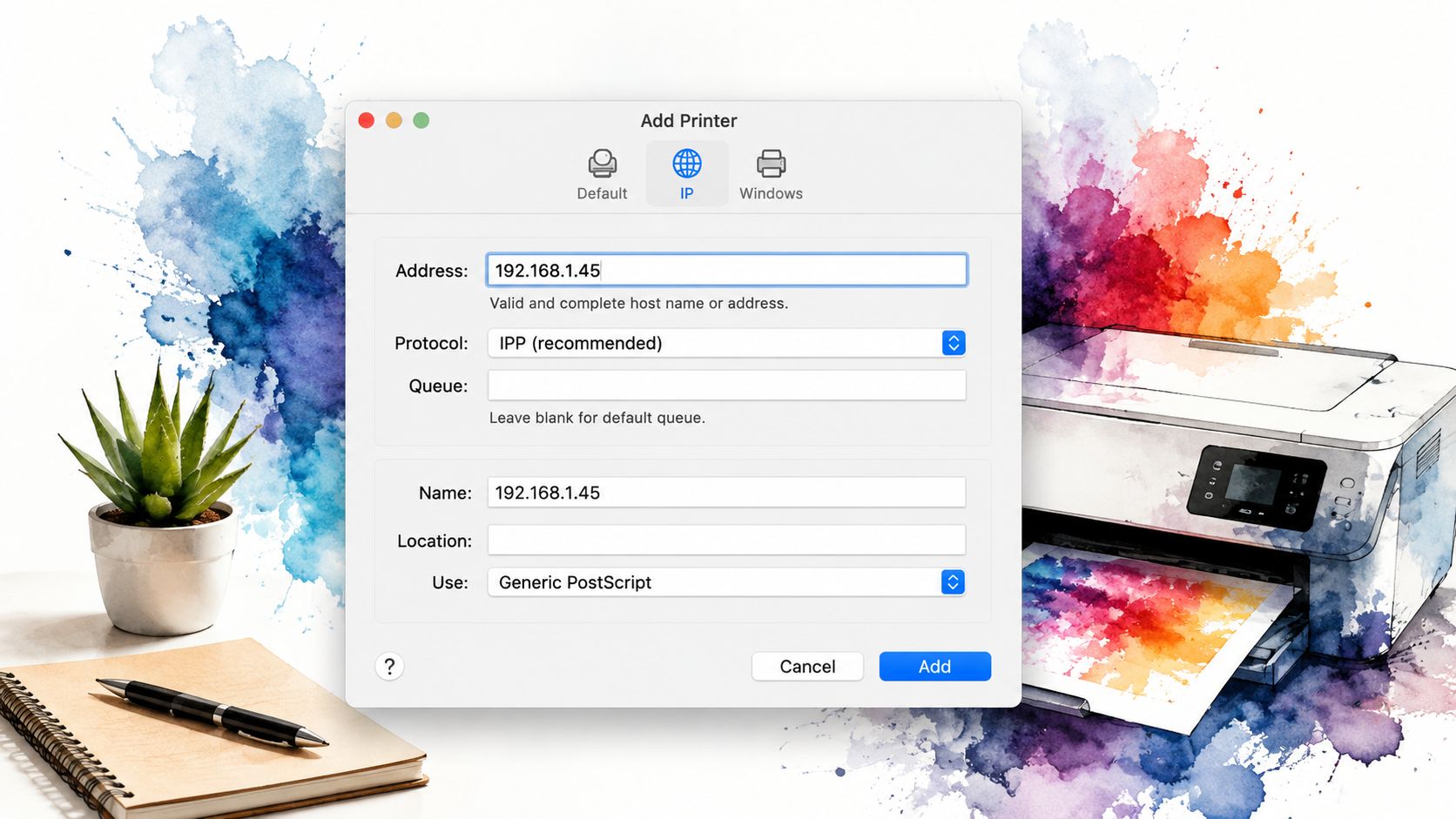
Open Printers & Scanners, click Add Printer, Scanner, or Fax, then switch to the IP tab. Enter the printer's address or hostname, choose a protocol, and then pick the driver in the Use field before clicking Add. Apple and university IT guidance both point to IPP or LPD as the common protocol choices, and the driver selection matters because macOS still wants to know exactly what language the printer speaks University of Minnesota guidance.
If you don't know the printer's address, check the device screen, the router, or the print server admin panel if you have access. For a workstation or laptop on a large network, a small helper like discover your device's IP can also be useful when you're trying to keep the address straight while you're juggling hardware that was clearly designed by someone who enjoys making people squint at labels.
The Use field is where many setups succeed or fail. If macOS guesses wrong, the printer may show up but not print properly, which is the most irritating kind of almost-working. Pick the most appropriate driver you can find, then hit Add and send a test print immediately. Don't trust a setup until paper comes out with actual text on it.
Connecting a USB Printer and Handling Missing Drivers
USB is the least glamorous path, but it's still the fastest way to prove whether the printer itself is alive. Plug it in, wait a moment, and macOS will often add it automatically without making a federal case out of it. That said, older printers can still require a separate macOS driver, especially if the manufacturer only bothered to package Windows support and called it a day.
If the printer appears in Printers & Scanners, check the Use field before you commit. When a printer is picky, the vendor's macOS driver is best. If that's unavailable, Generic PostScript or Generic PCL can sometimes keep an older printer moving when the vendor has gone silent and left the rest of us to clean up the mess.
If the printer does not appear at all, check System Information > USB to make sure the Mac can see the device at the hardware level. That tells you whether the problem is connection, cable, or driver. It's a much better check than repeatedly unplugging and replugging the cable while muttering at the gods of office equipment.
A small annoyance with USB printers is sleep behavior. Some units vanish after the Mac sleeps or the printer powers down. When that happens, reconnecting the cable or waking the printer first usually brings it back, but the true fix is making sure the driver and power behavior are both sane. Older hardware loves a nap almost as much as it loves causing trouble.
For older Macs and older workflows, this legacy setup guide is a reminder that USB printing used to be even more of a scavenger hunt. Thankfully, modern macOS is better about it, assuming the printer vendor didn't ship a driver from the Stone Age.
When Your Mac Cannot Find the Printer at All
An empty printer list is the actual problem, not the "how do I click Add Printer" part. The usual advice says to restart the Mac and printer, which is fine as far as it goes, but it skips the actual causes that block discovery. If the Mac can't see the printer, something in the network path is stopping Bonjour, mDNS, or the printer's own broadcast from reaching the computer Apple troubleshooting guidance.
The usual culprits
- Band mismatch: the printer may be on one Wi-Fi band while the Mac sits on another network that looks similar but isn't the same thing.
- Router isolation: some routers or access points block client-to-client traffic, which kills discovery even when both devices are technically online.
- Guest network rules: guest Wi-Fi often hides devices from one another on purpose, which is awful for printing and excellent for keeping cousins from poking around your smart TV.
- Blocked discovery: some office networks block the broadcast traffic printers use to announce themselves.
- Outdated firmware or bad advertising: the printer can be powered on and still fail to announce itself properly.
The cleanest way to check this is boring but effective. Look at the Wi-Fi name on the printer's display, compare it with the Mac's network, and log into the router if you have access. In office setups, a Bonjour browser or the IT admin page can show whether the printer is broadcasting. If it isn't advertising, macOS is not being stubborn. It has nothing to find.
A printer repair shop can sometimes tell you whether the issue is the printer or the network. If the hardware is flaky, printer repair for your home office is the kind of practical help that beats guessing for an hour. If the network is the culprit, the IP method from earlier is still the dependable fallback.
Troubleshooting Quick Reference and Common Questions
A printer that shows up on the network and still refuses to appear in Printers & Scanners is usually stuck in discovery, not broken in a dramatic way. Start with the simple checks that matter. Open System Settings > Printers & Scanners, wake the printer first, then refresh the list. If the printer vanishes after sleep, add it again by IP instead of repeating the same failed discovery process.
AirPrint also fails in a way that wastes time. The printer may connect and still produce a stripped-down result because the network or the printer is limiting features. If that happens, check the driver in Use, then remove the printer and add it again through the usual path or through the IP tab if discovery keeps dropping the ball.
VPNs can block local printing without making it obvious. If the printer is on your local network and the Mac is routing traffic through a VPN, turn the VPN off and test again. That cleanly separates a routing issue from a printer issue, and it saves you from guessing.
If the Mac keeps saying the printer is connected but nothing prints, follow Apple's basic order of operations. Verify the printer driver, update the printing software, and check the driver version Apple troubleshooting guidance. If the printer still does not show up at all, stop burning time on discovery and switch to IP-based setup.
Sometimes the fix is closing the app that is stuck on the print job. If a print dialog freezes or the queue will not respond, use this guide to force quit an app on Mac and then reopen the printer queue. That clears out a surprising number of stuck jobs without touching the printer itself.
If you want the Mac side to feel a little less sterile while you keep troubleshooting, gifPaper handles the screen part of the equation. It is a live wallpaper app for Mac, so the desktop and lock screen stop looking dead and start looking like someone cared.