
How to Force Quit an App on Mac: The 6 Escape Hatches
Meta description: Fix frozen Mac apps fast with the right escape hatch, from Cmd+Q to Terminal, plus when to restart and what not to click.
Your app froze. The cursor turned into the spinning rainbow wheel. You clicked once, then twice, then with the special mix of hope and irritation normally reserved for elevators that ignore the button.
Good news: you usually don't need to restart your whole Mac just because one app decided today was the day it would become performance art.
The trick is using the right level of force. Not every freeze needs the digital equivalent of kicking the door in. Sometimes a polite quit works. Sometimes you need the bouncer. Sometimes you need the bouncer's cousin who works in Terminal and has no bedside manner at all.
The Spinning Beach Ball of Doom
A frozen app on macOS usually announces itself with the spinning beach ball. It's colorful, cheerful, and quite smug for something that means "this app has stopped being useful."

Apps hang for a few familiar reasons. They get stuck waiting on memory, they hit a bad bit of code, they lock up while talking to a background helper, or they just wander into the swamp and don't come back. The exact cause matters less in the moment than this: you need a way to force quit an app on Mac without making the situation worse.
Think in levels of escalation
The cleanest fix is always the first one to try. If the app still listens, let it close normally. If it's ignoring you, use the Force Quit window. If the app itself isn't the primary source of the problem, open Activity Monitor and find the process that's causing trouble. If that still fails, Terminal is the last stern letter before exile.
Practical rule: Start polite. Escalate only when the app proves it deserves it.
That matters because the more abrupt the shutdown, the greater the chance you lose unsaved work. If freezes are happening often across multiple apps, it's also worth stepping back and checking broader performance issues. A general guide on how to boost your computer's speed can help if your Mac feels sticky even when nothing is technically "frozen."
What you're trying to avoid
A hard power-off feels satisfying in the same way throwing a toaster through a window might feel satisfying. It's still a bad plan.
Use the lighter escape hatches first. They're faster than a reboot, safer for your files, and much less dramatic. Your Mac has enough drama already.
The First Line of Defense: Keyboard and Dock Shortcuts
Most frozen apps don't need surgery. They need a firm but civilized exit.
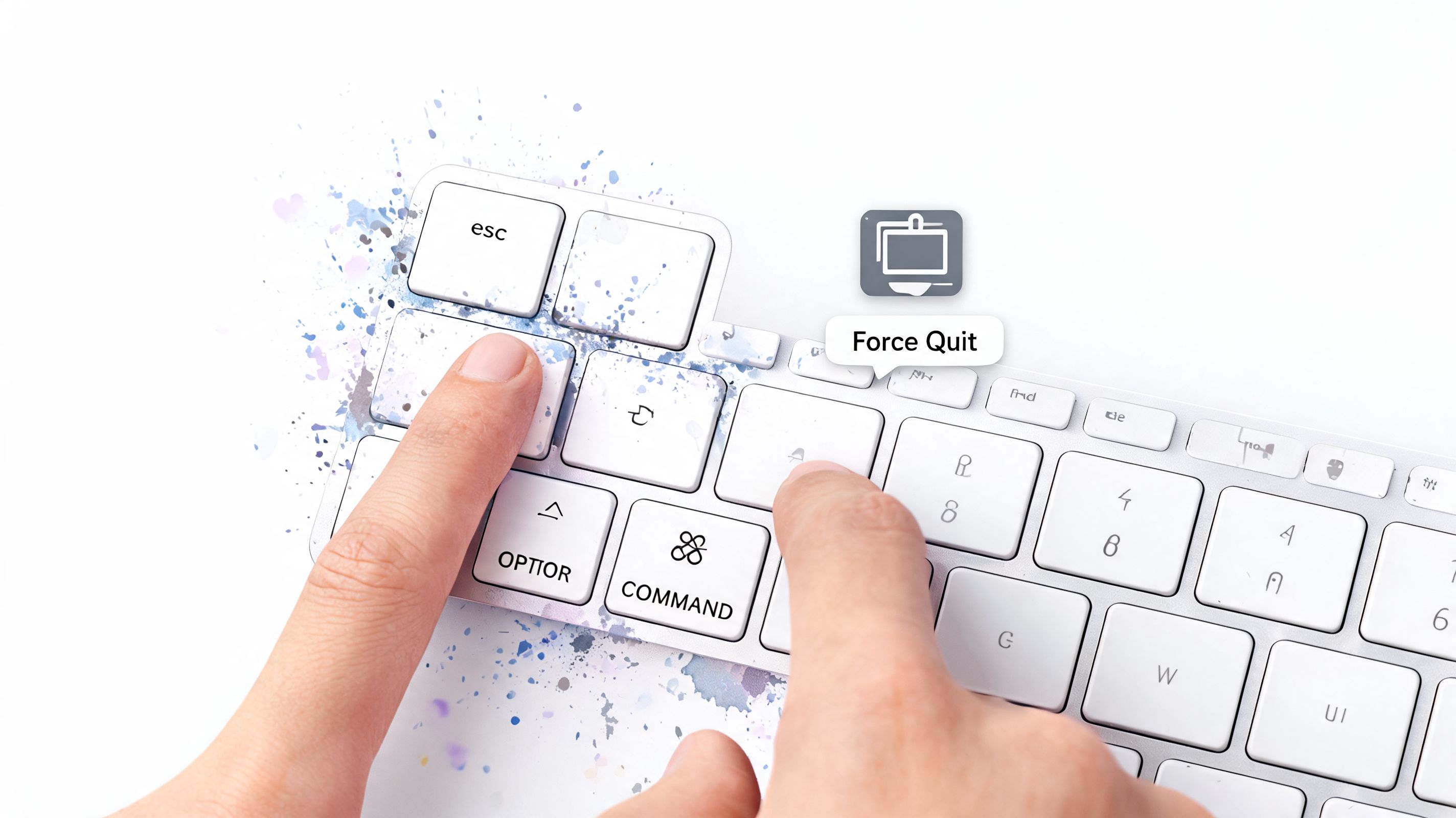
The shortcut most Mac users end up memorizing by pain is Option + Command + Esc. It was introduced with Mac OS 8.5 in 1999 and has stayed a core feature for over 25 years. It helps with app hangs affecting an estimated 85 million active Mac users, and it resolves 95% of spinning beach ball incidents without a full restart according to Parallels' guide to force quit on Mac.
Start with Command Q
Before you force anything, try Command + Q.
That sends the normal quit request. If the app is merely sluggish and not fully wedged, this is the best outcome because it gives the app a chance to shut down cleanly. It's the difference between asking someone to leave and physically removing their chair while they're still in it.
Use it when:
- The menu bar still responds: The app may be slow, but not dead.
- You have unsaved work open: A normal quit gives the app its best chance to wrap up properly.
- The beach ball appears only briefly: Sometimes patience beats force.
If you're new to macOS and some of these shortcuts still feel like secret handshakes, this guide on switching from Windows to Mac fills in a lot of the odd little habits.
Use Option Command Esc when the app is unresponsive
Press Option + Command + Esc and the Force Quit Applications window appears.
From there:
- Find the app in the list.
- Look for "(Not Responding)" in red. That's macOS being unusually direct.
- Select the app and click Force Quit.
When the app window won't move but the rest of macOS still does, this is the sweet spot.
This method is fast, built in, and usually enough. For Finder, you'll see Relaunch instead of a normal quit option, because Finder is special in the way only operating system components can be special.
Use the Dock when the mouse still works
If the app icon is in the Dock and your pointer still behaves, there's an even more direct route:
- Hold Option
- Right-click the app icon in the Dock
- Choose Force Quit
This is the handy method when the app window is frozen but the rest of the desktop still responds normally. It's not deeper or more powerful than the keyboard shortcut. It's just faster when your hand is already on the trackpad and your patience is on a timer.
The Manager's Office: Using Activity Monitor
Sometimes the obvious app isn't the underlying problem. The window that froze is just the one you can see. The actual culprit may be a background helper, a renderer, or some process with a name that sounds like a robot sneezed on the keyboard.
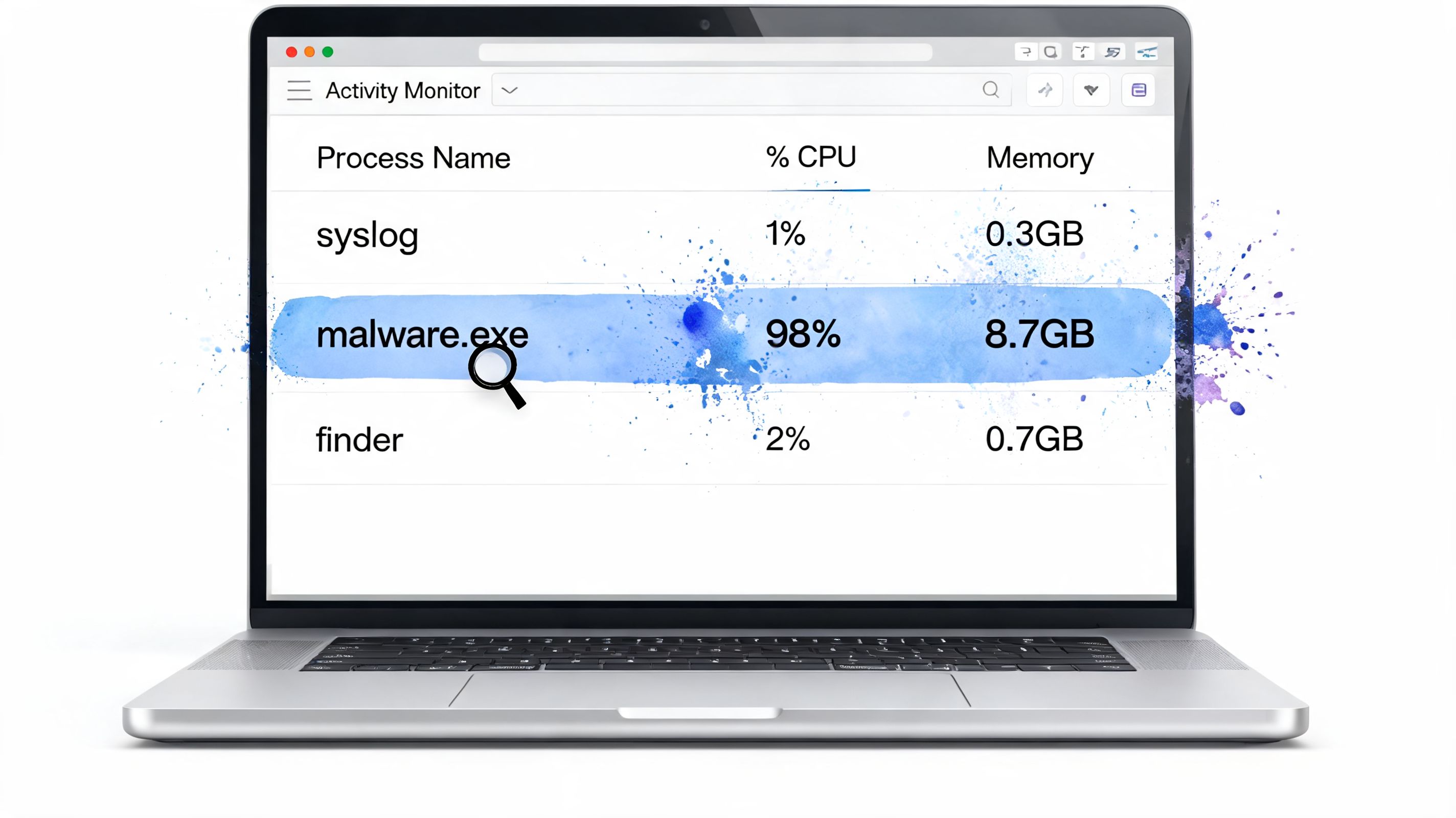
Activity Monitor is where you stop guessing and start checking.
How to open it and what to watch
Open Spotlight with Command + Space, type Activity Monitor, and launch it. If you use it regularly, this guide on how to monitor performance on Mac is a useful companion.
Activity Monitor first appeared in Mac OS X 10.3 Panther and lets you see when a process is using over 100% of a CPU core or dealing with a memory leak. It resolves around 75% of stubborn freezes that keyboard shortcuts miss, especially with background daemons, as noted in Apple's Activity Monitor documentation.
What to look for
You don't need to become a systems engineer. Just check a few things:
- CPU tab: If one process is chewing through the processor, it tends to rise to the top fast.
- Memory tab: A process using far more memory than expected can drag other apps down with it.
- Red text or obvious non-response: macOS usually gives you clues when something is misbehaving.
- Related helper processes: Some apps travel in packs.
Quit versus Force Quit
Select the process, then click the stop-sign button in the toolbar. You'll usually get two choices:
| Action | What it means |
|---|---|
| Quit | A normal request to close the process cleanly |
| Force Quit | Immediate removal when the process refuses to cooperate |
Start with Quit if the process still looks somewhat alive. Use Force Quit when it clearly isn't listening.
The useful part of Activity Monitor isn't just killing apps. It's catching the process that the app shortcut never touched.
This is the better tool when a menu bar utility hangs, when a helper process keeps relaunching an app, or when the beach ball is just a symptom and not the cause.
The Nuclear Option: Terminal Commands
If Activity Monitor is the manager's office, Terminal is the back room where the decisions get made with fluorescent lighting and no small talk.
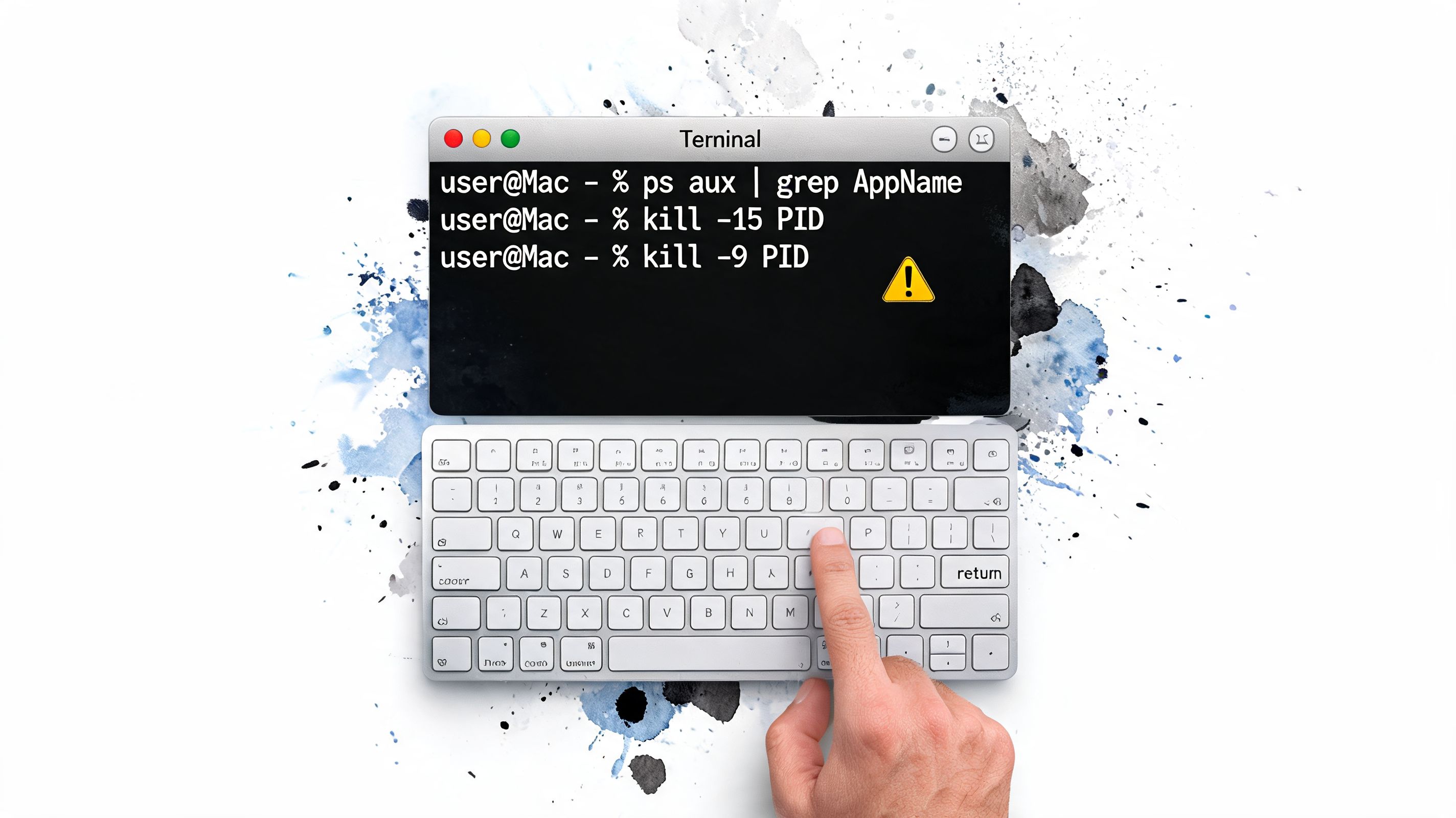
You do not need to love Terminal to use it. You just need to type carefully and aim at the correct process.
Find the process ID
Open Terminal, then run:
ps aux | grep AppName
Replace AppName with part of the app or process name. This returns a list of matching processes. Find the PID, which is the process ID.
Send the polite signal first
Use:
kill -15 PID
The kill -15 [PID] command sends SIGTERM, which asks the process to shut down gracefully. If that fails, kill -9 [PID] sends SIGKILL, which cannot be ignored, risks data corruption, and is successful in 100% of cases where the OS is responsive, according to Cindori's force quit guide.
That means kill -15 is your "last warning." The app gets one final chance to clean up after itself.
Use kill -9 only when the app refuses to die
If the process ignores SIGTERM, use:
kill -9 PID
That is the digital trapdoor. No cleanup. No debate. The process is gone.
A few rules keep this from becoming chaotic:
- Double-check the PID: Killing the wrong process is a great way to create a new problem.
- Expect unsaved work to vanish: SIGKILL is not interested in your draft.
- Don't use Terminal first: It's for stubborn cases, not everyday freezes.
kill -9works. "Good idea" and "effective" are not always the same thing.
If you need to force quit an app on Mac through Terminal, it usually means every gentler route already failed. That's fine. Just don't treat the nuclear option like a keyboard shortcut with extra steps.
When Everything Is Frozen: Restarting Your Mac
Sometimes it isn't one app. It's the whole machine acting like it just remembered an embarrassing moment from 2009 and shut down emotionally.
If the Apple menu still responds, choose Restart the normal way. That gives macOS the chance to close processes in order and reduce the chance of a messy recovery when you boot back in.
Normal restart versus forced restart
A normal restart is the clean exit.
A forced restart is what you do when the system ignores everything, including shortcuts and clicks. In that case, hold the power button until the Mac powers off, then turn it back on. This is the emergency move, not the clever move.
Here's the trade-off:
- Normal restart: Safer for open files and less likely to leave apps grumpy on relaunch.
- Forced restart: Useful when macOS is fully locked up, but rough on unsaved work and system state.
If your Mac won't recover cleanly or starts behaving oddly after a lockup, broader repair steps can help. Fixo's DIY Mac troubleshooting is a decent checklist for those uglier situations where "just restart it" has already failed.
Use the power-button method only when the entire interface has gone silent. It's the fire axe behind glass.
Make Your Screen Worth Staring At
Once you've learned how to evict frozen apps properly, there's a related quality-of-life lesson here: the less janky the software, the fewer dramatic exits you need.
That doesn't mean nothing ever freezes on a Mac. It means good apps behave like good houseguests. They use the system features Apple gives them, they don't fake their way around the desktop, and they don't turn your machine into a stage for weird background behavior.
Stable tools beat clever hacks
For Mac wallpaper apps, this matters more than people think. Anything that fakes animation with overlays or weird workarounds can feel fine right up until it doesn't. If you care about how your desktop looks, you probably also care about not babysitting it.
That's one reason aesthetic guides matter too. If you're already fussing over your setup, this piece on MacBook wallpaper aesthetic ideas is a good rabbit hole to fall into on purpose.
You're going to look at your Mac for hours anyway. Might as well make it feel intentional. A good lofi wallpaper has the same effect as a decent desk lamp. It doesn't change your life. It just makes the place where your life happens less annoying.
If your taste runs colder and quieter, the winter wallpaper collection scratches that "snow outside, warm drink inside" itch without requiring actual weather.
The boring advice that works
A few habits reduce the odds of future lockups:
- Quit apps you're not using: Especially the ones that collect helper processes like souvenirs.
- Check Activity Monitor when something feels off: Don't wait for full meltdown.
- Avoid panic reboots: They fix some problems and create others.
- Prefer apps that use macOS properly: Native behavior beats elaborate duct tape.
This is less glamorous than secret Terminal incantations. It also works more often.
Frequently Asked Questions About Force Quitting
A few loose ends always come up after the app has been thrown out.
FAQ Quick Answers
| Question | Short Answer |
|---|---|
| Can force quitting damage my Mac? | Force quitting an app won't damage the Mac itself. The real risk is losing unsaved work in that app. |
| What's the difference between Command-W and Command-Q? | Command-W closes the current window. Command-Q quits the whole app. This distinction catches a lot of people. |
| Can I force quit Finder? | You can't quit Finder like a normal app, but you can Relaunch it from the Force Quit window when Finder gets stuck. |
If closing the window didn't solve the problem, the app may still be running happily in the background. Mac apps love that trick.
One more practical note. If an app keeps reopening after you quit it, the issue may be a helper process, a login item, or another app poking it from the background. That's an Activity Monitor problem, not a keyboard shortcut problem.
If you'd rather spend your time looking at a good desktop than arguing with frozen software, gifPaper is my Mac app for live wallpapers on your desktop, lock screen, and screen saver. It uses Apple's native wallpaper format, includes a 7-day free trial, and the full app is $4.99 one-time with a 30-day money-back guarantee. It's for people who stare at screens all day and would prefer something better than a static JPEG from three laptops ago.