Monitor Performance Mac: Boost Your Speed & Fix Slowness
Your Mac starts acting weird in very specific ways. The spinning beachball shows up while you're answering one email. Typing lags behind your fingers like the keyboard is having second thoughts. The fans start roaring over something that should not require aviation-grade cooling.
That doesn't mean your Mac is ancient, cursed, or personally offended by your wallpaper taste.
It usually means something is using more CPU, memory, battery, disk, or graphics power than it should. The useful part is this: macOS already gives you the tools to see it. You don't need to become a part-time sysadmin in a black turtleneck. You just need to know where to look and what counts as suspicious.
Your Mac Is Trying to Tell You Something
The classic signs are familiar. Apps hesitate. Windows stop feeling attached to your cursor. Battery life suddenly falls off a cliff. You close one tab and feel like a medieval doctor applying leeches to a bigger problem.

A lot of people assume "monitor performance mac" means something only developers care about. It doesn't. It means figuring out why your expensive aluminum rectangle suddenly behaves like it has opinions about opening Mail.
If you want a broader checklist of likely causes before you start poking around in system tools, this guide on why your MacBook might be slow is a useful companion. It covers the ordinary suspects that pile up over time.
The important shift
Performance monitoring sounds technical. In practice, it's just pattern recognition.
You're looking for answers to a few very human questions:
- What changed: Did the slowdown start after installing an app, connecting a monitor, or leaving fifty browser tabs breeding in the background?
- What's loud: Fans, battery drain, lag, and heat usually point to an active process, not vague "Mac aging."
- What matters to you: Some people need raw export speed. Some want silent battery life. Some just want a desktop that looks like a rainy train ride through a city at midnight without turning the machine into a toaster.
You don't have to choose between a fast Mac and a pretty Mac. You do have to stop guessing.
That's the whole game. Find the hog, confirm it, then decide whether to close it, replace it, or live with the trade-off because yes, the glowing cyberpunk alley is worth something.
Meet Your Mac's Built-In Detective: Activity Monitor
Your Mac already has the tool you need. Activity Monitor is the fastest way to confirm whether the problem is an overworked CPU, cramped memory, a chatty background process, or an app that treats your battery like a suggestion.
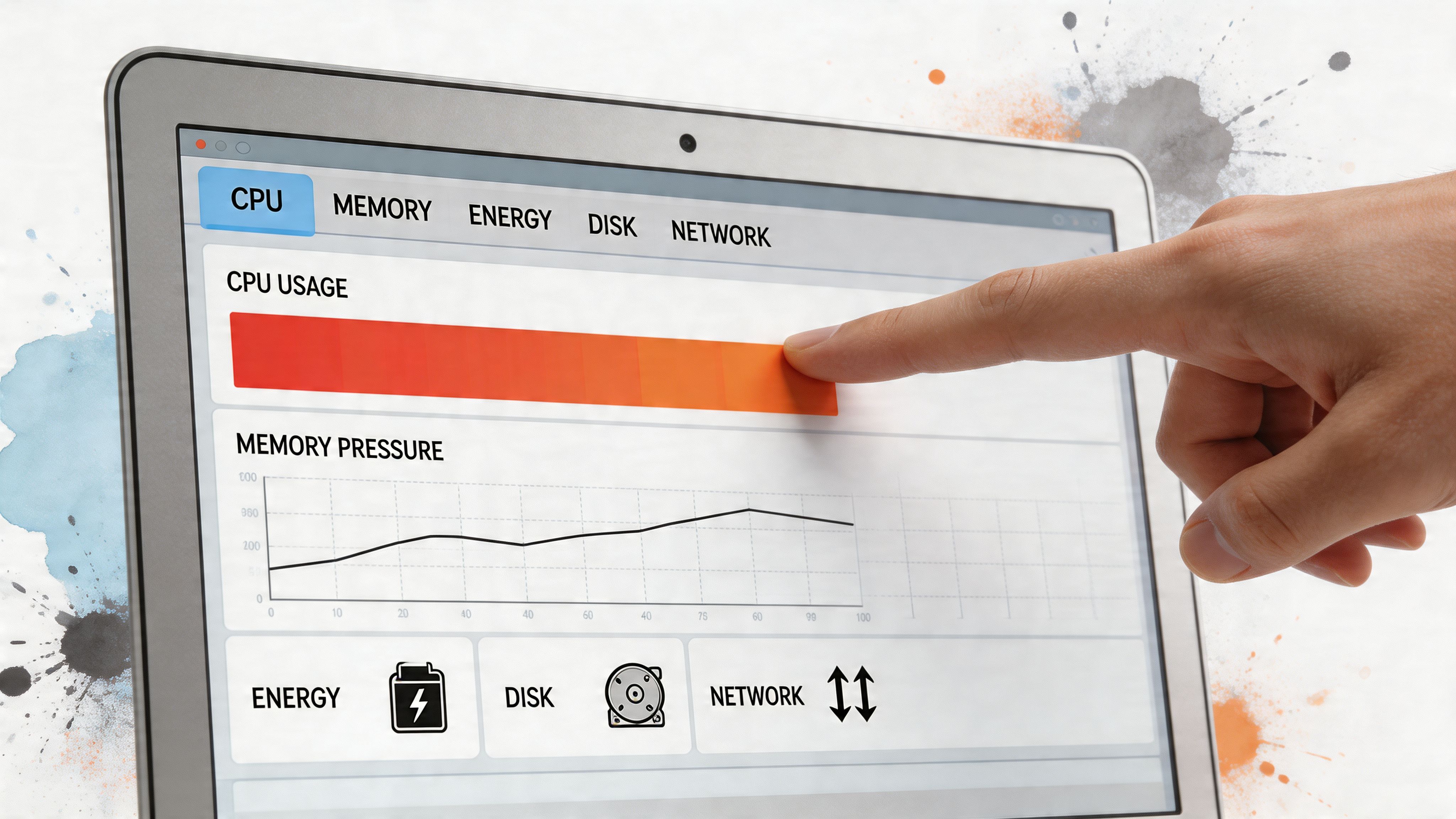
Open it from Applications > Utilities, or hit Spotlight and type Activity Monitor. The first screen looks busy, but you do not need to decode every process name. You are looking for outliers. Something using far more resources than it should, for longer than it should.
That matters even more if you care about how your desktop looks. Animated backgrounds, customization tools, browser-based widgets, and visual utilities can be perfectly fine, or they can sit there in the background cooking a CPU core because one setting got out of hand. If you like tuning the look of your setup, this guide on how to customize your Mac desktop pairs nicely with the detective work here.
Start with CPU
The CPU tab answers the blunt question first. What is making the Mac work so hard?
Sort by % CPU and watch what stays near the top for more than a few seconds. A brief spike is normal. A process that keeps chewing CPU while your laptop gets warm is the thing to investigate. Wallpaper apps, video call apps, browsers with too many active tabs, and sync utilities show up here a lot more often than people expect.
A good quick check:
- One process sticks at the top: Look at that app first.
- The Mac feels hot and sluggish: Sustained CPU use is the likely cause.
- You changed something visual recently: New wallpapers, desktop widgets, or display effects deserve suspicion before you blame macOS.
Practical rule: Ignore momentary drama. Hunt the process that stays loud.
If you want a rolling view instead of a sortable list, open Window > CPU History. It is handy for testing changes, especially if you are trying to keep a live wallpaper because yes, the desktop should look good too.
Memory explains the heavy feeling
The Memory tab is usually where a vague complaint turns into a specific one. You can see which apps are using the most RAM, whether memory pressure is climbing, and whether one app is wildly out of proportion to everything else.
What matters most is not a single number. It is whether the Mac is starting to strain under the load. When RAM gets crowded, the system has to work harder to keep everything responsive, and that is when opening apps, switching windows, and doing ordinary tasks starts to feel annoyingly sticky.
A simple way to read it:
| What you see | What it usually means |
|---|---|
| Plenty of free memory | RAM probably is not the problem |
| One app using far more memory than expected | That app deserves a closer look |
| Sluggish performance while memory pressure is high | The Mac is juggling too much at once |
You do not need to memorize every metric. Spot the app that is behaving absurdly.
Energy, Disk, and Network catch the less obvious stuff
The Energy tab is great for the classic mystery of a battery dropping fast while nothing obvious seems to be happening. If a decorative app, browser tab, or background utility is burning power all day, it usually shows up here.
The Disk tab helps with file-related slowdowns. Slow app launches, lag while saving, indexing, sync jobs, and giant media libraries often leave fingerprints there. The Network tab is for apps that will not stop talking to the internet, which includes cloud storage tools, browsers, backup services, and a surprising number of apps that think constant background activity is charming.
Three tabs people should check more often:
- Energy: Best for heat and battery drain during light use
- Disk: Best for delays while opening, saving, or syncing
- Network: Best for background traffic you did not ask for
If you want a broader look at how always-on system data can help you catch problems earlier, this article on real-time monitoring is useful.
Activity Monitor will not fix the problem for you. It does something better first. It stops the guessing, which is usually how people end up deleting the wrong app while the actual culprit keeps happily roasting the machine in the background.
Get a Heads-Up Display for Your Mac's Vitals
You close the lid after a normal work session, pick the Mac back up an hour later, and it feels like it spent that time rendering a Marvel trailer. That is the problem with checking Activity Monitor only after something has already gone sideways.
A menu bar monitor fixes the timing.
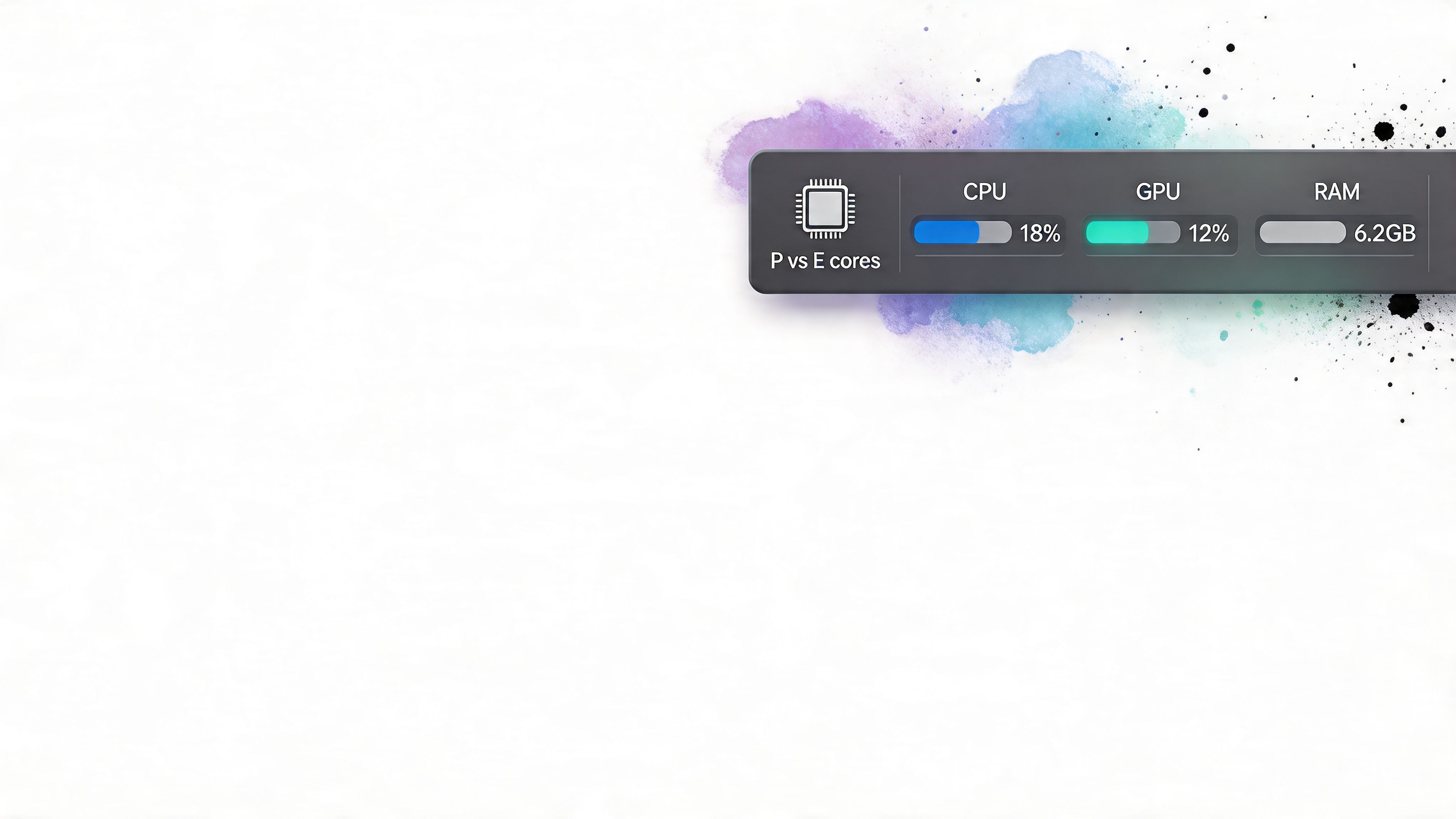
Stats is useful because it keeps the basics in view while you work: CPU, GPU, memory, disk, network, battery, sensors, fans, Bluetooth, and clocks. You do not have to stop, open a utility, and start sorting columns just to answer a simple question like, "Why is this machine suddenly warm while all I did was change the wallpaper?"
If you like the idea of always-on system awareness, this piece on real-time monitoring is a helpful read. Different tools handle it differently, but the basic value is the same. You catch weird behavior early, before it turns into fan noise and regret.
Why Stats works so well
The best part is speed. A quick glance tells you whether the system is calm, memory pressure is climbing, or the GPU just woke up because something visual kicked in.
On Apple Silicon, that extra visibility matters. Seeing performance cores and efficiency cores separately helps you tell the difference between ordinary background activity and an app behaving like it has personal issues. If efficiency cores are doing light cleanup, fine. If performance cores stay busy while you are supposedly "just at the desktop," something is asking for more horsepower than it should.
A few patterns are especially useful:
- Short burst, then quiet: usually normal
- Sustained high CPU: likely a real performance hog
- GPU spikes during visual effects: worth checking if motion is part of your setup
- Rising memory pressure over time: often a bloated app or too many heavy tabs
Better data makes prettier desktop choices
This section matters if you care what your Mac looks like, which plenty of people do. The whole point is not to turn your menu bar into a flight deck for sport. It is to make good-looking desktop choices without guessing.
If you are experimenting with motion, widgets, or a more polished setup, this guide to customizing your Mac desktop pairs nicely with a menu bar monitor. You get to keep the nice visuals and verify that they are not chewing through battery or waking the fans every few minutes.
One practical example helps. The RAM view can make it obvious that one app is staying modest while another keeps swelling for no good reason. GPU graphs are just as handy when testing animated desktops or live wallpaper apps. If a visual app causes brief, contained activity and then settles down, that is usually a fair trade. If it keeps pushing the GPU while hidden behind other windows, that app is wasting resources for decoration you cannot even see.
That is the whole job of a heads-up display. It gives you a baseline for your own Mac, so you can tell the difference between harmless eye candy and software that looks pretty while quietly cooking the chassis.
A good monitor tool doesn't just show numbers. It teaches you what "normal" looks like on your own Mac.
The Live Wallpaper Question: Does Beauty Tank Performance
You set a beautiful animated wallpaper, close the lid feeling pleased with yourself, then an hour later the MacBook is warmer than expected and the battery has taken a weird hit. That is the live wallpaper anxiety in one sentence.
A moving desktop is not automatically a bad idea. A badly made moving desktop is.
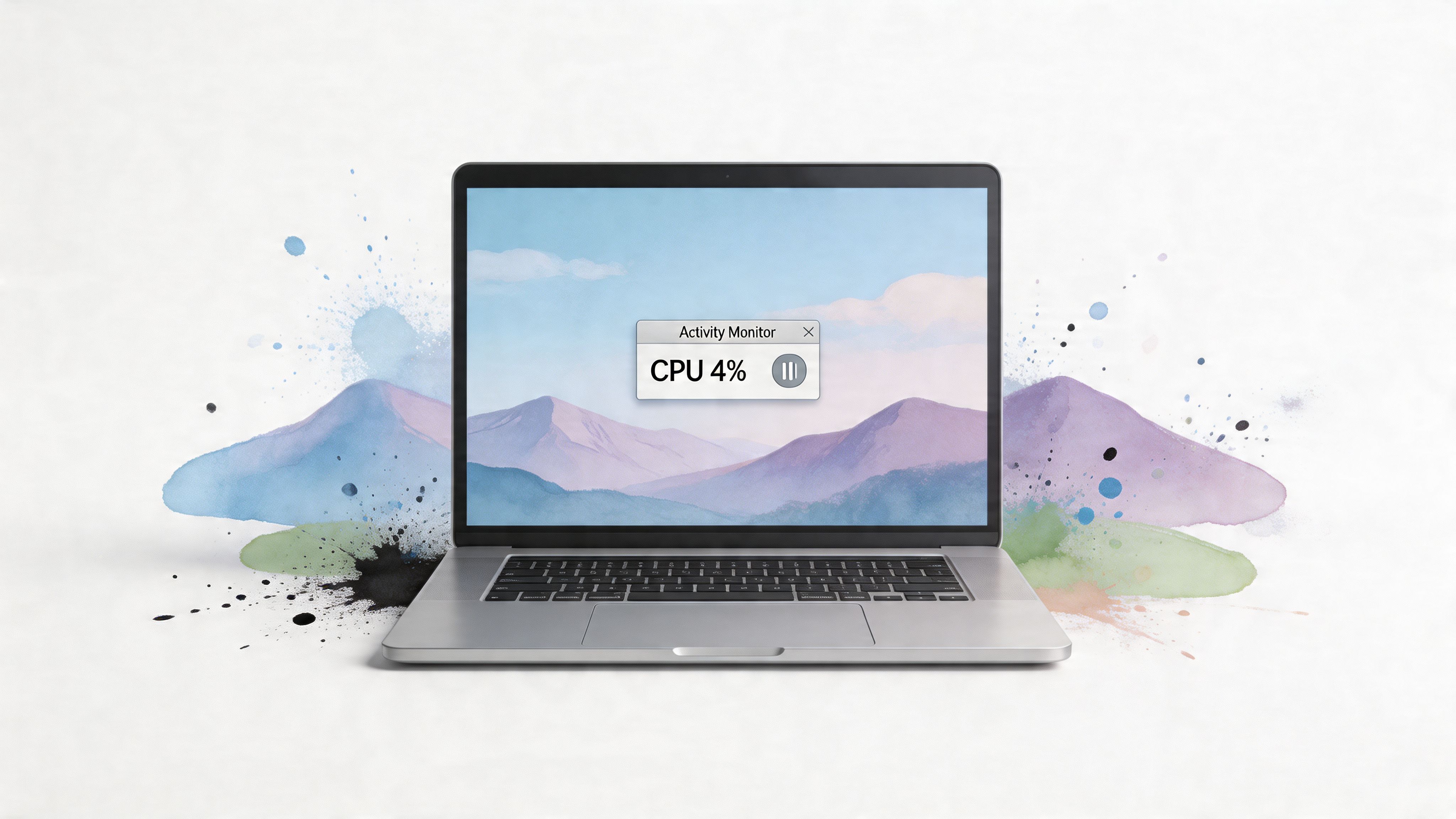
The practical answer is to test the wallpaper like any other app. If you want the setup side first, this guide on how to get live wallpapers on Mac covers that part. Then watch what happens on your own machine, because the same wallpaper can feel harmless on one Mac and obnoxious on another.
What to watch when testing
Use your desktop normally for a few minutes. Leave the wallpaper visible at the desktop, then repeat with your usual apps open, then pay attention when the animation loops or shifts scenes. The pattern matters more than any single spike.
You are looking for behavior like this:
| Behavior | Likely verdict |
|---|---|
| Small, steady resource use | Usually fine for daily use |
| Sharp repeated spikes at loop points | Likely inefficient rendering |
| High usage while the desktop is covered by windows | Wasteful app behavior |
| Extra heat with no obvious visual benefit | Bad trade-off |
The absurd part is that two wallpapers can look equally tasteful while behaving very differently under the hood. One app decodes motion efficiently, settles down, and mostly stays out of the way. Another keeps poking the CPU or GPU long after the novelty has worn off. If the fans ramp up while you are answering email with five windows covering the desktop, the wallpaper has failed the assignment.
External monitors change the math
This catches plenty of people. A live wallpaper that feels perfectly reasonable on your built-in display can become expensive the moment you plug into a large external monitor, especially at higher resolutions.
More pixels mean more rendering work. Multiple displays mean more chances for a wallpaper app to do something dumb, such as continuing full animation on every screen even when you are barely looking at one of them. If your Mac seems calm on its own display and much less cheerful on an external monitor, that is a believable result, not user superstition.
The question is not whether motion looks good. The question is whether the app stays polite while delivering it.
That is why design-conscious setups need a little discipline. You can have the nice desktop. You just want motion that earns its place by staying cool, quiet, and boring in Activity Monitor.
If you like motion for atmosphere rather than spectacle, the lofi collection is the kind of look that makes this trade-off worth getting right. The goal is a desktop with taste, not a space heater with good vibes.
Troubleshooting Other Common Performance Hogs
A pretty desktop usually gets blamed first because it is the one thing you can see. Meanwhile, the underlying problem is often some gremlin in the background chewing CPU, memory, disk, or battery while your wallpaper takes the heat for it.
Start with a sanity check in Activity Monitor. Sort by CPU, Memory, or Energy and look for the app that has overstayed its welcome.
The usual suspects
The repeat offenders are not very glamorous, but they are reliable:
- Browsers: One browser window can hide a ridiculous amount of activity. Streaming tabs, ad-heavy sites, chat apps, and web dashboards all pile on.
- Cloud sync tools: Dropbox, iCloud Drive, Google Drive, and similar apps can hammer disk and network activity during a large sync or after folder changes.
- Spotlight indexing: After a migration, system update, or big file shuffle, indexing can spike and make the whole Mac feel oddly sluggish.
- Menu bar and helper apps: Tiny utilities have a talent for looking harmless while burning more resources than they earn.
If performance drops right after you changed your desktop setup, rule out the boring stuff before declaring war on visuals. This guide on how to change wallpaper on Mac is simple, which is exactly why it helps. Reset the wallpaper setup, confirm the basics, and remove one variable from the mess.
One more thing gets missed a lot. Browser extensions. I have seen plenty of Macs that looked "mysteriously slow" until one overeager extension stopped inspecting every page like it was conducting a federal investigation.
Hidden resource pressure feels like wallpaper trouble
This is why live wallpapers get unfairly accused. You notice motion, so you blame motion. But if your Mac is also syncing a photo library, rebuilding Spotlight, and keeping 37 Chrome tabs alive out of pure spite, the wallpaper is only part of the story, and sometimes not the important part.
The practical test is simple. Quit or pause the obvious background hogs, then watch what changes. If the Mac settles down, your desktop aesthetic was never the main villain.
If your screen time happens mostly at night, dark wallpapers are worth a look for comfort alone. A calmer desktop can feel better to use, and static or low-motion options are often the smarter choice on an already busy system.
If the slowdown still feels broad and inconsistent after you clean up apps, memory pressure deserves a closer look. This guide on how to test RAM memory on your Mac is a useful next step when the issue feels deeper than one misbehaving app.
Advanced Diagnostics For When You Must Know for Sure
Sometimes you need more than a hunch. You changed the wallpaper, quit the obvious offenders, and your Mac still feels off. At that point, stop guessing and run a controlled test.
Benchmarking gives you a baseline. Tools like Geekbench 6 and Cinebench help answer a simple question: is the whole machine underperforming, or does the slowdown only show up in one app or one kind of workload? A decent benchmark run will not tell you everything, but it will tell you whether your beautiful desktop setup is the problem or just getting blamed because it happens to be visible.
What each tool is good for
Different tools answer different questions.
- Geekbench 6: Good for a general CPU check and quick comparisons.
- Cinebench: More useful if heavy rendering, sustained CPU load, or thermal throttling seems likely.
- Blackmagic Disk Speed Test: Handy when the Mac feels slow opening large files, loading apps, or swapping to disk.
- PassMark PerformanceTest for Mac: Useful if you want a broader side by side view of system behavior.
Method matters more than chasing one dramatic score. Run the test a few times, ignore the first pass if the system is still settling, and compare the later results. If scores drop sharply from one run to the next, heat may be part of the story. That matters on Macs running external displays, live wallpapers, and a stack of creative apps at the same time. Pretty desktops are fine. Pretty desktops plus sustained heat are where things get theatrical.
A benchmark is only a baseline, though. It is great for spotting broad performance issues. It is lousy at identifying one flaky part with certainty.
When to go beyond benchmarks
If the symptoms point to a specific component, use a narrower test. Random freezes, memory-related crashes, or strange instability call for more targeted diagnostics than a generic benchmark can provide. For RAM-focused troubleshooting, this guide on how to test RAM memory on your Mac gives a more targeted approach than generic benchmarking.
Use the broad tools to confirm the Mac feels slow for a reason. Use component tests when one subsystem looks suspicious. That approach saves time, avoids superstition, and keeps you from blaming the wallpaper for crimes committed by bad memory, overheating, or a storage drive having a difficult week.
Frequently Asked Performance Questions
Why are my Mac's fans always so loud
Because the system is shedding heat from sustained work. Check CPU and Energy usage first. If one app stays near the top for a while, that's usually the reason. If the noise only appears with an external monitor attached, graphics load may be part of it too.
How much RAM is enough on a Mac now
It depends on your apps, not your identity. The practical answer is to watch memory behavior during your real workload. If your Mac regularly feels heavy while memory use is high, you've found a constraint. If everything stays responsive, you probably haven't.
Is it safe to use third-party monitoring apps
Usually, yes, if you stick to reputable tools. Open-source software like Stats is easier to trust because its behavior is visible and widely examined. Random "Mac cleaner" downloads with vague promises are where things get silly.
Do live wallpapers always slow down a Mac
No. Poorly optimized ones can. Efficient ones may have a small, stable impact that's perfectly acceptable, especially if you test them on your actual setup instead of relying on forum folklore.
Should I leave Activity Monitor open all the time
Probably not. Use it when something feels wrong or when you're testing a change. If you want constant visibility, a menu bar tool is more practical.
If you're going to stare at your Mac for hours anyway, it might as well look good while behaving itself. gifPaper is a Mac app for live wallpapers on your desktop, lock screen, and screen saver, using Apple's native Aerial wallpaper format instead of a clunky overlay. There's a 7-day free trial, it's $4.99 as a one-time purchase at launch, and it's built for the very specific kind of person who wants a living desktop without turning their laptop into a space heater.