How to Customize Your Mac Desktop Without It Looking Terrible
The default macOS desktop is fine. It's functional. It's clean. It's also the digital equivalent of beige paint.
You stare at this screen for hours, whether you're working, studying, or pretending to do either while actually shopping for obscure synthesizers online. You're going to look at it for hours anyway. Might as well make it pretty.
Your Mac Desktop Doesn't Have to Be Boring

This guide is your way out. I'll walk through everything from the simple tweaks Apple gives you for free to the glorious, over-the-top potential of live wallpapers and custom icons. Think of it as interior design for the digital box where you spend a significant chunk of your life.
The point isn't just to make it pretty. It's about making it functional, personal, and a space you actually enjoy looking at.
Why Bother Customizing Your Desktop?
Your Mac is an extension of you. Personalizing it makes your digital world feel less like a generic tool and more like a curated space—a vibe that matches your personality or mood.
A well-designed desktop can help you: * Feel more organized: Features like Stacks can turn a chaotic mess of files into something orderly. Custom icons help you find what you need faster. * Stay focused (or inspired): A minimalist setup can kill distractions. A vibrant, animated background might spark creativity. For more on this, check out our guide on creating a specific MacBook wallpaper aesthetic. * Just be happier: A beautiful desktop is a small joy. Every time you wake your Mac or close a window, you get a tiny hit of satisfaction.
This isn't some niche hobby anymore. The moment people get new hardware, they immediately start looking for ways to make it their own. Search interest for personalizing the Mac mini, for example, shot up in September 2025 as new users were setting up their machines. It's a clear pattern: as Apple's Mac revenue grew to $42.3 billion in 2024, so did the number of people who wanted their expensive new computer to actually feel like theirs.
First, I'll cover the native macOS features Apple provides. Then I'll get into the real fun—completely transforming your desktop's look and feel.
The Free Stuff: What macOS Already Gives You

Before you download a single app, let's talk about what your Mac can already do. Apple has baked some solid customization tools right into the OS. You just have to know where to look.
Getting these basics right is the foundation for everything else. You'll find most of these options in System Settings.
Dark Mode & Accent Colors
The fastest way to make your Mac look better is Dark Mode. It's not just for working at 2 AM; it makes your wallpaper pop and gives the whole interface a cleaner, less distracting feel.
Find it in System Settings > Appearance. You can set it to Dark full-time, or choose Auto to have it switch with the sun.
Right below that is Accent Color. This little setting has a surprisingly big impact, changing the color of buttons, menu highlights, and window controls. The default blue is fine, but switching to Graphite makes the OS fade into the background, letting your wallpaper do the talking. Or go with a bright pink or orange if you want a splash of personality in every click.
Built-in macOS Customization Options at a Glance
Here's a quick rundown of the native tools at your disposal. Most are just a few clicks away and make a world of difference.
| Feature | What It Does | Best For |
|---|---|---|
| Dark Mode | Switches the entire interface to a dark theme. | Making colors pop and reducing eye strain. |
| Accent Color | Changes the highlight color for buttons and menus. | Adding a subtle, consistent touch of personality. |
| Stacks | Automatically groups desktop files by type. | Instantly cleaning up a cluttered desktop. |
| Widgets | Places small, interactive app windows on the desktop. | Getting at-a-glance info like weather or reminders. |
| Dock Hiding | Automatically hides the Dock off-screen. | Creating a cleaner, more immersive view. |
| Spaces | Creates multiple "virtual" desktops. | Separating work apps from personal apps. |
| Hot Corners | Triggers actions when you move your cursor to a corner. | Quick access to Mission Control or your screen saver. |
These are the building blocks. Master them, and you're already 80% of the way to a desktop that feels intentional.
Taming Your Desktop with Stacks and Widgets
A gorgeous wallpaper doesn't mean much if it's buried under a hundred "Untitled Screenshot" files. That's what Stacks is for.
Just right-click anywhere on your desktop and choose Use Stacks. Boom. macOS instantly tidies everything into neat piles sorted by file type. It's the closest thing to a self-cleaning desk.
Now that you can see your desktop again, you can put that space to work with Widgets. They used to be trapped in the Notification Center, but now you can stick them right on your wallpaper.
A few ideas that don't just create a new kind of clutter:
- Info Corner: Group the Weather, Calendar, and Reminders widgets in a corner for a quick dashboard.
- Action Button: Use a Shortcuts widget to run your most common automations.
- Aesthetic Flair: Add the Clock or Photos widget to complement your wallpaper's vibe.
Don't worry about performance. Modern Macs with Apple Silicon handle all this visual candy without breaking a sweat.
The Dock, Menu Bar, and Mission Control
The last step is to wrangle the things that are always on screen: your Dock and Menu Bar. A cluttered Dock is a distracting Dock.
- Clean house: Right-click any app icon you don't use daily and select
Options > Remove from Dock. Be ruthless. - Hide it: Go to
System Settings > Desktop & Dockand check "Automatically hide and show the Dock." This is a game-changer. It gives you back precious screen real estate and puts the focus entirely on your work (and your wallpaper). If you need help finding one, our guide on changing your Mac wallpaper is a good place to start.
Finally, get comfortable with Mission Control and Spaces. Press the F3 key (or the key with the three rectangles) to see all your open windows at once. See that bar at the top? Click the "+" to create a new Space—a totally fresh virtual desktop.
This is the key to compartmentalizing. You can have one Space for work with a minimal, focused wallpaper, and another for personal stuff with something more vibrant. It's like having multiple Macs in one.
Giving Your Mac a Live Wallpaper Upgrade

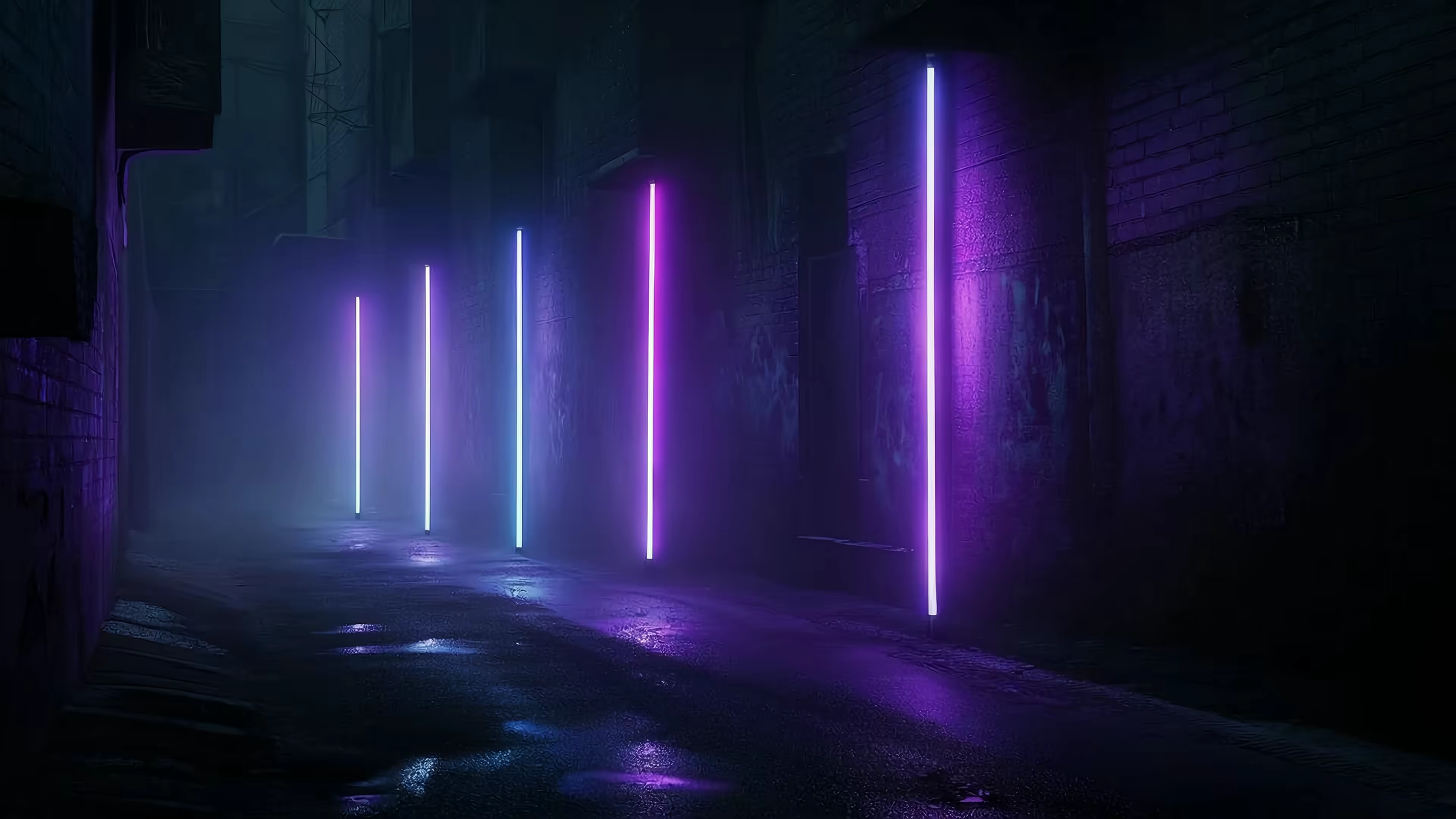
Static wallpapers are fine. They're also a bit... 2014. A live wallpaper completely changes the feel of your Mac, turning a passive background into a living scene. Imagine a cozy fireplace crackling on your screen while you work, or a neon cityscape with endless, looping rain. This is the next level.
That's what gifPaper for Mac is all about. It's designed to bring high-resolution, seamlessly looping ambient art to your Mac, without the usual headaches.
So, Why Not Just Use Another App?
Plenty of wallpaper apps exist, but most use hacky overlays or run a constant video player in the background that demolishes your battery and slows everything down. It's a terrible trade-off.
I built gifPaper to fix this. It's the first and only app that uses Apple's native Aerial wallpaper format—the same system Apple uses for its own video wallpapers.
This means a few things: * It's seamless. One click sets the same wallpaper on both your Lock Screen and Desktop. No fuss. * It's native. When you wake your Mac, the wallpaper gently slows to a stop as you unlock, exactly like Apple's own. No weird transitions, no lag. * It's efficient. By default, the desktop shows a beautiful, high-quality still frame. This uses zero extra resources. If you want the full video animation, you can toggle it on anytime.
It's about making your desktop look incredible without compromising on performance. You can get into the nitty-gritty in our complete guide to getting live wallpapers on Mac.
Installing and Setting Your First Live Wallpaper
Getting started with gifPaper is refreshingly simple. Because it uses native Apple technologies that are restricted on the Mac App Store (specifically for the Lock Screen), it's a direct download. Don't worry—the app is fully notarized by Apple, which means they've scanned it and approved it as safe.
Here's the quick rundown: 1. Download the trial. Grab the 7-day free trial from the gifPaper for Mac page. No credit card is required to try every feature and all 150+ wallpapers. 2. Install the app. Drag it into your Applications folder like you've done a thousand times. The first time you run it, you'll just need to grant it permission to control your wallpaper. 3. Browse the collection. The app opens to a gallery of over 150 seamlessly looping 4K videos with ambient sound. More are added regularly. 4. Set your wallpaper. Find one you like and click "Set Wallpaper." That's it. Your Lock Screen and Desktop are now transformed.
Maybe you want to pretend you're working from a futuristic high-rise instead of your kitchen table. A quick trip to the neon wallpaper collection will sort you out.
The whole point is to provide art that makes your screen a place you actually want to look at. If you like it after the trial, it's a $4.99 one-time purchase at the launch price—not a subscription. All the aesthetic, none of the recurring charges.
Fine-Tuning Your Desktop Beyond Wallpapers

Alright, you've got the perfect live wallpaper. The stage is set. Now for the details that take a desktop from "nice" to feeling like it was made just for you.
These are the tweaks that separate a generic setup from a truly cohesive one. It's about making every last pixel work together, creating a space that's not just pretty, but perfectly functional for how you work.
Overhauling Your Icons
Let's be honest: the default blue folders are fine, but they have zero personality. Custom icons are one of the fastest ways to tie your whole aesthetic together.
The process is surprisingly simple:
- Find an icon pack that matches your vibe. Gumroad and DeviantArt are full of them, from minimalist and retro to full-on vaporwave. They usually come as
.pngor.icnsfiles. - For any folder or app, hit
Cmd + Ito open its "Get Info" window. - Open the
.pngimage you want to use and pressCmd + Cto copy it. - Go back to the Get Info window and click the small icon in the top-left corner until a blue highlight appears around it.
- Just press
Cmd + Vto paste your new icon over the old one.
To change it back, just click the icon in the Get Info window again and hit Delete. It's a simple, non-destructive way to make sure your folders match the moody vibe of your new dark wallpaper.
A great desktop is a sum of its parts. A gorgeous wallpaper deserves icons that aren't still living in 2007. This small change makes your entire file system feel like a deliberate part of the design.
Taming the Menu Bar and Windows
A clean desktop needs clean edges. A cluttered Menu Bar is like a perfectly designed room with junk piled on every surface—it's just distracting.
Tools like Bartender are a lifesaver here. They let you hide the app icons you don't need to see all the time, tucking them away behind a single menu. Your Menu Bar goes from a chaotic mess of symbols to a clean, focused line.
Then there's the issue of window management. Once you actually start working, your beautiful wallpaper can get buried under a pile of overlapping windows. That's where apps like Rectangle come in, letting you use keyboard shortcuts or snap zones to organize everything into a neat grid.
It's like having a digital butler who tidies up after you. Snap your browser to one half of the screen and your notes to the other—it keeps your workspace orderly so you can still appreciate the view.
The Magic of Hot Corners
Finally, let's talk about a classic Mac feature that feels like it was made for live wallpapers: Hot Corners.
This feature lets you trigger actions just by whipping your mouse cursor into one of the four corners of your screen. You can find it by going to System Settings > Desktop & Dock, scrolling all the way down, and clicking the "Hot Corners..." button.
Here's the killer combo: set one corner to "Start Screen Saver."
Now, when you're about to step away from your desk, a simple flick of the wrist launches your screen saver. And if you're using an app like gifPaper for Mac, your screen saver is the same looping video as your wallpaper.
It's a showstopper. You go from a beautiful, animated desktop to a full-screen cinematic experience in an instant. This is how you make your customized Mac feel alive, even when you're not using it.
Three Aesthetic Presets to Get You Started
Feeling overwhelmed by choice? It happens. The hardest part of customizing your Mac is often just figuring out where to begin.
So, let's skip the decision paralysis. Here are three complete aesthetic recipes to get you going. Think of them as pre-packaged moods, ready to install. Each one has everything you need: wallpaper suggestions, specific settings, and the general vibe you're after.
The Lofi Study Vibe
This one is for focus, for quiet, and for pretending you're the main character in a 24/7 study stream. The goal is a clean, cozy, and slightly melancholic setup that helps you get work done — or at least feel like you're about to.
The entire look is driven by a strong narrative wallpaper, usually something animated and atmospheric. Our lofi wallpaper collection was basically built for this.
Recipe for the Lofi Study Vibe:
* Wallpaper: Set the scene with something like a lofi girl on a train or lofi cat on a balcony. You're looking for a whole story in a single, looping frame. The ambient sound that comes with many of these is half the experience.
* Icons: Ditch Apple's default blue folders. Find a minimalist, monochrome icon pack online. You want your files to whisper, not shout.
* Dock & Menu Bar: Hide the Dock (System Settings > Desktop & Dock). Use a menu bar organizer to tuck away the clutter. The focus should be on the wallpaper and your active work.
* Widgets: Be selective. A simple clock widget and maybe your Reminders. Stick them in a corner where they feel like part of the scene, not just slapped on top.
* Color Scheme: Set your macOS Accent Color to Graphite. It strips all the color from the UI, letting your wallpaper's palette do all the talking.
The rise of aesthetics like lofi isn't some niche hobby anymore; it's a huge part of a massive trend in desktop personalization. This shift is largely driven by female Mac users, who make up 66% of the global Mac user base. Between 2023 and 2025, the focus on customization pivoted from purely functional tweaks to visual self-expression. It became mainstream. The demand is especially high among the 55.7% of Mac users aged 18-34, who often share their setups on social media, creating a cycle of inspiration. You can find more insights on these desktop customization trends at ElectroIQ.
The Cozy Winter Cabin
Perfect for when you need to feel snug while answering emails in your pajamas. This aesthetic is all about warmth, comfort, and embracing the great indoors. All of the cozy, none of the potential smoke damage.
The key here is a wallpaper that makes you want to curl up with a blanket. The winter wallpaper and fireplace wallpaper sections are your best friends.
Recipe for the Cozy Winter Cabin:
* Wallpaper: A crackling fireplace or a snowy landscape seen from inside a warm room. Try something like a cabin fireplace for pure warmth, or a snowy forest cabin for a touch of winter wonderland.
* File Organization: Use Stacks. Just right-click your desktop and select "Use Stacks" to instantly group all your file clutter. A cozy cabin is a tidy cabin, after all.
* Accent Color: Pick a warm Accent Color in System Settings > Appearance. Something like orange or yellow will add a subtle, warm glow to buttons and menus.
* Windows: Let a bit of the outside in. Don't run your apps in full-screen. Keep them as smaller windows so you can always see a bit of that snowy view or crackling fire around the edges.
This look is about creating an escape. Your Mac becomes less of a work machine and more of a portal to a place where your only responsibility is to add another log to the fire.
The Neon Noir Cityscape
For those who prefer rainy nights, futuristic skylines, and the moody glow of neon signs. This aesthetic is sleek, dark, and a little bit dramatic. It's the perfect backdrop for late-night work sessions or just feeling like you're in your own sci-fi movie.
This vibe is all about contrast — deep blacks against piercing neon colors. It pairs perfectly with macOS's Dark Mode.
Recipe for the Neon Noir Cityscape:
* Wallpaper: Go straight to the neon wallpaper collection. Something like cyberpunk alley with purple rain or synthwave sunset drive sets an immediate, powerful mood.
* System Theme: Dark Mode is non-negotiable here. It provides the deep, dark canvas that makes the neon colors of your wallpaper truly pop.
* Hot Corners: This is where you can get fancy. Go to System Settings > Desktop & Dock > Hot Corners. Set one corner to "Start Screen Saver."
* Screen Saver: Use an app like gifPaper for Mac to set your screen saver to the same looping video as your wallpaper. Now, a quick flick of the wrist into your designated Hot Corner transforms your desktop into a full-screen, cinematic neon experience.
This setup is less about coziness and more about pure atmosphere. It's for when you want your digital space to feel as vast and full of stories as a sprawling, futuristic metropolis.
FAQ: Your Mac Customization Questions, Answered
Alright, let's tackle the usual worries. Whenever you start tweaking your Mac, a few questions always pop up, especially about performance and whether you can actually undo everything you've just done. Fair enough. Here are the straight answers.
Will Live Wallpapers Murder My Battery Life?
The big question: will an animated wallpaper turn your MacBook into a beautiful, expensive space heater? The honest answer: it depends entirely on the app.
Most live wallpaper apps are just a video player running on a loop behind your icons. That's a brute-force method, and yes, it will absolutely chew through your CPU and drain your battery. It's the laziest way to build one of these apps.
This is the exact problem I built gifPaper for Mac to solve. It's the only app that uses Apple's native Aerial wallpaper system—the same one Apple uses for its own video wallpapers.
By default, gifPaper shows a high-quality still frame on your desktop, using zero extra resources. The full animation plays on the Lock Screen and Screen Saver, behaving just like Apple's own with minimal battery impact. You can toggle on full desktop animation if you want, but you're in control.
On any Apple Silicon Mac (M1, M2, M3, or newer), the performance hit is basically nonexistent. You get the aesthetic without the slowdown.
How Do I Change App and Folder Icons?
This is one of the most satisfying and surprisingly simple tweaks you can make. It's a quick copy-and-paste job, no special software needed.
- First, find an icon you like. This will usually be a
.pngor.icnsfile. Sites like Gumroad and DeviantArt are full of custom icon packs. - Find the app or folder you want to change and press Cmd + I to open its "Get Info" window.
- Open your new icon image and copy it to the clipboard (Cmd + C).
- Back in the Get Info window, click the tiny icon in the top-left corner. You'll see a blue highlight around it.
- Just paste your new icon over it (Cmd + V). Done.
Want to go back? Just click the icon in the Get Info window again and hit the Delete key. It'll snap right back to the original. It's completely reversible.
What's the Difference Between a Wallpaper and a Screen Saver?
Think of it this way: a wallpaper is the background that's always there behind your apps while you're working. A screen saver is what takes over when your Mac has been idle for a few minutes. They're back, and they're worth looking at now.
Traditionally, they were totally separate. But with an app like gifPaper, you can unify them. Set the same looping video for both. When you're working, it's a subtle backdrop; when you take a break, it comes to life and fills the screen. Honestly, returning to a cat gently swaying in a field of flowers is a much better vibe than a black screen.
Can I Have Separate Desktops for Work and Personal Stuff?
Absolutely. This is exactly what macOS Spaces was designed for. It's a killer feature built right into Mission Control that lets you create multiple virtual desktops. Each one can have its own wallpaper and its own set of open apps and windows.
You could have a "Work" Space with a clean, focused wallpaper from the dark wallpaper collection. Then, with a three-finger swipe, you switch over to your "Personal" Space, which has a vibrant live wallpaper running. It's the best way to mentally separate your life when it's all happening on the same machine.
Ready to make your desktop feel like your own? gifPaper gives you over 150 seamless, 4K live wallpapers for your Lock Screen, Desktop, and Screen Saver. It's a one-time purchase, not a subscription. You can check it out and start a 7-day free trial at https://gifpaper.com/macos-app.