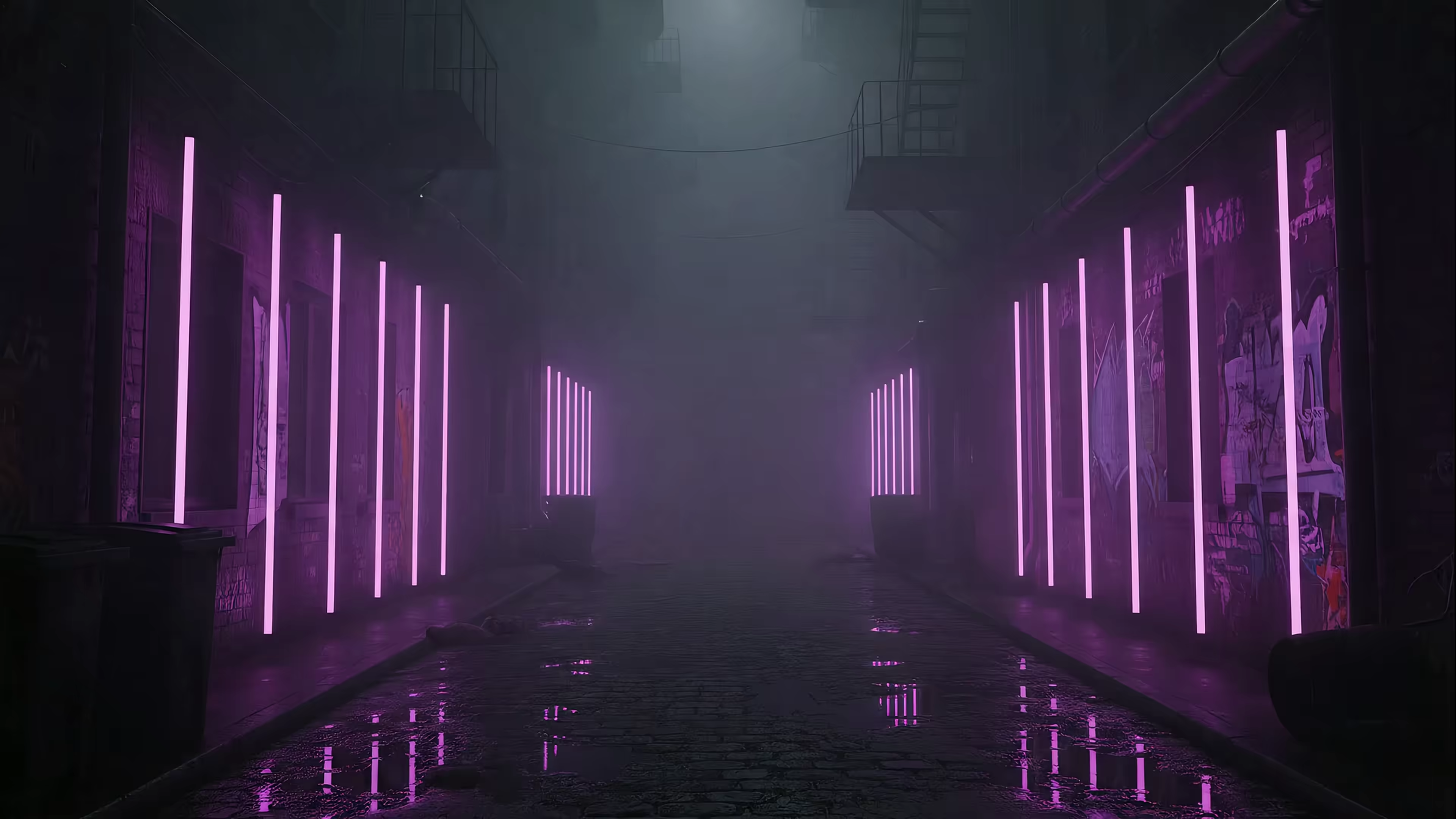
10 Sources for Animated Wallpapers Free on Your Mac (2026)
Your Mac deserves better than a static photo.
You stare at this thing for hours. It's a tool, a window to the world, and occasionally a very expensive tray for fingerprints and cat hair. And yet the desktop is often some default gradient, or a nice-but-not-yours mountain that looks like it came bundled with emotional neutrality.
That feels wrong.
If you're searching for animated wallpapers free on Mac, the good news is you've got options. The bad news is that half the internet still treats "animated wallpaper" like it means a blurry GIF wheezing across your screen like it's 2003. On a Retina display, that stuff looks rough. For Mac users, the bigger issue isn't just finding moving backgrounds. It's getting them to run properly, loop cleanly, and not make your battery file a formal complaint.
This list gets to the useful part fast. These are the best places to find free animated wallpapers, free video sources, and a few Mac-specific tools that make the whole thing less ridiculous. Some are polished. Some are glorified treasure hunts. Some are great until you hear your fan spin up and realize your wallpaper has developed a personality.
You're going to look at your Mac all day anyway. Might as well make it pretty.
1. gifPaper
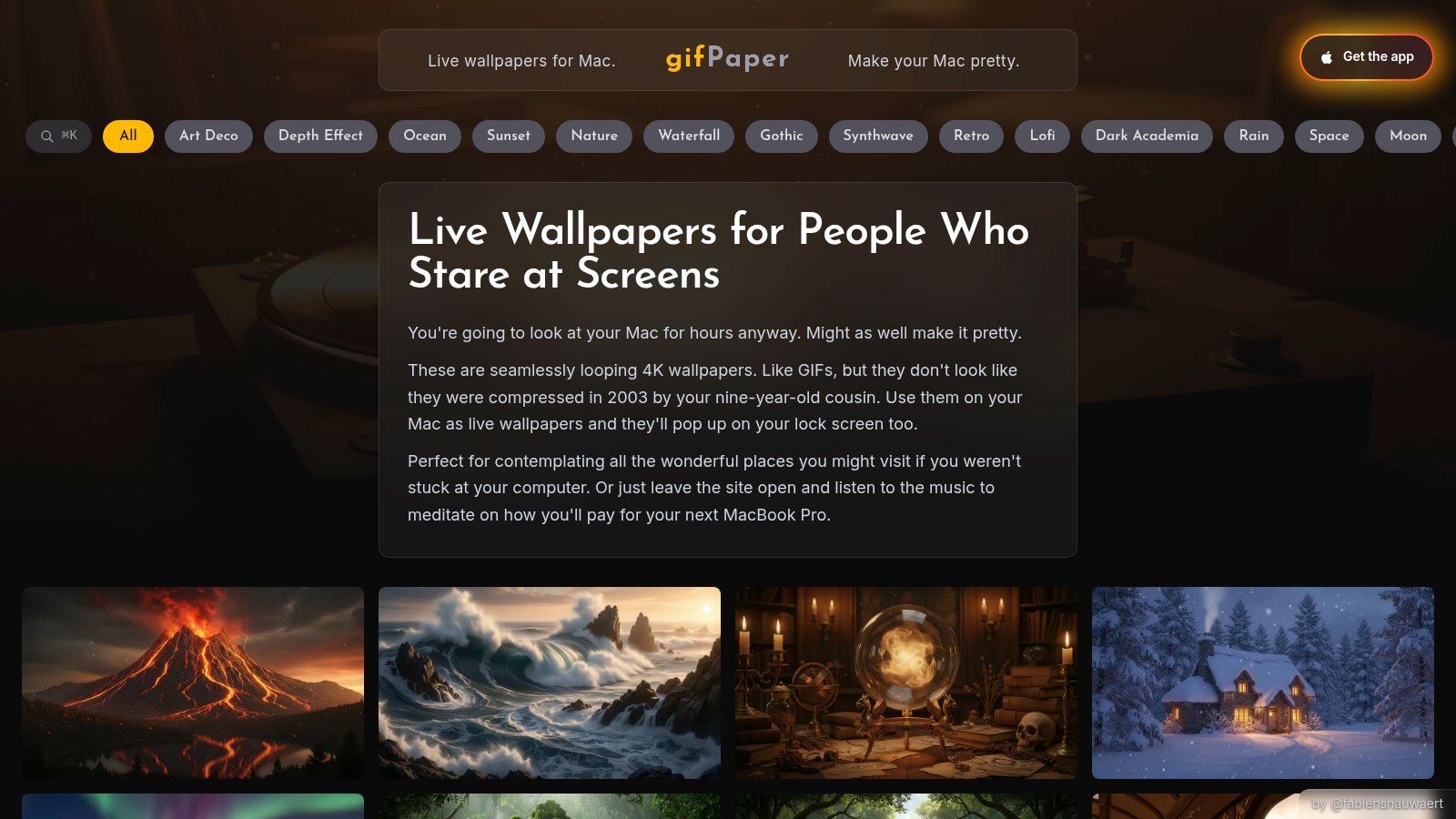
You install a random live wallpaper app, pick a moody 4K clip, and five minutes later your desktop looks great while your battery starts acting personally offended. That is the Mac animated wallpaper experience in a nutshell. gifPaper stands out because it is built for how macOS handles motion wallpapers, not as a browser trick dressed up like a desktop feature.
The pitch is straightforward. You get a curated library of animated wallpapers, then use the app to apply them properly on Mac. The catalog covers the usual suspects in a good way: neon streets, rainy windows, lofi rooms, space scenes, fireplaces, and the kind of dark ambient setups that suggest your desktop has started making synth music at night.
A quick preview says more than a paragraph can.
Why it stands out on Mac
The Mac-specific part matters more than the wallpaper library. Plenty of sites can hand you a video file. The annoying part is getting that file to behave like an actual wallpaper instead of a glorified layer floating behind your icons.
gifPaper uses Apple's native Aerial wallpaper format, so the effect feels like part of macOS rather than a workaround. The lock screen behavior is the clearest example. Motion slows naturally as you log in, which is exactly the kind of absurdly picky detail nobody needs until they see the alternative and realize, yes, they do care.
That sounds fussy. It is fussy. It also looks better.
Practical rule: If a Mac wallpaper tool cannot handle native lock screen behavior, you are getting a desktop animation effect, not the full wallpaper experience.
It also gives you a sensible middle ground for performance. You can leave a still frame in place most of the time, then switch on full animation when you want the motion. That matters on laptops, where a constantly playing video background is one more thing competing for battery, GPU time, and basic system dignity.
The catch
There is one, of course. gifPaper requires macOS 14 Sonoma or later, and the reason is technical, not arbitrary. Apple only opened up full support for custom wallpapers in its native Aerial format there. If you want the setup details, the guide to getting animated wallpaper on Mac with gifPaper explains the process clearly.
It is also a direct download, not a Mac App Store app. That is the trade-off for deeper system access. App Store sandbox rules get in the way of live lock screen wallpapers, so if you want the nice integration, you usually give up the App Store install path.
The pricing is refreshingly sane: a 7-day free trial with no credit card, then a $4.99 one-time purchase and a 30-day money-back guarantee. No subscription. For wallpaper software, that already feels unusually civilized.
2. macOS's Built-in Aerial Wallpapers
Apple eventually admitted people enjoy looking at nice things. The result is built-in Aerial wallpapers and screen savers in macOS, which give you polished video scenes with almost no effort on your part.
This is the zero-setup option. Go into System Settings, pick Apple's footage, and you're done. No file conversion, no scavenger hunt through stock video sites, no trying to remember where you saved "moody_rain_final_FINAL_3.mp4".
What works and what doesn't
Apple's footage looks expensive because, well, it is. The transitions are smooth, the integration is clean, and it behaves exactly the way macOS wants it to behave. If you just want motion on your screen and don't care about choosing a very specific aesthetic, this is the easiest free answer.
But you're also living inside Apple's taste. If your ideal desktop is lofi trains, purple neon alleys, or cats sitting under winter trees judging your email habits, Apple is not here for that.
- Best part: Native, polished, and already on the machine.
- Main limitation: No custom videos. Apple picks the mood. You accept the mood.
Think of it as the free sample at the cheese counter. Good sample. Not dinner.
3. Aerial
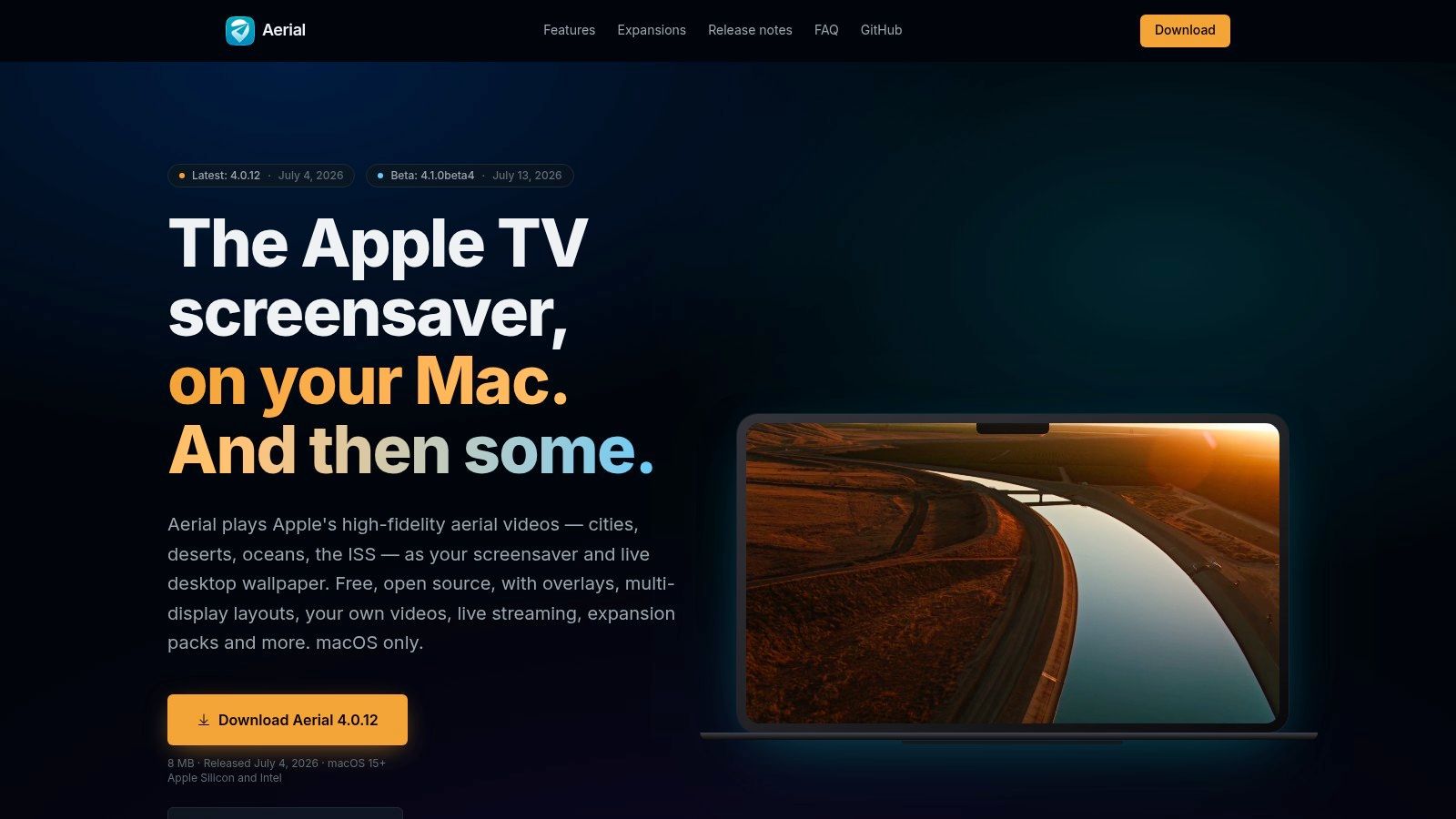
Aerial is for the Mac user who sees a preference pane and thinks, "Finally, a chance to make this slightly too complicated."
It started life as a screensaver tool, and that's still where it shines. You get deep control over Apple's aerial footage, plus the ability to add your own local or streaming videos. It's free, open-source, and much more flexible than the built-in Apple version.
Why tinkerers like it
If Apple's native Aerial option is the clean hotel lobby version, Aerial is the version where someone hands you the keys to the building. You can control playback behavior, displays, caching, and more. Multi-display setups benefit the most because the tool provides you with knobs to turn.
For users who miss the feeling of a customizable setup, this gets closer than Apple's own settings ever will. It also sits in the broader historical gap on Mac, where Windows had mature free animated wallpaper ecosystems long before macOS offered much native support.
Free on Mac often means one of two things. Limited, or fiddly. Aerial chooses fiddly, but in a respectable way.
If you want the moving-background concept without committing to a dedicated paid app, it's a solid stop. If you want a simpler route, the cleaner answer is usually a dedicated tool for dynamic wallpaper on Mac.
4. Plash
Plash is gloriously weird. Instead of setting a video as your wallpaper, it lets you set a website as your wallpaper.
That means your desktop can be generative art, a weather dashboard, a clock, a map, or some hypnotic visual experiment made by a stranger on the internet who clearly had too much coffee and a shader editor. If a browser can render it, Plash can probably pin it to your desktop.
Where it's brilliant
Used well, Plash gives you something stock video libraries can't. Live information. Real interactivity. Wallpaper that feels less like a clip and more like a tiny ambient machine.
For developers, design nerds, and people who enjoy making their Mac look like a control panel from a very calm spaceship, it's excellent.
Where it bites back
Performance depends on the website. A light ambient page can feel effortless. A badly optimized web toy can burn energy for the privilege of showing you moving blobs.
That trade-off matters because free animated wallpapers on Mac often hide their real cost in resource use. There's a noticeable lack of good guidance on the battery and CPU side, even though unoptimized looping 4K videos can increase energy usage by 15 to 20 percent on unoptimized browsers or lightweight apps.
- Use Plash for: dashboards, generative art, live maps, minimalist sites
- Skip Plash for: lock screen effects, screen saver replacement, set-it-and-forget-it simplicity
Plash is clever. It's also the sort of clever that can turn into homework if you're not careful.
5. Pexels
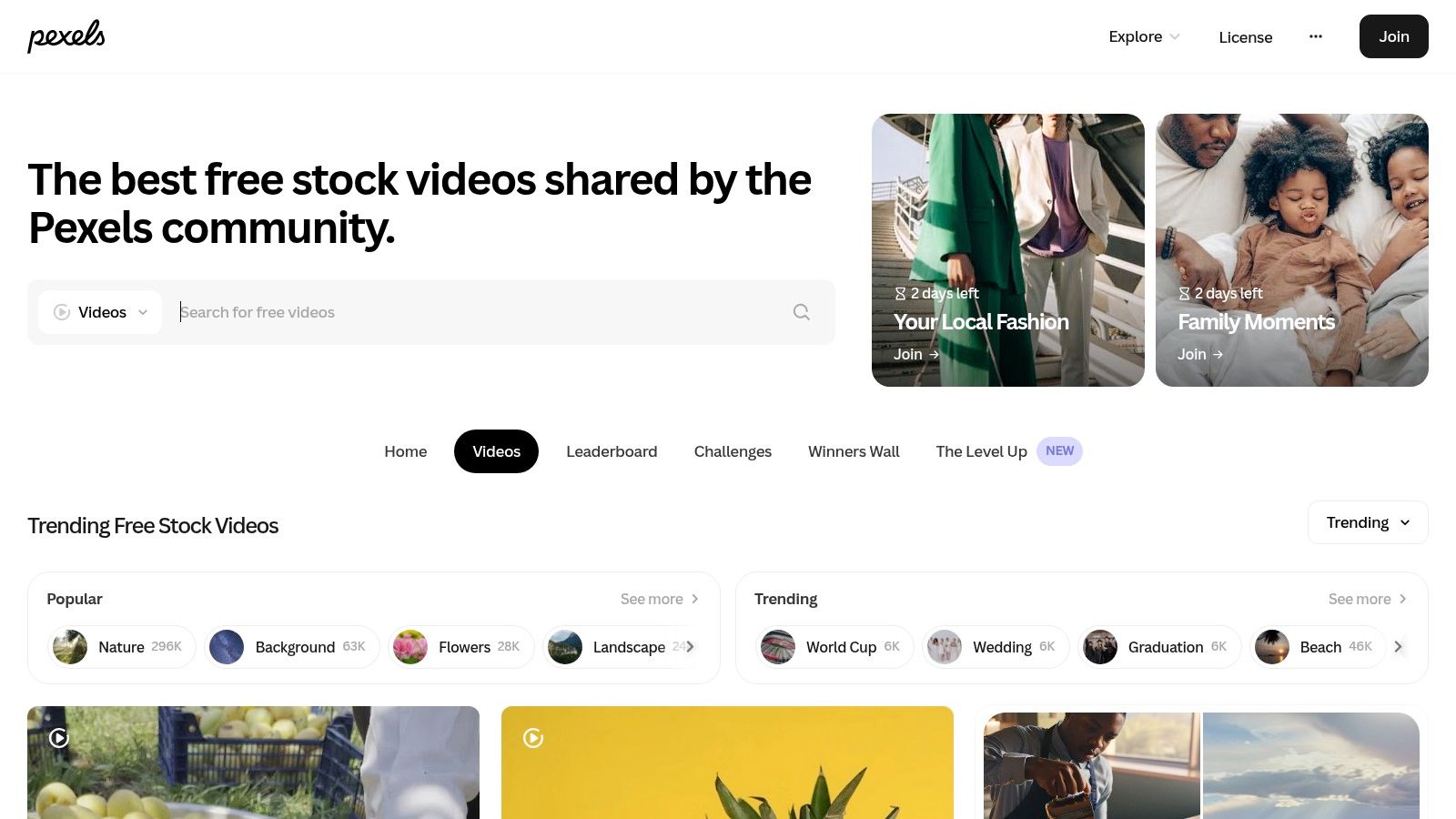
Pexels Videos isn't a wallpaper app. It's a giant pile of raw material, and that distinction matters.
If you want free clips that look clean and modern, Pexels is one of the easiest places to start. Rain on windows, ocean scenes, abstract light streaks, city shots, leaves moving in the wind. The footage is often good enough that your desktop immediately stops looking like an afterthought.
The good version of "free"
You download a normal video file, usually in high quality, and then use a separate app to turn it into a wallpaper. That extra step is annoying, but Pexels is useful because the footage itself often feels less cheap than what you'll find on more cluttered wallpaper sites.
The catch is looping. Stock footage is usually shot as footage, not as a continuous desktop loop. A clip can be beautiful for twenty seconds, then jump awkwardly back to the start like your wallpaper tripped over its own shoelaces.
One test matters: Watch the final second and the first second back to back. If the transition calls attention to itself, it's not wallpaper material.
Pexels is best when you know what aesthetic you want and don't mind doing some curation yourself.
6. Pixabay
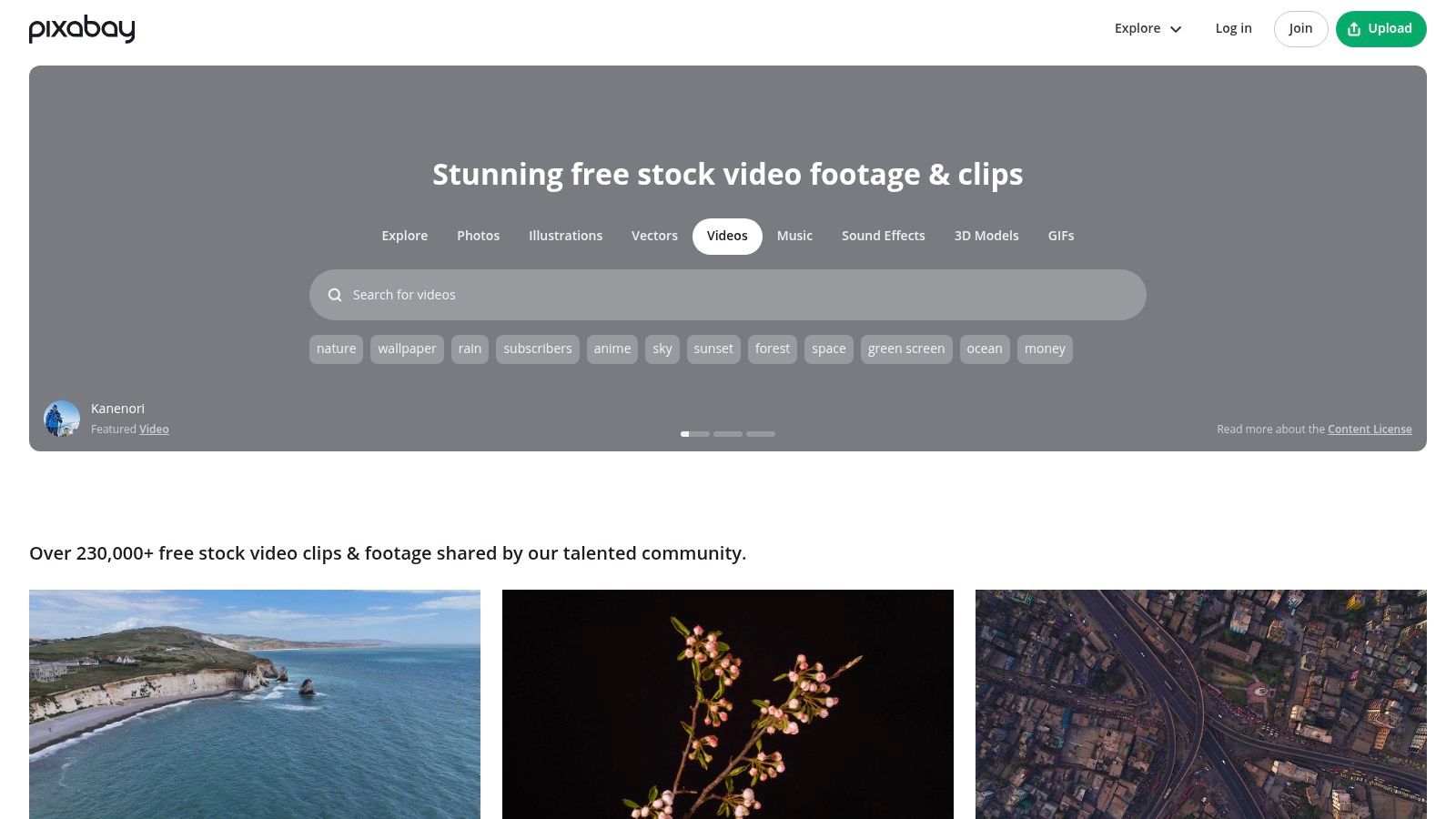
Pixabay Videos is the giant warehouse version of this search. Less boutique. More "there's probably something in aisle fourteen."
That size is useful. Pixabay's broader animated wallpaper search shows 346,000+ images, and its video library is large enough that you can usually find some version of the mood you want. Nature clips, abstract particles, space-ish backgrounds, vaguely lofi rain, enough options to make you forget why you opened the tab.
Why it helps, and why it frustrates
The upside is obvious. The library is huge, downloads are simple, and there's plenty of footage you can test quickly.
The downside is quality control. Search results can swing from "surprisingly nice" to "PowerPoint screensaver from a dentist waiting room." And for Mac wallpapers, a lot of free animated content still lands in the low-fidelity lane, with visible compression and weak loop quality on Retina displays.
If you're after the cozy study vibe, the aesthetic matters as much as the file format. A good place to calibrate your taste before you go digging is this piece on the lofi aesthetic. It's easier to search well when you know the visual hallmarks you want.
Pixabay is valuable. Just bring standards.
7. Coverr
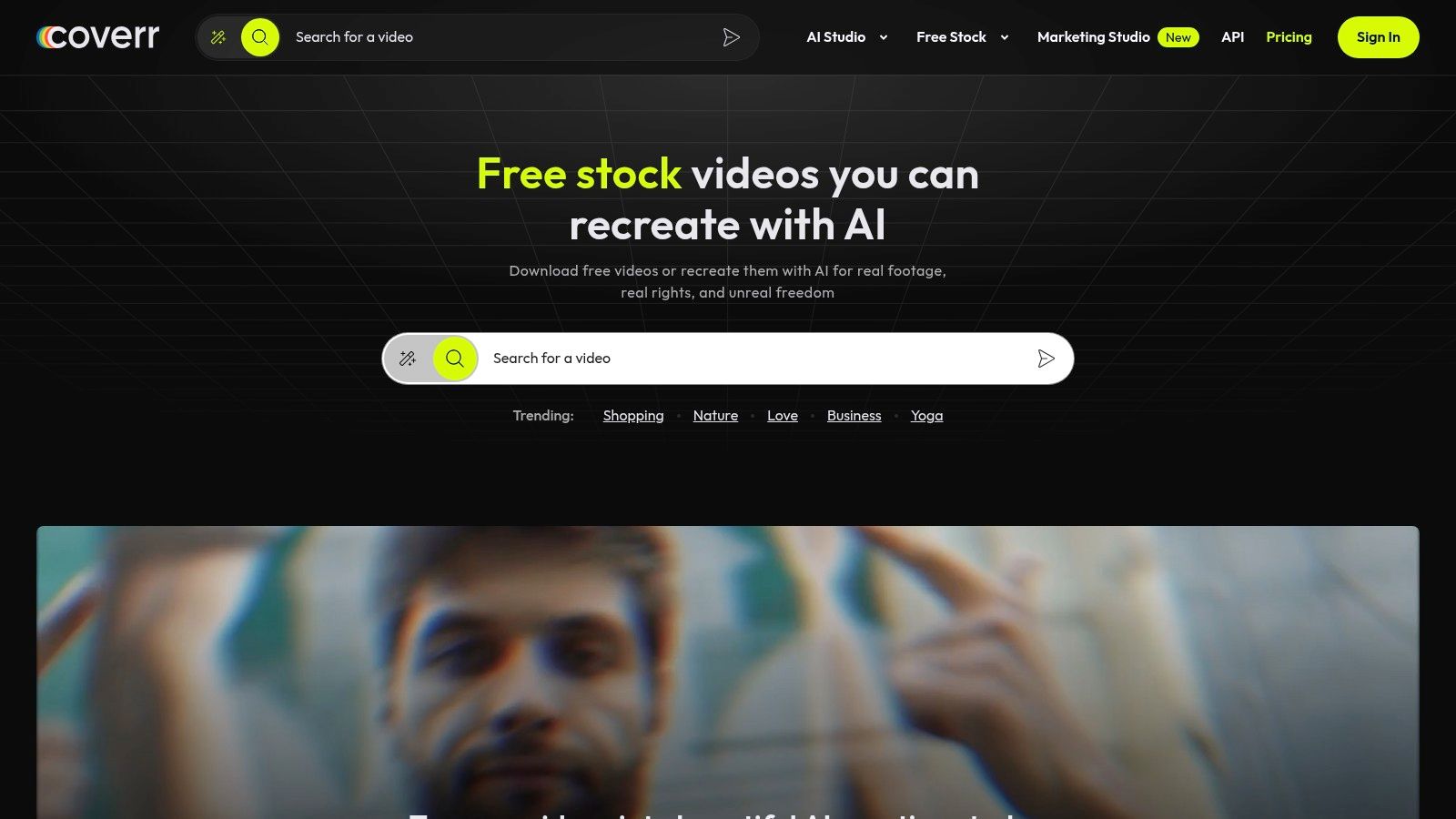
Coverr is what I'd recommend to someone who gets overwhelmed by giant stock libraries and starts rage-scrolling after five minutes. The selection is smaller, but the curation is better.
That means fewer bizarre duds, fewer clips that look like they were uploaded by an office plant, and a cleaner overall visual style. It's a good source for calm, tasteful background videos that don't scream for attention while you're trying to do anything else.
Best use case
Minimal desks, subtle motion, modern aesthetics. Coverr works well if you want your wallpaper to feel intentional rather than loud.
The smaller selection is also the whole problem. If you want a niche aesthetic, especially something like anime-adjacent lofi, cyberpunk rain, or very specific color palettes, you may run out of runway quickly.
- Good for: clean city scenes, atmospheric nature, restrained abstract footage
- Less good for: hyper-specific fandom or aesthetic hunting
Coverr won't give you infinite options. It will waste less of your time.
8. Mixkit
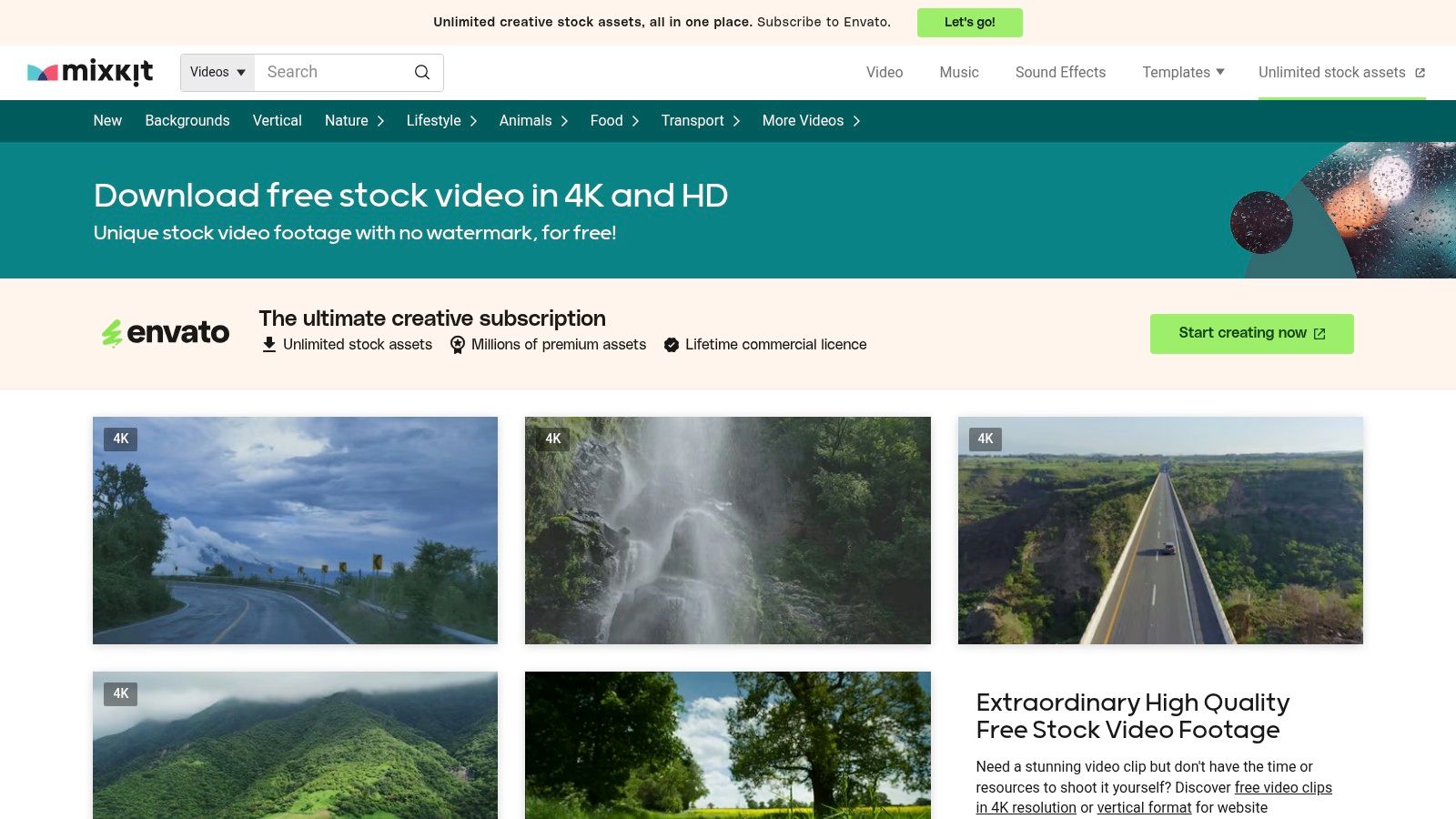
Mixkit is the site I open when I want something that looks good fast and I do not feel like digging through a warehouse of mediocre stock footage. It has enough range to be useful, but not so much junk that finding a usable loop turns into a side quest.
The sweet spot here is desktop-friendly video. Abstract motion, skyline shots, water, clouds, slow atmospheric clips. The kind of footage that looks cool behind your windows instead of fighting them for attention.
What actually matters on a Mac
Mac displays are unforgiving. A cheap GIF or a muddy low-res loop might pass on an old monitor, but on a Retina display it usually looks terrible. Compression artifacts show up fast. Banding in gradients looks ugly. Choppy motion stands out even more once the wallpaper is stretched across a large desktop.
That is why Mixkit is more useful than a random GIF dump. You can grab proper video files and then decide how to run them. If you are using a tool like gifPaper, better source footage gives you a better result immediately. If you are trying a DIY setup with a video wallpaper app or a browser-based workaround, file quality still matters. Bad source material stays bad.
Mixkit does have limits. A lot of clips are cinematic in the stock-footage way, which means some feel more like B-roll for a startup ad than something you want living behind your menu bar all day. Preview a few full-screen before downloading. A wallpaper that looks dramatic for six seconds can get annoying by lunch.
Mixkit is best used as a source library, not a full wallpaper solution. Get the video there. Handle playback and looping on the Mac side with something that is built for it. That is the less romantic answer, but it is usually the one that wastes the least time.
9. Videvo
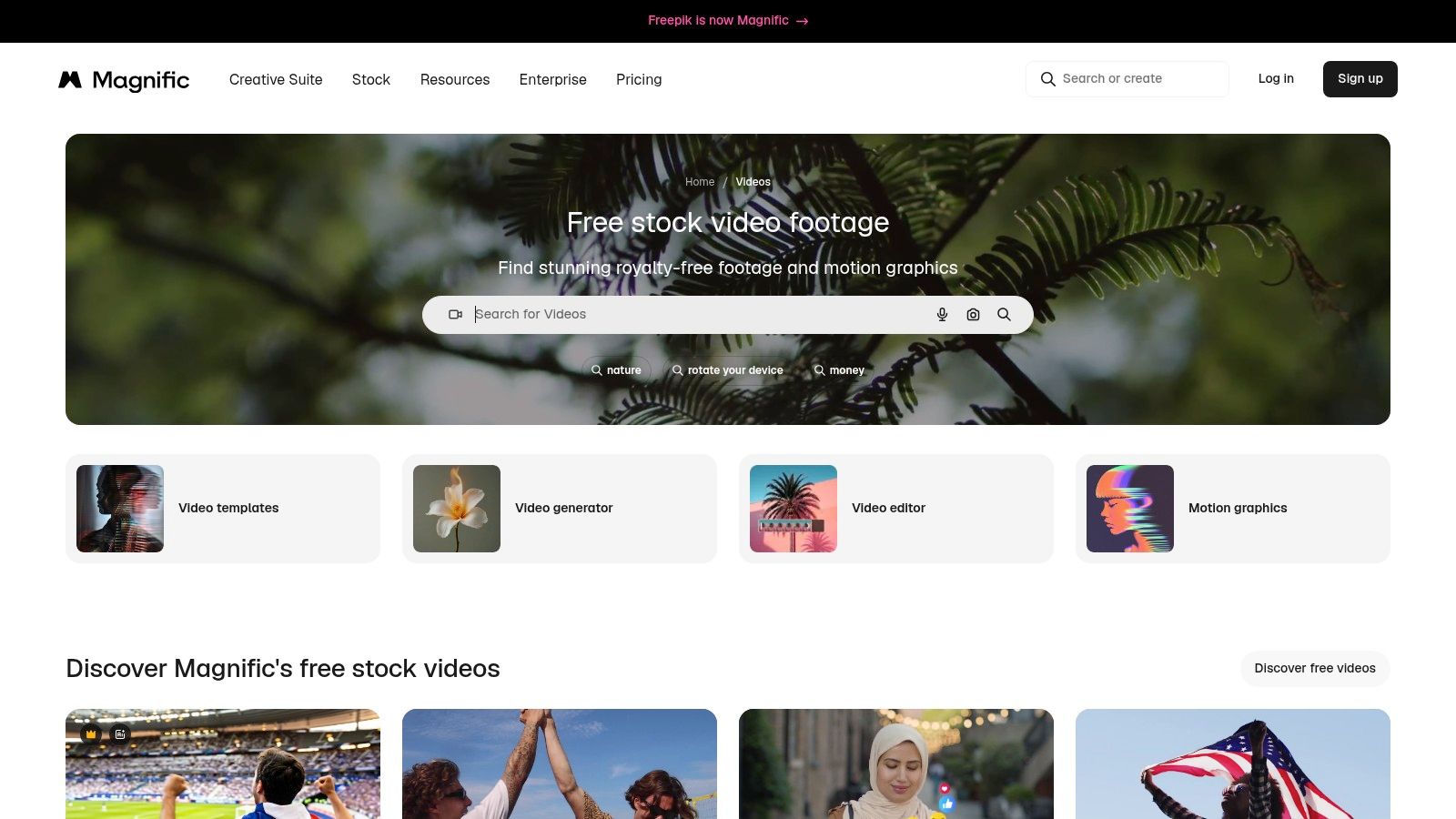
Videvo is particularly useful if you don't want literal footage of places and instead want motion graphics, particle effects, soft bokeh, abstract patterns, and other desktop textures that stay out of your way.
That matters because the best animated wallpaper isn't always a scene. Sometimes it's just movement. A little color drifting around in the background while your icons sit there pretending to be organized.
The practical warning
Videvo mixes different license terms across clips. Some are easy to use. Some require a closer look. If you're only downloading for personal wallpaper use, that's usually manageable, but you do need to read before grabbing files at random.
It's also one of those sites where premium content appears alongside the free stuff, which can make browsing feel like someone hid the plain pasta in a room full of glossy cakes.
Don't judge a wallpaper source by the prettiest thumbnail. Judge it by how quickly you can find five usable files without getting annoyed.
For subtle movement and abstract backgrounds, though, Videvo is strong.
10. MyLiveWallpapers
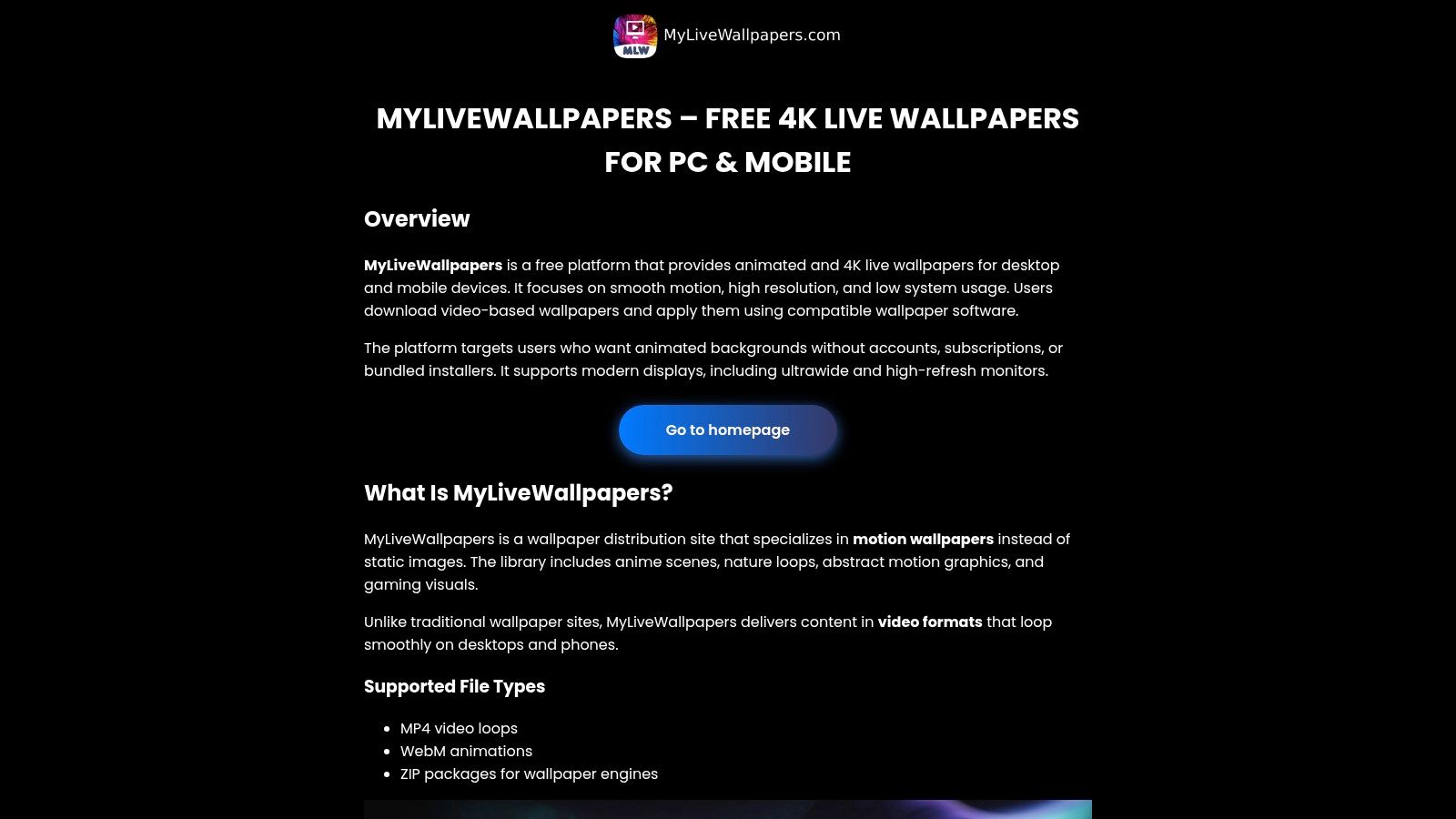
MyLiveWallpapers is what you end up on after deciding that plain stock footage is too polite for your desktop. You want anime loops, moody cyberpunk streets, game art, neon rain, and backgrounds that look like they were designed for someone who owns too many mechanical keyboards. Fair enough.
That niche focus is the reason to use it.
Generic video libraries are better at broad categories. MyLiveWallpapers is better at very specific aesthetics, which matters if you are trying to make a Mac desktop feel less like a spreadsheet dispenser and more like your space. Yes, this is a ridiculous amount of thought to put into wallpaper. It is also completely understandable if you stare at this screen all day.
The catch is quality control. Some files look great. Some are low resolution, badly compressed, or loop awkwardly enough that you notice the reset every few seconds. The site itself can also feel messy, so expect some rummaging.
On a Mac, that matters more than people expect. A wallpaper clip that already has artifacts or a rough loop tends to look worse once you run it through a third party wallpaper tool, especially on a Retina display. If you download from here, preview the file first and keep your standards high.
MyLiveWallpapers is useful for hunting a vibe you will not find on cleaner stock sites. It is less useful if you want consistency, predictable quality, and minimal setup pain. For that, a dedicated Mac app such as gifPaper is usually the less annoying route, because the core problem is rarely finding a moving background. It is finding one that looks good, loops cleanly, and does not make your desktop feel janky.
Top 10 Free Animated Wallpaper Resources Comparison
Free animated wallpaper on a Mac usually means picking between two jobs: finding a good video, and getting macOS to display it without turning your desktop into a battery-draining science project. Those are different problems. This table keeps them separate, which is a lot more useful than dumping ten download sites into a list and pretending the setup part will sort itself out.
| Product | Core features | UX / Quality | Price & Value | Best for / USP |
|---|---|---|---|---|
| gifPaper | Smoothly looping 4K video wallpapers, ambient audio, curated gallery, native lock-screen support | Polished macOS app, Retina-ready, one-click setup | 7-day free trial, then $5 one-time, no subscription | Mac users who want animated wallpapers to work without a lot of fiddling. Also one of the few options with native Mac lock-screen video support |
| macOS Built-in Aerial Wallpapers | Apple-made aerial footage, screensaver-to-desktop transition | Zero setup, highly optimized, very polished | Free, included in macOS | People who want movement on the desktop with almost no maintenance, and do not need custom files |
| Aerial | Plays Apple aerials plus local, streamed, or remote videos, multi-display support, caching | Powerful controls, but more setup and tweaking | Free, open source | Tinkerers who want more control over Apple-style footage and do not mind configuring options |
| Plash | Uses any website as a desktop wallpaper, browsing mode, custom CSS and JS | Extremely flexible, but performance depends heavily on the site you load | Free, open source | Developers, dashboard people, and anyone trying to put interactive or live web content on the desktop |
| Pexels | Large library of free stock video clips across common themes | Good-looking footage, but you still need to test loop quality and set it up in a Mac wallpaper tool | Free | DIY users who want solid raw material for custom animated wallpapers |
| Pixabay | Large collection of free videos, including nature, abstract clips, and backgrounds | Big selection, uneven quality | Free | Anyone hunting for niche footage and willing to sort through weaker clips |
| Coverr | Curated stock clips with a clean visual style, plenty of high-resolution options | Less junk to sift through, generally tasteful picks | Free | Designers and minimalists who want polished footage fast |
| Mixkit | Curated free video library, many high-resolution downloads, plus music and sound effects | Fast downloads, no-account convenience, lots of clips that loop reasonably well | Free | Quick sourcing for ambient or mood-heavy wallpaper footage without much friction |
| Videvo | Stock footage plus motion graphics, animated textures, and strong filtering tools | Useful for abstract backgrounds and effects, but licensing varies by clip | Free, with some premium content | Users who want particles, gradients, motion graphics, or less obvious wallpaper material |
| MyLiveWallpapers | Large archive focused on anime, lofi, gaming, with WebM and MP4 downloads | Huge niche selection, messy site, inconsistent file quality | Free | People chasing a very specific aesthetic and willing to do quality control themselves |
The pattern is pretty obvious once you look at the table like a Mac user instead of a generic "free wallpaper" search result.
gifPaper, Aerial, Plash, and Apple's built-in Aerial wallpapers are delivery tools. Pexels, Pixabay, Coverr, Mixkit, Videvo, and MyLiveWallpapers are content sources. If you mix those categories up, you end up downloading a gorgeous MP4 from a stock site and then wondering why nothing on your Mac knows what to do with it.
That distinction matters. A free video file is easy to get. A wallpaper that loops cleanly, looks sharp on a Retina display, behaves across multiple monitors, and does not annoy you after two days is harder.
Apple's built-in option is the least annoying, but it is also the least flexible. Plash is wildly flexible, but can chew through resources if you get ambitious and load a busy website. Aerial gives power users more knobs to turn. gifPaper sits in the practical middle: less tinkering than the hobbyist tools, more useful Mac-specific wallpaper behavior than stock video libraries can offer on their own.
Yes, this is an absurd amount of effort to spend on wallpaper. You still have to look at it all day, so the obsession is defensible.
The Annoying Truth and the Simple Solution
A Mac animated wallpaper usually looks best in the first five minutes.
Then real life starts. The clip does not loop as cleanly as it did on the download page. Mission Control exposes a stutter. Battery life takes a hit on a laptop. One external display scales the video nicely, the other turns it into soft, slightly ugly mush. Obsessing over wallpaper is objectively silly, but if you spend eight hours a day staring at your desktop, the silliness has a point.
The hard part was never finding free files. Pexels, Pixabay, Coverr, Mixkit, Videvo, and niche libraries like MyLiveWallpapers already solved that. The hard part is getting a free video to behave like an actual Mac wallpaper instead of a media file you are forcing into the job.
That means dealing with codec support, loop points, Retina resolution, multiple monitors, lock screen behavior, and background resource use. It also means accepting that macOS gives you polished motion backgrounds inside Apple's guardrails and gets awkward fast once you want anything custom.
Some people enjoy that tinkering. They will happily test WebM versus MP4, resize clips, babysit an app, and treat wallpaper setup like a side hobby. Fair enough. If that does not sound fun, the tool matters more than the source file.
Aerial and Plash both work, but each asks you to make choices. Aerial gives you more controls and more setup. Plash can produce great results, especially for web-based visuals, but a busy page can chew CPU and memory harder than a wallpaper has any right to. Built-in macOS Aerial wallpapers are the lowest-maintenance option, with the least room for personality.
A dedicated Mac app is usually the cleaner answer because it handles playback, looping, and system integration in one place. gifPaper is the practical example. It gives you a built-in library of looping wallpapers, supports ambient audio, and covers the desktop, lock screen, and screen saver without the usual pile of workarounds. That is less glamorous than hunting for free files, but it is often the difference between "this looks cool" and "why did I spend my evening debugging wallpaper."
The pricing model also avoids the usual nonsense. You can try it free, then pay once if you decide it earns a permanent spot on your Mac.
Use the free sources above if you want to experiment and do not mind some setup friction. Use a dedicated app if you want animated wallpapers that stay fun after the novelty wears off. On macOS, that trade-off is the whole story.