How to Change Your Mac's Lock Screen Wallpaper (and Make It Actually Cool)
You want to change your Mac's lock screen wallpaper. Good news: it's simple. Open System Settings > Wallpaper, pick a new image, and you're done. The catch? On any modern Mac, your lock screen and desktop are a package deal. When you change one, you change both. Apple, in its infinite wisdom, doesn't give you a native way to set them independently.
Your Mac's Lock Screen Doesn't Have to Be Boring
Think about it. The lock screen is the very first thing you see when you wake up your Mac. It sets the tone for your work session, your creative burst, or your late-night doomscrolling. You're going to stare at this screen hundreds of times a day. It might as well be something you actually like.
For years, customizing this screen felt like a total afterthought. But a static, default image is a missed opportunity for a little bit of daily joy, especially when your Mac is capable of so much more.
A Small Change That Makes a Huge Difference
People care about this stuff. An absurd number of people change their wallpaper weekly, just to match their mood. Turning that utilitarian screen into a personal statement is one of the easiest ways to make your Mac feel truly yours. It's a core part of achieving the perfect MacBook wallpaper aesthetic.
Ultimately, if you spend hours on your computer, you're smart for caring about the little details. It's not just about looks; it's about making your digital space your own.
How to Change Your Mac Lock Screen Wallpaper: The Official Way
Let's start with the official, built-in method. Changing your Mac's lock screen wallpaper is simple, but how you do it depends on which version of macOS you're running. Apple enjoys keeping us on our toes.
The one crucial thing to know is that on modern macOS versions, the lock screen and desktop wallpaper are a matched set. You can't change one without changing the other. It's a design choice. A bold one.
If you're just looking for a deep dive on the desktop side of things, check out the full guide on how to change your wallpaper on a Mac.
Because the settings live in different places depending on your OS, here's a quick breakdown.
Changing Wallpaper in System Settings vs. System Preferences
Apple switched from the classic System Preferences to the more iOS-like System Settings starting with macOS Ventura. Here's a quick cheat sheet to find your way around.
| macOS Version | Where to Go | Key Steps |
|---|---|---|
| Ventura, Sonoma & later | System Settings → Wallpaper | Pick from the gallery or use Add Folder/Add Photo Album to use your own images. |
| Monterey & earlier | System Preferences → Desktop & Screen Saver | Select an image from the left-hand menu in the Desktop tab. |
Basically, the name and layout changed, but the goal is the same: find the picture, click the picture.
For macOS Ventura, Sonoma, and Later (System Settings)
If your Mac is relatively new, you'll be using the redesigned System Settings app. It's the one that looks and feels a lot like the Settings app on an iPhone or iPad.
Here's the path: * Open System Settings from the Apple menu () in the top-left corner. * Find the Wallpaper section in the sidebar. You can't miss it. * You'll see your current wallpaper up top, with a whole gallery of Apple's options below—dynamic landscapes, pretty colors, the works. * Click any image to set it as both your lock screen and desktop background. To use your own, click Add Folder or Add Photo Album and point it to your pictures.
And that's it. Your Mac is now slightly more you.
For macOS Monterey and Earlier (System Preferences)
Running an older version like Monterey, Big Sur, or Catalina? You'll do the same thing, but in the classic System Preferences.
This is the interface that served Mac users well for nearly two decades. While the names have changed, the core function remains: pick a picture, make it your background.
Here's how it's done: * Open System Preferences from the Apple menu (). * Click on Desktop & Screen Saver. * In the Desktop tab, you'll see Apple's default wallpapers on the left and options to add your own photo folders at the bottom. * Just select an image, and it will instantly take over your desktop. On these older systems, this also sets your lock screen background, though the behavior could sometimes be a little finicky from one OS version to the next.
Why Your Static Wallpaper Is a Missed Opportunity
So you've got that perfect photo on your Mac's lock screen. It's a beautifully framed shot of your cat, looking majestic. But let's be real, he's not actually about to knock a priceless vase off the mantel. It's just a picture, a single moment frozen in time.
And that's the problem. Static images are predictable. They're lifeless. They're fine, but "fine" is a huge missed opportunity when you spend half your day staring at that screen, pretending to be productive.
The Problem with Flat Images
A static wallpaper is like a painting you love. It's nice the first dozen times you see it, but after a while, it just becomes part of the digital furniture. It's just… there. It doesn't create a mood or add any atmosphere.
Moving Beyond the Static
This is where live wallpapers come in. And no, I don't mean those clunky, battery-killing GIFs from the early 2000s. I'm talking about seamless, high-resolution video loops that bring genuine depth and atmosphere to your Mac.
It's the difference between a picture of a fireplace and a video of a crackling fire. All of the cozy, none of the potential smoke damage. A live wallpaper can turn your lock screen from a simple backdrop into a whole vibe. Instead of a flat picture of a city, you get a rainy neon street with passing cars. Instead of a drawing of a lofi bedroom, you get gently swaying plants and steam rising from a coffee cup.
Alright, let's get down to it. You want a live wallpaper on your Mac's lock screen—something better than a static picture of a mountain. That's exactly why I built gifPaper.
It's the first and only app that uses Apple's own native Aerial wallpaper format to set custom lock screens. This isn't some janky overlay that flickers and drains your battery. It works just like Apple's built-in live wallpapers—it's smooth, efficient, and even slows to a beautiful stop as you unlock your Mac.
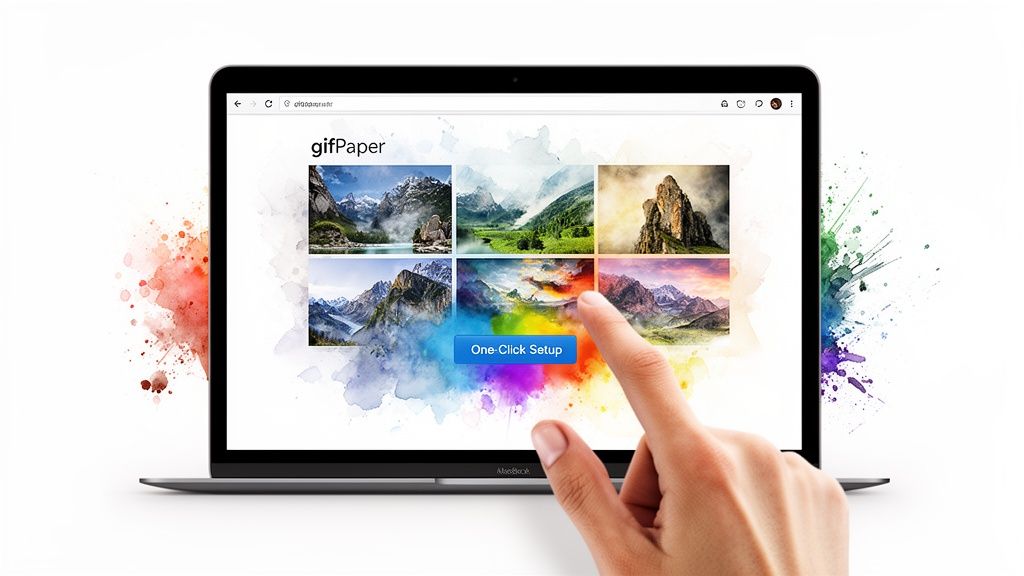
Find a Vibe, Click, and You're Done
The whole idea was to make it completely effortless. You find a wallpaper you like in the app, click "Set Wallpaper," and that's it. Your lock screen and desktop are both instantly updated. No more digging through System Settings.
It just works. You wake your Mac, and suddenly you're looking at a rainy neon cityscape instead of that boring notification list. By default, your desktop gets a gorgeous still frame from the video, but you can toggle on the full animation anytime you want the complete vibe.
This isn't just a gimmick; for many, it makes using a Mac feel a little more personal and a lot less sterile.
A Curated Library of Loops
The app includes a hand-picked collection of over 150 seamless 4K looping wallpapers. These aren't just random GIFs pulled off the internet; each one is a high-resolution scene designed to look incredible on any Mac display, especially Retina screens. You can browse them all on the gifPaper homepage.
Whether you're going for a moody and mysterious look with something from the dark wallpaper collection or want a cozy scene from the fireplace wallpaper category, there's probably something for your specific brand of weird.
Troubleshooting Your Mac Lock Screen
You've followed the steps. You've picked the perfect wallpaper. And… nothing. Or worse, it looks terrible. Your Mac can be stubborn, but most lock screen issues are surprisingly easy to fix.
Here's a look at the most common problems and how to solve them without wanting to throw your MacBook across the room.
Why Is My Wallpaper Blurry on a Retina Display?
This one's a classic. You find a gorgeous 4K image, set it as your wallpaper, and suddenly it looks like a blurry photo from 1998.
Nine times out of ten, the image resolution is just too low for your Mac's Retina display. macOS is forced to stretch a small image to fit a big, high-resolution screen, and the result is pixelated mush.
As a rule, your wallpaper's resolution should be at least as high as your screen's native resolution. For a 14-inch MacBook Pro, that's 3024 x 1964 pixels. Always hunt down the highest quality version of an image you can find. It makes all the difference.
Granting Permissions for Wallpaper Apps
So you installed a third-party app like gifPaper to get those sweet animated wallpapers, you clicked to set one, and… you're still staring at Apple's default gradient. This is almost always a permissions problem.
macOS is protective. For an app like gifPaper to change your lock screen, it needs your permission first. If you miss the pop-up or accidentally click "Don't Allow," the app simply can't do its job.
The fix is in System Settings > Privacy & Security. gifPaper needs two things: "Photos" access (to save a temporary file) and "Screen Recording" access. Don't let the name fool you—it's not recording your screen. That's just the permission Apple requires for an app to draw anything over the lock screen.
Just head into those settings, find gifPaper, and flip the toggle on. You might need to restart the app, but that's it.
It's a tiny, one-time step that ensures the app can actually place that perfectly looping video right where it belongs. Problem solved.
A Few Lingering Questions
You've learned the official way and the better way. But a few questions always pop up when you start messing with your Mac's sacred spaces. Let's get those answered so you can get back to curating your perfect desktop vibe.
Can I Set a Different Lock Screen and Desktop Wallpaper?
In a word, no. Apple decided your lock screen and desktop are a package deal. When you change one, the other follows suit, turning them into inseparable digital twins. There's no native setting to divorce them.
gifPaper respects this rule. It sets both simultaneously with a single click, keeping everything in line with how macOS was designed to work. Consistent, if a bit bossy.
Do Live Wallpapers Murder My Mac's Battery?
It's a fair question. No one wants to trade two hours of battery for a pretty background. A poorly made live wallpaper absolutely can be a resource hog, chugging away in the background for no reason.
But a well-built app is smarter about it. gifPaper was designed specifically for efficiency. The video animation automatically pauses whenever an app is in full-screen or when your Mac is asleep. It only plays when it's actually visible, which means it sips power, not gulps it.
This way, you get all the aesthetic benefits without watching your battery percentage take a nosedive.
Is It Actually Safe to Use Third-Party Wallpaper Apps?
This is the most important question. You should always be careful about what you install on your Mac. The key is to only download apps from developers you trust.
gifPaper is notarized by Apple. This is a big deal. It means Apple themselves have scanned the app for malicious code and confirmed it's safe to run on your machine. It's why you get a reassuring checkmark from Gatekeeper when you first open it, not a scary warning. You get the benefits of a live lock screen without compromising your Mac's security.
Ready to give your lock screen the upgrade it deserves? gifPaper has a 7-day free trial with full access to over 150 live wallpapers. It's a one-time purchase, not a subscription, because who really needs another one of those?
Download the free trial of gifPaper for Mac and see what you've been missing.