A Guide to Better Desktop Backgrounds Mac Users Actually Want
You spend an absurd amount of time staring at your Mac. It's the portal to your work, your creativity, and your highly-skilled procrastination. So why is it still wearing the same default outfit Apple gave it?
Choosing the right desktop backgrounds for your Mac isn't just a minor cosmetic tweak. It's about making the screen you see all day feel less like a rental and more like your own space. You're going to look at it for hours anyway. Might as well make it pretty.
Why Your Mac Deserves More Than a Default Background

Apple's default wallpapers have had their moment. The sweeping landscapes of Sonoma and the abstract blobs of Sequoia are fine, but they're everyone's background. Your Mac is a personal tool. Its backdrop should be a form of self-expression, like a good bumper sticker or a questionable tattoo from your college days.
This isn't about hollow marketing promises. It's about a small aesthetic choice that makes your day a little better.
Setting the Mood for Your Day
Think of your desktop background as the opening credits to your day. The right image can subtly shift your mindset, whether you need to focus, relax, or find a spark of inspiration.
-
For Focus: A clean, minimal, or dark background is the digital equivalent of putting on noise-canceling headphones. It reduces visual clutter, helping your brain zero in on the task at hand. There's a reason some people swear by a solid black screen—the less your eyes have to process in the periphery, the more energy you have for that spreadsheet you've been avoiding.
-
For Relaxation: A serene nature scene, a cozy animated fireplace, or a gentle looping animation can be a tiny visual escape hatch. Perfect for those moments between back-to-back meetings when you just need a second to breathe. The nature wallpaper collection has plenty of options for this.
-
For Inspiration: Sometimes you need a jolt. A vibrant abstract piece, a stunning view of a nebula, or a neon-drenched cityscape can kickstart your creative engine. It's a visual reminder of the worlds you can build, right from your desk.
You might not have a corner office with a view, but you can have a desktop that looks out over a Martian sunrise or a rainy Tokyo street. That's a small victory worth celebrating.
Choosing a desktop background is an act of reclaiming your screen from the generic. It's deciding that the portal you use to interact with the digital world should reflect a little bit of you—not just the default choice of a designer in Cupertino.
Finding and Setting Static Desktop Backgrounds on macOS

Before we get to the fun stuff, let's cover the fundamentals. Changing your Mac's static background is the first step to making the space feel like your own. It's the digital equivalent of hanging a poster in your new office.
And thankfully, Apple makes this part easy.
Where to Find Good Static Backgrounds
You're not stuck with Apple's default landscapes. But a quick Google search can lead you down a rabbit hole of low-resolution images that look terrible stretched across a Retina display. It's a sad sight.
Here's where to look instead:
- Your Own Photos: That one perfect sunset you caught on vacation? The portrait of your dog that isn't a blurry mess? Your Photos library is built right into the wallpaper settings, making it dead simple to use your own memories as a backdrop.
- Pro Photo Sites: Websites like Unsplash and Pexels are goldmines for professional-grade, high-resolution photography. And it's all free. They're a fantastic source for crisp, clear desktop backgrounds for your Mac.
- Curated Galleries: If you're after a specific vibe, dedicated wallpaper galleries are your best bet. Find a gallery that focuses on the aesthetic you like, whether it's minimalist design or something more specific, like moody neon wallpaper.
A Quick Word on Resolution
Not all Macs have the same screen. A wallpaper that looks sharp on a 13-inch MacBook Air can look like a pixelated disaster on a 27-inch iMac.
The goal is to find an image with a resolution at least as large as your screen's native one. For most modern Macs, that means looking for images that are at least 4K (3840 x 2160 pixels). This is the secret to keeping your background sharp, not blurry.
You can check your Mac's resolution by opening System Settings > Displays.
How to Set a New Static Wallpaper
Found the perfect image? The rest is easy. On recent versions of macOS, the process is all in one place.
- Open System Settings (from your Dock or the Apple menu in the corner).
- Find the Wallpaper section in the sidebar.
- You'll see Apple's options, plus sections to add your own stuff. Just click Add Folder or Add Photo Album to grab an image from your Mac or Photos library.
- Once you click your image, it's set. Done.
This is perfect for a quick refresh. But for those who want their Mac desktop background to feel a little more alive, this is just the beginning.
For a deeper dive, check out our complete guide on how to change the wallpaper on your Mac.
Your Mac Is Ready for Animated Wallpapers

Static wallpapers are fine. They're the vanilla ice cream of desktop backgrounds—classic, reliable, they get the job done. But your Mac, especially a newer model with an M-series chip, is a powerhouse. Using a static image on it is like owning a sports car and only ever driving it to the grocery store.
The idea of desktop backgrounds for Mac that actually move isn't new, but it used to come with a serious catch. Early attempts were notorious resource hogs, famous for making your fans spin up and draining your battery just for a stuttering animation of a fish.
Thankfully, times have changed.
Performance Without the Penalty
Modern Macs are absurdly powerful. The same chips that let you edit 8K video without breaking a sweat can absolutely handle a looping 4K wallpaper. The key is optimization. A well-built live wallpaper app is designed to be efficient, using minimal resources to create maximum atmosphere.
Think of it as adding a subtle soundtrack to your digital workspace. It's there, setting a mood, but it never gets in the way. It's the difference between a tasteful string quartet and a full-on heavy metal concert in your living room.
So, Why Go Live?
A static image is a snapshot. A live wallpaper is a moment. It's the difference between a picture of a fireplace and an actual crackling fire. It's the gentle rain on a window pane, the slow drift of stars, or the neon glow of a city that never sleeps.
It transforms your desktop from a static bulletin board into a living window.
Your Mac is a powerhouse of a machine. It's ready for this. The only real question is why you're still using a static background when you could have a whole vibe.
For anyone curious about the technical side and how to get started, you can check out our deep-dive on how to get live wallpapers on Mac.
How gifPaper Brings Live Backgrounds to Your Mac
A static image of a fireplace is nice. A living, crackling fire on your screen is better. That's the entire idea behind gifPaper, a Mac app I built to bring your desktop and lock screen to life. This isn't some clunky overlay; it's a proper, native solution.
The magic is in the small details. You wake your Mac to a live wallpaper, and as you start to unlock, the animation gracefully slows to a halt. It's the exact same behavior as Apple's own video wallpapers, but with your choice of over 150 scenes.
One Click to a Living Desktop and Lock Screen
Most other wallpaper apps feel like a compromise. They might handle the desktop but leave the lock screen alone, or they drain your battery. gifPaper is different. It uses Apple's own native Aerial wallpaper format—the same efficient system behind their drone footage wallpapers.
This allows for a few things that actually matter:
- Native Live Lock Screen: Your chosen 4K wallpaper animates beautifully the moment you wake your Mac.
- One Action, Two Backgrounds: When you set a wallpaper, it applies to both your lock screen and desktop. By default, the desktop shows a gorgeous, high-resolution still frame to keep things clean and distraction-free while you work.
- Optional Desktop Animation: Feeling extra? A single toggle lets you enable the full video animation on your desktop, too.
- Screen Savers That Are Actually Cool Again: Your favorite live wallpaper automatically becomes your screen saver. Suddenly, screen savers are worth looking at.
It's the combination nobody asked for but everyone secretly wanted.
A Clear and Simple Offer
I built gifPaper to be completely straightforward. No subscriptions. No hidden fees. No nonsense.
It's a one-time purchase of $4.99 (that's the launch price). You get all current and future wallpapers and every app update. It's just an honest-to-goodness piece of software you buy once and own.
You can try everything with a 7-day free trial—no credit card required. If you decide it's not for you, there's a 30-day money-back guarantee. I distribute the app directly from the gifPaper website because Apple's App Store rules prevent apps from changing the live lock screen. The app is fully notarized by Apple, which means they've scanned it and confirmed it's safe. It's simply the best way to get beautiful, moving wallpapers on your Mac.
Choosing Your Vibe: Curated Aesthetics for Every Mood

Alright, now for the fun part. Picking a desktop background for your Mac isn't just about finding a pretty picture. It's about setting a mood. Forget scrolling through endless generic photos—think in aesthetics. What feeling do you want your Mac to give you?
The right wallpaper is a small detail, but it sets the tone for your entire day.
Lofi and Chill for Deep Focus
You know the "lofi girl studying" vibe. It's not just the music; it's an entire aesthetic built around quiet focus and calm productivity. It's the visual equivalent of putting on noise-canceling headphones and getting to work.
This is the perfect backdrop for late-night work, cramming for an exam, or just pretending you're in an indie animation while you sort through your inbox. Think cozy rooms, rainy windows, a little bit of stylized nostalgia. The lofi wallpaper collection is basically the whole starter pack. The girl who's always studying would approve.
Cozy and Calm for Maximum Relaxation
Sometimes you just need your computer to feel less like a machine and more like a warm blanket. That's the whole point of the "cozy" aesthetic. It turns your screen into a tiny digital sanctuary of comfort and peace.
Think crackling fireplaces, gentle snowfall outside a cabin window, or a warm cup of tea steaming in the afternoon light. It's about finding warmth in the little things, even when you're stuck in a spreadsheet.
This isn't just a niche feeling. Millions of Mac users are realizing their Retina displays deserve better than a static photo of a mountain.
Neon and Cyberpunk for a Dose of Energy
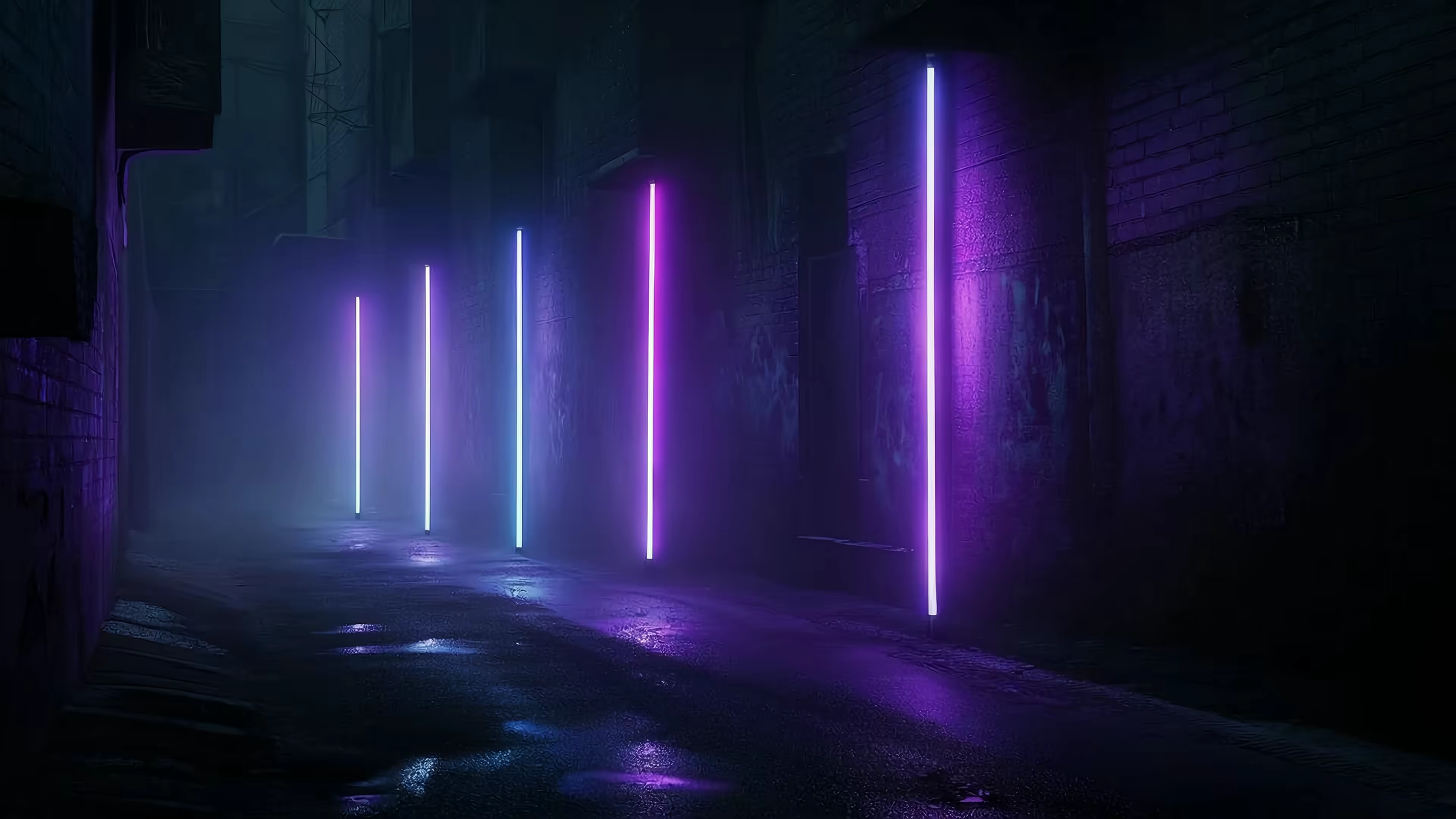
If "calm" isn't on the menu, you can go the other way. The neon and cyberpunk look is all about energy, futurism, and moody drama. It's for when you want your Mac to feel like it's jacked into the mainframe of a rain-slicked, futuristic city.
These backgrounds are all glowing purples, electric blues, and deep, inky shadows. Perfect for coding, gaming, or any time you need a jolt of visual inspiration to get your brain moving. The neon wallpaper options have everything from shimmering cityscapes to abstract light grids.
Ultimately, the best desktop background for your Mac is the one that just feels right to you. It's your screen. Your space. Your vibe.
Your Questions, Answered
You've got questions. That's fair. It's your Mac; you should know how things work. Here are the quick, no-nonsense answers to the things people ask most.
Will a Live Wallpaper Slow Down My Mac?
A poorly made one absolutely will. Some of Apple's own default wallpapers are notoriously buggy and can be resource hogs. It's one of the main reasons I built gifPaper.
The app uses Apple's own native format—the same highly efficient system behind their Aerial wallpapers. It's designed to be incredibly lightweight. By default, it shows a beautiful still frame on your desktop, using zero extra resources. The full video animation only plays when you want it to.
Where Can I Find Good 4K Desktop Backgrounds?
For static images, it's hard to beat sites like Unsplash or Pexels. They're packed with professional, high-resolution photos that are completely free.
For the best 4K live wallpapers, the gifPaper gallery has over 150+ curated, seamlessly looping videos designed specifically for Retina displays. You can browse the entire collection on the website to find your perfect vibe, from a cozy fireplace to a neon-drenched cityscape.
How Do I Get a Different Wallpaper for My Desktop and Lock Screen?
By default, you can't. macOS frustratingly forces them to be the same. While there are some clunky workarounds involving separate "Spaces," it's not a simple process.
gifPaper just fixes this. It automatically sets your chosen live wallpaper on the lock screen and a matching high-quality still image on the desktop. One click, two perfect, related backgrounds without any system fiddling.
Why Isn't gifPaper on the Mac App Store?
For one very specific reason: Apple's Mac App Store rules (a system called "sandboxing") prevent apps from changing the lock screen wallpaper. To deliver the full live lock screen experience—which is arguably the coolest part—gifPaper is distributed directly.
Don't worry, though. The app is fully notarized by Apple. That's their official stamp of approval, confirming it's been scanned for malware and is 100% safe to install.
Does gifPaper Work on Older Macs?
The app requires macOS 26 (Tahoe) or later. This is because it relies on modern macOS tech to deliver that smooth, native lock screen and desktop experience without hogging resources. Apple silicon (M1, M2, M3, etc.) is recommended for the best performance, but it runs great on any Intel Mac that can handle macOS Tahoe.
What if I Don't Like It?
Entirely possible. That's why there's a 7-day free trial with full access to every feature and all 150+ wallpapers—no credit card needed. If you buy it and change your mind, there's a 30-day, no-questions-asked money-back guarantee.
Ready to give your Mac a background that's actually interesting? gifPaper has a whole gallery of 4K live wallpapers waiting for you. Check out the app and start your free trial.