How to Install Live Wallpaper on Mac: A Complete Guide
By hour six, the default Mac wallpaper starts to feel less like "minimal design" and more like a polite hostage situation. There it is again. Some tasteful mountain. Some foggy coastline. A place you've never visited, quietly judging you while you pretend this spreadsheet deserves your full emotional range.
Wanting a better desktop isn't frivolous. You look at this machine all day. If your chair matters, your keyboard matters, and the mug somehow matters, then the giant glowing rectangle in front of your face also matters. That's just common sense with slightly better taste.
The problem is that Mac users who search for how to install live wallpaper usually run straight into nonsense. Half the advice is really about the desktop only. The other half involves workarounds that behave like a video player wearing a fake mustache. Fine until sleep, restart, multiple displays, or the lock screen enters the chat.
That Sad, Static Desktop Staring Back at You
A very normal thing happens on Macs. You change your wallpaper with great optimism. For about three minutes, life improves. Then the image becomes part of the furniture, and your desktop goes back to feeling like a waiting room with better fonts.
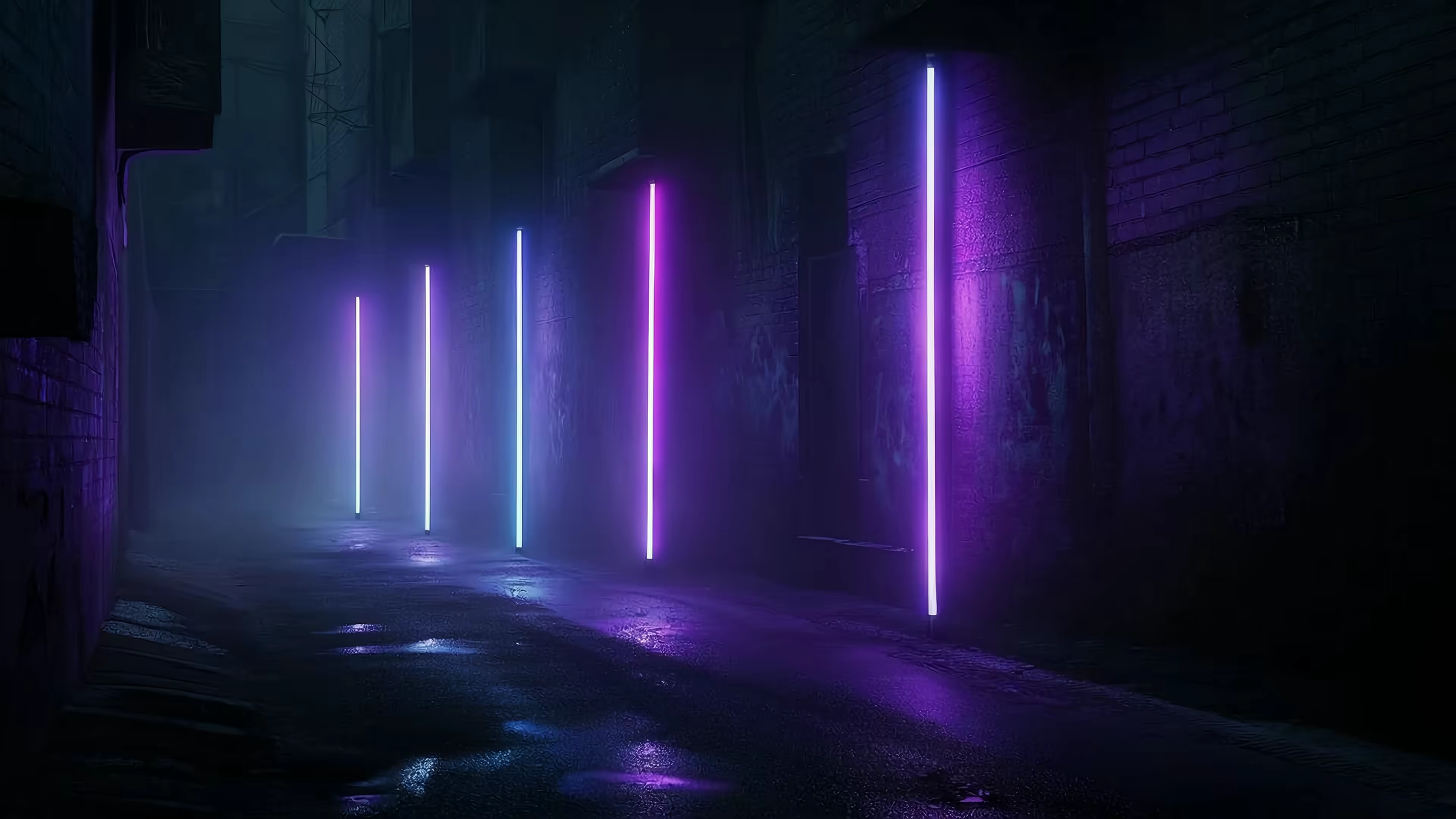
The urge to fix that is reasonable. A moving wallpaper adds atmosphere in a way a static image can't. Rain in a neon alley. A fireplace that doesn't require actual wood. A space scene suggesting that your inbox is, in the cosmic sense, not that important.
Why people keep chasing this anyway
Live wallpapers work because they sit in the corner of your attention. They don't demand much. They just make the machine feel less dead.
A good one can do a few useful things at once:
- Set a mood that doesn't interfere with work, reading, or just existing near your Mac.
- Give your desktop some depth instead of making every icon float over a frozen postcard.
- Make idle moments nicer, which is a surprisingly large portion of computer use if we're being honest.
There's also a more embarrassing truth. A nice desktop is one of the few upgrades you see constantly. Buying a cable organizer is responsible. A live wallpaper is responsible and slightly theatrical.
You're going to look at your Mac for hours anyway. Might as well make it pretty.
For Mac users, though, the key question isn't whether live wallpapers are worth bothering with. It's whether they can work properly, especially on the lock screen, where most solutions suddenly become shy and disappear.
A Brief History of Mac Live Wallpaper Disappointment
Mac live wallpapers have been awkward for years because macOS doesn't treat "play a random video in the background" as the same thing as "this is a valid wallpaper." Apple expects wallpapers to come through system-recognized formats and system flows. That's the whole game.
That matters because a lot of older methods were really just overlays. They sat on top of the desktop, looked acceptable from a distance, and fell apart the moment you expected them to behave like an actual part of the OS. Sleep the Mac. Change displays. Lock the machine. Suddenly the illusion starts coughing.
Why random video files usually fail
The most reliable Apple-side approach uses the OS wallpaper picker, which expects a recognized source such as a Live Photo or a native animated wallpaper asset. A random video file dropped somewhere on disk often won't register as a wallpaper source at all, which is why so many Mac tutorials end up drifting into file-renaming tricks and other cursed rituals documented in Inquirer's Apple wallpaper walkthrough.
That's the root of the problem. macOS isn't being difficult for sport. It's being strict about what counts as a wallpaper.
Here's the practical difference:
| Method | What it feels like | What usually breaks |
|---|---|---|
| System-recognized wallpaper asset | Part of macOS | Much less |
| Overlay-style app | A layer pretending to be wallpaper | Lock screen, sleep/wake, display changes |
| Random looping video | A video file with ambition | Recognition by the OS |
The lock screen is where hacks go to die
Most desktop-only methods can fake competence for a while. The lock screen is less forgiving. It belongs to the system, not to whatever app decided it was a wallpaper engine this week.
That's why Mac users get stuck on a weird half-solution. They can animate the desktop, sort of, but the lock screen stays static because the OS won't accept the same trick there. If you care about the whole experience, not just the part visible after login, that's frustrating in a very specific and intensely nerdy way.
Practical rule: If a Mac live wallpaper method treats the desktop and lock screen as two unrelated problems, expect compromise.
The quality issue shows up too. People assume "live wallpaper" means "any looping video," but what matters is whether the file loops cleanly, stays sharp on a Retina display, and behaves consistently where macOS expects it to behave. If you want inspiration for the kind of mood this is worth chasing, the dark wallpaper collection is a good example of where motion and atmosphere help more than another static gradient ever will.
Installing Your First Actually Good Live Wallpaper
The clean path is simple. Use a Mac app built around the way macOS wants wallpapers to work, not a desktop overlay pretending very hard. That's the difference between "neat for five minutes" and "still working tomorrow."

I built gifPaper for Mac for exactly this reason. It's a direct download because Apple's App Store sandboxing gets in the way of live lock screen wallpapers. The app is notarized by Apple, requires macOS 26 (Tahoe) or later, and the trial gives you 7 days with no credit card required. If you decide to keep it, it's a $4.99 one-time purchase at launch, not a subscription.
The shortest route from boring to moving
If you want the practical version of how to install live wallpaper on your Mac, do this:
- Download the app directly from the site and open it like any other notarized Mac app.
- Start the free trial so you can test the full setup without committing first.
- Browse the wallpaper gallery and pick something that suits the machine instead of whatever Apple thought would make everyone feel serene.
- Apply the wallpaper once. The key detail is that the same wallpaper can be set for both the lock screen and the desktop in one action.
- Choose your desktop behavior. By default, the desktop can use a still frame, with a toggle available for full video animation.
That default matters more than people think. A still desktop with an animated lock screen is often the sweet spot. You get the atmosphere without turning every moment of computer use into a tiny aquarium.
For a broader look at desktop-only approaches and why some feel rough around the edges, this guide to a desktop live wallpaper app on Mac gives useful context.
What makes this different from the old mess
Desktop live wallpaper has become more mainstream on Windows partly because apps can be installed through normal store flows, with Lively Wallpaper offered as a free Microsoft Store download that can be installed on up to ten Windows devices tied to a Microsoft account, which turns setup into a standard search, install, and launch flow rather than old registry acrobatics, as shown on the Microsoft Store listing for Lively Wallpaper. Mac users want the same simplicity, but with proper system behavior instead of a looped video hiding under the desktop icons.
The part Mac users usually care about most isn't just "can it move." It's "does it feel native." If the lock screen and desktop don't feel like one coherent wallpaper system, the whole thing ends up smelling faintly of workaround.
Fine-Tuning Your New Aesthetic Universe
Once the wallpaper is installed, the fun begins. A live wallpaper then ceases to be a gimmick and begins feeling like part of the machine. Tiny choices matter here. Motion level, sharpness, audio, and what happens when the Mac is idle all change the result more than people expect.

Pick the right kind of motion
A common expectation is that a live wallpaper should be any looping video. In practice, the key challenges are unbroken loops, Retina sharpness, and consistent behavior across desktop and lock screen, which is exactly the distinction highlighted in this video discussion of modern live wallpaper expectations.
That leads to three practical settings choices:
- Still desktop, animated lock screen if you want subtlety and less visual motion while working.
- Animated desktop on demand if the wallpaper is part of the point and you want to see it move.
- Matching screen saver if you want the Mac to look intentional even when you've walked away to make coffee and reconsider your life choices.
Audio is good, until it isn't
Ambient audio can make certain scenes much better. Fireplaces are the obvious example. Rain scenes also benefit. So do lofi environments, where the sound completes the illusion that somewhere nearby a person with impossible focus is finishing a notebook full of perfect handwriting.
Use audio selectively. It's charming when you want atmosphere. It's less charming when three apps are already making noise and your wallpaper decides to join the ensemble.
If cozy is your preferred level of nonsense, the fireplace wallpaper collection is the category I'd start with.
Don't ignore the lock screen behavior
This is the bit most Mac users notice first. A proper lock screen wallpaper should feel integrated, not like a video slapped onto a secure system surface. The nicest effect is when the motion eases and slows as the device becomes accessible, the way Apple's own animated wallpapers behave.
That tiny transition does a lot of work. It makes the machine feel considered. It also makes other wallpaper apps feel like they brought roller skates to a string quartet.
For anyone still adjusting the basics first, this guide on how to change wallpaper on Mac covers the standard system side of the process.
Good live wallpaper isn't about maximum movement. It's about the wallpaper knowing when to be quiet.
Troubleshooting the Inevitable Gremlins
Sooner or later, macOS will ask for permission, a wallpaper won't apply on the first try, or something will look wrong after sleep. This doesn't mean the whole setup is cursed. It usually means the app is asking the system to allow the exact behavior you wanted five minutes ago.

Permission prompts are normal
For lock screen features, macOS may ask for permissions such as Screen Recording. That sounds dramatic, but in practice it's part of how apps interact with protected system surfaces and display content correctly. If you deny the permission, the wallpaper feature tied to it may not work as expected. Very glamorous. Very standard.
If an app stops responding during setup, the old advice still applies. Close it and reopen it. If macOS refuses to cooperate, this guide on how to force quit an app on Mac is useful.
If performance feels off
Users don't stop asking about installation once the wallpaper is set. They start asking whether it drains battery or slows the system down. That concern is valid. Guidance around live wallpapers often skips the daily-use part, even though resource impact depends on animation complexity, resolution, and whether the wallpaper runs only on the home screen or more broadly, which is a gap noted in WikiHow's Android live wallpaper guide.
A well-designed live wallpaper app reduces this by using efficient codecs and pausing animation when it isn't visible. That's the behavior you want. If the wallpaper behaves like a video player that never learned manners, your battery and fans will let you know.
Try this checklist if something feels wrong:
- Restart the wallpaper app after changing permissions. macOS often needs the app to relaunch.
- Reduce motion on the desktop and use a still frame there if you don't need constant animation.
- Check the display context if you use multiple monitors, external displays, or frequent sleep and wake cycles.
- Reapply the wallpaper if the system setting didn't stick on the first pass.
Most live wallpaper problems are not mysterious. They're permissions, format expectations, or an app that tried to be clever instead of native.
Your Mac Is Now Objectively Cooler
You now have the answer to how to install live wallpaper on Mac without ending up in a swamp of half-working desktop tricks. You now understand the crucial difference. Desktop animation is easy to fake. Lock screen support that feels native is where the serious solutions separate themselves from the apps that are basically elaborate stage props.
That's why this category is worth caring about. You don't just want motion. You want a wallpaper that looks sharp on a Retina display, loops cleanly, behaves properly on the lock screen, and doesn't make your Mac act like it's rendering a student film in the background.
If you want one last preview before making your machine unfairly good-looking, start with something atmospheric from the neon wallpaper collection or something calmer from the nature wallpaper collection.
If you want the clean version of this setup, gifPaper is the direct path. It gives you a 7-day free trial with no credit card required, sets the lock screen, desktop, and screen saver, uses Apple's native Aerial wallpaper format, and costs $4.99 once at launch with a 30-day money-back guarantee. You're going to stare at this machine all day. It may as well stare back with better taste.