Your Guide to Live Wallpaper for Lock Screen on a Mac
Yes, you absolutely can. For years, getting a live wallpaper for your lock screen on a Mac was the stuff of fantasy, a feature whispered about in hushed tones by Windows converts. Now, it's a reality, thanks to apps that finally cracked Apple's native wallpaper system instead of relying on clunky, battery-draining overlays. This means you can wake your Mac to a living, moving backdrop.
Why Your Mac Lock Screen Deserves an Upgrade

You stare at your Mac's lock screen dozens of times a day. It's the digital doormat to your entire workflow. So why is it so static? That forgotten vacation photo from 2019 just doesn't cut it anymore.
Switching from a still image to a dynamic, living backdrop isn't just about making things look pretty. It's about making the hours you spend in front of a screen feel a little calmer and more personal. Your lock screen can be a source of ambient delight, not just a password field.
The Rise of the Living Lock Screen
Personalizing digital spaces has always been a thing, but the demand for a true live wallpaper for lock screen on desktop has exploded. Downloads for live wallpapers have surged a staggering 340% since 2020. People are tired of static screens.
The market is booming. In forums alone, millions of users search for Mac alternatives to Windows' wildly popular Wallpaper Engine. You can read more about the wallpaper market trends if you're curious about the data.
This isn't just a fleeting trend. It's a sign we want our digital tools to feel less like sterile appliances and more like personal extensions of ourselves.
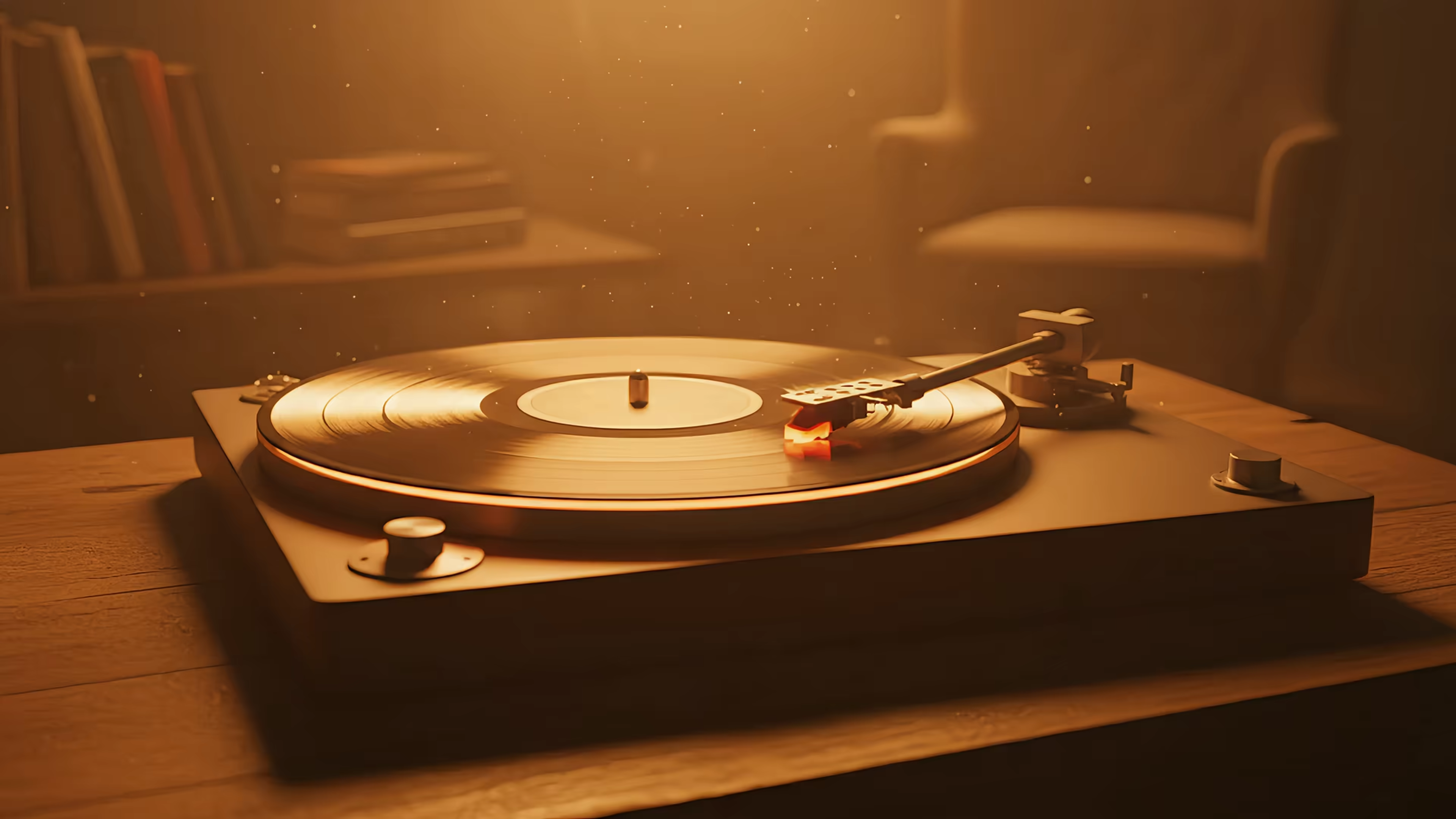
A subtle, looping video of a cozy fireplace or a futuristic cityscape can set the tone for your entire day. It's the difference between entering a sterile office and walking into a room with your favorite record playing softly in the background.
A living lock screen transforms a mundane moment—waking your computer—into a small pocket of joy.
Whether it's the gentle sway of trees from the nature wallpaper collection or a perpetually spinning record from the lofi wallpaper selection, it's a tiny upgrade that makes a huge difference. You're going to look at your Mac all day anyway; might as well make it beautiful.
Introducing gifPaper: A Native Live Wallpaper App for Mac

For years, Mac users have watched from the sidelines as Windows users enjoyed a world of dynamic backgrounds with apps like Wallpaper Engine. Our options have been less than great. Most were clunky screen overlays that chewed through battery life or, worse, completely disappeared the moment you locked your screen—defeating the whole purpose.
That search for a proper, moving wallpaper on your Mac's lock screen is finally over.
The Real Deal, No Hacks Involved
I'm an indie developer, and I made gifPaper because I wanted this for my own Mac. It's the first and only app that uses Apple's native Aerial wallpaper format. This isn't a clever trick. It's the same system Apple built for its own moving wallpapers, like the drone footage over Hawaii. No hacks, no weird overlays, just a seamless live wallpaper for your lock screen that elegantly slows to a stop as you log in.
It's the genuine article. Your Mac thinks these wallpapers are its own.
The core idea is simple: one click sets both your lock screen and desktop to the same gorgeous, looping 4K wallpaper. There's no need to configure them separately or wrestle with complicated settings.
This simplicity is the whole point. You find a wallpaper you love, you click "Set," and you're done. Your Mac finally has some personality.
Making Your Mac Your Own
You're staring at this screen all day anyway; it might as well be something beautiful. gifPaper taps into this by offering an experience that just works. It comes with a growing library of over 150 curated, seamlessly looping 4K wallpapers. You can browse the entire collection right on the homepage before you even download the app.
Here's how you can get started:
- 7-Day Free Trial: Try every feature and all the wallpapers without pulling out your credit card.
- One-Time Purchase: If you like it, it's a $4.99 launch price. This isn't a subscription. You buy it once, you own it forever.
- 30-Day Money-Back Guarantee: If you're not happy for any reason within 30 days, you can get a full refund. No questions asked.
It's an easy, high-value upgrade for anyone who spends their day in front of a Mac. Go make your screen a place you actually want to look at.
Setting Your First Live Wallpaper in Minutes

Alright, let's get this done. Forget complicated setups or fiddling with system files. Setting your first live wallpaper should take less time than it takes to choose what to watch tonight.
It all starts with a simple download from the official gifPaper for Mac page.
Once that's finished, just drag the gifPaper.app file into your Mac's Applications folder. That's it. No installers, no terminal commands, just good old-fashioned dragging and dropping.
Granting the Magic Permissions
The first time you open the app, your Mac will ask for a couple of permissions. This is crucial, but not scary. Unlike apps that want access to your contacts and your firstborn child, gifPaper only asks for what it absolutely needs to do its job.
It needs two things:
- Screen Recording Permission: This sounds way more alarming than it is. The app isn't recording you. It needs this permission to draw the wallpaper onto your lock screen—it's how it replaces the static image with a moving one.
- Files and Folders Access: This just lets the app manage its own wallpaper files. Without it, it can't save or show you any of the beautiful scenes you're about to set.
That's all. The app is fully notarized by Apple, which means they've scanned it and confirmed it's safe. If you want a deeper dive into how this all works, my guide on how to get live wallpapers on Mac has more detail.
Choosing and Setting Your First Wallpaper
Now for the fun part. Open gifPaper and you'll find the gallery—a curated collection, not an endless scroll of random GIFs from 2003. Maybe you want to channel your inner productive procrastinator with a scene from the lofi wallpaper collection.
Find one you like and just hover over it to see it in action. See that spinning record? That's what your lock screen is about to become.
Once you've made a choice—a decision far more important than what you'll eat for dinner—just click the "Set Wallpaper" button. One click. That's all it takes.
Your live wallpaper for lock screen and desktop are now officially set. Go ahead, lock your Mac and wake it up. Watch the animation come to life, slowing gracefully to a stop as you type your password.
You've officially made your Mac 100% cooler.
Customizing Your Mac Wallpaper Experience
You've set your first live wallpaper. Your lock screen is officially a moving work of art. But getting a live wallpaper for lock screen is just the start. Now we dial it in.
Fine-Tuning Audio and Animation
Some of the wallpapers come with ambient audio—the soft crackle of a fireplace, the hum of a futuristic city. It's great for the vibe, but less great when you're trying to actually work. You can kill the sound for any wallpaper with a single click in gifPaper's settings. All of the cozy, none of the distraction.
By default, your desktop wallpaper will just be a beautiful, high-res still frame from the wallpaper. This is on purpose. It keeps your Mac running smoothly, ensuring the wallpaper isn't hogging resources while you're trying to get things done.
But if you want the full experience, you can flip a switch to enable video animation on the desktop, too. Your desktop will spring to life with the same seamless loop as your lock screen. It's your call—prioritize performance or go all-in on the visuals.
gifPaper Feature Customization
Here's a quick overview of how you can tailor gifPaper's features to match your preferences for performance and aesthetics.
| Feature | Default Setting | Customization Options | Best For |
|---|---|---|---|
| Desktop Animation | Static Image | Static Image, Video Animation | Static Image: Maximum performance, zero battery impact. Video Animation: A more immersive desktop, at the cost of some CPU/battery. |
| Wallpaper Audio | Off | On, Off | Off: Silent focus. On: Immersive ambient sound for wallpapers with audio tracks (like fireplaces or rain). |
| Screen Saver | Off | On, Off | On: Your active wallpaper takes over when your Mac is idle. Off: Uses your standard macOS screen saver. |
These settings let you find the perfect balance. You can have an animated lock screen, a static desktop, and an audio-enabled screen saver—or any other combination you want.
Bring Back the Screen Saver
Remember screen savers? They were a Mac staple before Apple's default options became forgettable. They've fallen out of style, but gifPaper makes them worth looking at again.
Now that your wallpapers are beautiful, looping 4K videos, your screen saver is actually worth looking at again. Any wallpaper you set can also function as your screen saver, transforming your idle Mac into a dynamic art piece.
It's a simple feature, but it completes the setup: a fully customized Mac visual experience across your Lock Screen, Desktop, and Screen Saver, all working together.
Tailor the Vibe to Your Needs
Ultimately, this is all about choice. Want a subtle, silent loop on your lock screen and a static desktop for focused work? Easy. Craving a full audio-visual experience across the board? Done.
For a focused, minimal look that's still visually rich, you might check out the dark wallpaper collection. The whole point is to make your Mac actually feel like yours. You're going to stare at this screen for hours anyway. Might as well make it pretty.
A Field Guide to Procrastination Aesthetics

With over 150 seamless 4K loops, choosing your first wallpaper can be paralyzing. Think of this as a quick tour of the vibes. Here are a few hand-picked scenes to get you started, grouped by the mood they serve best.
This isn't just about a pretty picture. A calming background isn't a luxury; it's a productivity tool. Or at least a very good excuse for why you're staring at your screen instead of working.
For the Productive Procrastinator
This is for those moments when you're about to start working. You've made your coffee, opened your tabs, and now you just need the perfect ambiance to continue not working. The lofi wallpaper collection was built for this exact purpose.
These scenes are ideal for pretending you're a struggling writer in a movie while you answer emails in your pajamas. They set a mood of intense focus, even if the only thing you're focused on is your lunch order.
For the Indoor Enthusiast
You love the idea of nature, but from a safe distance—preferably with a roof over your head and no bugs. These wallpapers bring the outdoors in, no hiking boots required.
The fireplace wallpaper collection is a perfect example. Get the crackle and glow of a roaring fire on your lock screen without ever having to chop wood or wonder what a flue is. Or, if you prefer your cozy with a chill, a gentle winter scene can make your workspace feel like a snug cabin retreat.
You're going to stare at your Mac for hours anyway. Might as well make it pretty. It's a simple upgrade that transforms a mundane device into something that feels uniquely yours.
For the Cosmic Dreamer
Your head is often in the clouds—or even further out. The space wallpaper collection is for anyone who needs a little perspective. These cosmic vistas are a great reminder that your overflowing inbox is, in the grand scheme of things, hilariously insignificant.
These wallpapers are perfect for deep thinking or for just zoning out between meetings. Let your Mac lock screen become a window into the universe.
If you're looking for even more options, you can explore all the wallpaper categories to find your perfect vibe.
Common Questions, Answered Directly
You probably have a few questions. Let's get right to them.
Will This Murder My MacBook's Battery?
A fair question. The short answer is: no. I built gifPaper for my own MacBook and I guard its battery life like a dragon guards gold.
Here's how it works:
- On the Lock Screen: The animation only runs when the screen is awake but locked. The second you unlock it, it stops. It has zero effect while your Mac is sleeping or while you're actually using it.
- On the Desktop: By default, it just shows a high-quality still frame from the wallpaper. This uses exactly zero extra resources.
- If You Enable Animated Desktop: If you decide you want the full video playing on your desktop, the impact is tiny—about the same as playing a low-energy video in the background. Modern Macs, especially with Apple Silicon, are built to handle this without breaking a sweat.
Bottom line: your battery is safe. You can enjoy a cool live wallpaper for your lock screen without being permanently tethered to a wall outlet.
Why Isn't gifPaper on the Mac App Store?
This one's a bit technical, but important. To get a wallpaper to work on the real Mac lock screen—not some fake overlay that vanishes when you need it—an app needs special permissions. Apple's strict sandboxing rules in the App Store just don't allow it.
It's a trade-off. Most other "wallpaper apps" you'll find on the App Store are really just fancy screen savers or desktop widgets. They can't actually touch the native lock screen.
To deliver that true, native experience, gifPaper is distributed directly from its website. But it's still fully notarized by Apple. That means Apple themselves has scanned it for malware and confirmed it's safe to run on your Mac. You get the feature you want without giving up security.
What Kind of Wallpapers Are We Talking About?
The collection is always growing, but as of today, there are over 150 seamlessly looping 4K wallpapers. This isn't just a folder of random, low-res GIFs from the early 2000s. It's a curated library for people who actually care what their screen looks like.
You'll find everything from cozy fireplaces and rainy coffee shops to the glowing cityscapes in the popular neon wallpaper collection. There are chill lofi study rooms, epic space scenes, and calming nature views. There are also whole collections around specific moods and aesthetics.
What if I Buy It and Hate It?
Then you get your money back. It's that simple. I built two safety nets into the process because the whole point is for you to love what you see every time you wake up your Mac.
- 7-Day Free Trial: You can try out everything—all the features, all the wallpapers—without even pulling out your credit card.
- 30-Day Money-Back Guarantee: If you buy it and decide it's not for you, for any reason at all, just send a quick email. You'll get a full refund, no questions asked.
If having a perpetually moving scene on your lock screen doesn't bring you a tiny bit of joy, then I haven't done my job right.
Ready to stop staring at a boring lock screen? gifPaper is the first and only app that brings true, native live wallpapers to your Mac's lock screen, desktop, and screen saver. Try it free for 7 days and see for yourself.