The Mac Lock Screen Shortcut You Will Actually Use
The fastest way to lock your Mac is with the keyboard shortcut: Control‑Command‑Q. Press those three keys, and your screen locks instantly. It's the digital equivalent of flipping the "back in 5" sign on your shop door—quick, easy, and secure. All your apps and windows stay exactly where they were, waiting for you to return.
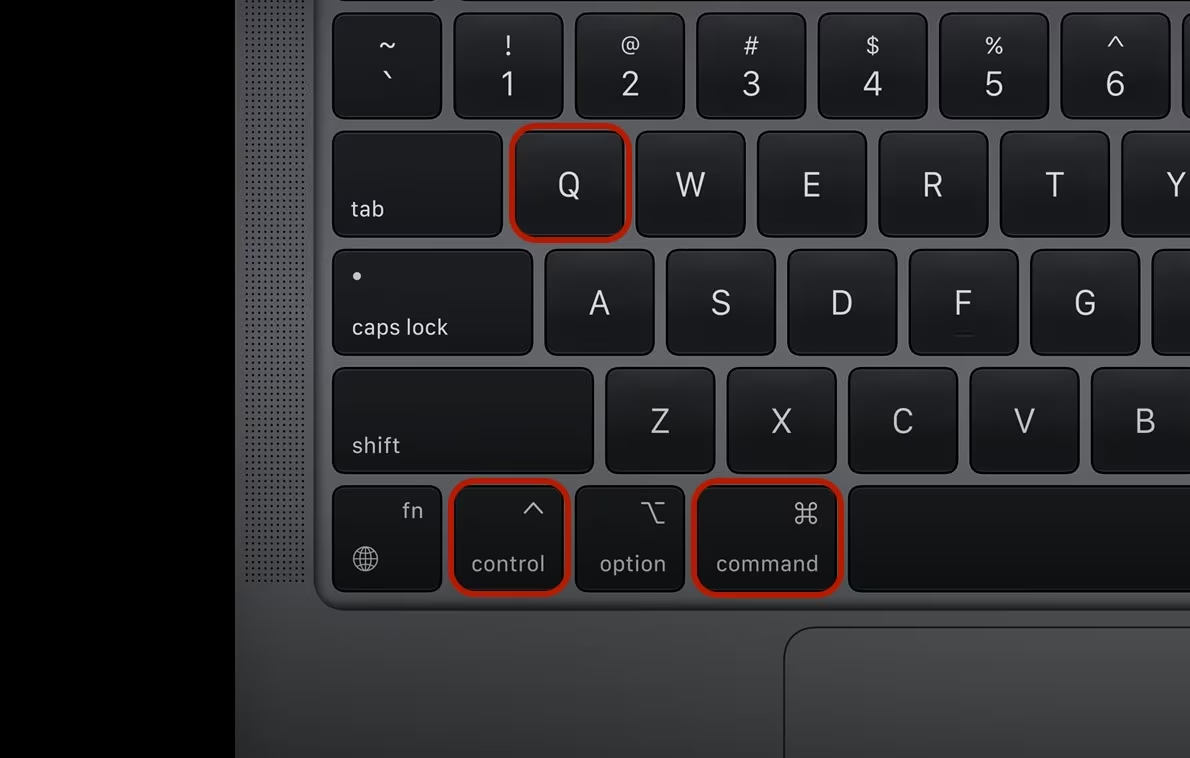
This Control‑Command‑Q shortcut secures your Mac without interrupting your work. It's not the same as putting your Mac to sleep or logging out. Think of it as your default move for stepping away for a moment. Grabbing a coffee, answering the door, or just taking a quick break from your desk—this shortcut gives you instant peace of mind without shutting anything down.
Other Fast Ways to Lock Your Mac
While Control-Command-Q is the champion Mac lock screen keyboard shortcut, it's not the only game in town. Depending on your setup, one of these other methods might feel even more natural.
Lock Your MacBook with Touch ID
If your MacBook or Magic Keyboard has Touch ID, you've got the most elegant lock shortcut of all. Just press the button. A single tap instantly locks your screen. It's perfect for those moments when your hands are already on the keyboard and you need to secure your Mac without a second thought.
The Classic Apple Menu Method
For those who prefer the mouse or trackpad, the old-school way still works perfectly. Click the Apple icon () in the top-left corner and select Lock Screen from the menu. It's two clicks, sure, but it's a dependable classic for a reason.
Use Hot Corners for a Mouse-Flick Lock
Keyboard shortcuts are great, but for a truly slick way to lock your Mac, Hot Corners are king. This classic macOS feature lets you trigger actions just by flicking your mouse into a corner of the screen. No clicks, no key presses.
Here's how to set it up:
- Go to System Settings > Desktop & Dock.
- Scroll all the way down and click the Hot Corners… button.
- Click the dropdown for whichever corner you prefer and select Lock Screen.
That's it. From now on, whenever your cursor hits that corner, your Mac will lock. To avoid locking your Mac by accident, hold down a modifier key like Command (⌘) while selecting Lock Screen from the menu. Now you'll have to hold that key while moving your mouse to the corner to trigger the lock—a handy safety net.
Set It and Forget It: Auto-Lock Timers
You're not always going to remember to lock your Mac. That's where automatic locking comes in. You can tell your Mac to lock itself after a certain period of inactivity.
Head over to System Settings > Lock Screen. Look for the setting "Require password after screen saver begins or display is turned off." Setting this to "immediately" or a short time like 5 minutes strikes a great balance between security and convenience.
Once you have your lock behavior dialed in, you can focus on the fun part. Check out the guide on how to change your Mac lock screen for a full walkthrough on customizing the visuals. After all, a secure Mac might as well look good, too.
Make Your Lock Screen Worth Looking At
While you're customizing your lock behavior, why not customize what it looks like? You've mastered locking your Mac in a split second. Now, what are you looking at dozens of times a day? A static photo?
This is where you move beyond just securing your Mac and give it some personality. gifPaper is the only app that uses Apple's native wallpaper system to set live, looping 4K wallpapers on your Mac's lock screen. This isn't some hacky overlay from other wallpaper apps; it's the real deal.
When you wake your Mac, you're greeted by a beautiful, animated scene. As you unlock, it smoothly slows to a stop—just like Apple's own dynamic wallpapers.
It turns a boring password field into a moment of calm. Instead of just a utility, your lock screen becomes part of the room's atmosphere. Dark and minimal options work particularly well on a locked screen if that's your style.
You can grab gifPaper for Mac and try everything free for 7 days with no credit card required. Once you've got a live wallpaper set, check out the full guide on how to change your Mac wallpaper for even more customization tips.
Frequently Asked Questions
You've got the shortcuts down, but a few common questions still pop up. Here are the quick answers.
What's the difference between locking and sleeping?
Locking your Mac with Control-Command-Q is like putting a guard at the door. All your apps and processes keep running at full speed. Sleeping, on the other hand, is like sending everyone home for the night. It puts your Mac into a low-power nap, pausing everything to save battery. Locking is for short breaks; sleeping is for longer ones.
Can you create a custom lock screen shortcut on Mac?
Yes. If Control-Command-Q feels like finger gymnastics, macOS lets you map the command to something else. Go to System Settings > Keyboard > Keyboard Shortcuts > App Shortcuts. From there, you can add a new shortcut for all applications that triggers the exact menu command "Lock Screen".
Why did my mac lock screen shortcut stop working?
Nine times out of ten, another app is the culprit. A new productivity tool or background utility you installed has likely "stolen" that key combination for its own use. Check the keyboard settings of any recently installed apps, find the conflicting shortcut, change it, and your Mac's lock command should spring back to life.
You've mastered the shortcuts. Now, make that lock screen a place you actually want to be. gifPaper sets gorgeous, seamlessly looping 4K videos as your lock screen and desktop background. See for yourself at gifpaper.com/macos-app.