
The Best Retina Display Wallpapers: 7 Sources for 2026
You open a new wallpaper on a MacBook Pro, set it, and within five seconds the illusion falls apart. The colors are fine. The composition is fine. Then your expensive Retina display exposes the truth. Soft edges, mushy detail, and that faint "why does this look worse than the preview?" feeling.
That is the actual retina display wallpaper problem. A nice image is not enough. The file needs real pixel density and enough detail to hold up when macOS scales the desktop in the background, which it often does whether you think about it or not.
On a cheap screen, a mediocre wallpaper can skate by. On a Retina panel, it gets judged harshly. Fair enough. You paid for absurd pixel density, so the desktop should stop looking like a stretched relic from 2012.
This guide focuses on sources that suit high-DPI Macs, not just giant files with impressive dimensions attached to them. It also goes one step further. Static wallpapers are only part of the answer. If you want your desktop to feel worthy of the screen, gifPaper pushes past still images with smooth 4K live wallpaper, which is a slightly ridiculous thing to care about until you try it.
1. gifPaper
You notice the wallpaper problem most clearly at night. The room is dark, the MacBook screen looks absurdly good, and your carefully chosen background still feels flat. gifPaper fixes that by replacing the usual still image with high-resolution live wallpaper that feels like it belongs on a Retina Mac, not like a desktop hack you tolerate for a week and delete later.
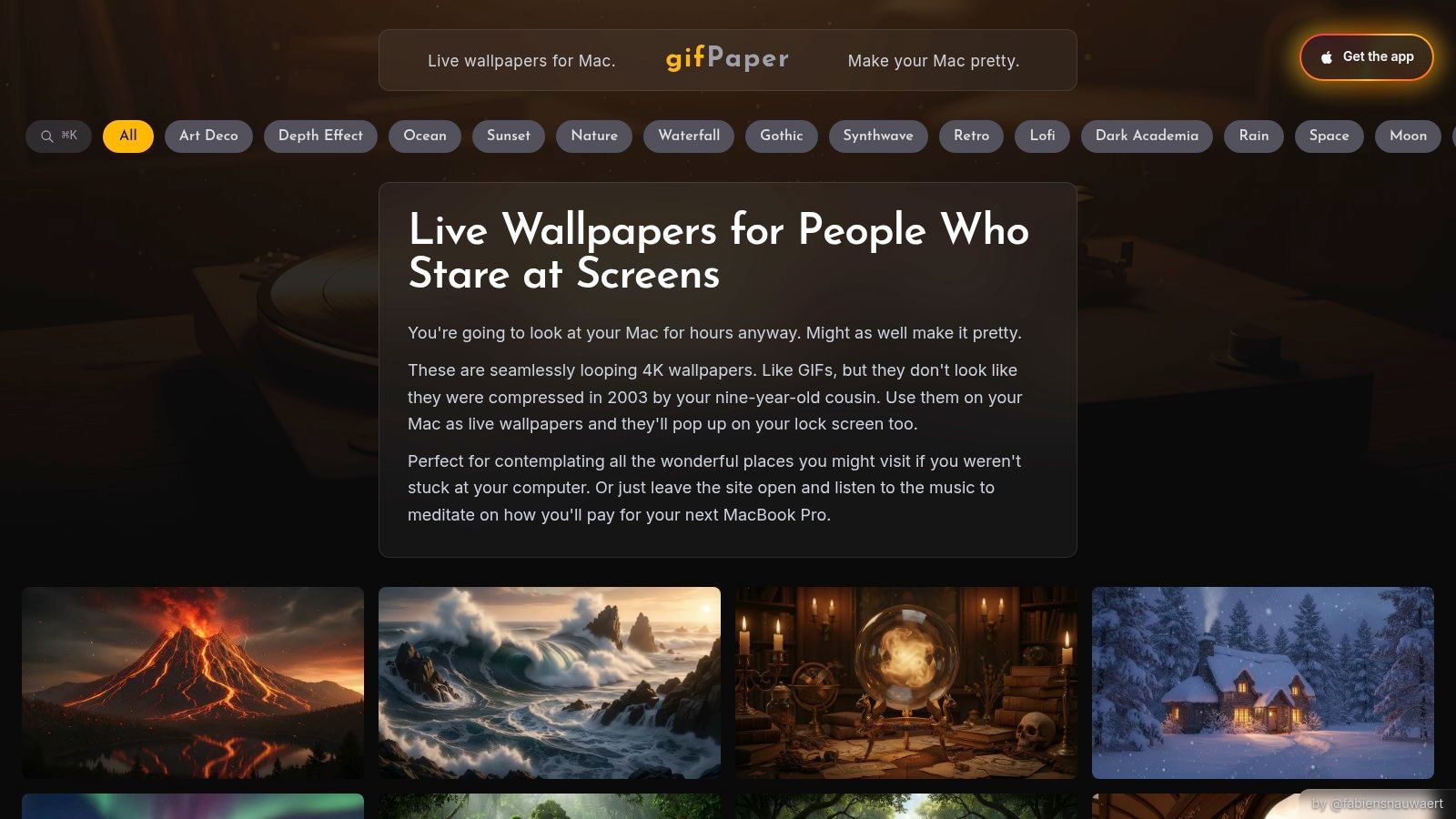
What stands out is the implementation. gifPaper uses Apple's Aerial format, so the desktop, lock screen, and screen saver can match in a way that feels polished instead of improvised. Set it once and the whole Mac feels more intentional. That is a ridiculous thing to care about until you see the result, then it becomes very hard to go back.
Why it works better on a Retina Mac
Static wallpaper advice usually stops at file dimensions. That misses the real issue. On Retina displays, macOS scaling can make a wallpaper look softer than expected because the system may render the desktop at a higher internal resolution than the simple display label suggests, a point discussed in this MacRumors Retina wallpaper thread.
gifPaper avoids a lot of that fiddly math because the library is built for modern Mac displays from the start. Instead of hunting for an image that is technically large enough and compositionally calm enough, you get motion assets that hold up on high-DPI panels and look good in daily use.
Motion also changes the feel of the desktop in a useful way. A good loop adds atmosphere without making the screen busy. The trick is restraint.
Practical rule: Pick wallpapers with one clear subject and slow movement. Rain on glass, snowfall, drifting clouds, a fireplace, distant neon. If the whole screen is competing for attention, your menu bar and icons lose.
Best for
- People who care about the lock screen: Waking a Mac to a live scene is still weirdly satisfying.
- Style-heavy setups: Lofi rooms, neon wallpapers, winter scenes, fireplaces, dark desks, space visuals. The collection is curated around moods that fit macOS well.
- Anyone who changes backgrounds often: This short guide on how to change wallpaper on Mac is handy if System Settings keeps hiding the obvious option.
A few practical details matter. The library focuses on looping 4K live wallpapers, some with ambient audio. The app offers a 7-day free trial, then a $4.99 one-time purchase. No subscription. It requires macOS 13 or later, and it is distributed directly because live lock screen wallpaper apps run into App Store sandbox limits.
The trade-offs are straightforward. It is Mac-only. The library is curated, so you get taste over infinite variety. And some people will still prefer the zero-distraction purity of a static image. Fair enough. But if the whole point of a Retina display is to enjoy absurd levels of visual polish, this is the clearest upgrade in the list because it solves the flatness problem, not just the resolution problem.
2. Unsplash
Unsplash is the easiest recommendation for people who want photographic retina display wallpapers and don't want to spend money. The dedicated Mac wallpaper collection on Unsplash is full of big scenic photos, clean architecture shots, moody skies, and minimal compositions that usually survive a Retina screen without looking embarrassed.
The strength here is volume plus quality. You can find images that feel calm and desktop-friendly instead of "technically large, compositionally chaotic." That distinction matters more than people admit.
What works best on Unsplash
Unsplash is strongest when you want still photography with natural depth. Mountains, fog, oceans, city lights, shadows on concrete, that sort of thing. These styles tend to scale well and look expensive in the exact way a Mac owner likes to pretend doesn't matter.
If you're new to swapping backgrounds regularly, this short guide on how to change wallpaper on Mac saves some poking around System Settings.
The best Unsplash desktop images usually have one quiet zone. Your menu bar and icons need somewhere to breathe.
There's one trade-off. Unsplash is a giant library, not a wallpaper stylist. Some images are gorgeous in isolation but terrible once your desktop icons land on top of them like luggage on a silk shirt. Expect to curate a bit.
3. Pexels
Pexels is the slightly scrappier free option. Pexels doesn't funnel you into a neat Mac wallpaper page the way Unsplash does, but it's very good if you already know the kind of retina display wallpaper you want and don't mind searching for it.
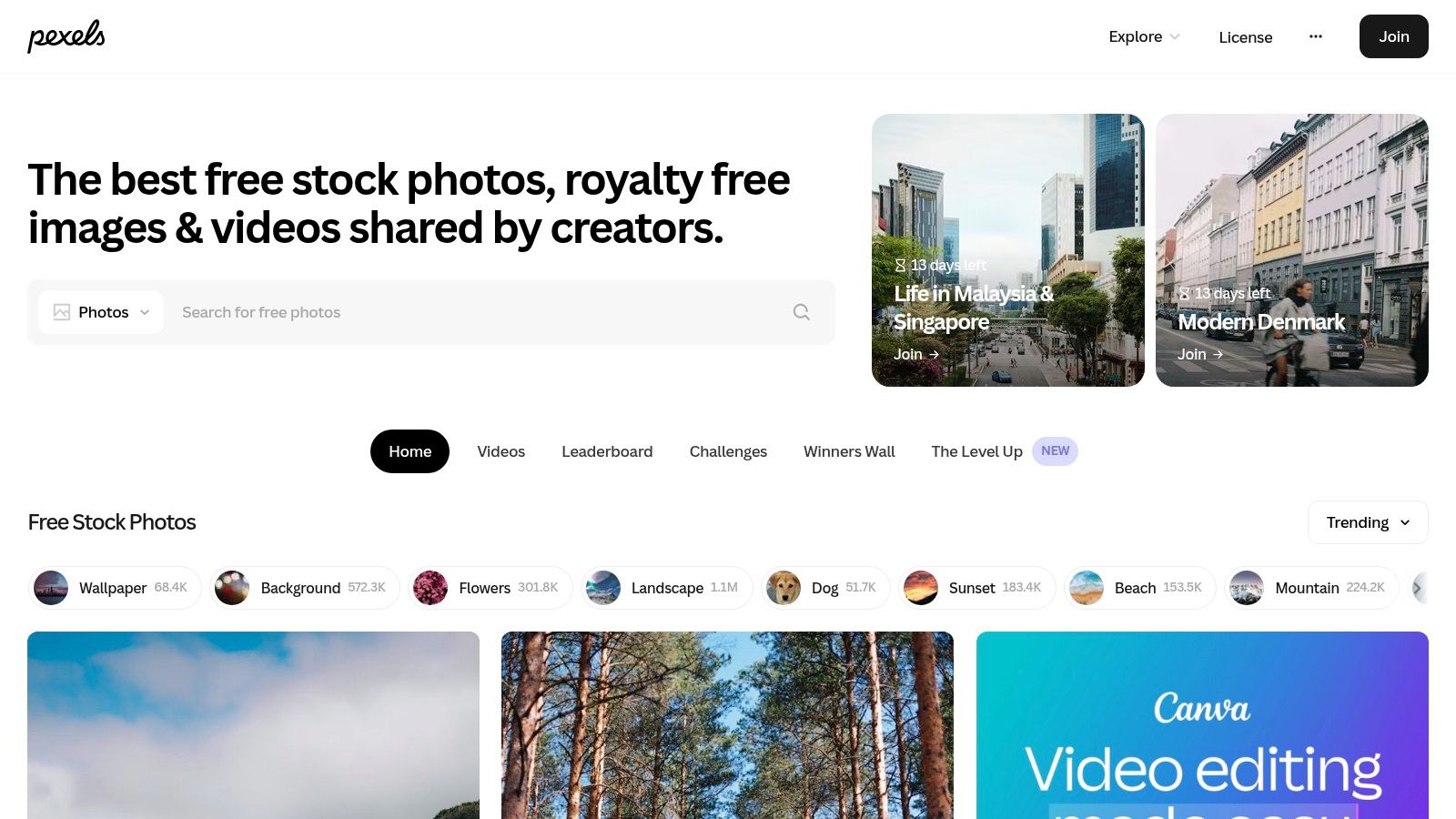
Search terms matter here. "4K wallpaper," "minimal desktop background," "fog forest," "night city," or "abstract gradient" will usually get you somewhere useful faster than "Mac wallpaper," which tends to bring back a mixture of good images and total nonsense.
Why people like it
Pexels is practical. Downloads are free, the library is large, and there's plenty of modern photography that looks good on high-density displays. If you want a dark mountain scene, a pastel sky, or a geometric interior with enough negative space for icons, it can absolutely deliver.
What it doesn't do is hold your hand. You have to filter for taste yourself.
- Best use case: Finding one-off photographic backgrounds without paying.
- Best style categories: Nature, abstract, minimal, city, texture-heavy closeups.
- Main annoyance: Search quality can swing wildly between elegant and "who uploaded this and why."
If you're picky, that's not a dealbreaker. It just means Pexels is a better hunting ground than a neatly curated shelf.
4. 512 Pixels
Some people don't want novelty. They want Apple's wallpaper taste, just without the low-resolution archaeology project. That's what 512 Pixels' default Mac wallpaper archive does very well.
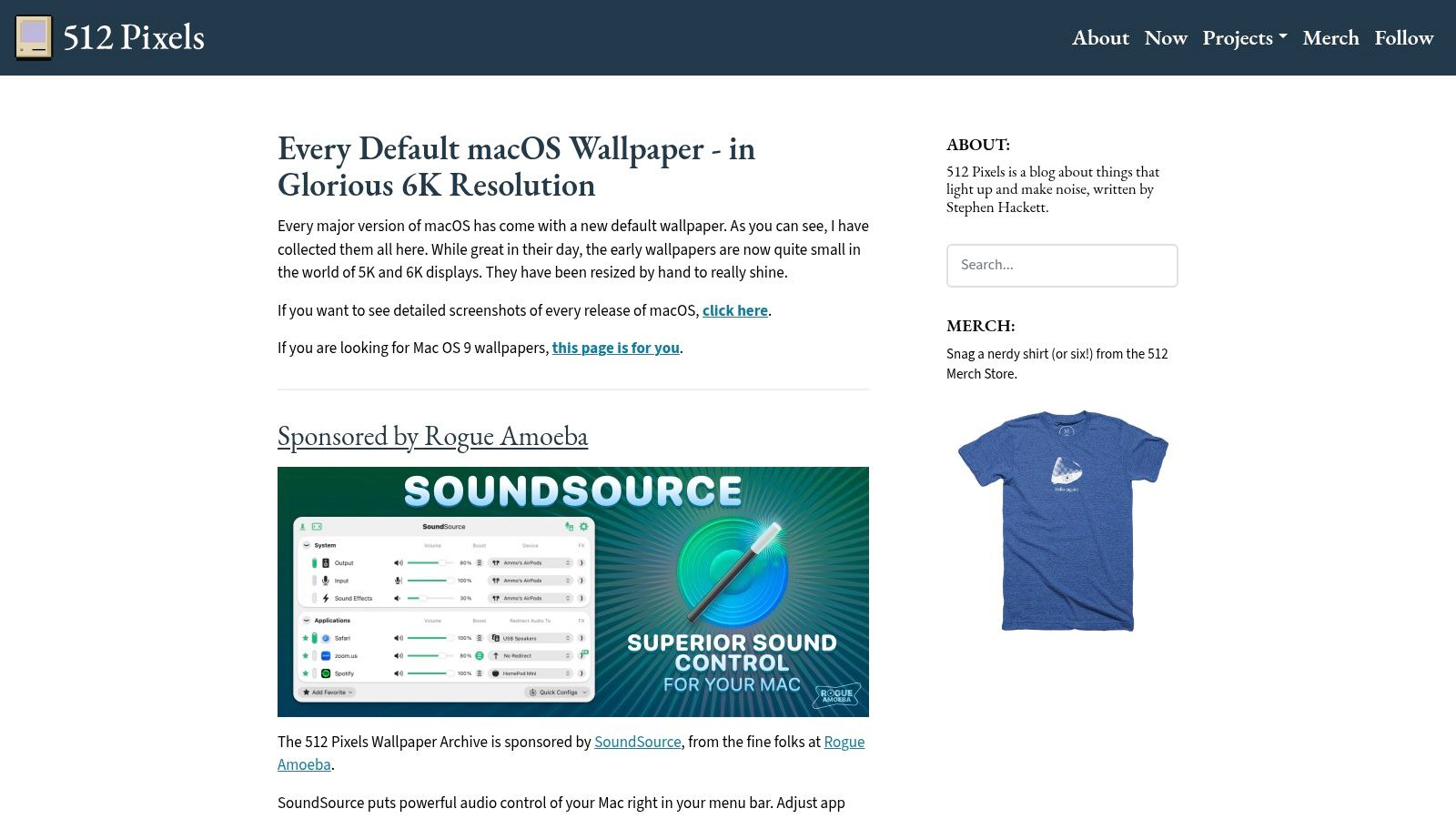
This is the place for remastered versions of old macOS and OS X defaults in 5K and 6K. If you have fond memories of an older Apple wallpaper and don't want to see it smeared across a modern display like butter on hot toast, this solves that cleanly.
Why it's better than random reposts
A lot of reposted default wallpapers floating around the web are compressed, cropped oddly, or pulled from questionable sources. 512 Pixels is more careful. The whole project is basically an act of Apple desktop preservation, which is both useful and slightly unhinged. Respect.
If you're trying to match image dimensions more closely to your machine, this guide to MacBook wallpaper size helps sort out what your screen wants.
Older Apple wallpapers often look best when you download a version larger than you think you need. Let macOS scale down. Don't ask a smaller file to invent detail it never had.
This is a narrower site than stock-photo libraries. You're not coming here for variety. You're coming here because you want classic Aqua-era waves, desert dunes, galaxies, gradients, and official Apple vibes that still look crisp on modern hardware.
5. Basic Apple Guy
Basic Apple Guy sits in a sweet spot between fandom and design discipline. The wallpapers are Apple-inspired, often minimal, and usually composed by someone who clearly understands that a desktop background should leave room for actual desktop things.
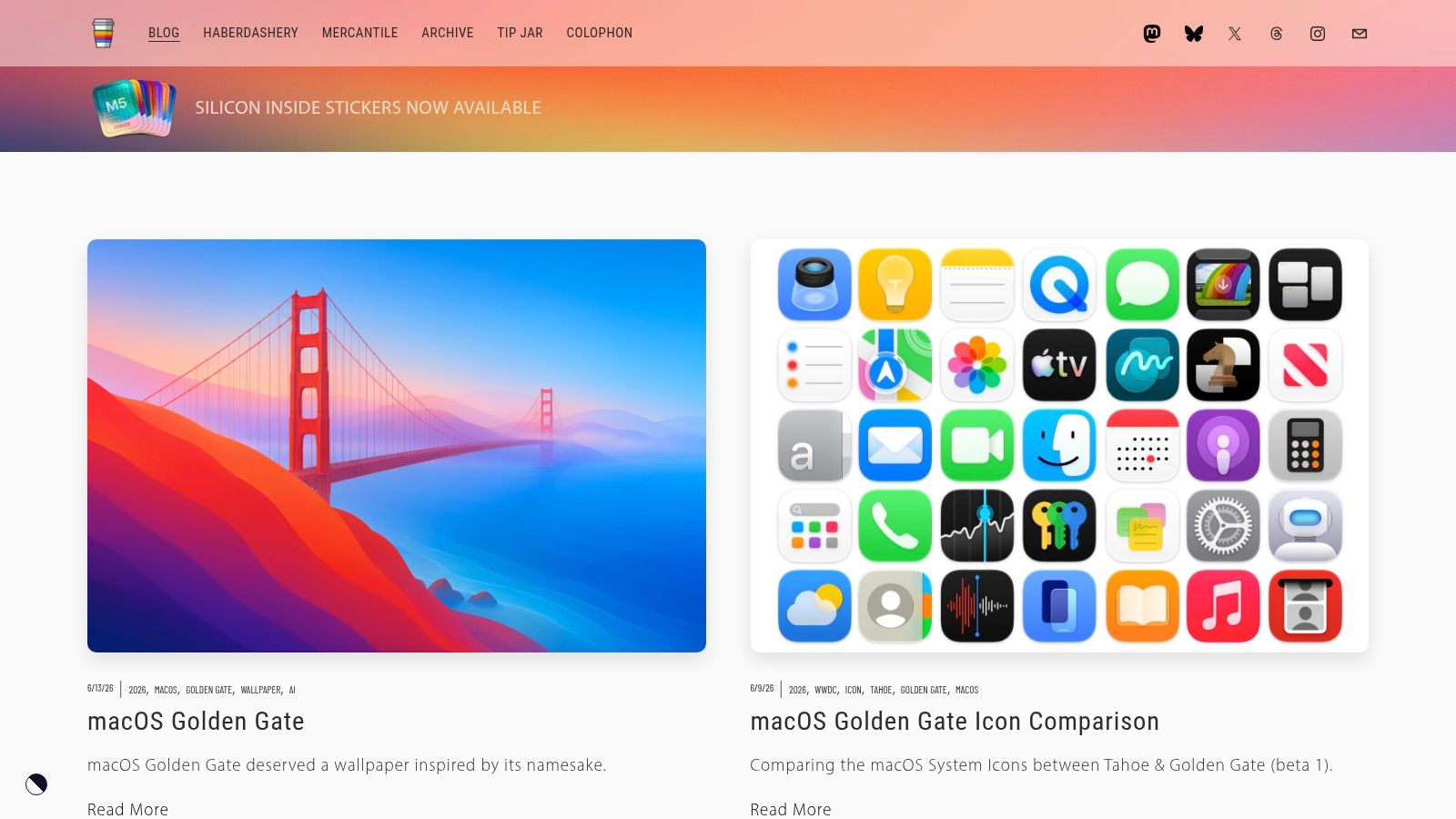
If you seek something cleaner than a photo library and more personal than default system art, I'd suggest reviewing these selections. You'll find gradients, iconography, references to Apple history, and polished graphic compositions that feel at home on a Mac.
Where it shines
A lot of retina display wallpapers fail for a boring reason. They're visually busy. High resolution doesn't fix bad composition. Basic Apple Guy usually gets this right. The wallpapers tend to have strong balance, clear focal points, and enough empty space that your files on the desktop don't look like they've been dropped into a parade.
Some downloads are free, and some packs are paid. That split feels fair. If you just want a few refined designs, the free side goes a long way. If you collect desktop aesthetics the way other people collect vinyl, there's more to buy.
The only real limitation is breadth. This is a creator-driven catalog, not an endless community upload machine. But that smaller scope is also why the average quality feels more consistent.
6. Dynamic Wallpaper Club
If static wallpapers feel too static, but full-motion video feels like more commitment than you want, Dynamic Wallpaper Club is the elegant middle ground. It focuses on macOS dynamic HEIC wallpapers that shift with time of day or appearance mode, so your desktop changes without needing a constantly animated scene.
It feels more "native Mac" than "desktop customization hobby," which will appeal to people who want subtlety. You get variation. You keep the clean built-in behavior.
The native option for people who don't want an app running the show
The site includes community-made dynamic wallpapers and a creator tool for building your own time-based sets. If you like the idea of a desert scene moving from dawn to dusk, or a city skyline shifting from afternoon to night, this format is lovely.
There are occasional quirks with third-party dynamic HEIC workflows on some macOS versions, so it's not always completely frictionless. This guide to dynamic wallpaper on Mac is useful if you want the setup process without the guesswork.
One broader point matters here. High-DPI asset guidance has long pushed designers toward making graphics at 2x the intended display size because high-density screens have roughly twice as many pixels per inch as traditional displays. That same logic is why dynamic wallpapers need sufficiently large source images to look right on Retina Macs. Fancy file format, same old rule. The pixels still need to show up dressed properly.
7. Wallhaven
Wallhaven is for people who know exactly what they want and are willing to use filters like a responsible adult. Wallhaven has one of the best search systems in the wallpaper world, especially if you care about exact resolution, aspect ratio, orientation, and color.
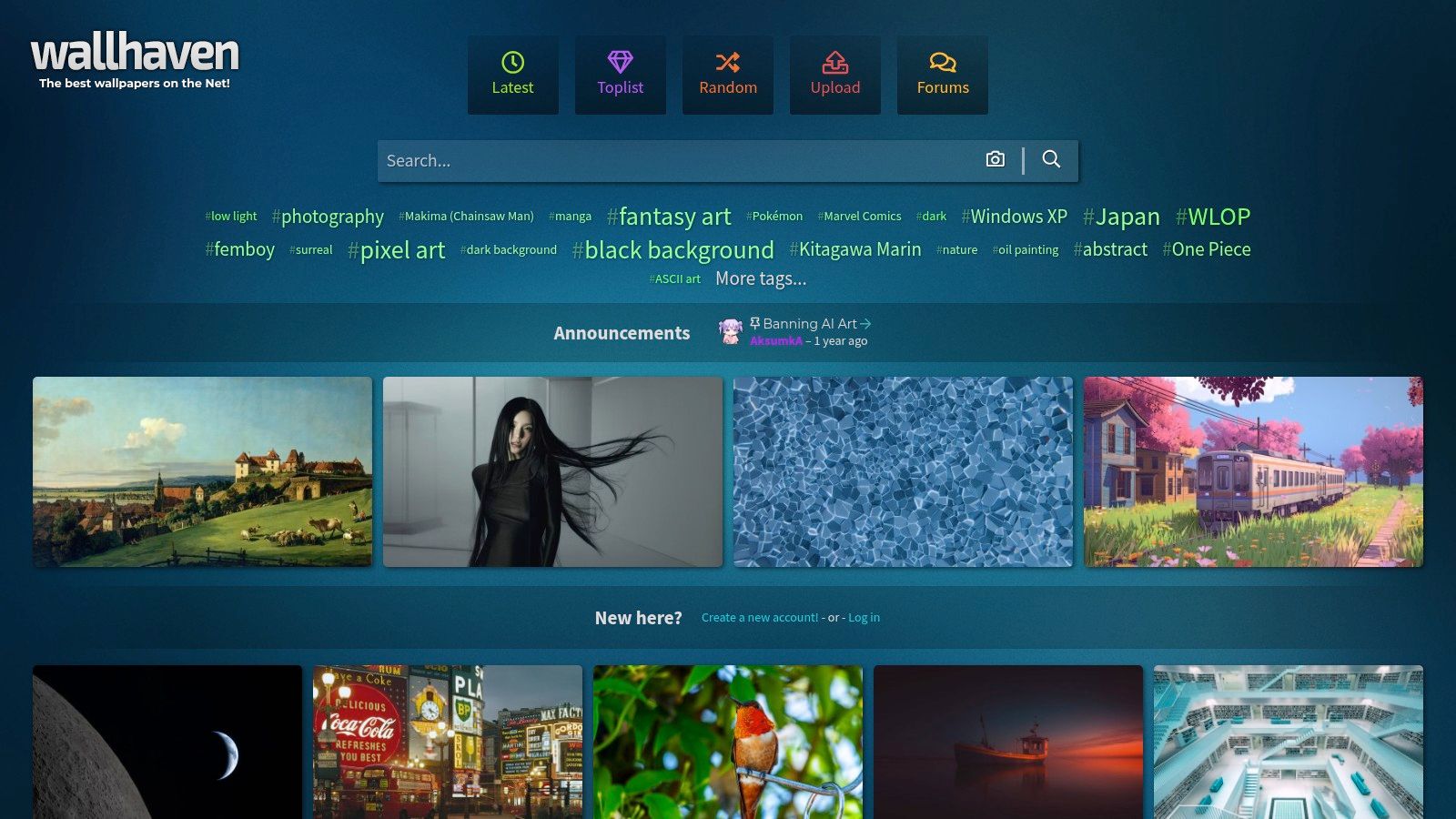
That makes it unusually good for retina display wallpapers on larger Macs and external displays. If you want to hunt for a very specific size and style instead of browsing whatever a site happens to feature today, Wallhaven is excellent.
Best for obsessive filtering
This is the site where you can say, "I want something dark blue, wide, clean enough for icons, and large enough for my display," and then go find it instead of hoping. That's useful.
It's also a community upload platform, so quality varies. You'll want to use the filtering tools properly, and you'll probably want safe-for-work settings on if your desktop has any chance of being seen by other humans.
Some wallpaper sites are curated boutiques. Wallhaven is a warehouse with a very good labeling system.
The strength is freedom. The weakness is that freedom creates homework. If you enjoy searching, you'll love it. If you want five excellent choices and then to move on with your life, start somewhere more curated.
Retina Display Wallpapers: 7-Source Comparison
A retina wallpaper source is only useful if it holds up after macOS scales it, crops it, and leaves your menu bar and desktop icons sitting on top of it all day. That is the true test. A gorgeous preview means nothing if the final result looks soft on a 5K display.
This comparison is less about who has the prettiest homepage and more about what each option does well. Some sources are excellent for static photography. Some are better for Apple-style minimalism. One shifts the whole conversation by skipping static images and using Retina-ready motion instead.
| Item | Platform and access | Setup effort | Resource requirements | Expected result | Best fit | Key advantage |
|---|---|---|---|---|---|---|
| gifPaper | macOS app, trial available, one-time purchase | Low, install the app and apply a loop | Video playback uses more system resources than a static image, especially with audio enabled | Animated Retina-ready wallpapers with looping motion and optional ambient sound | Mac users who want the desktop to feel alive, not just sharp | 4K motion backgrounds, curated clips, app-managed wallpaper playback |
| Unsplash | Web and Mac app, free | Low, download or set from the app | Static image files with minimal runtime load | Clean, high-resolution photographic wallpapers | Photography-heavy desktops and general-purpose browsing | Large free library, strong photo quality, easy access |
| Pexels | Web, free | Low, search and download | Static image files with minimal runtime load | Broad mix of photos and simple backgrounds | Fast free downloads when you need options quickly | Good variety, easy search, plenty of large files |
| 512 Pixels | Website, free downloads | Very low | Large static files, little ongoing resource use | Apple default wallpapers restored for modern displays | People who want classic macOS visuals without compression artifacts | Faithful Apple-focused archives in very large sizes |
| Basic Apple Guy | Creator site, free and paid wallpapers | Very low | Large static files, little ongoing resource use | Minimal Apple-inspired wallpapers designed for actual desktop use | Users who care about icon legibility and clean composition | Thoughtful layouts, strong Mac aesthetic, high-resolution files |
| Dynamic Wallpaper Club | Web gallery and creation tool, free | Medium, install HEIC sets or build your own | Time-based HEIC wallpapers with no constant video playback | Native day-to-night wallpaper changes in macOS | Users who want motion-adjacent variety without running a wallpaper app | Built for macOS dynamic wallpapers, community-made sets |
| Wallhaven | Web community, free | Medium, filtering takes effort | Huge catalog of static files with mixed quality | Highly specific wallpaper finds at the right resolution and aspect ratio | People willing to search hard for something exact | Excellent filters and a very wide range of styles |
The practical split is simple. Unsplash, Pexels, 512 Pixels, Basic Apple Guy, Dynamic Wallpaper Club, and Wallhaven are all static-first sources, even when Dynamic Wallpaper Club adds time-based variation. gifPaper solves a different problem. It gives the desktop motion, mood, and true high-resolution loops instead of asking a single still image to do all the work.
That sounds slightly absurd until you spend real money on a Retina Mac, set a wallpaper you loved in preview, and notice it looks a little flat once it lives on the desktop for eight hours a day. At that point, obsessing over wallpapers starts to feel annoyingly rational.
Beyond Static and the case for the upgrade
A Retina Mac ruins mediocre wallpapers fast.
The first few minutes are misleading. Almost any image looks decent in Finder or a browser preview. Then it becomes your desktop for a full workday, sits behind icons, widgets, and menu bar clutter, and all the weak points show up. Soft detail, awkward scaling, busy composition, compression artifacts. On an expensive display, those flaws stop being subtle.
That is the actual problem to solve. "High resolution" on the download button does not guarantee a wallpaper will look good on a Mac desktop. Native pixel count matters, but so does composition. Files with breathing room, clean contrast, and restrained detail usually age better than hyper-busy shots that try to impress for three seconds and then fight your desktop all week.
Static wallpapers still have a place. They are simple, light on system resources, and easy to swap. If you stick with stills, choose images that match your display size comfortably, avoid overprocessed edits, and pay attention to icon legibility. Calm usually wins. Your desktop should look intentional, not like a gaming mouse box.
If you want safe static categories, nature wallpapers and winter wallpapers tend to work because they offer texture and atmosphere without turning every inch of the screen into visual noise. Snow, fog, tree lines, ridges at dusk. Good desktop backgrounds leave room for the rest of the interface to exist.
There is a point where sharper still images stop changing the experience very much. Motion changes it immediately. A well-made live wallpaper adds depth, rhythm, and a sense that the desktop is alive, which sounds a little ridiculous until you use one for a week and then go back to a static JPEG.
That is the case for gifPaper. As noted earlier, it is built for Mac and focused on the parts people primarily notice: the desktop, lock screen, and screen saver. The difference is not just movement for its own sake. It is true high-resolution loops that hold up on Retina displays, with moods that make sense on a desktop instead of looking like a tech demo that escaped into your workspace.
If your Mac still looks like it inherited a wallpaper from a 2012 forum post, the app is the upgrade. It includes a free trial, then a one-time purchase, and it sets the desktop and lock screen together. Small detail. Weirdly satisfying.