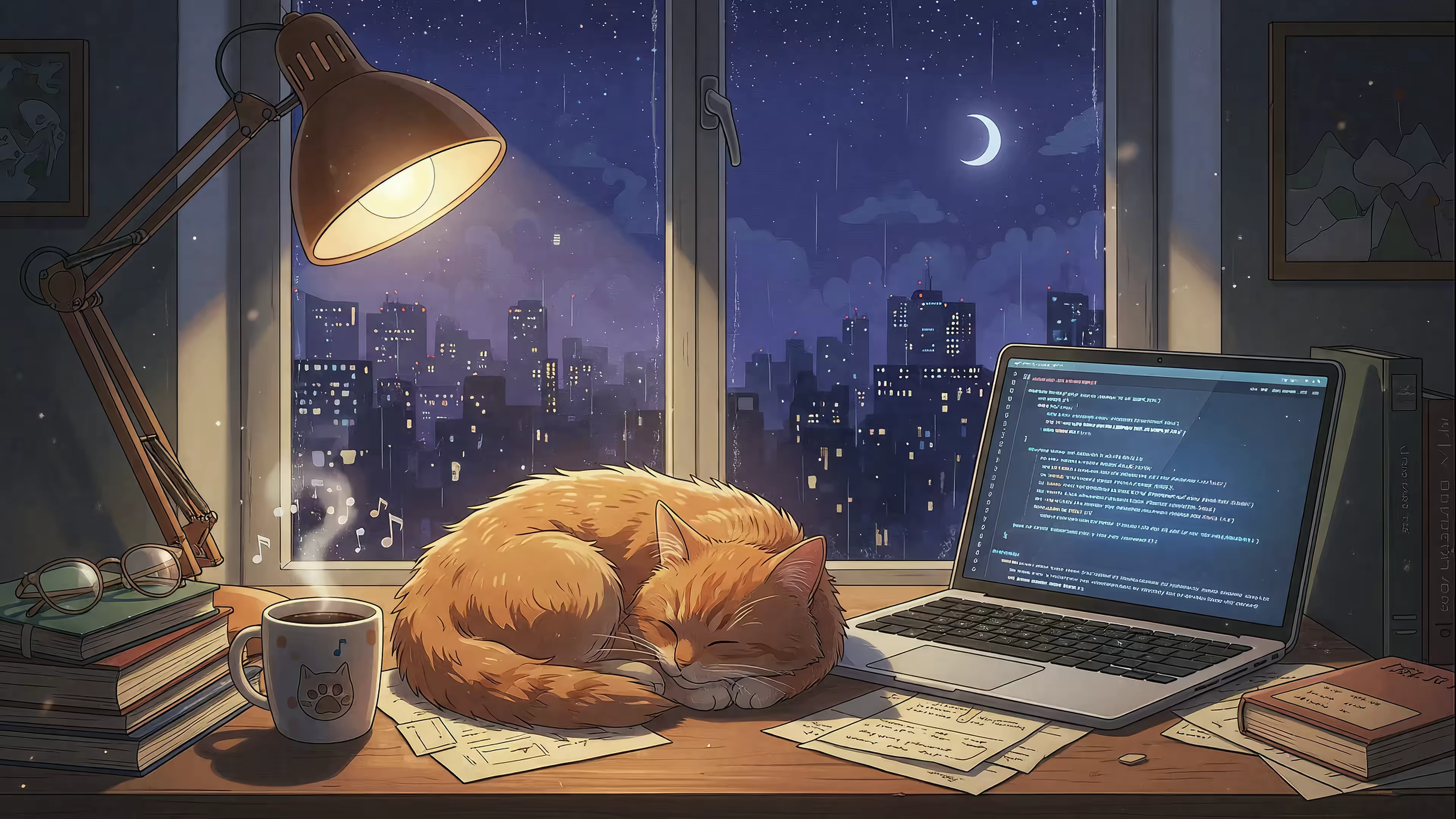
Your Guide to Actually Beautiful Mac Wallpapers (4K, Live)
Your Mac Deserves Better Than a Gradient.
You open your Mac before coffee, close it after the last email, and spend half the day staring at the desktop between tasks whether you mean to or not. If the wallpaper feels generic, the whole machine somehow feels a little cheaper. Ridiculous, yes. Also true.
Apple's default wallpapers are usually well-made. The main problem is ubiquity. If you want your screen to feel personal instead of straight out of a fresh macOS install, you have to go looking.
That search usually turns into a small expedition. First come the high-resolution static wallpapers. They are easy, they look sharp, and good sources still beat most of what shows up in image search. Then you hit Apple's native dynamic wallpapers, which shift with the time of day and make the desktop feel a bit more alive. Nice feature. Slightly overpraised feature, if we're being honest.
Then you realize what you wanted was motion.
There are three wallpaper types worth separating before you download a pile of junk. Static wallpapers are single images. Dynamic wallpapers use Apple's built-in format to swap lighting or scenes over time. Live wallpapers are real moving video backgrounds. That last category is where things get interesting, and it's also where plenty of apps get clumsy, battery-hungry, or weirdly janky.
The good version of this hunt ends with live video done properly. gifPaper is the option in this lineup that scratches that itch without making your desktop feel like a hacked-together science project. Before you get there, though, it helps to know which sources are worth your time at each stage.
1. gifPaper
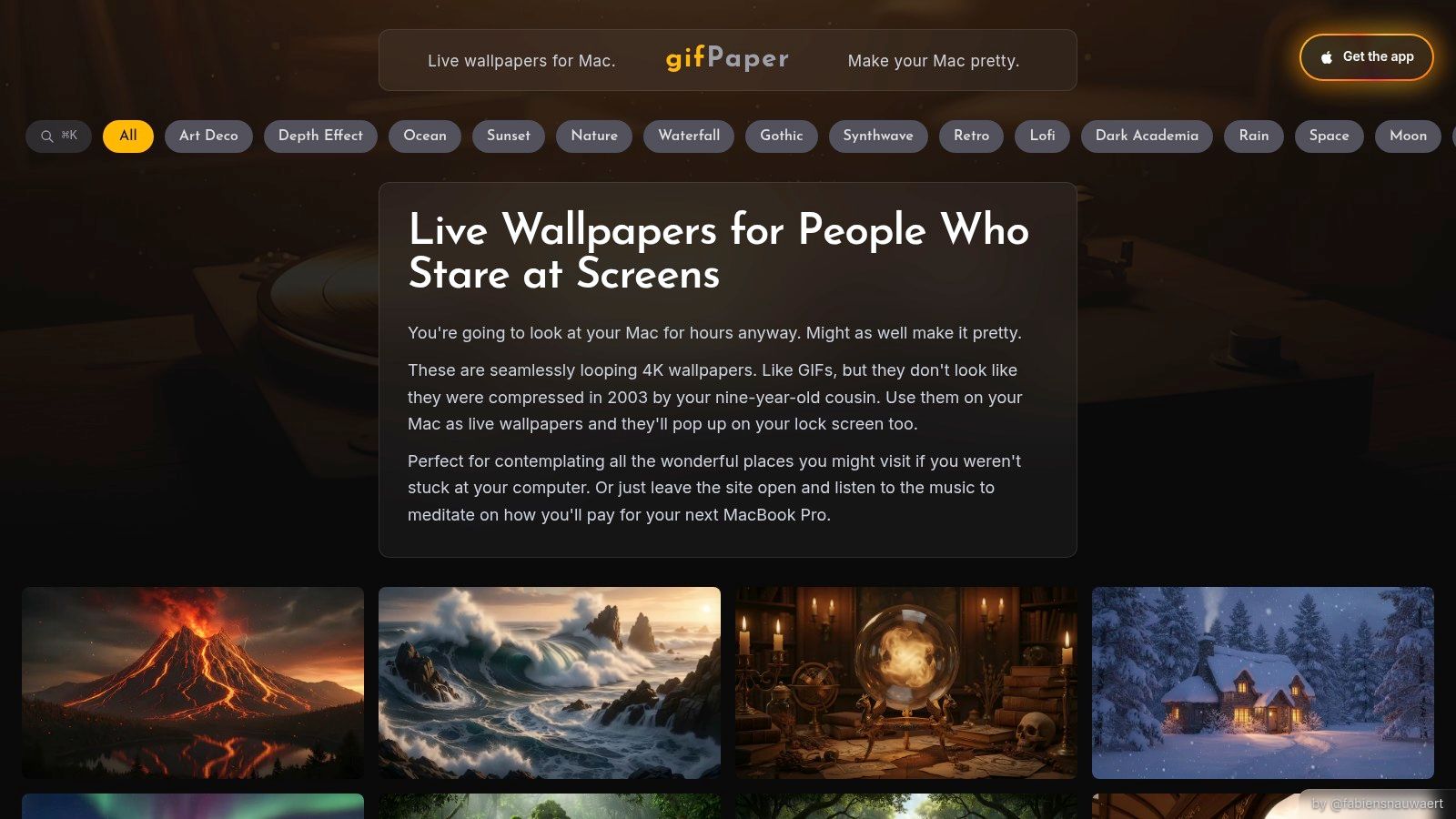
Start here if you've already done the usual Mac wallpaper pilgrimage and ended up wanting actual motion on screen. gifPaper is the point where the hunt stops feeling like compromise. It gives you live video wallpapers, the kind that make Apple's dynamic wallpapers feel a little too polite.
What makes it work is the implementation. gifPaper applies curated 4K looping video wallpapers to your Mac's lock screen, desktop, and screen saver through Apple's native Aerial wallpaper format. That matters. The result feels built into macOS instead of floating awkwardly above it like some desktop toy you will regret installing by Friday.
Why it feels better than most live wallpaper apps
A lot of live wallpaper apps get the basic idea right and the Mac part wrong. Clunky menus. Weird setup steps. A lock screen that breaks the illusion the second you close the lid and open it again. gifPaper avoids most of that nonsense.
The gallery helps too. Instead of dumping random files in your lap, it organizes wallpapers by mood and style, so you can browse like a normal person. If you want lofi wallpapers, they're easy to find. Same for winter wallpapers. Pick a scene, install it properly, move on with your life.
One small but important detail: it can set the same wallpaper on both the desktop and lock screen. That sounds obvious until you try other apps and discover how many somehow miss it.
Practical rule: If a live wallpaper app fumbles the lock screen, the whole setup feels cheap every time you wake your Mac.
Practical considerations
gifPaper has a free trial, then a one-time purchase of $4.99. No subscription, a welcome change as software often demands ongoing fees for basic functions. It requires macOS 26 Tahoe or later, and you install it by direct download because the Mac App Store sandbox does not allow live lock screen wallpapers. The app is notarized by Apple, which is the most important detail.
Some wallpapers include ambient audio. That can be cozy for about ten minutes or perfect all day, depending on how much digital rain your brain can tolerate. Live 4K video also uses more power than a static image. If you spend long stretches on battery and care more about efficiency than atmosphere, static wallpapers still make more sense. If you need help with the basics, this guide on how to change wallpaper on Mac covers the setup.
If your goal is a beautiful Mac wallpaper that feels alive, gifPaper is the satisfying end point. The gallery is free to browse, and scenes like the record player loop or the snow house wallpaper show why video beats another very nice JPEG once the novelty of static images wears off.
2. Unsplash
You open your Mac, hate the wallpaper, and want a fix in five minutes, not a side quest through spammy wallpaper sites pretending every blue button is the actual download. Unsplash is still one of the easiest places to start.
It works best for the first stage of the wallpaper hunt: high-quality static images that look clean on a Retina display and do not make your desktop feel like a bargain-bin Chromebook. Search is fast, the photo quality is usually strong, and the catalog is broad enough that you can switch moods without switching sites.
What Unsplash gets right
Unsplash rewards specific searches. "Foggy forest" beats "nature." "Minimal concrete interior" beats "architecture." "Warm desk setup" beats "workspace." If you know the vibe you want, you can get to something good quickly.
Resolution matters more than people admit. A boring image that is sharp will usually look better than an interesting one that gets mangled by scaling. On a Mac, crop behavior is half the battle. The menu bar, Dock, and odd aspect ratios can turn a great photo into something strangely off once it lands on the desktop.
If you need a quick refresher on the actual setup, this guide on how to change wallpaper on Mac covers the basics. Choosing the image is still the harder part.
Static wallpapers succeed or fail on composition. If the subject sits too high or too low, macOS will crop it with the confidence of a machine that has never seen art before.
The trade-offs
Unsplash is excellent for photography. Natural scenery, architecture, moody skies, clean interiors, coastline shots. That whole category is well covered.
It is less reliable if your taste runs niche or stylized. Surreal digital art, anime-adjacent work, and loop-friendly visuals are not really its strength. You can also feel the popularity problem. A lot of the best images are of high quality, which means a lot of people are using the same high-quality images.
That does not ruin it. It just sets the ceiling. Unsplash gives you the polished static-photo phase of the hunt, and it does that part well. If your screen still feels a little dead after a while, that is usually the moment people start looking at dynamic wallpapers, then eventually at live video options like gifPaper.
3. Pexels
Pexels is the other static-photo heavyweight worth keeping open in a tab. If Unsplash feels like a design magazine, Pexels feels a little more utilitarian. That's not a criticism. Utility is underrated, especially when you're trying to replace a wallpaper right now and not write a thesis on cloud formation.

The main appeal is speed. Search, filter, download, done. No account required for basic grabbing, no elaborate ritual, no feeling that you're being gently steered toward a newsletter.
Why people keep using it
Pexels works best when you know roughly what mood you want. Clean city shots, desk minimalism, night skies, beach scenes, leafy sunlight. It has enough breadth that you're rarely stuck, and the image files are generally suitable for modern Mac displays.
That matters because demand for high-resolution Mac wallpapers has grown along with Retina and 4K displays, and broader Mac wallpaper collections now include over 100 Mac-specific HD options. Once you get used to crisp screens, low-resolution wallpaper starts to look like an insult.
The trade-off with free abundance
Pexels is great at "good quickly." It's less reliable at "uniquely mine." The more mainstream the aesthetic, the better it performs. The more specific your taste gets, the more you may feel the sameness creeping in.
That doesn't make it bad. It makes it a strong static option.
- Fast downloads: Good when you want a wallpaper in two minutes, not twenty.
- Safe default choice: You can recommend it to normal people without them texting back, "Why are there six fake buttons on this site?"
- Needs personal curation: The best results come from making your own short list instead of taking the first acceptable image.
If all you want is a sharp, attractive still image, Pexels does the job with almost no drama. Sometimes that's enough.
4. Wallhaven
Wallhaven is what happens when wallpaper browsing gets a little more obsessive. In a good way, mostly. If Unsplash and Pexels are polished front doors, Wallhaven is the giant archive with labels on every drawer.
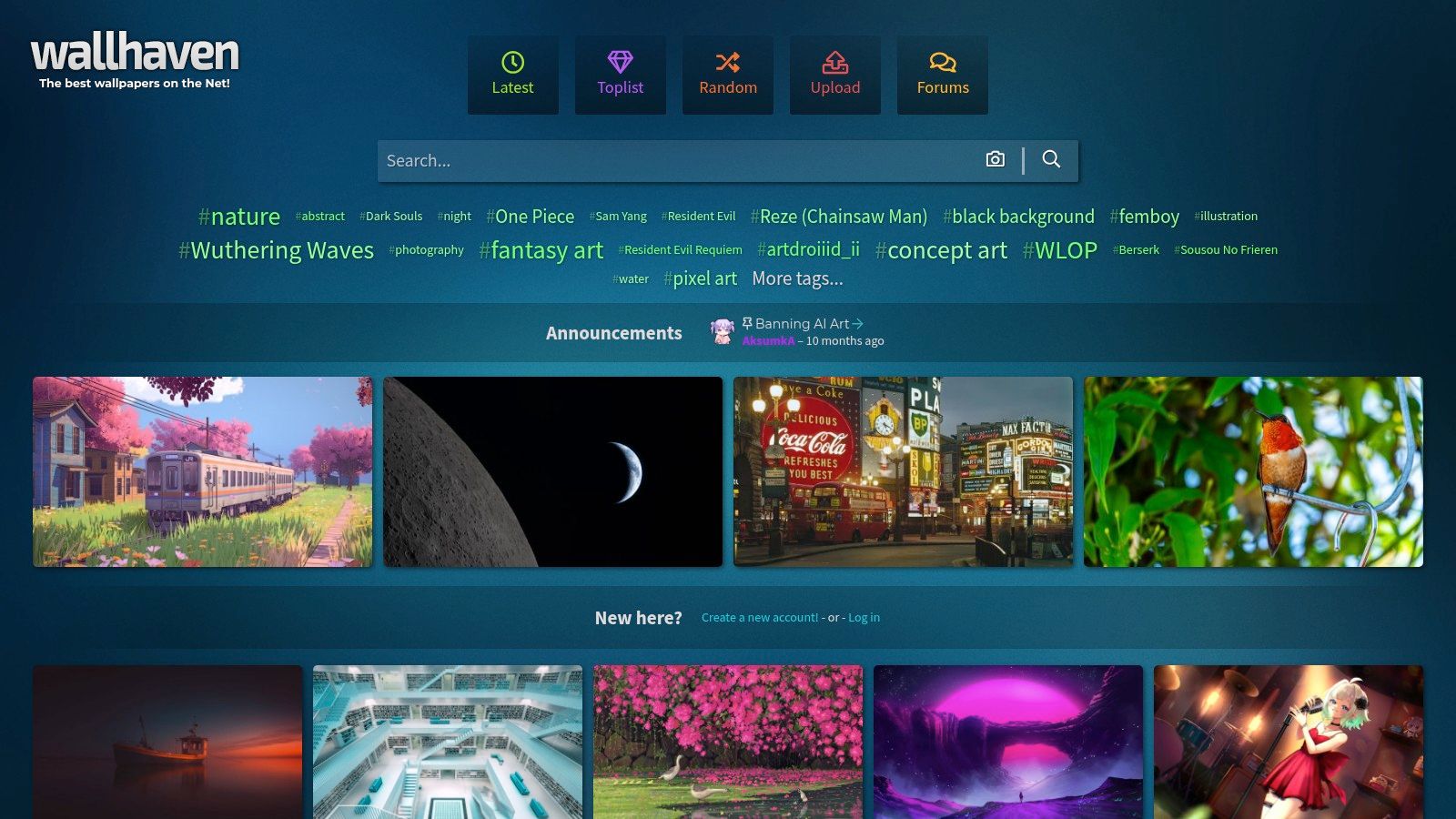
When "nice photo" isn't enough and you want a very particular look, this is the place to dig. Abstract gradients. Stylized sci-fi cityscapes. Minimal geometric art. Ultrawide oddities. Dark backgrounds that make app icons pop instead of screaming for attention.
The filtering is the point
Resolution filters, aspect ratio filters, tag filters. Wallhaven gives you control. That's why it can produce beautiful Mac wallpapers for people whose tastes don't fit the stock-photo universe.
For aesthetic-heavy desktops, it pairs well with a stronger point of view. This guide to the MacBook wallpaper aesthetic gets at the difference between "a wallpaper" and "a screen that feels uniquely yours." Wallhaven is often better at the second thing.
Sometimes the prettiest wallpaper isn't the most detailed one. It's the one that leaves your desktop icons room to breathe instead of staging a visual coup.
What to watch for
Because it's community-driven, consistency varies. Some uploads are excellent. Some are overprocessed. Some have licensing that requires you to read the page carefully instead of assuming everything is free for every use.
That's the deal with huge user libraries. They give you variety, and in exchange you bring judgment.
A few patterns worth knowing:
- Excellent for stylized art: Better than stock-photo sites if you want design-forward or niche aesthetics.
- Excellent for odd screen sizes: Especially useful if you're working with ultrawide or unusual display setups.
- Less clean on provenance: Check usage rights per image instead of guessing.
Wallhaven is for people who enjoy the hunt. If that sounds exhausting, skip it. If it sounds fun, you'll lose an afternoon there quite happily.
5. 512 Pixels Every Default macOS Wallpaper 5K and 6K
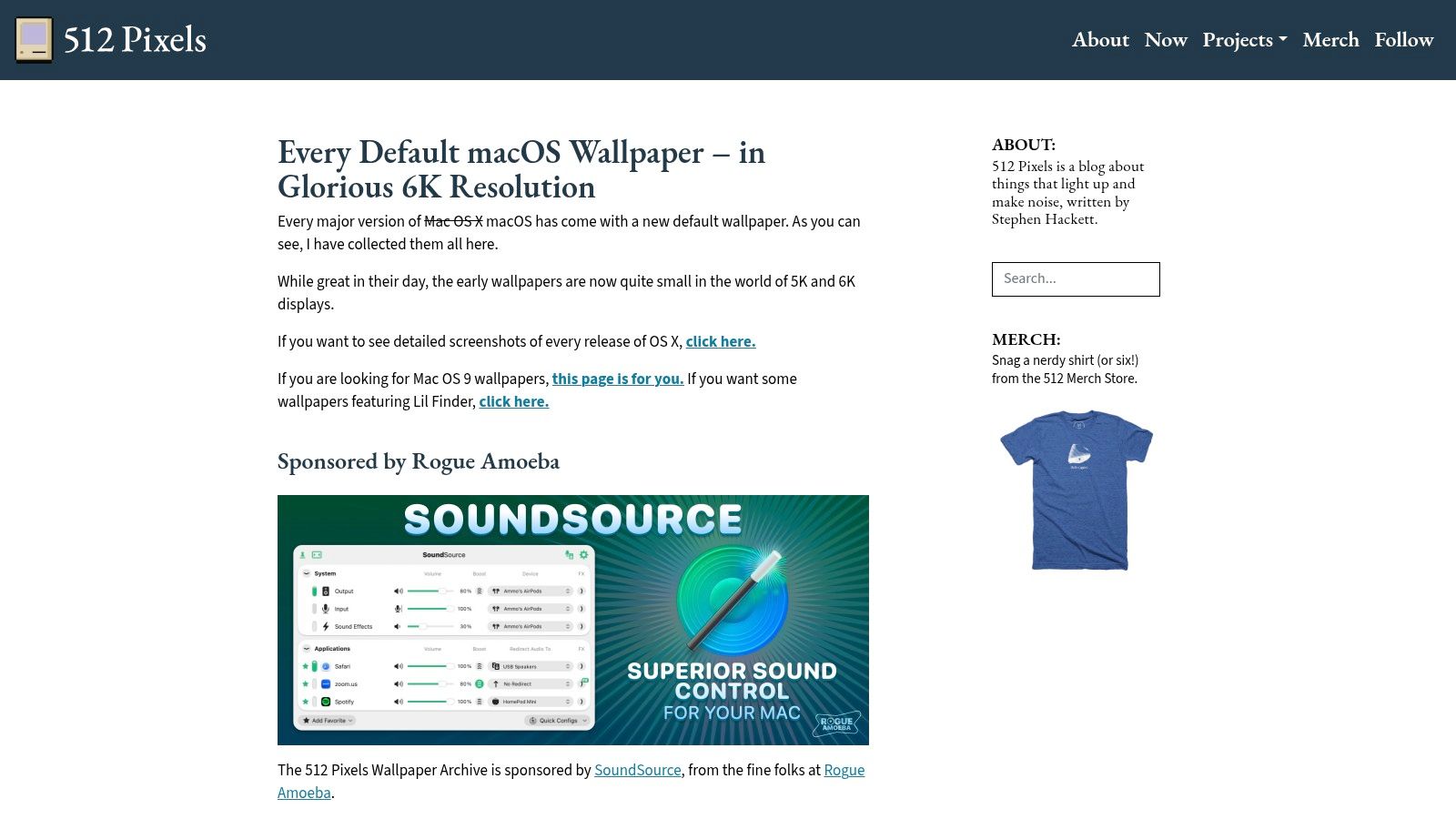
At some point in the wallpaper hunt, a lot of Mac users stop chasing novelty and go looking for the Apple canon. That is what 512 Pixels does well. It collects the default macOS wallpapers in cleaned-up 5K and 6K versions, so the old favorites still look sharp on modern Retina displays instead of turning into soft, stretched mush.
There is real value in that.
Apple's default wallpapers do more than fill empty pixels. They timestamp whole eras of the Mac. Snow Leopard, Mojave, Sonoma. You can usually spot the release from across the room, which is slightly ridiculous and also part of the charm. If your idea of a beautiful Mac wallpaper starts with "the version Apple would have picked if Apple were in a better mood that year," this archive scratches that itch.
The practical win is quality. These versions hold up on larger iMac panels, Studio Displays, and multi-monitor setups where lower-res copies fall apart fast. They also tend to be calmer than what you will find on community wallpaper sites. Better composition. More restraint. Less "someone discovered the saturation slider and refused to stop."
That restraint matters on a desktop you use all day. Default macOS wallpapers usually leave room for icons, menu bar contrast, and windows without making your screen feel busy. They are polished static images, and for a lot of people, that is the first stop on the hunt for a better-looking Mac.
It is still a narrow archive. You are choosing from Apple's taste, not your own, and Apple's taste can be immaculate or weirdly corporate depending on the year and whatever California hill, dune, or underwater swirl they were obsessed with at the time. If you want a desktop that changes through the day instead of staying frozen, native options like dynamic wallpaper formats on Mac are the next logical step.
Use 512 Pixels if you want the clean Mac look without compromises. Use it as a nostalgic stop if you are headed toward something more alive later. Both are valid.
6. Dynamic Wallpaper Club
Dynamic Wallpaper Club is the bridge between static beauty and actual motion. It focuses on Apple's native dynamic wallpaper format, usually HEIC sets that change with time of day, light and dark mode, or sun position. This is the native-macOS answer to wallpaper boredom.
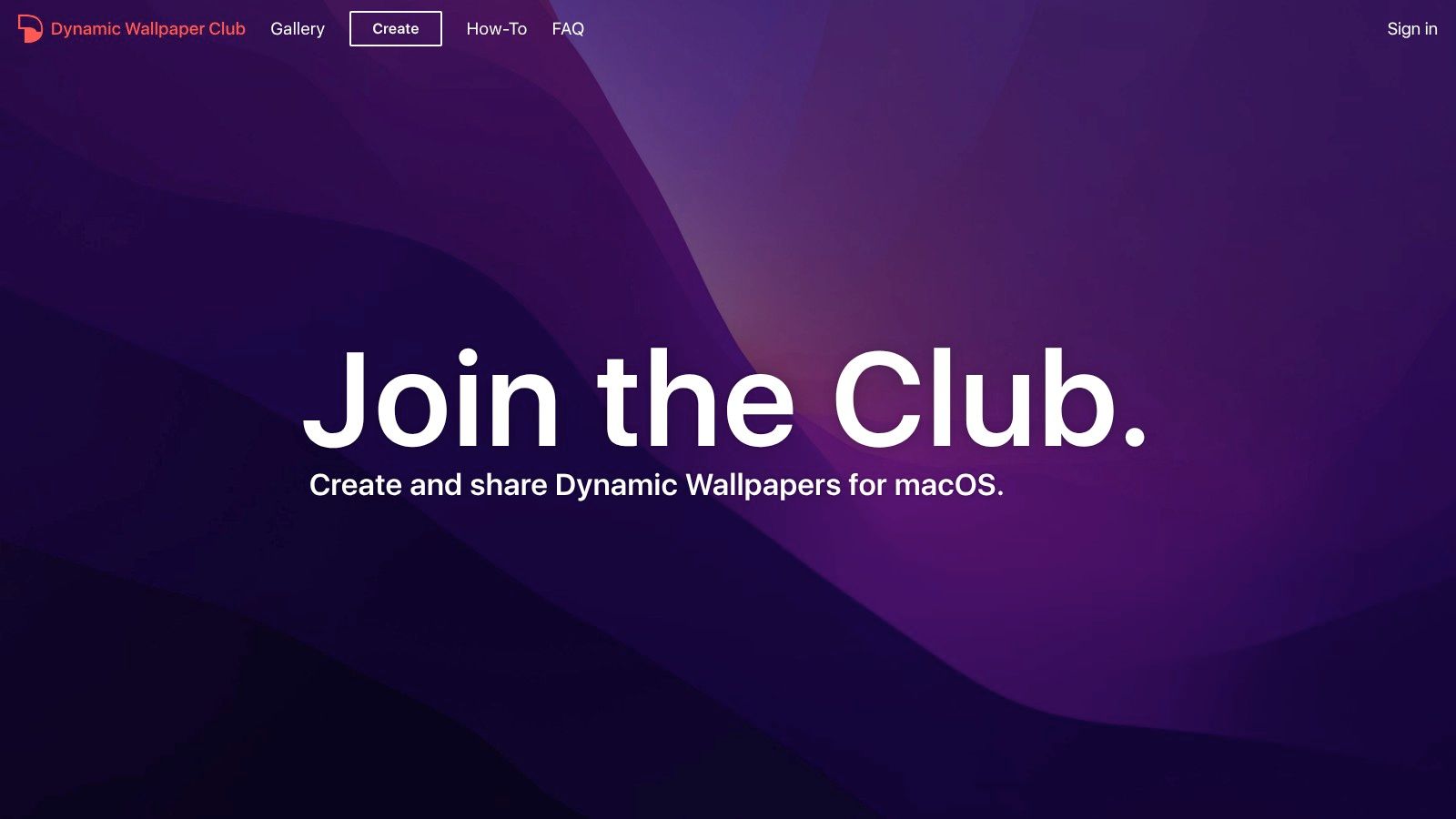
If you like the idea of your desktop shifting from morning glow to evening mood without needing constant manual swaps, this category makes a lot of sense. It feels more alive than a still image and less demanding than full video.
Native, tasteful, occasionally finicky
Dynamic Wallpaper Club gives you more scenes than Apple's default set and a creator tool for making your own. That's the big appeal. You can stay inside the native Mac experience while getting more variety than Cupertino's official menu offers.
If you're fuzzy on the difference between native dynamic desktops and true live backgrounds, this guide to dynamic wallpaper on Mac lays it out cleanly. The short version is simple. Dynamic wallpapers change states. Live wallpapers move.
The broader gap is real, too. Mac wallpaper sites remain overwhelmingly focused on static images, while live and animated options are still underserved compared with what Windows users expect from Wallpaper Engine, as noted by Basic Apple Guy's roundup of Mac wallpaper culture. Mac users ask for motion all the time. The ecosystem just hasn't fully caught up.
Who should pick this
Dynamic wallpapers are great if you want elegance over spectacle. You get progression, not constant animation. Day slides into dusk. Dusk becomes night. Your desktop acknowledges time passing, which is either calming or an alarming reminder that it's somehow 4:30 already.
- Best for native behavior: It looks and feels like macOS because it is macOS.
- Best for low-friction ambiance: More interesting than static, less resource-heavy than video.
- Not always plug-and-play: Some HEIC sets can need tinkering depending on your macOS version.
Dynamic Wallpaper Club is where beautiful Mac wallpapers start becoming environmental instead of decorative. It's a strong middle step.
7. 24 Hour Wallpaper Mac app
You install 24 Hour Wallpaper when the free dynamic stuff starts feeling like a hobby you now have to maintain. The app takes the same day-to-night idea and packages it as a polished Mac utility, with curated scenes, reliable timing, and fewer weird little setup chores.
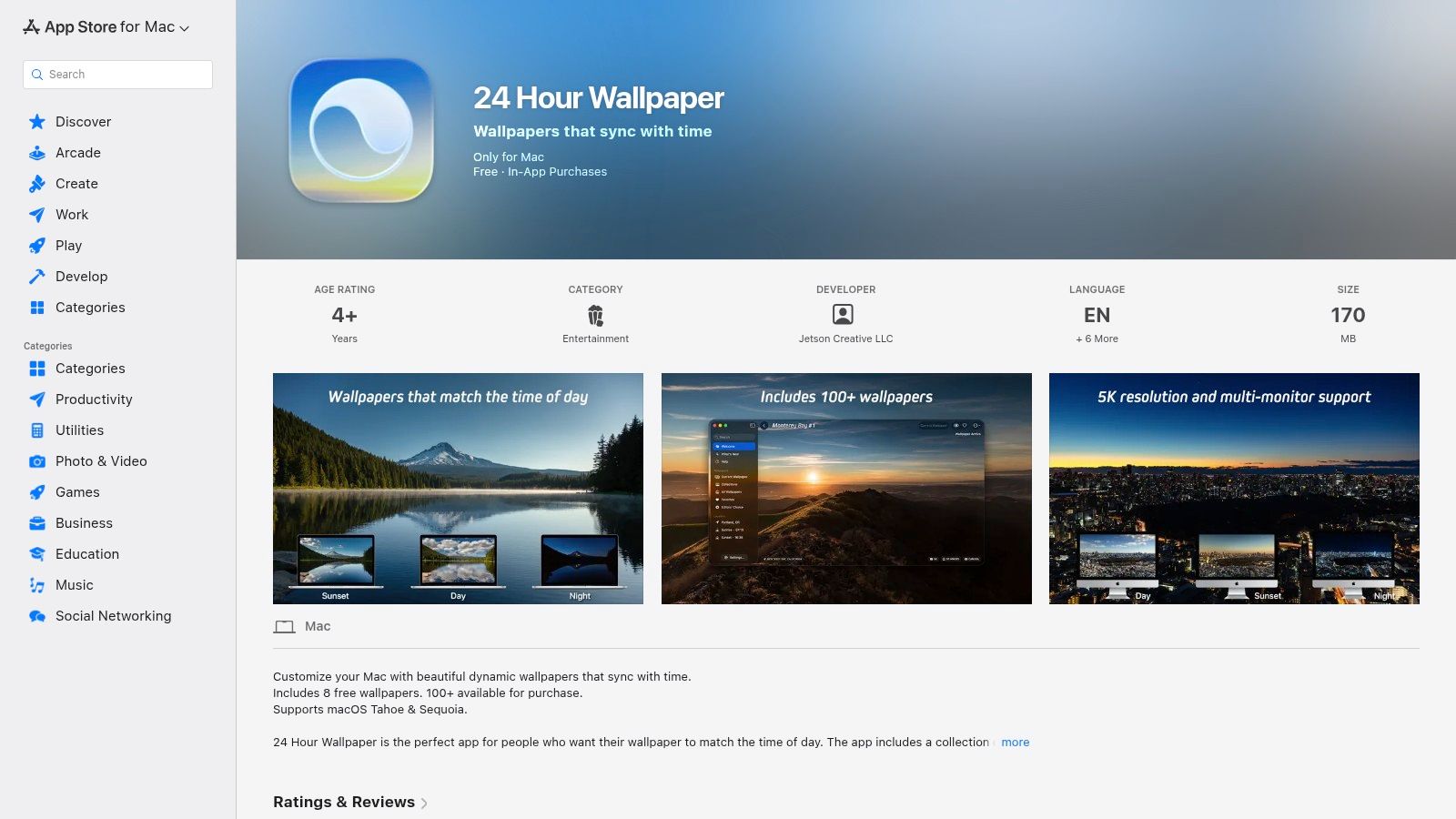
It suits Mac users who like Apple's Dynamic Desktop concept but want more than the tiny official selection and more consistency than community packs usually offer. You get sunrise and sunset controls, multi-display support, and a setup process that feels like an actual product instead of a weekend experiment. That matters if you want your wallpaper to work unobtrusively in the background, not become another thing to troubleshoot after a macOS update.
The trade-off is simple. You pay for convenience and better curation.
That pitch makes sense because people clearly spend money on making their spaces look better, including screens. Grand View Research projects the broader wallpaper market to grow from USD 1,878.5 million in 2024 to USD 2,435.9 million by 2030, a 4.5% CAGR. This data pertains to the global wallpaper market, not Mac desktops specifically, but the broader point holds. Personalization is not a niche obsession. It's normal behavior for people who stare at a display all day.
24 Hour Wallpaper is the strongest version of the dynamic wallpaper stage of this hunt. Static images give you beauty. Dynamic wallpapers add time and atmosphere. This app does that part with more polish than the free options.
It still stops at elegant transitions. If you want actual motion on your desktop, the kind that feels alive the moment your Mac wakes, this category has a hard limit. For that, video wallpaper tools such as gifPaper are the next step.
Top 7 Mac Wallpaper Sources Comparison
If you've been hopping from pretty static shots to Apple's time-shifting wallpapers and then wondering, "Can this thing just move already?", this table is the useful part. It shows where each source fits on that hunt, and what you give up to get the effect you want.
| Item | Setup difficulty | Resource trade-offs | What you actually get | Best for | Key advantages |
|---|---|---|---|---|---|
| gifPaper | Low. Install the app and pick a wallpaper | Higher GPU and battery use with 4K video. Moderate storage use | Smooth 4K looping live wallpapers, with optional ambient audio | Mac users who want actual motion on the desktop and lock screen | True 4K video support, curated gallery, simple one-time $5 purchase |
| Unsplash | Low. Browse and download, or use it through wallpaper apps | Very low system load. More time spent searching than setting up | High-quality static photography that looks great on Retina displays | Anyone starting with free, polished static wallpapers | Huge free library, clear licensing, broad app support |
| Pexels | Low. Direct downloads, no account needed | Very low system load. Minimal setup time | Free high-resolution images for static wallpapers | Fast wallpaper hunting without much fuss | Easy filtering, generous license, quick downloads |
| Wallhaven | Low to medium. Search is easy, licensing takes attention | Very low system load. More time spent curating and checking usage rights | A wide range of abstract, stylized, anime, and ultrawide wallpapers | People with specific taste, odd aspect ratios, or niche art preferences | Large catalog, strong filtering by resolution and ratio |
| 512 Pixels Every Default macOS Wallpaper 5K and 6K | Low. Browse the archive and download | Very low system load. Small time investment | Apple default wallpapers in sharp 5K and 6K versions | Anyone chasing the classic macOS look without muddy upscales | Apple-faithful remasters organized by macOS version |
| Dynamic Wallpaper Club | Medium. Install or create HEIC sets and occasionally tweak compatibility | Low to medium load. Some trial and error on setup | Native macOS dynamic wallpapers that change by time or sun position | Users ready to move beyond static images without jumping to video | Free creator tool, sun-aware options, native Dynamic Desktop format |
| 24 Hour Wallpaper Mac app | Medium. Install the app and set timing preferences | Low to medium load. Paid content and multi-display setup add some overhead | Polished time-synced wallpaper transitions for Retina and 5K displays | People who want native-style dynamic wallpapers with less fiddling | ProTime engine, multi-monitor controls, well-produced image sets |
The short version is simple. Unsplash and Pexels are the easiest entry point. Wallhaven and 512 Pixels get more specific. Dynamic Wallpaper Club and 24 Hour Wallpaper cover the native dynamic stage well. gifPaper is the one you pick when static and time-based transitions stop feeling interesting and you want the desktop to feel alive.
Go On, Make Your Screen Pretty
Open your Mac on a Monday morning and the wallpaper matters more than Apple would ever admit. You see that screen constantly. If it looks generic, the whole machine feels a little generic too.
The progression here is pretty natural once you spend time with these options. Start with sharp static images from places like Unsplash, Pexels, Wallhaven, or the 512 Pixels archive. Move up to native dynamic wallpapers if you want the desktop to shift with the time of day without adding much overhead. Then there is the final step. Actual motion. Real live video wallpapers that make the desktop feel less like a background layer and more like part of the machine.
That jump is not just aesthetic. Static wallpapers look good, but they go invisible fast. Native dynamic wallpapers are clever and very Mac-like, although they still change on a schedule rather than in the moment. Live wallpapers keep some presence without asking you to stare at them. Used well, they make the laptop feel calmer, moodier, warmer, or just less boring.
That is why gifPaper stands out here.
It takes the "beautiful Mac wallpaper" hunt to its most satisfying end point. You get a curated library of looping 4K scenes, clear categories, lock screen and desktop setup in one app, and optional ambient audio on many wallpapers. The pricing also avoids the usual software nonsense. There is a 7-day free trial, then a one-time $4.99 purchase if you want to keep using it.
Practical trade-off: live wallpapers use more system resources than a still image, and that matters on older Macs or if you already keep 47 Chrome tabs open for no good reason. But on a reasonably current Mac, the payoff is obvious the second you find a scene that fits your taste.
If you want something cozy, start with the fireplace wallpaper collection or the nature wallpaper collection. If you prefer darker screens with a bit more attitude, the neon wallpaper collection does the job nicely. Pick one you will still enjoy tomorrow. That is the true test.
If you are tired of the default gradient, the stock image, or whatever Sonoma, Ventura, or Apple's next California-coded naming exercise puts on your screen, try gifPaper. Test it for 7 days and see if your Mac finally looks like yours.