
Finding Cool Mac Screen Savers That Don't Look Like a 90s Relic
Apple's default Mac screen savers are fine. They get the job done. But they're completely forgettable. If you spend hours a day staring at your Mac, you deserve something better. You're going to look at your Mac for hours anyway. Might as well make it pretty.
Your Mac Deserves More Than a Black Screen
The screen saver started as a purely technical fix. It was designed to prevent image "burn-in" on old CRT monitors. Those chunky beige boxes couldn't handle a static image for long without it being permanently seared into the display. Screen savers were the digital equivalent of telling your monitor to go for a walk.
From Utility to Personality
But then, something interesting happened. Developers realized this moving, blank canvas was an opportunity for expression. This kicked off the golden age of wild 90s screen savers—a glorious time of questionable taste and maximum creativity. Think 3D pipes, mysterious mazes, and of course, the king of them all: flying toasters.
Back when Macs were chunky beasts that could double as space heaters, Berkeley Systems' Flying Toasters became an icon. Launched in 1989 for the After Dark software suite, it wasn't a native Mac OS feature, but it might as well have been. By 1994, it was so dominant that it accounted for a staggering 70% of screensaver usage on Macs, according to contemporary surveys. You can find more historical data on the screensaver market in this market research report.
It was the original "cool Mac screen saver"—a piece of digital art that was absurd, delightful, and utterly unnecessary in the best possible way.
The Modern Screen Saver Renaissance
Today, burn-in isn't really a thing for our sleek Retina displays. And yet, the desire for something more than a black screen has returned, stronger than ever. The difference is, our standards have changed. We don't want pixelated chaos; we want high-resolution, aesthetically pleasing visuals that turn an idle Mac into a piece of ambient art.
This is where the modern screen saver shines. Imagine your Mac showing: * A cozy, crackling fireplace on a chilly evening. All the cozy, none of the smoke damage. * A neon-drenched cityscape with rain trickling down the glass. * A quiet, lofi-inspired room with a cat judging you from a comfy chair.
Modern screen savers are 4K video loops, often with ambient sound, that turn your desktop from a tool into an environment. It's an acknowledgment that the space you work in matters, even if that space is just pixels.
How To Get Live Screen Savers Working On Your Mac
Alright, let's get this done. You want cool Mac screen savers, but without the headache. No terminal commands, no sketchy downloads from a forum post dated 2011. The whole point is to spend less time fiddling with settings and more time enjoying the vibe.
First, grab the 7-day free trial of gifPaper for Mac. There's no credit card required, so you can test drive the full collection of 150+ wallpapers with zero commitment. It's a direct download, not from the Mac App Store, and there's a very good reason for that.
Why a direct download? Apple's App Store rules—what they call "sandboxing"—are strict. They prevent other wallpaper apps from modifying things like the live lock screen. To give you that seamless experience where your Mac wakes up to a living wallpaper, the app has to be distributed directly. It's the only way to use Apple's native system—the same one they use for their own video wallpapers.
And yes, the app is notarized by Apple. That means Apple has scanned it for malware and confirmed it's safe to install. You'll see that familiar seal of approval when you open it.
The Installation Ritual
Once it's downloaded, you'll do the sacred Mac installation dance: open the .dmg file, then drag the gifPaper icon into your Applications folder. A ritual as old as time—or at least, as old as macOS itself.
Fire up the app, and the whole gallery of wallpapers is right there. Getting a live screen saver running is literally one click. Find a scene you like, hit the "Screen Saver" button, and you're done. Your Mac will now default to that video loop whenever it goes idle.
Finding Your Perfect Scene
Now the fun part starts: exploring. You can filter by categories like neon wallpaper for that late-night coding mood or fireplace wallpaper when you need some cozy without the actual fire hazard.
If you get really ambitious, you can even generate your own custom live screen savers with AI, giving you a setup that's truly one-of-a-kind. The goal is to make your screen a place you actually want to look at.
Alright, the app is installed. Now for the hard part: choosing a personality for your Mac.
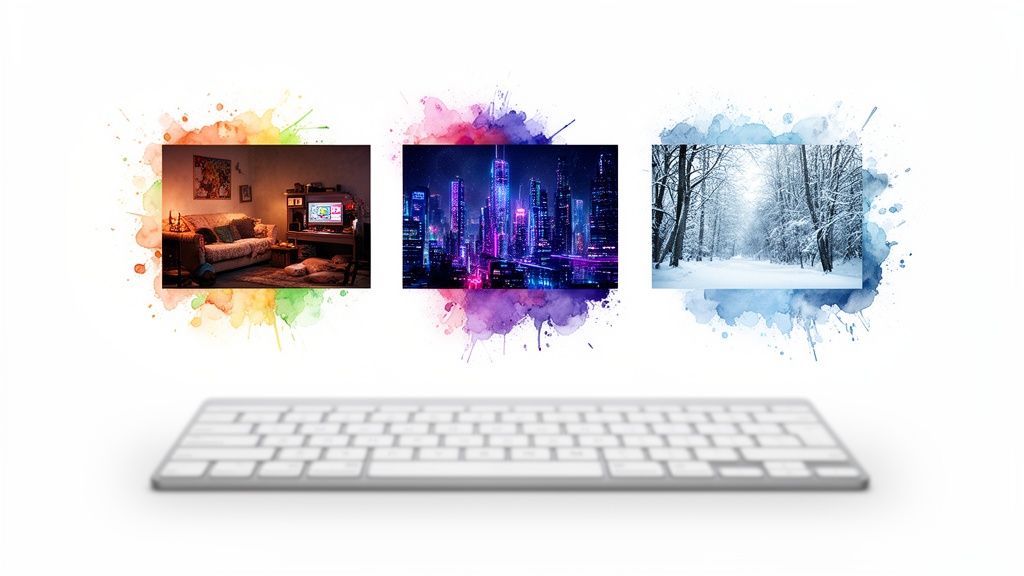
This isn't just about picking a pretty picture. A screen saver is a mood board for your idle moments. It's about setting a scene.
So before you start scrolling, think about the vibe you're going for. Do you need to feel focused? Cozy? Or like you're the main character in a movie that hasn't been written yet? Your Mac can support all those delusions.
For Focused Work and Faking Productivity
You need to concentrate. Or, at the very least, you need to look like you're concentrating. This is lofi's entire reason for existing. It's the digital equivalent of putting on headphones in a coffee shop just to signal "do not disturb."
A classic lofi scene—a rain-streaked train window, a dimly lit room with a sleeping cat—creates a perfect bubble of calm. It tells your brain it's time to focus, even if you're just staring at a spreadsheet and thinking about lunch. The lofi wallpaper collection was basically built for this. If you need more ideas, our guide on finding your perfect MacBook wallpaper aesthetic is a good place to start.
The subtle motion and quiet ambient sounds are designed to be present, but not distracting. It's the background music for your productivity, whether it's real or imagined.
For Late-Night Coding and Cyberpunk Dreams
Maybe your workday doesn't end at 5 PM. Maybe it starts at 10 PM with a fresh coffee and a project that feels like staring into the digital abyss. You need something with a little more energy for that.
This is where you lean into the cyberpunk fantasy. The neon wallpaper collection is packed with rain-soaked alleys, glowing ads in languages you don't understand, and sprawling futuristic cities. It's what you need when you're debugging code and want to feel like you're hacking the mainframe, not just fixing a typo.
These aren't just wallpapers; they're stage-setting. You can't just write code. You must write code while a neon sign flickers outside your virtual window. It's about the drama.
These scenes are vibrant and kinetic, designed to keep your energy up when the rest of the world is asleep. Think of it as the visual equivalent of a synthwave playlist.
For Bringing the Outdoors In
If you work remotely, there's a good chance the most nature you've seen today is the houseplant you keep forgetting to water. Sometimes you just need a window to a world where spreadsheets don't exist.
That's what the nature wallpaper and winter wallpaper collections are for.
- Calm Forests: Think gentle streams, sun filtering through leaves, or a quiet path. It's like a digital forest bath, minus the bugs.
- Cozy Winter Scenes: A log cabin with snow falling outside gives you all the hygge with none of the shoveling.
- Vast Landscapes: Sweeping mountain ranges or serene lakes can make your desk feel a little less like a cell.
Picking one of these is like cracking open a window to somewhere else. It's a small way to reclaim a piece of your sanity during a long day of staring at a screen.
Your Lock Screen, But Alive
A good screen saver is one thing. But what about your lock screen? It's the first thing you see when you wake your Mac—the digital equivalent of opening your eyes in the morning. For years, Apple has decided it should be static and, let's be honest, pretty boring. You can do better.
With gifPaper, your lock screen stops being a static image and starts being a living scene. When you wake your computer, your chosen wallpaper is already in motion. A crackling fireplace. A rain-streaked window. It's your Mac, finally with a personality.
How It Works (And Why It Feels So Good)
This isn't some janky workaround or a window floating where it shouldn't be. I built the app to use Apple's own native Aerial wallpaper format—the same system they built for their drone footage wallpapers. Your Mac thinks these are Apple wallpapers.
That's why the magic happens when you log in: the video smoothly slows to a stop, creating a buttery transition from locked to unlocked. It feels native because it is native.
This feature is exactly why gifPaper is a direct download. Apple's App Store rules prevent apps from accessing the system-level functions needed to make the live lock screen a reality. By going direct, the app can integrate properly without compromising on the one detail that makes your Mac feel truly alive. You can find more setup tips in our guide to customizing your Mac lock screen.
That seamless slowdown as you log in—that's the detail that matters. It's a tiny piece of polish that separates a good wallpaper app from a great one, making your Mac just a little more delightful every single time you wake it.
Best of all, you don't have to do anything extra. When you set a live wallpaper for your desktop, it automatically applies to your lock screen, too. One click, two results.
Your Desktop, Your Rules
Once you're logged in, the wallpaper settles onto your desktop. By default, it shows a beautiful, high-resolution still frame of the video. This is intentional. It keeps your desktop looking clean and, more importantly, saves your Mac's resources for what you're actually doing.
No one needs a video of a snowy forest draining their battery while they're just trying to answer an email.
But sometimes, you want the full vibe. Maybe you're taking a break, listening to music, or just want the full ambient motion. A simple toggle in the menu bar lets you switch on the full video animation for your desktop wallpaper.
With this, you can: * Enjoy a dynamic, animated desktop when you want the ambiance. * Revert to a resource-friendly still frame when you need to focus. * Let the full motion kick in automatically when the screen saver activates.
This means you're not just getting cool Mac screen savers; you're getting a complete visual refresh for your entire Mac experience. From the moment you wake your Mac to the time it goes to sleep, the aesthetic is consistent, beautiful, and completely under your control.
The Finer Points: Getting the Details Right
You've installed the app and picked a vibe. A rainy coffee shop, a neon-drenched alley, a crackling fireplace. The hard part is over. Now for the details that separate a good setup from one that feels like it was built into macOS from the start.
Let's talk performance. The first question everyone asks about live wallpapers is whether they'll slow their Mac to a crawl. The short answer is no. The app is optimized for modern Apple silicon (M-series chips), so it's incredibly lightweight.
On your desktop, the wallpaper defaults to a static image, using virtually zero resources. If you want the full animation running behind your windows, you can toggle it on. It's still efficient, but for maximum battery life when you're on the go, sticking with the still frame is the smart play.
The Art of the Seamless Loop
You know that jarring little "jump" when a looping video restarts? It yanks you right out of the moment. The wallpapers in the gifPaper gallery are all designed to be perfectly seamless, but the player makes all the difference.
The secret is letting the app's screen saver engine handle playback. If you try to loop a video in a browser or another app, you'll almost always get a tiny, distracting hiccup. The gifPaper engine was built specifically to make that loop invisible, creating a truly continuous scene.
You don't have to do anything special. Just set the screen saver through the app, and it handles the rest. No awkward cuts, just endless atmosphere.
Why 4K Retina Quality Isn't Optional
Your Mac has a Retina display for a reason—the pixels are so small they're invisible, creating images that are razor-sharp. Putting a low-resolution wallpaper on a screen like that is like putting cheap tires on a sports car. It just ruins the whole experience.
Every wallpaper in the collection is 4K resolution. This makes sure every detail—from the embers in a fireplace to the stars in a distant galaxy—is crisp and clear. You'll see the difference instantly. Anything less just looks blurry and pixelated on a modern Mac.
This isn't just a niche obsession, either. The whole screen saver market is having a renaissance, projected to hit $10.92 billion by 2025 as people demand higher-quality dynamic scenes. It's a long way from the classic Starfield screen saver in System 7, which was beloved for its infinite, non-CPU-hogging drift. If you want a deep dive on how Mac user tastes have evolved, these insider insights into the Mac market are fascinating.
Controlling the Ambient Audio
Many of the scenes come with subtle, ambient audio—the crackle of a fire, the soft patter of rain, the low hum of a spaceship. This audio plays automatically when the screen saver is active but is off by default for the desktop wallpaper to avoid any surprises while you're working.
Need to kill the sound? Just click the app's icon in your menu bar. One click mutes or unmutes the audio globally. It's perfect for when you want the visual vibe without the sound.
A Few Common Questions
You've got questions. Of course you do. You're about to let a new app onto your Mac, which is the digital equivalent of letting a stranger into your house. Here are some quick, no-nonsense answers to clear up any doubts before you give your Mac the personality it's been missing.
Will This Slow Down My Mac?
No. The app is built for modern Macs, especially those with Apple silicon (M1, M2, M3, and so on). By default, the desktop wallpaper is a beautiful still frame that uses virtually zero CPU.
The full animation only plays when you want it to—either on the lock screen or when the screen saver kicks in. It's designed to be incredibly lightweight, so you can enjoy the vibe without your fan sounding like it's preparing for takeoff.
Is It Safe to Install an App From Outside the Mac App Store?
Yes. The only reason gifPaper isn't on the Mac App Store is because of Apple's strict "sandboxing" rules, which prevent apps from setting a live lock screen. To deliver that seamless, native experience, the app has to be a direct download.
Critically, the app is notarized by Apple. This is their official seal of approval. It means Apple has scanned the app for malicious software and confirmed it's safe to install on your Mac. You'll see their checkmark when you open the installer.
How Does the Free Trial Work?
It's a 7-day free trial with no strings attached. No credit card required.
For seven days, you get full, unrestricted access to everything: * The entire gallery of 150+ live wallpapers. * All features, including the live lock screen, animated desktop, and screen saver. * Unlimited browsing and switching between scenes.
It's a complete test drive. If you don't love it, just drag the app to the trash. No charges, no hidden fees, no drama.
What if I Buy It and Change My Mind?
There's a 30-day money-back guarantee. If you buy the app and decide it's not for you within the first month, just send an email for a full refund. No questions asked. The whole point is for you to love what's on your screen, not to feel stuck with a purchase.
It's a $4.99 one-time purchase—that's the launch price—not a subscription. You buy it once, you own it forever. That's less than a fancy coffee, and your Mac gets to look cool for a very, very long time.
Ready to give your Mac a personality? gifPaper is the easiest way to finally get cool Mac screen savers, live lock screens, and beautiful desktop wallpapers that are actually yours.
You can download the free trial and explore the full collection right now. The hardest part is picking one.