Dual Monitor Wallpaper Mac: Ultimate Setup Guide 2026
You bought a second monitor for noble reasons. More room. Better focus. Fewer windows stacked like dirty plates in the sink.
Then macOS turned your desktop into a small farce.
One screen gets the nice wallpaper. The other gets a stretched crime scene. Or both get the same image, which is fine if your dream setup is "corporate lobby TV." This is the practical version of a real dual monitor wallpaper Mac guide. No mystical productivity promises. Just what works, what doesn't, and which parts of Apple's wallpaper settings deserve light booing.
The Agony and Ecstasy of Two Mac Monitors
There's a very specific kind of annoyance that comes with a dual-screen Mac setup. You've got the hardware. You've got the desk. You've got the little command center glow at 10:47 p.m. Then your wallpaper looks like it was assigned by a committee.
You're not imagining the demand for this stuff. Roughly 32% of professional Mac users use dual-monitor setups, and they show a 47% higher adoption rate of third-party wallpaper utilities because of macOS's native limitations, according to industry data summarized by Hobbyist Software.
That tracks. Two monitors create two very different wallpaper problems:
- Different wallpaper on each screen works well if you want one display to stay quiet and practical while the other gets personality.
- One giant image across both screens looks fantastic when it lines up correctly, which is not the same thing as saying Apple makes it easy.
- Live wallpaper across your setup is the thing many users want once they see it done properly. More on that in a bit.
Two monitors should feel like one deliberate setup, not two unrelated appliances that happen to share a desk.
If you spend long stretches in front of those screens, the visual side matters more than people admit. That's true for aesthetics, but also for comfort. If your eyes feel cooked by midafternoon, it's worth checking practical stuff outside wallpaper too, like free eye test eligibility, especially if your setup has gradually turned into an all-day arrangement.
The good news is that macOS can handle per-display wallpapers just fine. The annoying news is that spanning one image across both screens still feels like a side quest designed by someone who doesn't own two monitors.
The Official Method: Different Wallpapers on Each Screen
Apple's preferred answer is simple. One wallpaper per display. No slicing, no image editor, no muttering at your desk like a wizard whose spell failed.

Where the setting actually lives
macOS Ventura, released on October 24, 2022, added native dual-monitor wallpaper customization through System Settings, where thumbnail previews for both monitors appear at the top for direct selection. That same change is what made this process much less ridiculous than it used to be.
If you want the step-by-step basics for Mac wallpaper changes in general, this quick guide on how to change wallpaper on Mac is handy. For a dual-screen setup specifically, here's the clean way to do it:
- Open System Settings.
- Click Wallpaper.
- Look at the display previews at the top. Each thumbnail represents one connected monitor.
- Click the thumbnail for the display you want to change.
- Choose a wallpaper from Apple's options or add your own image folder.
- Repeat for the other monitor.
That's it. The assignment happens per display, and the thumbnail view is the part that matters. If you're clicking around without selecting the right preview first, macOS can feel weirdly slippery.
The setting that breaks the illusion
There's one trap. It's small, buried, and very Apple.
Critical step: Disable Displays have separate Spaces in Mission Control if you want wallpaper continuity to stay stable when you enter full-screen apps.
If that option stays on, wallpapers can shift when apps go full-screen. This is not charming. It is not quirky. It is the sort of behavior that makes you wonder if the settings panel resents you personally.
Here's the fix:
- Open System Settings
- Go to Desktop & Dock
- Scroll down and open Mission Control
- Turn off Displays have separate Spaces
You may need to log out and back in for the change to fully stick.
When this method is the right one
Per-screen wallpapers are best when your monitors do different jobs.
- Work and calm: Put something minimal on the main display, something softer on the side display.
- Day and night: One bright wallpaper, one darker image that doesn't glare in your peripheral vision.
- Function and vibe: Calendar and chat on one screen, visual breathing room on the other.
This is also the least fragile setup. No alignment issues. No slicing math. No "why is the horizon line suddenly in two different zip codes."
If your goal is a clean dual monitor wallpaper Mac setup without babysitting it, separate wallpapers are still the easiest native win.
Spanning One Giant Wallpaper Across Both Monitors
This is the part where macOS turns a basic wallpaper preference into light graphic-design labor.
If you want one image to flow across both displays, macOS still gives you no proper Span setting. The built-in route is manual. Build the wallpaper for your full desktop width, cut it into monitor-sized pieces, then assign each piece to the correct screen. It works. It is also fiddly enough that plenty of people try it once, get the seam wrong, and never volunteer for round two.

Start with the real canvas size
Use the combined resolution of both monitors, not the resolution of either display on its own.
Example: a left monitor at 2560 × 2160 and a right monitor at 3840 × 2160 creates a total desktop area of 6400 × 2160. That full size is your working canvas. If the monitors have different heights, or one is arranged higher than the other in Display settings, the job gets messier fast because the seam no longer lands on a simple straight line.
A practical workflow looks like this:
- Check each monitor's native resolution in System Settings > Displays.
- Add the widths together.
- Confirm how the displays are aligned in macOS.
- Create a canvas at the combined size in Photoshop, GIMP, or Pixelmator Pro.
- Position the image exactly where you want it before slicing.
Slice carefully or the bezel will expose everything
Once the full image looks right on the combined canvas, cut it at the exact pixel boundary between the displays. In the example above, that cut happens at 2560 px from the left edge.
Then export two separate files:
- Left display image at the left monitor's native size
- Right display image at the right monitor's native size
- Clear filenames so you do not mix them up during assignment
After that, apply each file to its matching monitor in Wallpaper settings.
This method is fine for static art, wide city shots, space scenes, and any image with a strong left-to-right composition. It is much less forgiving with faces, centered subjects, text, or anything important sitting near the bezel. A dramatic hero image split across the middle usually looks less cinematic than you hoped.
Why manual spanning goes wrong
The usual failure points are boring and annoying.
Scaling is the big one. If one monitor is running a different scaling mode, the two halves can look misaligned even when your slice is mathematically correct. Cropping is another common problem. macOS may zoom or reposition one side if the image export does not match the display's native dimensions closely enough.
Use this table to save yourself some muttering:
| Problem | Likely cause | Fix |
|---|---|---|
| Horizon line doesn't match | Wrong slice boundary | Recheck the pixel cut point |
| One side looks blurry | Exported below native resolution | Re-export at the monitor's full native size |
| Wallpaper shifts in full-screen apps | Spaces behavior interfering | Revisit the Mission Control setting mentioned earlier |
| One monitor looks zoomed | Display scaling mismatch | Match scaling before slicing |
Worth doing, but rarely the best long-term setup
A perfectly sliced static wallpaper can look excellent. It also breaks the moment you swap monitors, change scaling, rotate a display, or decide your menu bar belongs on the other screen.
That is why many dual-monitor Mac users eventually stop treating spanning as the end goal. For static images, manual slicing is the workaround. For motion and less maintenance, tools built for animated setups are a better fit. If you want that route, this guide to dynamic wallpaper on Mac covers the practical options.
The Better Way: Live Wallpapers on Both Screens
Static dual-monitor wallpapers can look great. They can also become another thing you maintain. Files to slice, edges to line up, settings to keep from drifting into nonsense.
That's why so many Mac users eventually go looking for live wallpaper options instead. Not fake ones. Not "it's technically moving if you squint" ones. Proper video wallpapers that feel like part of the system.

First, what definitely does not work
A lot of people start with GIFs because that sounds obvious. It also doesn't work properly on macOS.
macOS explicitly does not support animated GIFs as desktop wallpapers, and attempts to force them usually result in a static frame or persistent GPU use, thermal throttling, and battery drain.
So if your current plan is "maybe I'll just make a giant GIF," retire that plan with dignity.
A live wallpaper should behave like a wallpaper. If it acts like a needy overlay, that's not a feature. That's a houseplant with driver issues.
What actually feels good on a dual setup
The best live wallpapers for two monitors share a few traits:
- A clean loop so the motion never calls attention to the seam
- Enough resolution to hold up on both displays
- Ambient movement instead of frantic movement
- A composition that survives bezels, because your two screens are not one uninterrupted pane of glass
Here, categories matter more than people think. Slow snowfall, fireplace scenes, drifting space visuals, rain in a neon street, train-window lofi loops. These tend to survive dual displays gracefully because they don't depend on one exact focal point.
If you like calmer setups, the lofi wallpaper collection is a natural fit for side-by-side screens. If you want more dramatic contrast, the neon wallpaper collection does the late-night cyber city thing without asking your desktop to become a rave flyer.
A more sensible route for live wallpapers
If you want actual moving wallpapers on Mac, the setup guide for how to get live wallpapers on Mac lays out the practical options clearly.
The short version is simple. Use wallpaper tools that are built for macOS wallpaper behavior, not tools trying to smuggle video in through a side door. That matters even more on a dual-monitor setup, where poor monitor mapping and awkward scaling become obvious fast.
A good live wallpaper setup makes the whole desk feel intentional. It doesn't solve your email. It does make the machine you use all day less boring to exist near, which is not nothing.
Tips for a Flawless Dual Monitor Wallpaper
A wallpaper can be technically correct and still look wrong. Most of the difference comes down to resolution, color balance, and knowing when a picture isn't built for a two-screen life.
Match the screens, not your optimism
For dual-monitor wallpaper Mac setups, each wallpaper should match or exceed the native resolution of its display. On Retina panels, higher-resolution files usually behave better because macOS scales them down more cleanly than it scales small images up.
If you're using a panoramic image, build for the full combined desktop first, then cut from there. If you're using separate wallpapers, size each one for its own monitor. Don't ask one mediocre JPEG to cover two premium displays. That's how you get softness, artifacting, and sadness.
Keep the colors from fighting each other
This part gets ignored, but it matters fast. Two wallpapers can both be good and still look terrible together.
Use this rule of thumb:
- Similar color temperature keeps your peripheral vision calm
- One dominant palette across both screens usually looks better than two competing ones
- High-saturation opposites can feel noisy over long sessions
Hot pink on one monitor and electric green on the other is bold. It's also a good way to make your desk feel like an energy drink can.
If you're already fiddling with external hardware and display behavior, this guide on comparing eGPUs for Apple Silicon is a solid background read for understanding the broader graphics conversation around Macs and external displays.
Practical rule: Your wallpaper should support the room, not audition for control of it.
Pick images that survive the bezel
Not every wallpaper wants to be split.
A few that usually work well:
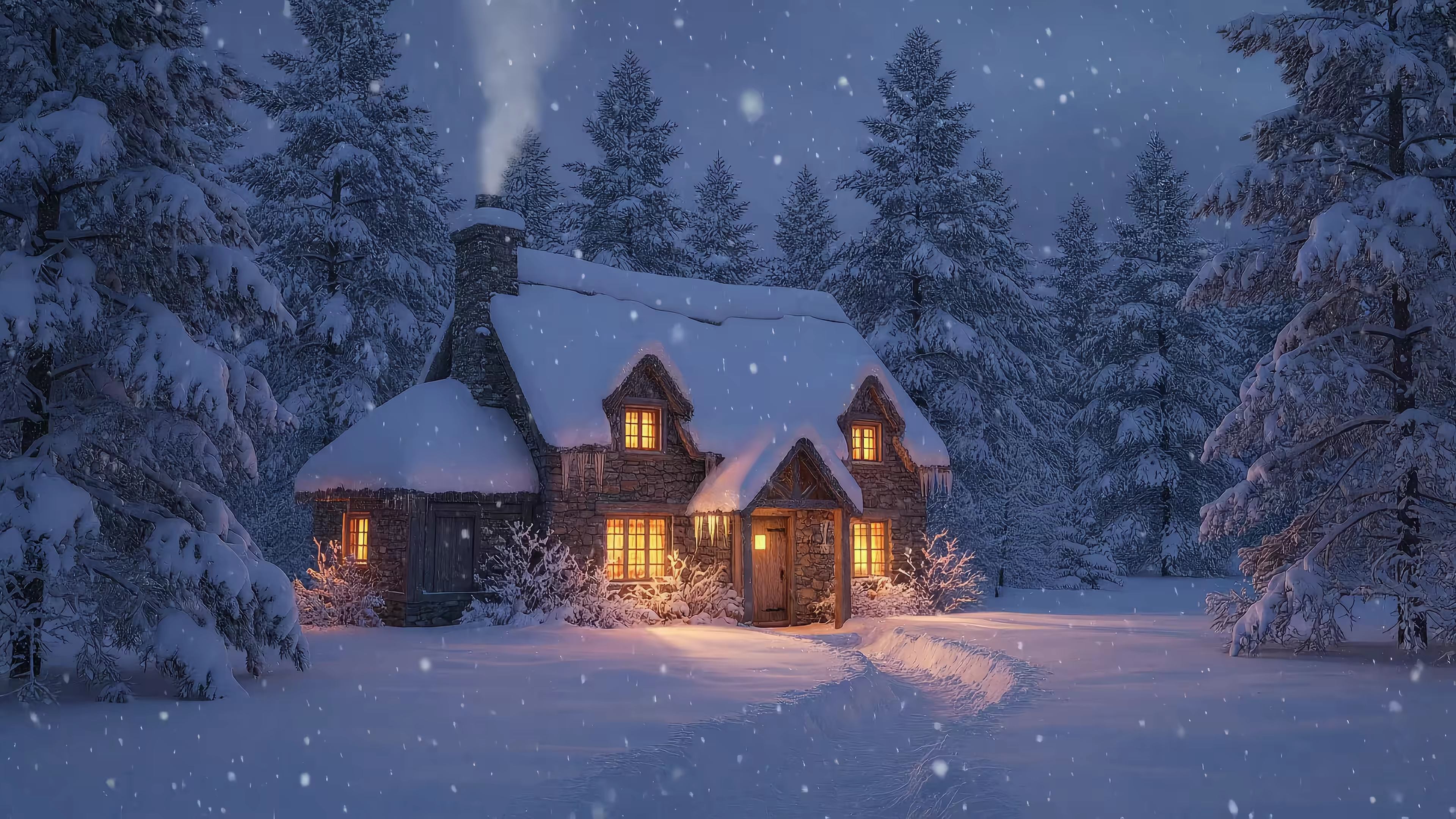
- Wide environmental scenes: Snowy cabins, coastlines, star fields, foggy forests
- Ambient motion backgrounds: Rain, drifting clouds, fireplace glow
- Low-detail compositions: Minimal gradients and darker scenes hide seams well
A few that often don't:
- Centered faces or characters
- Text-heavy art
- Portrait crops on horizontally oriented monitors
If you want easy examples, the nature wallpaper collection and fireplace wallpaper collection are full of scenes that naturally tolerate dual displays better than subject-heavy posters do.
Dual Monitor Wallpaper FAQ
Can Mac natively span one wallpaper across two monitors
No. Not in the normal, one-click way people expect. macOS handles separate wallpapers per display much better than one image across both. For true spanning, you still need the manual slicing method covered earlier.
Do wallpapers need to exactly match screen resolution
They need to match or exceed the display's native resolution if you want the cleanest result. Larger is usually safer than smaller, especially on Retina displays. Smaller images tend to get stretched, and stretched images look like regret.
Why does my wallpaper alignment break after I reconnect a monitor
macOS can get confused when displays are unplugged and reattached, especially if the arrangement or scaling changes. Check the display order, scaling, and assigned wallpaper again. If you're using sliced images, verify they didn't get swapped.
Can I use an animated GIF as my Mac wallpaper
No, and this is one of those cases where "technically maybe" quickly becomes "please don't." GIFs don't behave as proper Mac wallpapers. Use real video-based wallpaper tools instead.
What kind of wallpapers look best on dual monitors
Wide environmental scenes, minimal compositions, and gentle motion tend to work best. Busy compositions with a single focal point usually suffer when the bezel cuts right through the middle like a tiny architectural insult.
If your dual-monitor setup is doing its best but still feels a bit dead, gifPaper is the fun fix. Browse 150+ smoothly looping 4K live wallpapers with ambient music free, from fireplaces and neon streets to lofi scenes and space. If you want the full Mac experience, gifPaper for Mac sets live wallpapers on your lock screen, desktop, and screen saver using Apple's native Aerial wallpaper format. It's $4.99 one time, not a subscription, with a 7-day free trial, 30-day money-back guarantee, and it's notarized by Apple. Requires macOS 26 Tahoe or later. A small, specific luxury. Which is exactly what wallpaper should be.