How to Put Video as Desktop Background: Mac Guide 2026
Apple's built-in tools don't let you use your own videos as a live wallpaper on Mac, and they especially don't make the lock screen easy. If you want a simple, one-click way to put video as desktop background and have it carry over properly, you need an app.
You're probably here because your Mac wakes up to the same polite, tasteful, faintly corporate image it had yesterday. Nice mountain. Lovely desert. Very serene. Also, after enough mornings, it starts to feel like the default wallpaper equivalent of waiting room art.
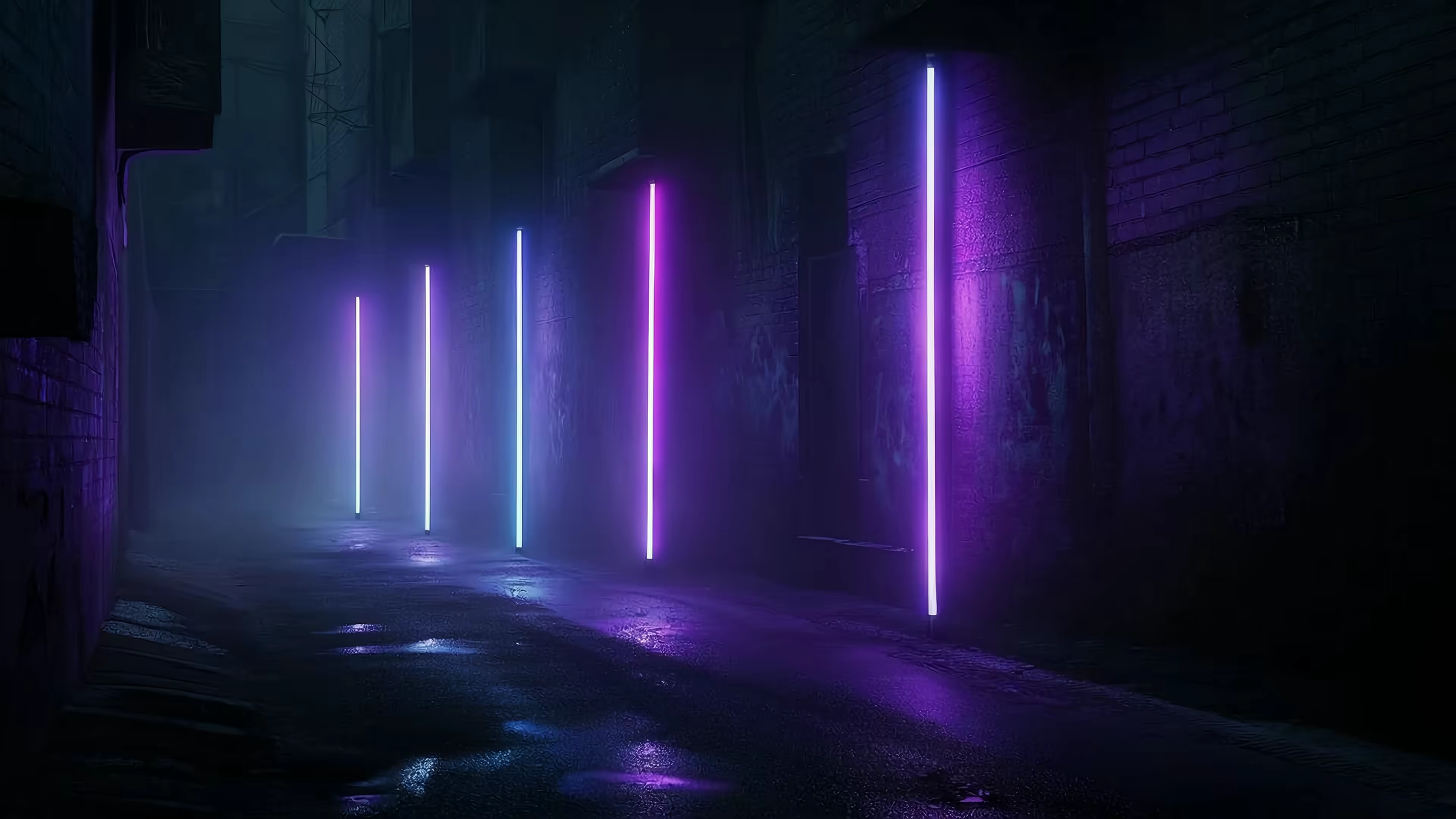
That's annoying because your desktop is one of the things you look at all day. A fireplace while you answer emails in socks. A neon alley when you want your spreadsheet to feel like it belongs in a rain-soaked sci-fi side quest. A lofi train window when you'd like your brain to stop vibrating for five minutes. This is not a ridiculous thing to care about. You're going to look at your Mac for hours anyway. Might as well make it pretty.
Your Mac Is Boring and It's Not Your Fault
Apple makes hardware that feels absurdly refined. Then it hands you a wallpaper system that gets strangely precious the second you want to use your own moving background. You're allowed to admire Apple's video wallpapers. You're not really invited to bring your own.
That's why so many people keep searching for how to put video as desktop background and end up in a maze of half-working tutorials, abandoned utilities, and forum posts written like a wizard's final warning. The desire is simple. The path is not.
The desktop you actually want
Users don't want "a wallpaper." They want a mood.
Maybe that means a crackling fire with all the cozy, none of the smoke damage. Maybe it means soft rain on a city street. Maybe it means space, because if you're going to procrastinate, you may as well do it while staring into the void with style. If you want ideas beyond the usual stock-photo melancholy, the guide to MacBook wallpaper aesthetics is a good place to start.
Here's the part that's validating, not indulgent. Caring about your background isn't frivolous. It's the surface your eyes keep returning to between tabs, calls, and moments of pretending the inbox might solve itself if ignored long enough.
You don't need a productivity reason to want your computer to look less like a hotel lobby slideshow.
Why this gets weird so fast
The trouble starts when "I want a moving wallpaper" turns into "please rename system video files and authenticate like you're disarming a bomb." That gap between simple desire and absurd process is the whole problem.
A lot of guides also omit the lock screen. They show a moving desktop, everyone claps, then your Mac goes to sleep and the effect disappears where you primarily wanted to see it first. That's not a small detail. That's half the experience.
So no, it's not just you. The built-in path is awkward, the workaround path is fiddly, and the lock screen is where most solutions fall apart.
Why Apple Makes This So Annoying

Apple did finally acknowledge that moving wallpapers belong on the Mac. As of 2024, macOS Sonoma introduced native dynamic live wallpapers as 4K .mov files, but they're restricted to Apple's curated gallery. If you want to use your own video, the manual route involves replacing a downloaded decoy screen saver with your own renamed .mov file and authenticating as an administrator, according to this Sonoma walkthrough.
That's the headline. The rest of the irritation comes from Apple's terminology.
Dynamic wallpaper is not the same thing as Aerial
In System Settings, Apple mixes together a few ideas that sound similar enough to be confusing on purpose.
| Term | What it actually is | What it doesn't do |
|---|---|---|
| Dynamic wallpaper | A still image that changes appearance over time | It isn't your uploaded video |
| Aerial | Apple's moving wallpaper and screen saver format | It still doesn't give you a normal import button for your own clips |
| Show as wallpaper | Lets the chosen theme carry into the desktop view | It isn't a drag-and-drop custom video tool |
Apple's own Aerial implementation does one thing very well. It lets the lock screen and desktop share the same visual theme with a smooth transition when you enable Show as wallpaper, as described by the Aerial project documentation. That part is elegant. The personal video part is where elegance leaves the building.
The DIY route is digital plumbing
If you insist on doing this manually, you end up inside a protected folder:
- System storage location:
/Library/Application Support/com.apple.idleassetsd/Customer/4KSDR240FPS/ - Workaround method: Download an Apple wallpaper you don't plan to use, then rename your own video to match it
- Authentication requirement: macOS asks for administrator credentials or Touch ID before it will accept the file replacement
This works because Sonoma's wallpapers are just video assets under the hood. It's also exactly the sort of task nobody should have to do for "please let my computer look cool."
Practical rule: If a wallpaper tutorial starts by telling you to replace protected files in Finder, you are no longer customizing your desktop. You are doing IT for your wallpaper.
There's one more wrinkle. Apple's native controls are better at managing its own gallery than handling your choices. So the experience feels polished right up until the moment you want any personality.
The One-Click Fix with gifPaper
The easiest way to stop wrestling with system files is to use gifPaper, which exists for the very specific reason that Apple made something simple weird. It's a direct download because Apple's sandboxing blocks live lock screen wallpapers in the Mac App Store. The app is notarized by Apple, and it requires macOS 26 (Tahoe) or later.

The setup is refreshingly unceremonious.
What the process looks like
-
Download the app Get the installer from the site and open it like a normal Mac app. No Finder surgery. No renaming fake wallpaper files to fool the operating system into behaving.
-
Browse the gallery The site has 150+ continuously looping 4K live wallpapers with ambient music. If your taste runs toward rainy cyberpunk nonsense, the neon wallpaper collection is an excellent place to begin. Everything is purple. Nobody knows why. It just works.
-
Set the wallpaper Pick a scene and apply it. The important bit is that the lock screen and desktop are treated as the same wallpaper, so one action handles both instead of giving you the classic "desktop works, lock screen mysteriously gives up" result.
Why this matters more than the desktop
A moving desktop is fun. A proper lock screen transition is what makes the whole thing feel native instead of taped together.
Apple's own Aerial format powers that lock-screen-to-desktop handoff, and this app uses that same format rather than slapping a video overlay on top of your wallpaper like it's trying to sneak into the OS through a side window. That means the result behaves like a built-in wallpaper should. You wake the Mac, the scene is alive, and it settles into place as you access the desktop.
Here's the kind of scene this setup was made for:
The lock screen is where most Mac wallpaper solutions quietly fail. If it doesn't survive sleep and wake, it's a demo, not a setup.
The nice part
You don't need to understand any of the machinery underneath. That's the whole point. The software handles the native format, the system behavior, and the annoying edge cases so you can get on with the important business of choosing whether your computer should look like a rainy alley, a starship viewport, or a fireplace that never needs cleaning.
Fine-Tuning Your New Animated World

Once the wallpaper is on, the useful part starts. A good live wallpaper shouldn't demand constant attention. It should sit there, look crisp, loop cleanly, and only make noise when you want noise.
That last bit matters more than most tutorials admit. In 2025, 68% of Reddit and MacRumors users asked about "live wallpaper with sound on Mac," yet most tutorials and apps either omit audio or require disabling it, which is exactly why ambient audio support matters in practice, as noted in this discussion of the Mac audio gap.
Use motion when you want it
One of the smarter choices in Apple's native wallpaper behavior is the still-frame fallback. The desktop can sit as a clean image by default, then animate when you want the full effect. That keeps the setup feeling intentional rather than visually noisy.
For a lot of people, that's the sweet spot:
- Still by default: Your desktop stays calm and readable when you're working
- Animation on demand: Turn the motion back on when you want the atmosphere
- Same visual identity: The lock screen, desktop, and screen saver don't feel like three unrelated cousins at a family reunion
Audio is not a gimmick
Ambient sound is either perfect or unbearable, depending on the scene and your mood. The good version feels like an optional layer, not a compulsory performance.
That's especially true with quieter categories. If you like soft city loops, train scenes, desk lamps, and general "the girl who's always studying would approve" energy, the lofi wallpaper collection makes more sense with audio available than with audio mysteriously amputated.
Crisp matters
A blurry live wallpaper is worse than a static one. It gives "downloaded from a forgotten forum in 2009" when what you want is something that properly belongs on a Retina display.
That's why 4K source material matters here. You want loops that look like video, not oversized GIFs trying very hard to keep up.
Some wallpapers are for showing off. The good ones are for living with. You stop noticing the tech and start noticing the mood.
What About Other Apps and DIY Hacks

Yes, you can do this for free. In the same sense that you can also cut your own hair with kitchen scissors. Sometimes the result is acceptable. Sometimes you learn something important about consequences.
The DIY route usually means replacing protected macOS files, managing permissions, and hoping the next system update doesn't decide your homemade arrangement was a little too creative. If you want the broad primer on that world, the guide on how to get live wallpapers on Mac lays out the moving parts.
The real split is simple
Here's how the options usually shake out:
| Option | Desktop video | Lock screen support | Hassle level |
|---|---|---|---|
| Manual Sonoma hack | Yes, with file replacement | Possible, but fiddly | High |
| Other wallpaper apps | Often yes | Usually the weak point | Medium |
| Native Apple gallery | Yes, but only Apple's choices | Yes | Low, but limited |
The lock screen is the bit most guides glide past. Data from 2024 to 2025 YouTube tutorials shows less than 10% cover lock screen activation for third-party tools, which matches the common complaint that the video disappears after sleep instead of carrying through properly, according to this lock screen breakdown.
That's why people end up feeling tricked. They asked for a live wallpaper. They got half a live wallpaper.
If you want to use your own video first
Sometimes you already have a clip you want to use. Maybe it's drone footage, rain on your apartment window, or a cat sitting beneath a tree judging your financial decisions. In that case, it helps to trim the file, clean the loop, or remove awkward starts and stops before you turn it into a wallpaper. A practical roundup of top 10 free video editors is useful for prepping footage without paying for a whole post-production kingdom.
A few trade-offs are worth being blunt about:
- Manual hacks save money: They also cost time, attention, and a bit of trust in your own patience.
- Other apps may animate the desktop: They often stop short of making the lock screen feel native and reliable.
- Apple's own wallpapers behave nicely: You just don't get to bring your own personality to the party.
If your wallpaper vanishes the moment the Mac sleeps, the hard part wasn't setting it. The hard part is that you still haven't actually solved the problem you cared about.
Your Mac Is Now Officially Less Boring
At this point, the answer is mercifully straightforward. If all you want is Apple's built-in moving wallpapers, macOS already does that. If you want your own video on the desktop and you care whether it also works properly on the lock screen, the built-in route gets awkward fast and most alternatives stop halfway.
That's why this problem keeps coming up. The desire is ordinary. The default tools aren't.
The practical version
The version that makes sense for normal people looks like this:
- You want live wallpaper without system hacks: Use a tool that handles Apple's native Aerial behavior for you.
- You want the lock screen too: Don't settle for a desktop-only solution and call it close enough.
- You want it to feel good on a Mac: Choose 4K video, clean loops, and an actual still-frame desktop option instead of a permanently hyperactive background
There's also no reason this has to become a subscription-shaped headache. The app is $4.99 as a one-time purchase at launch, not a subscription. There's a 7-day free trial with no credit card required, all wallpapers and all features included, plus a 30-day money-back guarantee. That's a very fair arrangement for "my computer should stop looking so bland" software.
One last practical note
The site and the app do different jobs, which is how this whole thing stays sensible. The website is where you browse the collection and find a scene you want to live with. The app is what applies that wallpaper to your lock screen, desktop, and screen saver using the native Mac behavior that makes it feel cohesive instead of improvised.
That split is useful. You can look around first, decide whether you're a neon-at-midnight person or a snow-house-and-tea person, and only then install anything.
Your Mac doesn't need to wake up to another static image you tolerated rather than chose. It can do something more interesting. It should. You're the one looking at it.
If you want the simple version, browse the wallpapers on gifPaper, then check the Mac app details at gifPaper for Mac. It's a small, specific tool for a very real annoyance, which is often how the best Mac utilities start.