
How to Reduce Eye Strain From Your Computer Without Quitting Your Job
To reduce eye strain, you can follow the 20-20-20 rule, adjust your monitor's brightness, and try to blink more. These are the small habits that help, but they're only part of the story. To really fix the problem, you first have to understand what's actually happening to your eyes. Your eyes weren't designed for spotting typos in spreadsheets, after all.
That 4 PM Feeling When Your Eyes Have Given Up
It's late afternoon. You know the feeling. Your eyes are full of sand, a dull ache is setting up camp behind them, and you're pretty sure your monitor is actively trying to burn out your retinas. This isn't just you being tired; it's digital eye strain, the unofficial sport for anyone who makes a living in front of a computer.
This is a real physical response to staring at screens all day, sometimes called "computer vision syndrome." Think of this as the "Know Your Enemy" briefing before I get to the solutions.
The Anatomy of Digital Eye Strain
That gritty, aching discomfort isn't just in your head. It's a perfect storm of a few physical factors that make your eyes miserable.
- You Forget to Blink: It sounds simple, but it's a big deal. When you're focused on a screen, your blink rate plummets by up to 66%. Blinking is your eyes' built-in cleaning and moisturizing system. Less blinking means instant dryness and irritation.
- The Non-Stop Stare: Your eyes have tiny muscles that are constantly working to keep your screen in focus. Holding that focus on pixels just a couple of feet away is like holding a small weight in the same position for hours on end. The muscles get exhausted.
- Unforgiving Light and Contrast: Screens are bright. Office lights create glare. High-contrast, static backgrounds force your pupils to work overtime adjusting. It all adds up to headaches and that familiar feeling of visual burnout.
If you're dealing with tired, aching eyes or blurry vision by the end of the day, specialized eyewear like occupational progressive lenses can be a game-changer, designed specifically for that intermediate screen distance.
The problem is, your eyes weren't designed to stare at a fixed, glowing rectangle for eight hours straight. They were designed for spotting threats on the savanna, not for spotting typos in a spreadsheet.
When you put it all together, it's no wonder your eyes feel wrecked. The good news is that you don't have to live with it. A few deliberate changes to your setup and your habits can make a massive difference in how you feel at the end of the day.
The 20-20-20 Rule And Other Habits That Actually Work
You've probably heard of the 20-20-20 rule. Every 20 minutes, look at something 20 feet away for 20 seconds. It's the kind of advice that sounds too simple to work, but it's probably the single most effective habit you can build.
It works because staring at a screen is unnatural. Your eyes' focusing muscles are locked in place, and your blink rate plummets from a healthy 15-20 times per minute down to a dry, scratchy 5-7. This rule forces those muscles to relax and reminds you that a world exists beyond the glowing rectangle in front of you.
This isn't new, but it's gotten much worse. Even before the work-from-home marathon, 65% of American adults reported digital eye strain. Now, with some studies showing numbers as high as 94%, the problem has ballooned. It's a $151 billion drag on productivity and health. For a deeper look at the numbers, check out this research that highlights these trends.
Embrace Conscious Blinking
Your eyes feel dry because you're literally forgetting to blink. The solution is… to remember to blink. Profound, I know. But when you're locked into a spreadsheet, basic human functions go out the window.
Set a quiet, recurring timer on your phone or Mac. When it chimes, just close your eyes and blink slowly five times. It feels ridiculous at first, like you're trying to send a secret message in Morse code with your eyelids, but it makes an immediate difference.
Think of it as a mandatory system reboot for your eyeballs. You wouldn't let your Mac go a year without a restart. Don't do it to the only two eyes you've got.
The Art of the Microbreak
A microbreak isn't just looking away. It's about deliberately disengaging for a minute or two. Stand up. Stretch. Walk to the kitchen and judge the contents of your fridge.
These tiny interruptions do more than just rest your eyes. They break the mental tension that builds during focused work, stopping both visual and cognitive fatigue before they start. You don't need to quit your job and become a shepherd. You just need to look out the window for a minute.
Optimizing Your Mac And Workspace For Eye Comfort
Changing your habits is a good start, but it's only half the battle. The other half is your environment. Your Mac has some surprisingly powerful tools baked right in to fight eye strain, but they're useless if you don't know they exist.
This isn't just about feeling a little less tired. It's about taking back control from the pixels that run your day. Dialing in your setup is the most direct way to push back against that screen-induced zombie feeling.
Tame Your Mac's Display Settings
Think of your Mac's display settings as your first line of defense. A few simple toggles can make a massive difference in how your eyes feel after a long day staring at code, spreadsheets, or an alarming number of cat videos.
Most of these live in System Settings > Displays. Here's a quick rundown of the settings that actually matter.
Mac Display Settings for Eye Comfort
| Setting | What It Does | Recommended Usage |
|---|---|---|
| Night Shift | Shifts display colors to the warmer end of the spectrum, reducing blue light. | Set it to run automatically from sunset to sunrise. This is non-negotiable. |
| True Tone | Uses sensors to match your screen's color and intensity to the ambient light around you. | Turn it on and leave it on. It makes the screen look more natural and less like a harsh light source. |
| Brightness | Adjusts the backlight intensity of your screen. | Match your screen's brightness to the room. Not too bright, not too dim. |
Getting the brightness right is more of an art than a science. The goal is simple: your screen shouldn't feel like you're staring into a lightbulb, but it also shouldn't be so dim that you're squinting.
Here's a solid rule of thumb: hold a blank piece of white paper next to your monitor. If your screen looks like a lamp compared to the paper, it's too bright. If the paper looks way brighter than your screen, it's too dark.
Master Your Physical Workspace Ergonomics
Once your screen's colors are behaving, it's time to look at your physical setup. How you sit and where you place your monitor are just as important as any software tweak.
To avoid the dreaded "tech neck" and keep your eyes from straining, getting your monitor in the right spot is key. A quality monitor arm gives you the kind of precise control over height, depth, and angle that a default stand never will.
Here's a quick ergonomic checklist to run through:
- Monitor Distance: Sit back and extend your arm. Your fingertips should just about touch the screen. That's your sweet spot—around 20-40 inches away.
- Monitor Height: The very top edge of your screen should be at or just slightly below your eye level. You shouldn't have to tilt your head up or crane your neck down to see the center.
- Lighting and Glare: This one's huge. Position your desk so that bright lights or windows are to the side of your screen, not directly in front of or behind it. Glare is a primary cause of eye fatigue.
These might seem like minor adjustments, but their cumulative effect over weeks and months is enormous.
And remember, a comfortable physical setup pairs perfectly with a visually calm desktop. You can learn more about creating a better digital space in my guide on how to customize your Mac desktop.
Why Your Boring Desktop Wallpaper Is Making Things Worse
Here's a thought most people miss: what if the thing you're forced to stare at for eight hours a day was actually pleasant to look at? Your Mac's default wallpaper is… fine. It's also visually boring.
Worse than that, a bright, high-contrast static image just adds another layer of visual noise for your already over-caffeinated eyeballs to deal with. It becomes a harsh focal point instead of a place for your eyes to rest.
This is where a dynamic, calming background can genuinely make a difference. It's not about adding distractions. It's about giving your eyes a place to land that isn't a spreadsheet or a Slack notification.
The Power of "Soft Fascination"
There's a psychological concept called soft fascination. It's what happens when you look at something gently engaging that doesn't demand your full attention—like watching clouds drift by, a candle flicker, or waves lapping the shore.
These scenes hold your focus effortlessly, allowing your directed-attention muscles to recover. A static wallpaper is a dead end for your eyes. A dynamic one, however, offers a micro-break without you even having to think about it.
It's the visual equivalent of ambient music. A seamlessly looping scene provides a gentle, non-demanding stimulus that can actually reduce the perceived strain of staring at a screen all day.
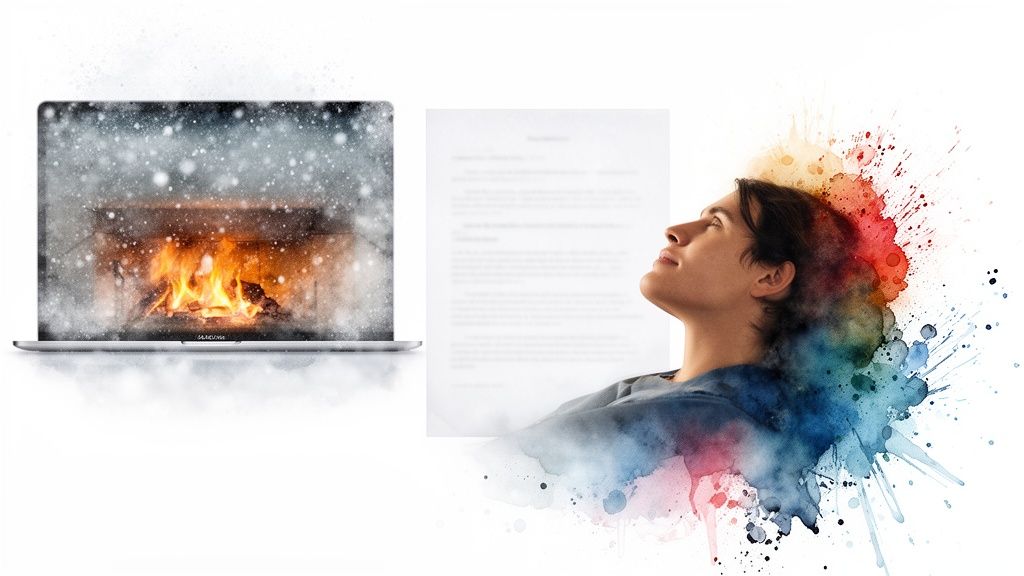
Instead of another high-contrast JPEG of a mountain you'll never climb, imagine a quiet, snowy landscape or the subtle crackle of a digital fireplace. This simple switch can transform your desktop from a source of headaches into a source of calm. For more ideas on how to pull this off, check out my guide on creating a calming MacBook wallpaper aesthetic.
Giving Your Blink Rate a Fighting Chance
Your blink rate tanks when you stare at a screen. You normally blink 15-20 times per minute. When you're locked onto a monitor, that plummets to a measly 5-7 times per minute.
This is a huge reason why up to 66% of device users globally suffer from digital eye strain, dryness, and headaches. And it's getting worse. Since 2023, screen time has exploded, with 62% of adults increasing their smartphone use and 39% their laptop use. CooperVision's research here lays out the details.
While a beautiful wallpaper can't force you to blink, it can create a less demanding visual field. A softer, moving background doesn't create the same "target lock" focus that a busy, static image does. It encourages your eyes to relax and wander, which can help nudge your blink rate back toward something more human.
It's a small piece of the puzzle, but when you're fighting eye strain, every little piece counts.
Making Your Mac A Calmer Place With gifPaper
Let's be practical. You've probably tried other Mac wallpaper apps. They're either clunky, look like they were designed in 2003, or drain your battery like it's their full-time job. Most are just hacky overlays, a video player window floating behind your icons, constantly fighting your system instead of working with it.
This is where things are different. gifPaper is the first and only app that uses Apple's native Aerial wallpaper format. That means your live wallpaper works on the lock screen, exactly like Apple's own built-in options. You wake your Mac to a living scene that gently slows down as you unlock. No weird glitches, no fighting macOS.
It's built for people who actually care about the details.
What GifPaper Actually Does
Okay, let's get into the specifics. Yes, it's a wallpaper app, but it's really designed to solve the problems that make other apps so annoying.
- Native Lock Screen: Wake your Mac to a living wallpaper that slows down as you unlock. When you set a wallpaper, it's set for both your lock screen and desktop in one click.
- Performance That Respects Your Battery: On the desktop, you see a beautiful still frame by default, with zero performance impact. If you want the full video motion while you work, just toggle it on. You have the control.
- Screen Savers Are Back: Remember screen savers? They're worth a second look. When your Mac goes idle, it can transition to your chosen live wallpaper, turning your screen into something beautiful instead of a black mirror reflecting your own tired face.
It's all about making your Mac a calmer place, and that includes not stressing about your battery life.
Designed For People Who Stare At Screens
You're going to look at your Mac for hours anyway. Might as well make it pretty. This whole project started from the idea that the space where you spend your digital life should be as comfortable and personal as your physical one.
You don't need another subscription to forget about. It's a one-time purchase of $4.99—that's the launch price—because I'd rather you love the app than feel trapped by another monthly fee.
This is your direct path to a curated library of over 150+ seamlessly looping 4K wallpapers. You'll find a whole section of dark wallpapers designed to be easy on the eyes, or a lofi wallpaper collection that's perfect for focused work. And that's just the start; the entire gifPaper collection is at your fingertips.
The app requires macOS 26 (Tahoe) or later and is distributed directly, not through the App Store. Apple's sandboxing rules prevent apps from setting native lock screen wallpapers, so to give you the real deal, I had to go indie. Don't worry, the app is fully notarized by Apple.
Try it out. There's a 7-day free trial with no credit card required, giving you full access to all wallpapers and features. And if you decide to buy, there's a 30-day money-back guarantee. See if it helps make those long hours at the screen just a little bit better.
A Few Lingering Questions About Eye Strain
When you start digging into how to make your screen less painful to look at, you find a lot of conflicting advice. Let's clear up the most common questions with some straight answers.
Are Blue Light Glasses a Scam?
It's complicated. The theory makes sense: blue light, especially at night, can throw your sleep cycle out of whack. But when it comes to eye damage, the story changes.
The American Academy of Ophthalmology is clear: there's no scientific proof that the blue light from your computer screen is actually harming your eyes.
So, where does that leave you? Some people find that blue light glasses reduce that subjective feeling of strain or fatigue. If you wear them and feel better, fantastic. But don't expect them to be a magic fix. A better, and completely free, alternative is to just use your Mac's built-in Night Shift feature to warm up your screen color in the evenings.
Is Dark Mode Actually Better for Your Eyes?
It depends on who you ask, or more accurately, on whose eyes are doing the asking. For a lot of people, a bright white background feels like staring directly into a lightbulb, making a dark theme a welcome relief, especially in a dimly lit room.
But for people with astigmatism, dark mode can be a nightmare. The white text on a black background can seem to bleed or halo, a phenomenon known as halation. This can actually increase eye strain, forcing you to squint to make out the words.
The real answer: Try both. There's no universal "best" here. The right choice is whichever one lets you read text clearly without squinting or feeling like your retinas are getting a sunburn.
How Often Should I Get My Eyes Checked?
If your job involves staring at a screen all day, a comprehensive eye exam every single year is one of the smartest things you can do. This is about more than just updating your prescription.
An optometrist can spot the early signs of issues like chronic dry eye, screen for underlying health problems that show up in the eyes first, and offer advice tailored to your specific needs.
If you're dealing with persistent headaches, blurriness, or severe dryness that just won't quit, don't wait for your annual check-up. Book an appointment. They're the only pair of eyes you get.
Once you've dialed in your habits and your workspace, there's one final piece to the puzzle: making your screen a genuinely calmer place to look. Instead of a boring, static background, you can give your eyes something beautiful and gentle to rest on.
gifPaper for Mac does exactly this, transforming your lock screen, desktop, and screen saver into a source of calm with over 150+ seamlessly looping 4K wallpapers. It's a one-time purchase, not a subscription, and it's the only app that uses Apple's native system for a flawless, non-hacky experience. You can try it completely free for 7 days at gifpaper.com/macos-app.