Mac Customization: How to Set Desktop Background Mac in 2026
Meta description: Learn how to set a desktop background on Mac, fix common wallpaper annoyances, and understand what Apple allows if you want moving wallpapers.
That default Mac wallpaper has a special talent. It can make a very expensive computer look like a hotel lobby brochure.
You open the lid, there it is again. Some tasteful abstraction. Some politely dramatic coastline. Something designed to offend absolutely nobody and excite even fewer. And figuring out how to set a desktop background on Mac means you're probably already done pretending that this is a frivolous concern. You're going to stare at this screen for hours anyway. Might as well make it pretty.
A lot of people hit this wall right after switching from Windows. They assume the animated wallpaper thing must be hiding somewhere in Settings, next to Bluetooth and the usual small humiliations. Then they discover Apple is generous with static images, selective with motion, and committed to making simple customization feel mildly ceremonial. Posts on Reddit show repeated frustration from macOS switchers annoyed that most tutorials stop at static photos and never address the wallpaper engine-shaped hole in the room.
Your Mac's Wallpaper Deserves Better
The desire for a better wallpaper isn't vanity. It's basic environmental design for the machine you use all day.
A good background does two jobs. First, it makes the desktop feel like yours. Second, it changes the mood of the whole setup. A dim neon alley feels different from a snowy cabin. A quiet forest does different psychological work than Apple's default swirl of corporate optimism.
You don't need to justify caring about this. Nobody asks why people paint their walls.
The annoying part is that macOS splits wallpaper into three separate realities. There's the easy reality, where you set a static image in a few clicks. There's the Apple reality, where "moving wallpaper" means "you may choose from the approved cinematic drone footage." Then there's the actual thing many people want, which is a custom looping video on the lock screen and desktop.
That gap is why this topic keeps coming up. Static wallpaper is easy enough once you know where Apple hid the switch this year. Live wallpaper is where things get weird.
For plain old still images, the built-in tools are fine. For anything beyond that, you need to know exactly what macOS supports, what it pretends to support, and what still requires an app because Apple would prefer your wallpaper taste remain within approved boundaries.
The Standard Method for Static Wallpapers
The basics first. Apple has supported custom desktop backgrounds since Mac OS X in 2001, and the interface later shifted from System Preferences to System Settings in macOS 13 (Ventura) in 2022.

If your Mac uses System Settings
If the settings app has a sidebar and feels vaguely like an iPad moved into your computer uninvited, you're on Ventura or newer.
Use this path:
- Open System Settings
- Click Wallpaper
- Choose one of Apple's built-in options, or add your own image source
- Select the image you want
If you want your own photos in the modern interface, pay attention to the folder step. Ventura and newer can be fussy about where custom images come from. If you keep a wallpaper folder, adding that folder inside Wallpaper settings keeps things much less annoying.
If your Mac uses System Preferences
If you still see the older grid of icons, you're on Monterey or earlier.
Use this path:
- Open System Preferences
- Click Desktop & Screen Saver
- Pick an Apple image, a solid color, or a folder from your Mac
- Click the image to apply it
The logic is basically the same. Apple just changed the packaging.
Apple's wallpaper categories translated
| Apple's Name | What It Actually Is |
|---|---|
| Dynamic Wallpapers | Stills that change appearance over time |
| Desktop Pictures | Regular static wallpapers |
| Colors | A plain background for people who enjoy monastic restraint |
| Your Photos | Images from your photo library |
| Aerials | Apple's moving video wallpapers on supported systems |
One practical note. If your photo looks soft or weirdly cropped, the problem usually isn't your taste. It's the file. Use an image sized appropriately for your display. If you need the boring but useful details, this guide on MacBook wallpaper size will save you from stretching a tiny image across a Retina screen like pizza dough.
Practical rule: If a wallpaper looks great on your phone and muddy on your Mac, the file is too small.
There's also an old shortcut that still works nicely. In Finder, you can right-click an image file and choose Set Desktop Picture. It's the fastest route when you already have the file you want sitting in a folder and don't feel like taking the scenic route through Settings.
Using Apple's Built-In Moving Wallpapers
Apple does have a moving wallpaper option. It just isn't the free-for-all many people expect.
Dynamic is not the same as live
Here, Apple's naming gets a little mischievous.
Dynamic Wallpapers are not video wallpapers. They're still images that shift based on time of day or lighting conditions. Nice feature. Not the same thing as an actual animated scene.
Aerials are the moving ones. Those are the cinematic flyovers and slow-motion location videos. If you want motion using only native macOS features, that's the category that matters.
A good companion piece here is this explanation of dynamic wallpaper on Mac, especially if you're trying to sort out what Apple means versus what normal people mean.
How to use an Aerial wallpaper
To set a live wallpaper using Apple's native tools, go to System Settings > Wallpaper and choose an Aerial. If a Down arrow appears next to the Aerial name, you need to click it to download the file before you can use it, as Apple notes in its Wallpaper settings help page for Mac.
Once it's downloaded, selecting it applies the wallpaper. On recent versions of macOS, Apple's native Aerial format creates that smooth handoff from moving lock screen to desktop. It looks polished because it is polished. Apple built the effect for its own wallpapers first.
Apple's moving wallpapers are elegant. They're also a curated menu, not an open kitchen.
And that's the catch. You get Apple's library, Apple's style, and Apple's idea of what motion should look like. If you want a looping neon street, a crackling fireplace, a train window in the rain, or some cosmic scene that makes your desktop look like a synth album cover, native macOS won't let you bring your own.
Troubleshooting Common Wallpaper Headaches
You picked a wallpaper. macOS picked a weird little argument. Happens all the time.
Your wallpaper keeps changing on its own
The usual culprit is Shuffle.
In Ventura and newer versions, it is easy to click the rotating wallpaper option instead of a single image. That sends your desktop into a slideshow you never asked for.
Open System Settings > Wallpaper and look closely at what is selected. Choose one specific image, not the rotating thumbnail. If you are trying to use a clip instead of a photo, this guide on how to put a video as desktop background on Mac covers the route macOS does not make obvious.
You want different wallpapers on different monitors
Change the wallpaper from the display you want to affect.
Click the desktop on that monitor, then right-click and choose Choose Desktop Background. macOS usually opens the wallpaper controls for that screen, which saves you from guessing which display Apple currently treats as the important one.
You want the same wallpaper across all Spaces
macOS often treats each Space like its own little kingdom. Nice for organization. Annoying for wallpaper consistency.
If you want one wallpaper across them, go to System Settings > Desktop & Dock, scroll to Mission Control, and turn off Displays have separate Spaces. That can solve the wallpaper issue, but it also changes multi-monitor behavior, app switching, and window placement. Test it before you commit. A matching background is not worth breaking a setup that already works.
Finder shortcut not doing what you expected
The Finder shortcut is fine for ordinary static images. It gets less reliable once macOS starts sorting wallpapers into Apple's categories and sources inside Settings.
If the right-click option does nothing useful, stop wrestling with it and open the Wallpaper panel directly. That is usually faster, and it avoids the classic Mac mistake of repeating the same click three times and blaming yourself on the fourth.
Live Video for Your Lock Screen and Desktop
You set the static wallpaper. Fine. The Mac now looks competent, which is a low bar for something you stare at all day.
The next problem is taste.
Apple's built-in moving wallpapers look polished, but they stay inside Apple's tiny approved aesthetic range. Lots of beautiful aerial footage. Lots of scenic views you did not choose. If you want your own motion wallpaper, especially on the lock screen, macOS still does not make that easy.

Apple's Aerial format is the key detail. It handles that polished transition between lock screen and desktop like a native wallpaper, instead of faking motion by floating a video layer on top of the desktop. This difference matters. Native-format wallpapers behave properly. Overlay apps often act like a clever workaround until Mission Control, Spaces, or the lock screen reminds you otherwise.
If your goal is simple, use a native-format app and skip the duct-tape category entirely.
gifPaper for Mac fits that job. It runs on a recent version of macOS, ships as a direct download, and is notarized by Apple. The app can set live wallpapers for the lock screen, desktop, and screen saver using Apple's native Aerial wallpaper format. That solves the part people usually discover too late: getting animation onto the desktop is easy enough with the wrong tool. Getting it onto the lock screen without weird behavior is the hard part.
A few practical reasons that matters:
- Lock screen support: You can use actual live video where macOS normally keeps things tightly controlled.
- Desktop behavior: You can keep the desktop understated or go fully animated, depending on how much motion you want while working.
- Screen saver support: If you're going to bother with visual flair, you may as well make the idle screen look good too.
There is also the absurd but valid reason. A wallpaper can change the whole mood of a machine. Apple sells serenity. Maybe you want neon rain, a train window at midnight, or something that looks less like a default demo for a luxury condo TV.
If you want the setup details, this guide on how to put video as desktop background on Mac walks through the process.
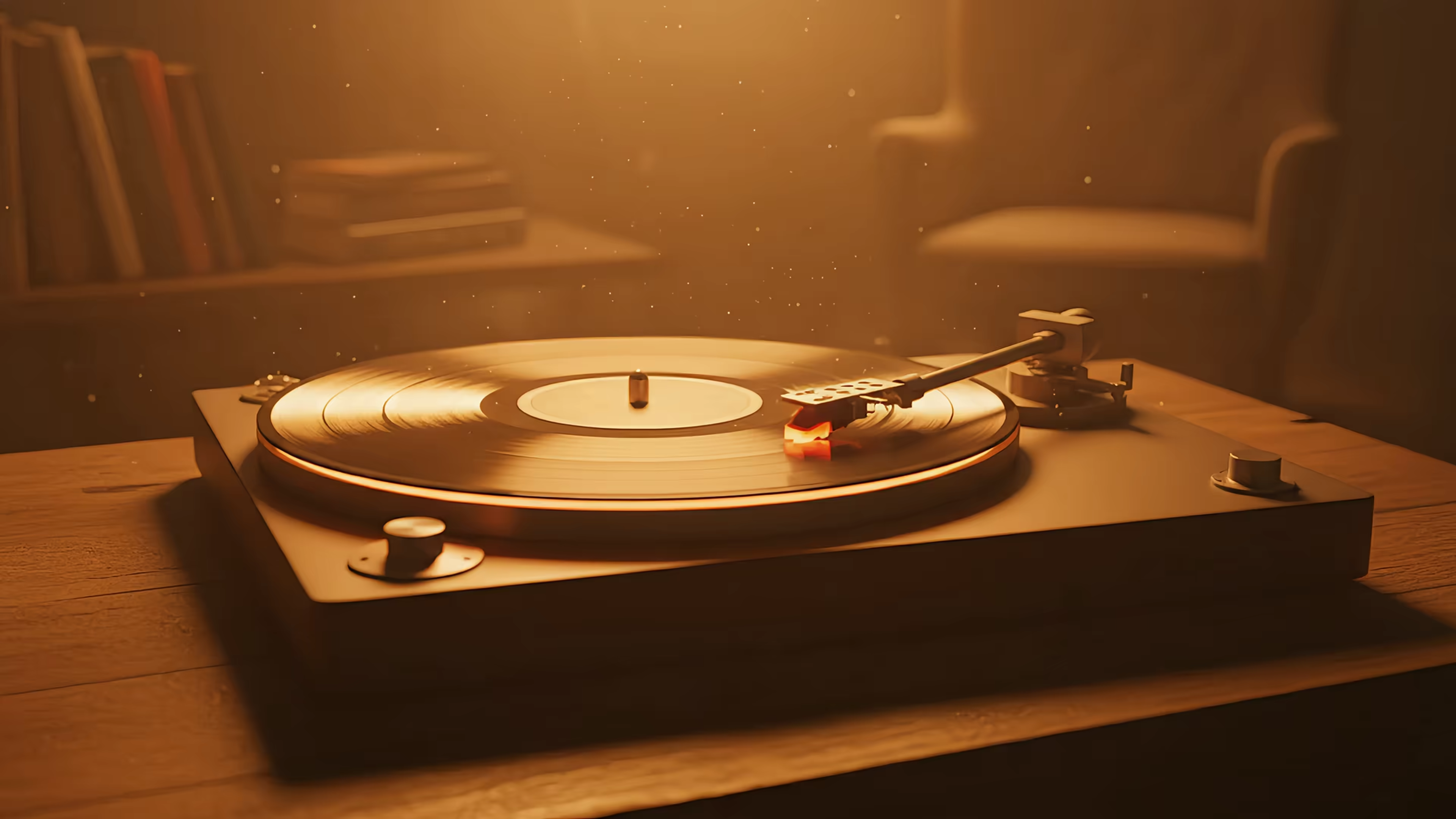
A scene that works suspiciously well on a Mac screen:
You can also browse category pages if you already know your preferred flavor of desktop nonsense. The lofi wallpaper collection is all rain, trains, and late-night competence. The neon wallpaper collection goes straight for glowing streets and cyberpunk weather. The nature wallpaper collection is useful when your real view is a parking lot.
Frequently Asked Questions
Can I use a GIF as my Mac wallpaper
Not natively. macOS doesn't support animated GIF files as wallpapers in the normal wallpaper settings. If you want motion, you need either Apple's Aerial wallpapers or an app that handles video-based live wallpapers.
Why does my custom wallpaper look blurry
Usually because the source image is too small for your display. Retina Macs are unforgiving about low-resolution files. Use an image that matches your screen resolution closely, or at least doesn't require heavy upscaling.
Can I set different wallpapers for my lock screen and desktop
Yes, on newer macOS versions. Starting with macOS 14 (Sonoma) in 2023, Apple separated Lock Screen and Desktop wallpaper settings. On older versions, those were linked together.
Can I use the same wallpaper on every desktop Space
Sometimes, but macOS doesn't make it elegant. The workaround involves changing Mission Control behavior, which can interfere with multi-monitor setups.
If you've handled the static wallpaper part and realized the problem is that your Mac is still visually boring, that's fair. gifPaper exists for exactly that gap. The site lets you browse live wallpapers for free, and the Mac app turns them into actual lock screen, desktop, and screen saver backgrounds using Apple's native format. A small, slightly absurd product. Also a useful one.