Live Wallpapers Mac: Elevate Your Desktop
You wake your Mac, tap a key, and there it is again. The same politely expensive wallpaper Apple handed you. Maybe it's a gradient. Maybe it's a floating hill. Maybe it's that aerial video you've now seen so many times it feels like airport lounge furniture.
Wanting better doesn't make you vain. It makes you a person who stares at a screen for hours and would prefer that screen not look like a default yogurt flavor.
Your Mac Is Boring and It's Not Your Fault
The most annoying part of live wallpapers on Mac isn't that the feature is impossible. It's that Apple makes it look possible, then fences off the interesting part. The system wants to be cinematic. It just doesn't want you touching the controls.

If you came from Windows, the confusion gets worse. Users who were used to Wallpaper Engine, with custom video uploads and community content, hit macOS and find a fragmented setup with no single equivalent. That leaves a real gap for people who already built personal wallpaper collections on Windows, as noted in Cindori's coverage of Mac live wallpaper options.
The usual disappointment
A lot of people land in one of these camps:
- The Windows switcher: you had a whole aesthetic situation going, then moved to Mac and got demoted to stock scenery.
- The design nerd: you don't need your computer to be louder. You need it to feel intentional.
- The tired remote worker: if you're going to answer messages at a desk all day, a little ambient rain or a slow-moving city skyline is not an unreasonable demand.
You are allowed to care what your desktop looks like. The computer police aren't coming.
The problem isn't taste. The problem is that macOS bundles together several wallpaper systems that look similar from the outside but behave very differently. Some are still images that change with time. Some are Apple's own video wallpapers. Some work on the desktop. Some touch the lock screen. Some absolutely do not.
So people search "live wallpapers mac," install a random app, and end up with a janky overlay, a battery hog, or a wallpaper that only works until the next reboot. Very cool. Very premium. Very Apple in the most annoying way.
Why Apple's Live Wallpapers Are So Confusing
Apple has built a surprisingly large wallpaper machine, then hidden the useful rules in a fog bank. That's why so many people think they're doing something wrong when they aren't.
The first point of confusion is naming. Apple uses terms like Dynamic Desktop, Aerial, and other animated wallpaper styles as if they're obvious distinctions. They aren't. One behaves like a series of timed stills. Another is actual video. A third looks native but gives you no real control over what goes into it.
Apple clearly cares, just not in a helpful way
macOS Sonoma includes 134 native 4K live wallpapers at 240 FPS, and those files take up about 65GB of storage, according to this breakdown of Sonoma's wallpaper library. That tells you two things immediately.
- Apple knows people want motion. This isn't some fringe customization hobby anymore.
- Apple still keeps the system closed. You can't just drop your own video into the native library and call it a day.
That second bit is the part that makes sane people mutter at their screens.
What you can do versus what you probably want to do
Here's the short version:
| Wallpaper type | What it does | What's annoying about it |
|---|---|---|
| Dynamic Desktop | Changes appearance over time using still images | Not actually video |
| Apple video wallpapers | Native animated scenes built into macOS | Apple chooses the library |
| Lock screen visuals | Can look alive and polished | Tied to Apple's rules, not yours |
You can have Apple's taste, or you can have workarounds. That's the practical reality.
Useful distinction: "Dynamic" in macOS often means time-based image changes, not custom live video in the way most people mean it.
This is why the built-in collection feels generous and restrictive at the same time. There are plenty of official options, but they all live inside Apple's little museum. You may admire the exhibits. You may not rearrange them.
And if what you want is simple, like "use this looping city video on my lock screen and desktop," the native system suddenly becomes a bureaucrat in a turtleneck.
The Real Solution: A Wallpaper App That Actually Works
The lock screen is where most wallpaper apps fall apart. Desktop-only animation is easy to fake. Lock screen video that behaves like Apple's own is not.
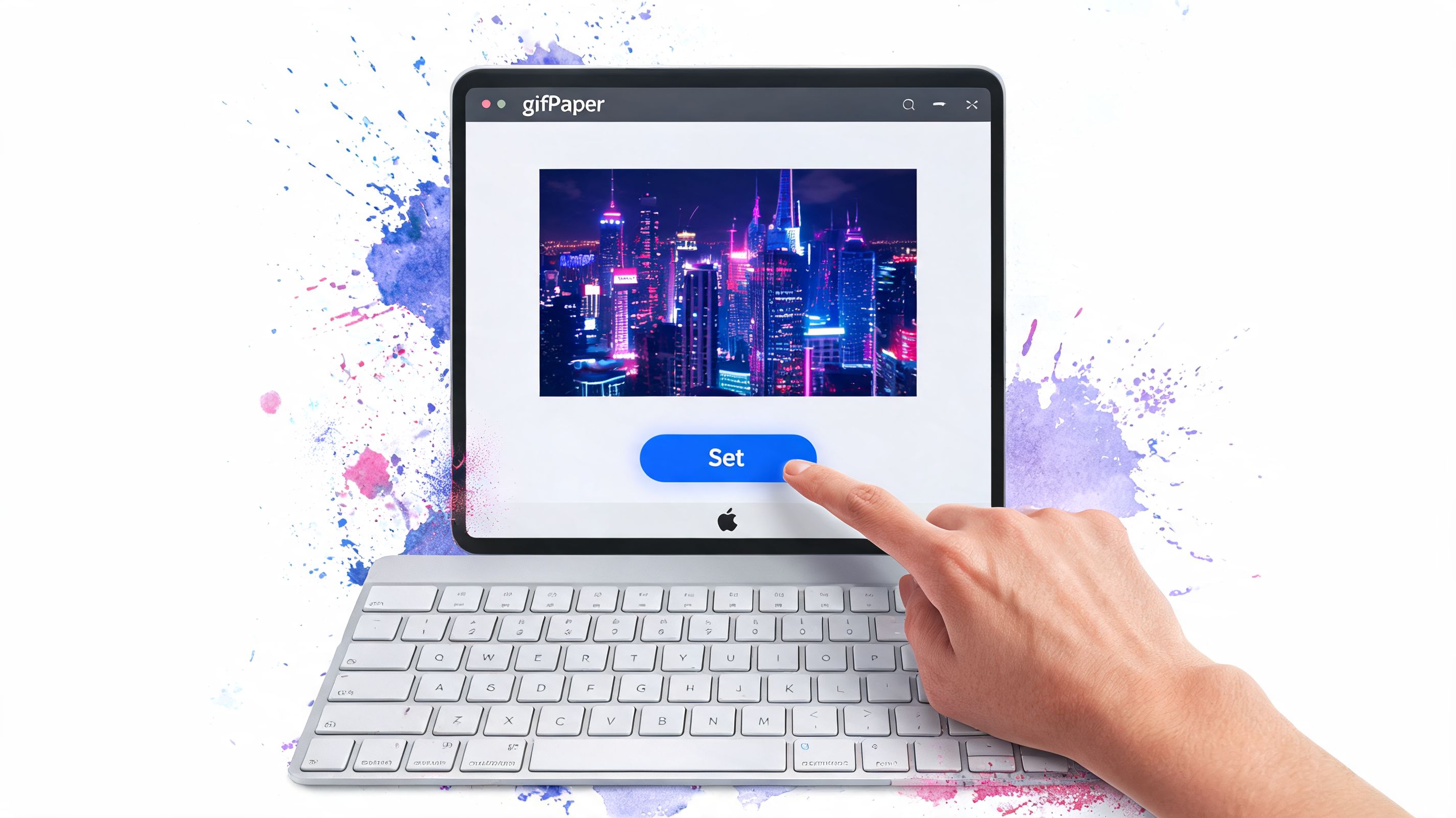
macOS uses a separate rendering pipeline for lock screen video playback, with its own thermal and power management issues. Most apps don't integrate with that system properly, but a native-style implementation can provide continuous lock screen video with minimal impact. That's exactly why this category is full of half-working tools, according to this technical explanation of Mac lock screen live wallpapers.
What matters in practice
A wallpaper app is useful if it gets three things right:
- Lock screen behavior: the wallpaper should feel like part of macOS, not like a browser window lurking behind your login panel.
- Desktop handling: motion is nice, but a clean still frame while you work is often smarter.
- Setup friction: if it involves weird scripts, hidden folders, and interpretive dance in Terminal, normal people won't do it.
That's the whole game.
If you make your own loops, a tool like Cinematic AI video creator can help generate visual material that feels made for ambient backgrounds rather than social clips screaming for attention. For actual Mac deployment, gifPaper's desktop live wallpaper app guide explains the native-format route instead of the usual overlay trick.
Why the native route matters
Using Apple's own wallpaper format changes the experience completely. The lock screen and desktop can act like one system instead of two unrelated hacks taped together. Wake the Mac, see motion, login, and the transition feels coherent instead of clumsy.
That's also why the product setup is boring in the best way. One click applies the wallpaper to the places people most value. The desktop can sit on a still frame by default, and you can turn on full animation when you want the ambiance back. Screen saver support belongs in the same stack because, against all odds, screen savers are interesting again.
Most "live wallpaper" apps for Mac are really desktop animation apps. Those are not the same thing.
The pricing is equally untheatrical. It's a one-time purchase, not a subscription costume party. There's a free trial, no credit card nonsense, and the app is distributed directly because the App Store sandbox gets in the way of native lock screen wallpaper support.
Getting Started With gifPaper in Under Five Minutes
Installing it is refreshingly low drama. Download it directly from the site, move it to Applications, open it, and approve the normal macOS prompts. That's the price of doing something the Mac App Store won't allow.
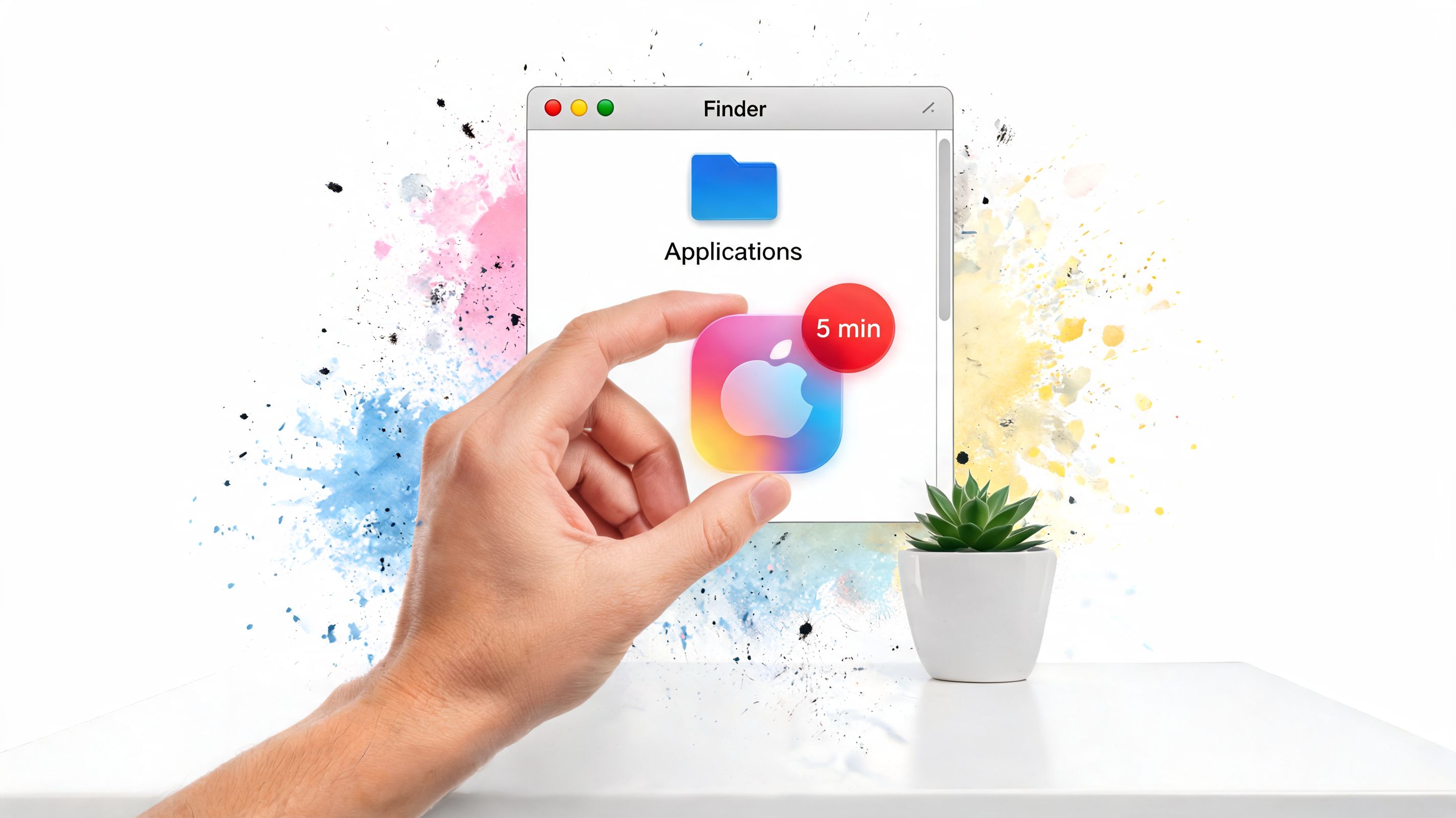
If you want the longer walkthrough first, the guide on how to get live wallpapers on Mac covers the whole process without pretending any of Apple's restrictions are charming.
Download it like a normal Mac app
The direct-download part scares some people because Apple trained everyone to treat the App Store like the only clean room in town. That's not how a lot of serious Mac software works.
What matters is simple:
- It's notarized by Apple: macOS checks that.
- It installs like a standard app: no weird package circus.
- It exists outside the App Store for a reason: native lock screen wallpaper support needs room the sandbox doesn't give.
Pick something good and stop overthinking it
On first launch, browse the gallery and choose a scene that fits the mood you want on your machine. Not the mood you think a productivity YouTuber would approve of. Your Mac can be rainy, cosmic, cozy, dark, purple, absurdly neon, or all of the above by Thursday.
You click the wallpaper. It gets applied.
Practical rule: your first wallpaper should be obvious. If you hesitate between twelve choices, pick the one you'd still want to see at 8:17 on a Tuesday.
The app's default behavior is sensible. Lock screen gets the cinematic treatment. Desktop can stay on a still image until you want motion. You don't need to babysit settings before seeing the fun part.
Mastering Your Aesthetic: From Cozy Fireplaces to Neon Rain
The fun part starts after setup, when you realize your Mac doesn't have to look like a showroom display. It can look like you own it.
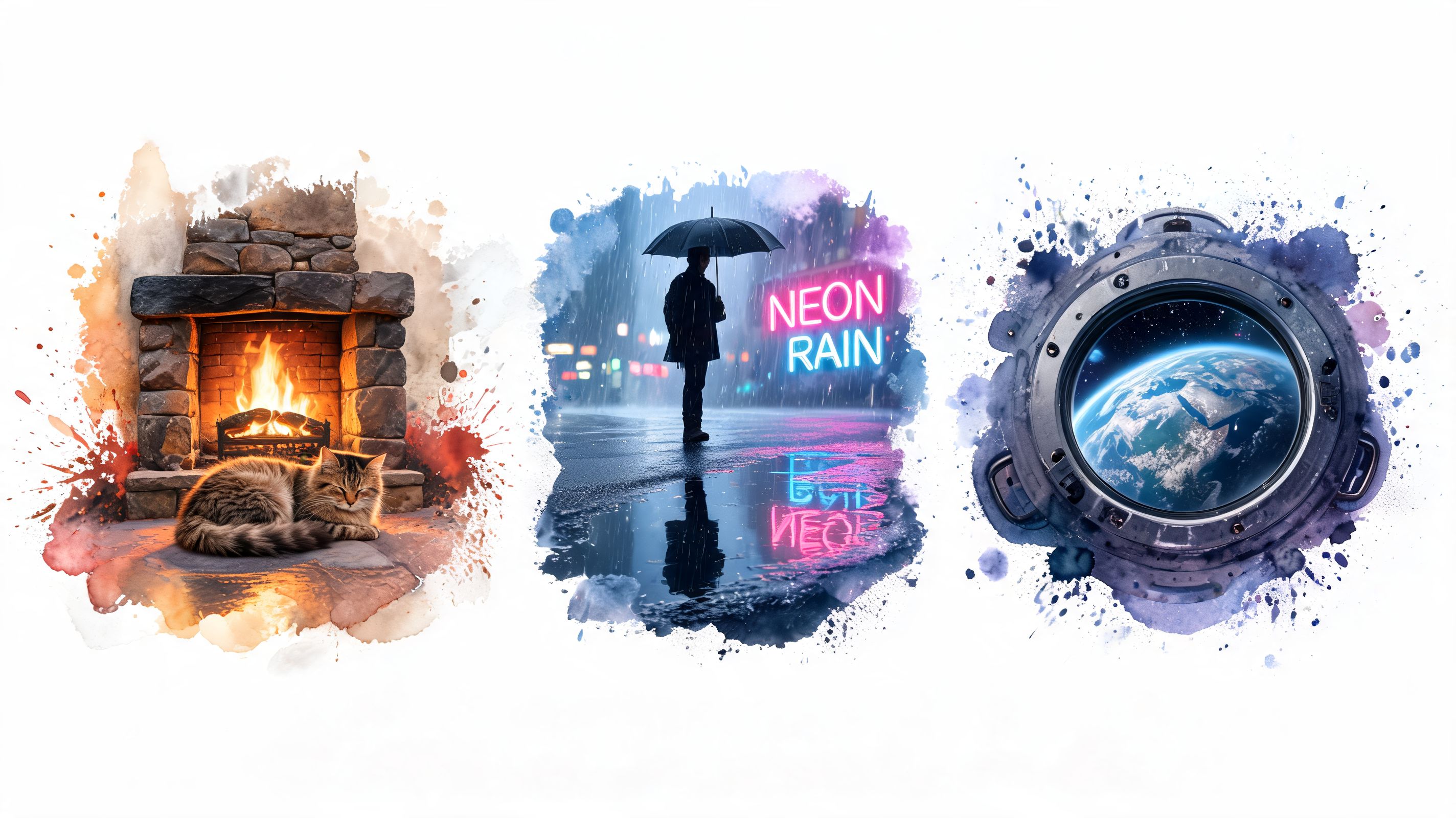
A good wallpaper gallery shouldn't just sort files. It should help you find a mood. Some days that's warm lamplight and crackling fire. Some days it's purple rain and reflective pavement. Some days it's a window seat in space because adulthood is strange and your laptop is your little spaceship now.
Cozy without the smoke alarm
Fireplace scenes work because they do one job well. They make a desk feel less clinical.
If that's your thing, the fireplace wallpaper collection leans into warm light, cabin energy, and the kind of atmosphere that suggests soup exists somewhere nearby.
Lofi scenes sit in a nearby lane. Softer lighting, slower motion, more "I'm definitely focusing" than "I have become one with the spreadsheet." The lofi wallpaper collection is useful if you want your Mac to look like it listens to rain sounds voluntarily.
Neon, night rain, and suspiciously cool weather
Then there's the opposite approach. Wet streets. Signs glowing in magenta. A city that looks expensive and slightly illegal.
The neon wallpaper collection is where you go when you want your desktop to look like a detective novel accidentally swallowed a synth album.
For darker setups, mixing a moody desktop with a matching screen saver works better than people expect. It makes the whole machine feel intentional instead of patched together over months of random downloads.
Space for when Earth feels a bit overbooked
Space wallpapers solve a different problem. They make visual noise disappear. Fewer objects, deeper contrast, more breathing room.
A few practical tweaks help once you've chosen the vibe:
- Use still mode on the desktop while working: motion on the lock screen does most of the theatrical heavy lifting.
- Match your screen saver to the same aesthetic: your Mac feels more polished when idle states agree with each other.
- Rotate by mood, not novelty: if a wallpaper still feels good after a week, it's doing its job.
Optimizing Performance Without Sacrificing Beauty
The first question people ask about live wallpapers on Mac is usually some version of "will this cook my laptop?" Fair question. A lot of bad apps trained everyone to expect nonsense.
The short answer is that implementation matters far more than the idea itself. A native-style video wallpaper using hardware acceleration behaves very differently from a sloppy app brute-forcing playback in the background.
The part that surprises most people
Advanced Mac live wallpaper setups can use as little as 0.3% CPU when they rely on hardware-accelerated video decoding, and that can be lower than the CPU needed for continuous scaling of a high-resolution static image, according to Cindori's guide to dynamic wallpapers on Mac.
That sounds backwards until you remember that modern Macs are very good at decoding video efficiently. They are much less impressed when an app ignores the native path and makes the CPU do extra work for no reason.
Bad live wallpapers feel like a gimmick. Efficient ones feel invisible until you notice how much nicer your desktop looks.
The settings that actually matter
If you care about battery and smoothness, focus on choices that change real behavior:
- Keep desktop animation optional: a still frame during work hours is often the sweet spot.
- Prefer properly encoded video sources: badly prepared files tend to cause the mess people blame on "live wallpapers" in general.
- Watch your machine like an adult: if you're curious, use Activity Monitor or a dedicated monitor and compare idle behavior. The guide on monitoring Mac performance is useful if you want to sanity-check what your setup is doing.
A practical pattern often works well. Let the lock screen have the cinematic flourish. Let the desktop stay calm unless you're in the mood for movement. You get the visual payoff without turning your Mac into a tiny portable sauna.
Frequently Asked Questions About Live Wallpapers
The Mac wallpaper app market is fragmented, with no clear macOS equivalent to the dominant Windows option. That has led to a pile of outdated tools and apps that don't support modern features like the native lock screen, which is why the category feels so messy in the first place, as described in Setapp's review of live wallpaper alternatives for Mac.
Is it safe if it isn't on the App Store
Yes, if the app is notarized by Apple and downloaded from the official site. The absence of an App Store listing isn't automatically suspicious. In this case, it's a consequence of Apple's sandbox rules. Native lock screen wallpaper support doesn't fit neatly inside that box.
Will it wreck battery life
Not by default. A well-built live wallpaper app can be very efficient, especially when it uses hardware video decoding and sensible desktop behavior. If you're working on battery and want the lowest overhead, use the still desktop mode and keep the cinematic bits for the lock screen.
Can I use my own videos
Not yet. That's the honest answer.
This is also the question Mac users ask most often, especially anyone arriving from Wallpaper Engine on Windows. Apple's built-in wallpaper system doesn't let users add custom videos to the native library, which is why the whole category exists in this awkward state to begin with. Until a tool handles that cleanly, curated galleries are the practical route.
How does the free trial work
You get a 7-day free trial, no credit card required, with access to all wallpapers and features. If you decide to buy, it's $4.99 as a one-time purchase, not a subscription, and there's a 30-day money-back guarantee. The app requires macOS 26 Tahoe or later.
Why bother with a separate app when macOS already has wallpapers
Because Apple's built-in system gives you a curated collection, not real control. If you like Apple's choices, great. If you want your Mac to wake up to a neon alley, a cat by a fireplace, or a slow-moving sci-fi skyline that Apple never shipped, the native collection won't help you.
The difference isn't "animated versus static." The difference is "Apple's wallpaper taste" versus "your wallpaper taste."
Does the lock screen really matter that much
Yes, more than people think. That's the first thing you see every time you open the machine. If the desktop is where you work, the lock screen is where the computer makes its first impression. Might as well let it have a little personality.
If you want your Mac to look less like a showroom model and more like something you chose, gifPaper is the direct route. The site lets you browse the wallpaper collection for free, and the Mac app handles the part Apple still makes weird: setting live wallpapers on the lock screen, desktop, and screen saver using the native system instead of a fake overlay.