Your Guide to the Best Wallpaper Free Mac Sources in 2026
You're here for one reason: you want a wallpaper free mac users will love, and you're sick of Apple's default options. The good news is the internet is drowning in free images. The bad news? Most of them look like a blurry mess on a Retina display, and the good stuff is hard to find.
Where to Find Great Free Mac Wallpapers
Stare at your Mac long enough and you realize Apple's defaults are fine—they're like a school uniform. Functional, but definitely not you. This roadmap cuts straight to finding high-quality, free wallpapers that actually work.
The Usual Suspects: Stock Photo Sites
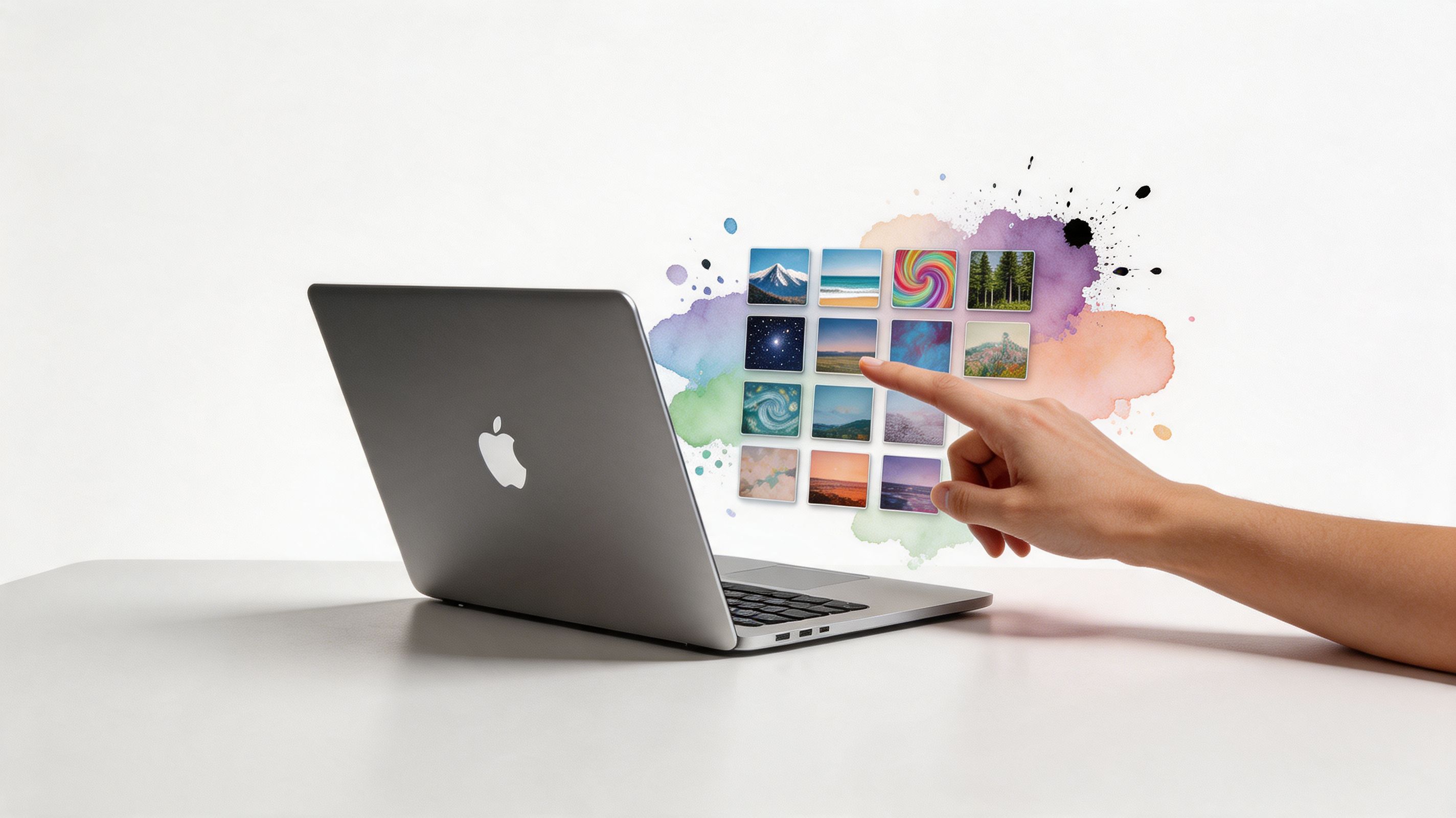
Your first stop will probably be the big, free stock photography websites. You know the ones.
- Unsplash & Pexels: These are the titans of free, high-quality photography. The image quality is generally incredible, which is exactly what you need for a crisp Retina display. The downside? You'll spend a lot of time sifting through generic landscapes and artfully arranged coffee cups to find something with actual personality.
Think of it like a thrift store. There are absolute gems in there, but you have to dig past mountains of stuff you'd never want. It takes patience and some creative searching.
The Deep Cuts: Community Wallpaper Galleries
Next up are the dedicated wallpaper communities. These sites are built by and for people who care way too much about their desktops, which is great for the rest of us.
Sites like WallpaperCave and WallpaperSafari have exploded over the last few years. You can find hundreds of thousands of images, with some platforms hosting over 1,000+ curated collections. The sheer volume is both a gift and a curse.
These platforms are perfect for niche interests. Looking for a specific scene from a video game or an anime? You'll probably find it here. But quality control is the main drawback. Since many images are user-uploaded, resolutions can be inconsistent, and you might stumble upon a perfect image ruined by a watermark.
The Curated Option: Browsing Live Wallpaper Collections
The final option is browsing curated web collections. This is where you can find premium-quality live wallpapers for free—at least to look at. It's a way to see what's possible beyond a static JPEG and sets the stage for a desktop that's truly alive. Sites like gifPaper let you browse the entire catalog of over 150 seamless 4K video wallpapers for free on the web.
How to Change Your Mac Wallpaper
Alright, you've found the perfect image. Now what? Changing your desktop background is one of the easiest ways to make a Mac feel like your Mac. The whole process is simple, but Apple has a habit of tucking the settings away where you might not think to look.
Here's how to get it done, no fluff.
Changing Your Desktop Background
First things first, let's get that new static image showing up behind your icons. The steps are the same whether you're using one of Apple's built-in options or a custom image you've downloaded.
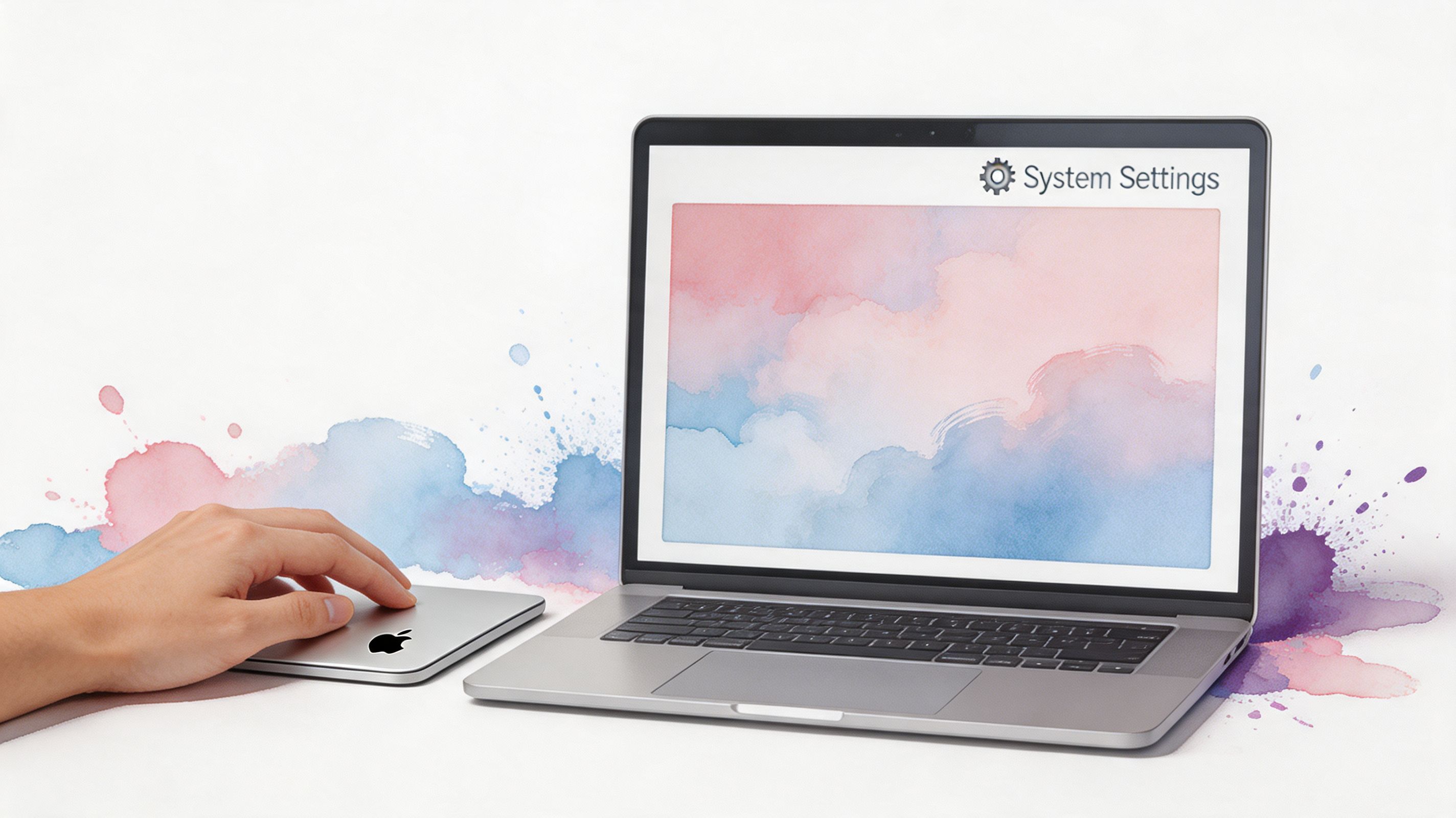
- Open System Settings. You'll find it in your Dock, or you can click the Apple menu () in the top-left corner.
- Find the Wallpaper section in the sidebar. It's pretty hard to miss.
- On the right, you'll see Apple's default collections. To use your own, click the Add Folder or Add Photo Album button.
- Just point it to the folder where you saved your downloaded wallpaper. Once it's added, you can click your image from the thumbnail gallery to set it.
There's a faster way, too. Find your image file in Finder, right-click (or Control-click) it, and choose Set Desktop Picture. It's the quickest method, but using System Settings gives you a bit more control.
The Limits of Native macOS
This all works beautifully for static images like a JPEG or PNG. But what if you want something that moves? Maybe a cozy fireplace video or a cool animated loop?
This is where you hit a wall. macOS, out of the box, does not let you set a video file (like an MP4 or GIF) as your desktop background. More importantly, it won't let you put one on your lock screen, either.
To see just how different the process is, here's a quick comparison of setting a static wallpaper versus using an app like gifPaper for a live one.
| Feature | macOS Default (Static) | gifPaper App (Live) |
|---|---|---|
| Setup Process | Find image, right-click, "Set Desktop Picture" | Open app, browse gallery, click to set |
| Lock Screen Support | Yes, but static only | Yes, full video on wake |
| Customization | Your own photos | Curated, seamless 4K video loops |
| Ease of Use | Simple, but limited | One-click, no file management needed |
The table really tells the whole story. macOS makes static images easy but draws a hard line at video, forcing you to use dedicated apps for anything more dynamic.
You can technically set your screen saver to a video, but the desktop and lock screen—the places you see most—are stuck with still images. This is the frustrating gap that apps exist to fill. You can't wake your Mac to a crackling fireplace; you can only wake it to a photo of one. This limitation is exactly what inspired me to build a better solution.
Why Wallpaper Resolution and Format Matter
So you've found the perfect wallpaper. Now for the most important part: making sure it doesn't turn your gorgeous Mac Retina display into a blurry, pixelated mess from 2003.
Not all images are created equal. Grabbing the wrong one is like trying to stretch a postage stamp over a billboard—it's just not going to look right. This is where a few technical details like resolution and format become surprisingly important. You don't need a degree in digital imaging, just enough to avoid the disappointment of a fuzzy background.
Resolution: The King of Crispness
Resolution is just the number of pixels in an image, written as width x height (like 1920x1080). A Mac's Retina display packs an insane number of pixels into a small space. This is what makes everything look so sharp, but it's also merciless when it comes to low-quality images.
-
HD (1920x1080): This is the absolute bare minimum. It might pass on a smaller MacBook Air, but on a big iMac or a Studio Display, you'll definitely start to see the fuzz.
-
4K (3840x2160) and up: This is the sweet spot. A 4K image has more than enough detail to look incredible on any Mac screen, from a 13-inch laptop to a 27-inch desktop. Anything 5K or higher is just gravy.
Think of it this way: using a low-res wallpaper on a 4K screen is like stretching a small rubber band over a giant canvas. It's going to look thin, distorted, and frankly, a bit sad. Always aim for a resolution that's at least as big as your screen's.
File Format and Why Videos Don't Just Work
For static images, you'll mostly run into JPG and PNG files. JPGs are the workhorse, offering a great balance between quality and file size. PNGs can be higher quality and support transparency, but the files are often huge. For a wallpaper, a high-quality JPG is almost always the right call.
But what about video? You find a slick MP4 loop online and try to set it as your background, only for macOS to say no. That's because your Mac can't natively use video files as a desktop wallpaper. It's built to handle a single, static image, and making it play a looping video requires a dedicated app to do the heavy lifting.
For a deeper dive, our guide to high-resolution Mac wallpapers explains why all this matters for your screen. It's also why curated sources that offer properly formatted 4K wallpapers are worth their weight in gold—they've already done all the technical grunt work for you.
The Problem with Live Wallpapers on Mac
Static images are fine, but the real fun starts when your desktop actually moves. It's the difference between a framed photo and a living window. I'm not talking about the crusty, low-res GIFs from the early 2000s that would make your laptop's fan scream for mercy. Modern live wallpapers are seamless, looping 4K video—think a crackling fireplace on a cold night or cherry blossoms gently falling.
While Windows users have had options like Wallpaper Engine for years, the Mac ecosystem is a totally different beast. If you want video on your desktop, you need an app. And they are not all created equal.
The Two Kinds of Live Wallpaper Apps
There are basically two ways an app can put a moving wallpaper on your Mac, and the difference between them is massive.
-
The Hacky Overlay: Most apps use a simple but broken trick. They create a special window that plays a video and just stick it to the back of your desktop. Sure, it looks like a wallpaper, but it's just a window covering your real one. This method almost always covers your desktop icons or forces you to hide them completely, which is a terrible trade-off.
-
The Native Method: A much, much better way is to integrate directly with macOS itself. This approach treats the live wallpaper like a real system component, just like Apple's own Aerial wallpapers. Your icons sit on top naturally, and it doesn't feel like a workaround because, well, it isn't one.
What to Look For in a Live Wallpaper
When you're ready to move past a static image, you want something that works with your machine, not against it. A good live wallpaper should just work. You shouldn't have to hide your files or change how you use your computer just to make it look nice.
Look for apps that offer a seamless experience. You want clean integration, whether you're after a tranquil fireplace or a clean minimal look. The whole point is a desktop that's both beautiful and functional, not one that forces you to pick a side. The right app makes your desktop feel alive without all the technical headaches.
A Better Way to Set Live Wallpapers on Mac
So, you've tried the hacky overlays. You've hit the wall of what macOS lets you do. It's pretty clear that if you want a live wallpaper that doesn't feel like a kludgy compromise, you need a dedicated app. One that actually plays nice with your Mac.
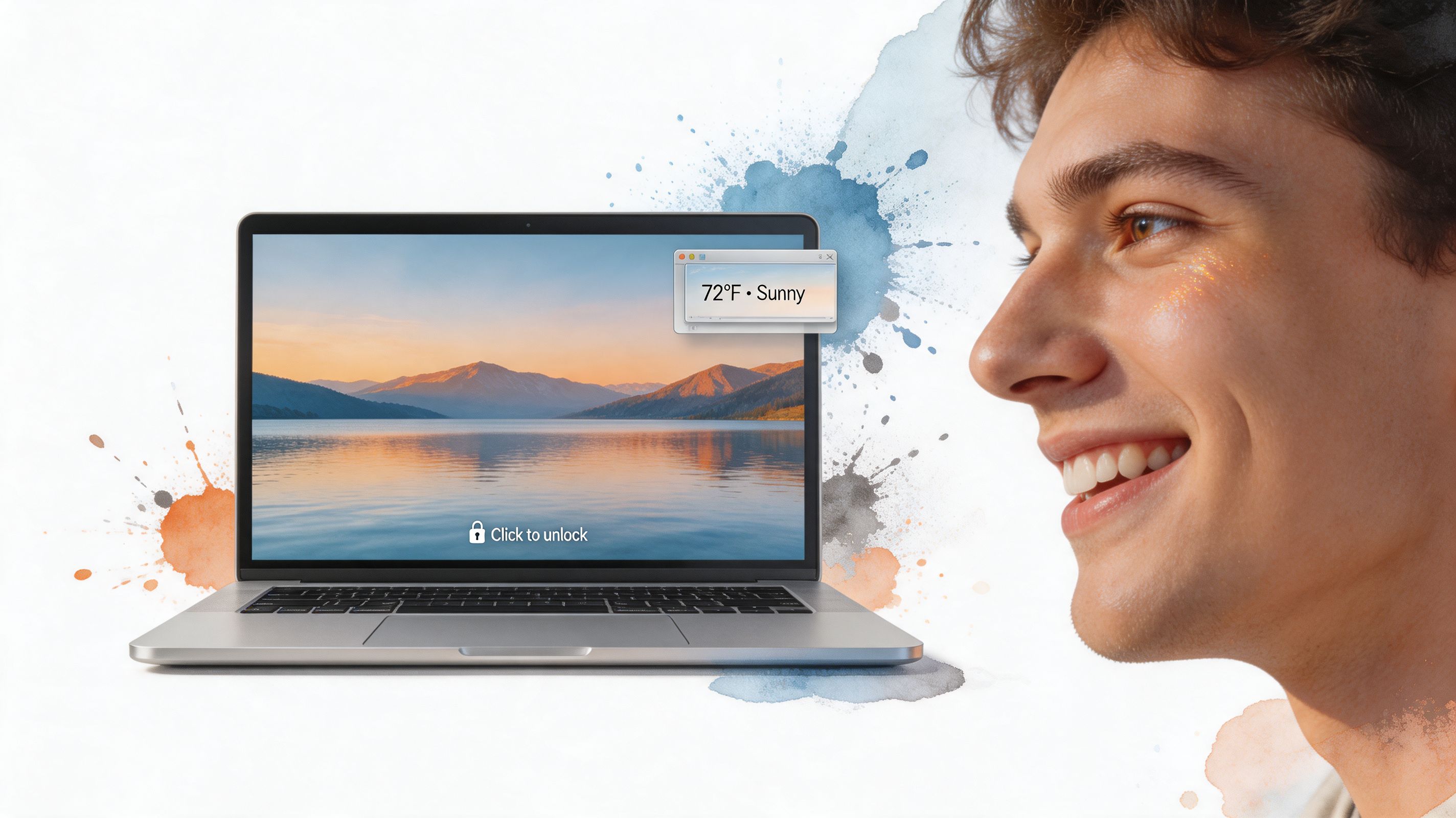
This is the part where I introduce the fix. I built gifPaper for Mac to be the solution I couldn't find anywhere else. It's the first and only app that uses Apple's own native Aerial wallpaper format to set custom wallpapers.
The Native Difference
What does "native" actually mean? It means your live wallpaper works on the Lock Screen—exactly like Apple's does. When you wake your Mac, you're greeted by a living, breathing scene that slows to a stop as you unlock. No other app can do that. It's a small detail, but it makes all the difference.
With a single click, you get a 4K looping video that works seamlessly across your entire system:
- Lock Screen: Wake your Mac up to a moving world.
- Desktop: Shows a beautiful still frame by default to save your battery, with a simple toggle for full video animation when you want it.
- Screen Saver: A gorgeous, full-screen video that actually makes screen savers worth looking at again.
This is a combination nobody asked for but everyone secretly needed. The same wallpaper, everywhere.
An Offer That Respects Your Wallet (and Your Intelligence)
Most apps in this space are pushing subscriptions. That's not how gifPaper works.
The price is $4.99. That's a one-time purchase, not a monthly fee. You buy it, you own it. It's the launch price, so it's the cheapest it will ever be. A simple, honest approach to making your Mac look great without the subscription fatigue.
To make the decision a no-brainer, there's a 7-day free trial. No credit card required. You get full access to the entire collection of 150+ wallpapers and every single app feature. Go ahead, explore the whole collection and find your perfect vibe.
It's a totally risk-free way to see if a beautifully designed desktop is for you. If you spend hours in front of your Mac every day, it's a small investment in making that time just a little more pleasant. For a complete rundown, check out our detailed guide on how to get live wallpapers on Mac.
Frequently Asked Questions About Mac Wallpapers
You've got questions. I've got answers. Let's get the common worries out of the way.
Is It Safe to Download Free Wallpapers?
Mostly, yes, but you have to be smart about it. Grabbing a JPEG or PNG from a trusted site like Unsplash is as safe as saving any other picture.
The real danger comes from sketchy websites that hide wallpapers inside installers (.dmg or .pkg files). Never, ever run an installer just to get a wallpaper. That's how you get malware.
A safer bet is to use an app like gifPaper for Mac. It's distributed directly, not on the Mac App Store, because Apple's sandboxing prevents the live lock screen feature from working. But the app is notarized by Apple, which is their fancy way of saying they've scanned it for malware and given it the all-clear before it can even run on your Mac.
Do Live Wallpapers Drain Your Battery?
This is the big one. The short answer: a little, but not nearly as much as you think, especially if the app is designed well.
Lazy apps will absolutely destroy your battery by just playing a video on a loop in the background. That's why gifPaper handles it differently. By default, it puts a crisp, beautiful still frame on your desktop to save power. Zero battery impact.
If you want the full animation while you work, you can toggle it on, but you're in control. The video only plays when the app is in focus or when you first wake your Mac on the Lock Screen. It's a smart compromise. You get the aesthetic without your MacBook sounding like it's preparing for liftoff.
How Is the Free Trial Really Free?
The gifPaper trial is 100% free for 7 days. No credit card required. No fine print. Just download the app from the website and you get instant, full access to all 150+ wallpapers and every single feature.
There are no gotchas. If you decide it's not for you after a week, just drag the app to the trash. If you love it, it's a one-time purchase—not a subscription. It's a completely risk-free way to see if you like it.
Ready to stop staring at a boring desktop? The entire collection of cozy fireplaces, neon cityscapes, and lofi vibes is right there, waiting. Give your Mac the living background it deserves.
You can try gifPaper completely free for 7 days, with no credit card required. See all the wallpapers and features for yourself at gifpaper.com/macos-app.