
7 Best Christmas Moving Wallpaper Apps for Mac (2026)
Meta description: The best Christmas moving wallpaper apps for Mac, from native lock screen video to simple snow effects. Festive, practical, and no blurry GIF nonsense.
Your Mac needs more tinsel. And maybe some snow.
It's that time of year. Your inbox is a relentless barrage of holiday sales, and your calendar is a monument to questionable party planning. Yet your Mac, the machine you stare at for hours a day, is still showing you a picture of a sand dune from three OS updates ago. Time to fix that.
Turning your screen into a festive wonderland with a Christmas moving wallpaper isn't just about aesthetics. It's a small act of defiance. A way to feel cozy even when you're clearing out junk mail and pretending that this spreadsheet is somehow part of the holiday spirit.
This also isn't about grainy little GIFs wheezing across a Retina display like they've been thawed out from 2005. There are over 661 Christmas live wallpaper stock videos on Shutterstock, which tells you the appetite for high-definition holiday motion backgrounds is very real. The problem is that most of those files are raw assets for editors, not Mac-ready wallpaper setups.
If you want actual moving Christmas scenes on macOS, and especially on the lock screen, you need the right app. If you just want a place to browse ideas first, the winter wallpaper collection and Christmas wallpapers are a good place to start.
1. gifPaper for Mac
Open your Mac in December and you can tell, immediately, whether your wallpaper app was built for macOS or merely tolerated by it. gifPaper falls into the first camp. It gives you actual video wallpaper support for the desktop, lock screen, and screen saver, using Apple's wallpaper system instead of the old fake-it-with-a-screensaver routine.
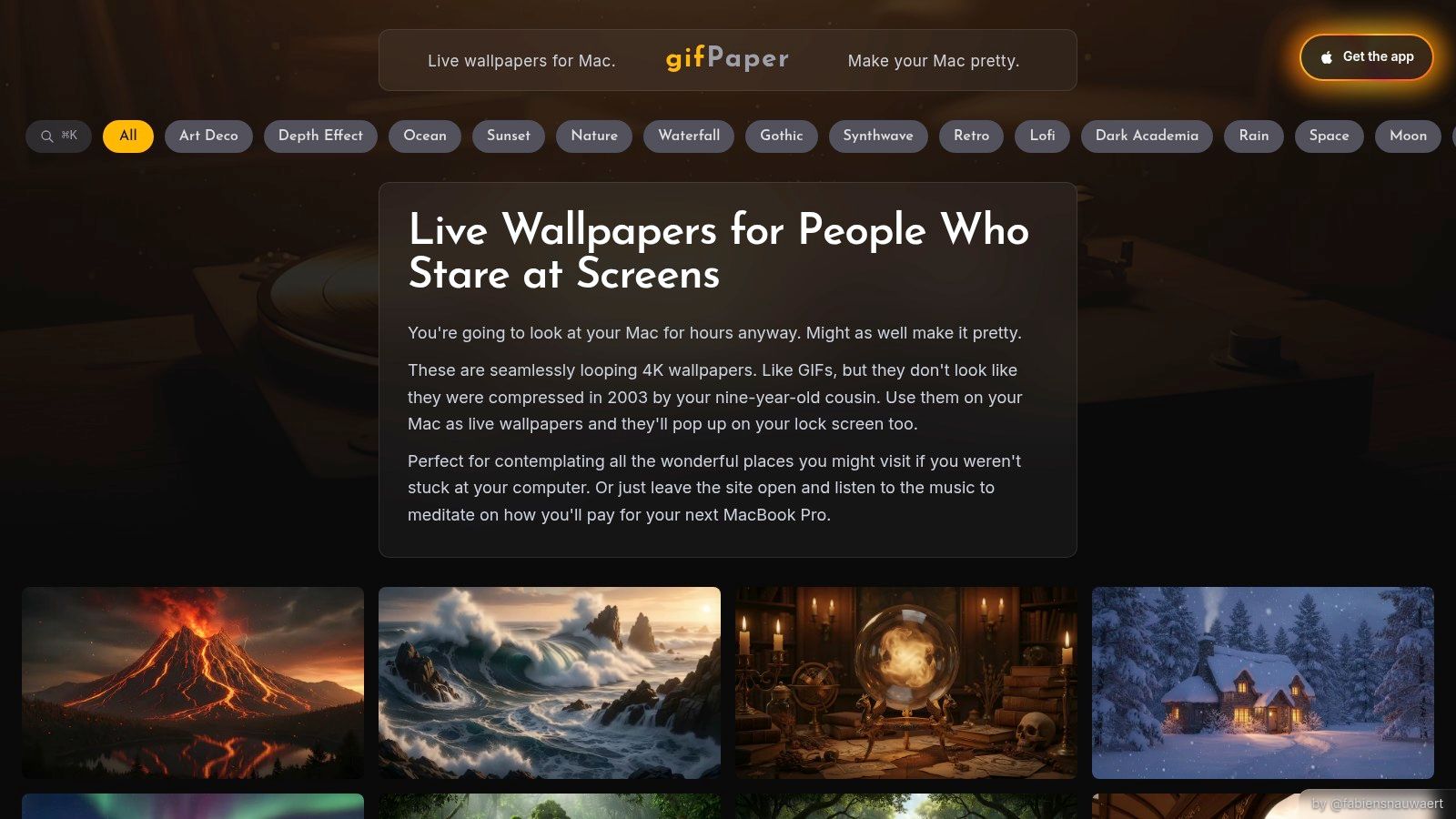
That difference matters more than it sounds. Plenty of apps can make a desktop move. Far fewer handle the lock screen properly, which is the part most web-based hacks and GIF players do not touch. If your goal is a Christmas moving wallpaper that feels like a real Mac feature, this is one of the few options aimed at that job from the start.
The library is curated instead of bloated. Expect fireplaces, snowy cabins, winter streets, cozy rooms, Christmas illustrations, and the sort of loops you can leave running all day without regretting your life choices by lunch. Some wallpapers include ambient audio, which sounds excessive until you hear soft snowfall or a crackling fire and realize your desktop has become weirdly calming.
Why it feels more native
Apple's Aerial wallpaper behavior in macOS Sonoma set the bar for how video wallpaper should work, especially the transition between the Lock Screen and desktop. iDownloadBlog's Sonoma overview explains that shift well. gifPaper follows that model closely, which is why it feels integrated instead of bolted on.
That is a big step up from older wallpaper tools. The original unsupported GIFPaper used the screen saver workaround, and OSXDaily documented that older method. It functioned, in the same way a folding chair can function as a ladder.
Here's a good example of the vibe:
Best for
- People who care about the lock screen: It uses Apple's wallpaper system, so the result feels like macOS, not a visual trick running on top of it.
- Anyone who wants curated holiday options: No hunting down video loops, testing file formats, or figuring out why one clip stutters and another looks washed out.
- Buy-once Mac users: 7-day free trial with no credit card, then a $4.99 one-time purchase, plus a 30-day money-back guarantee.
Practical rule: If the lock screen matters, start with an app built for native video wallpaper, not a desktop-only player with festive marketing.
The limitations are clear. It needs macOS 13 or later, and it only works on Mac. If that matches your setup, though, it is one of the cleanest ways to get a Christmas moving wallpaper running across the whole Mac experience, not just the desktop.
2. Wallux
Wallux goes after the clean, modern utility angle. Wallux feels like it was designed by someone who likes tidy interfaces, low friction, and not hearing the laptop fans suddenly audition for a jet engine.
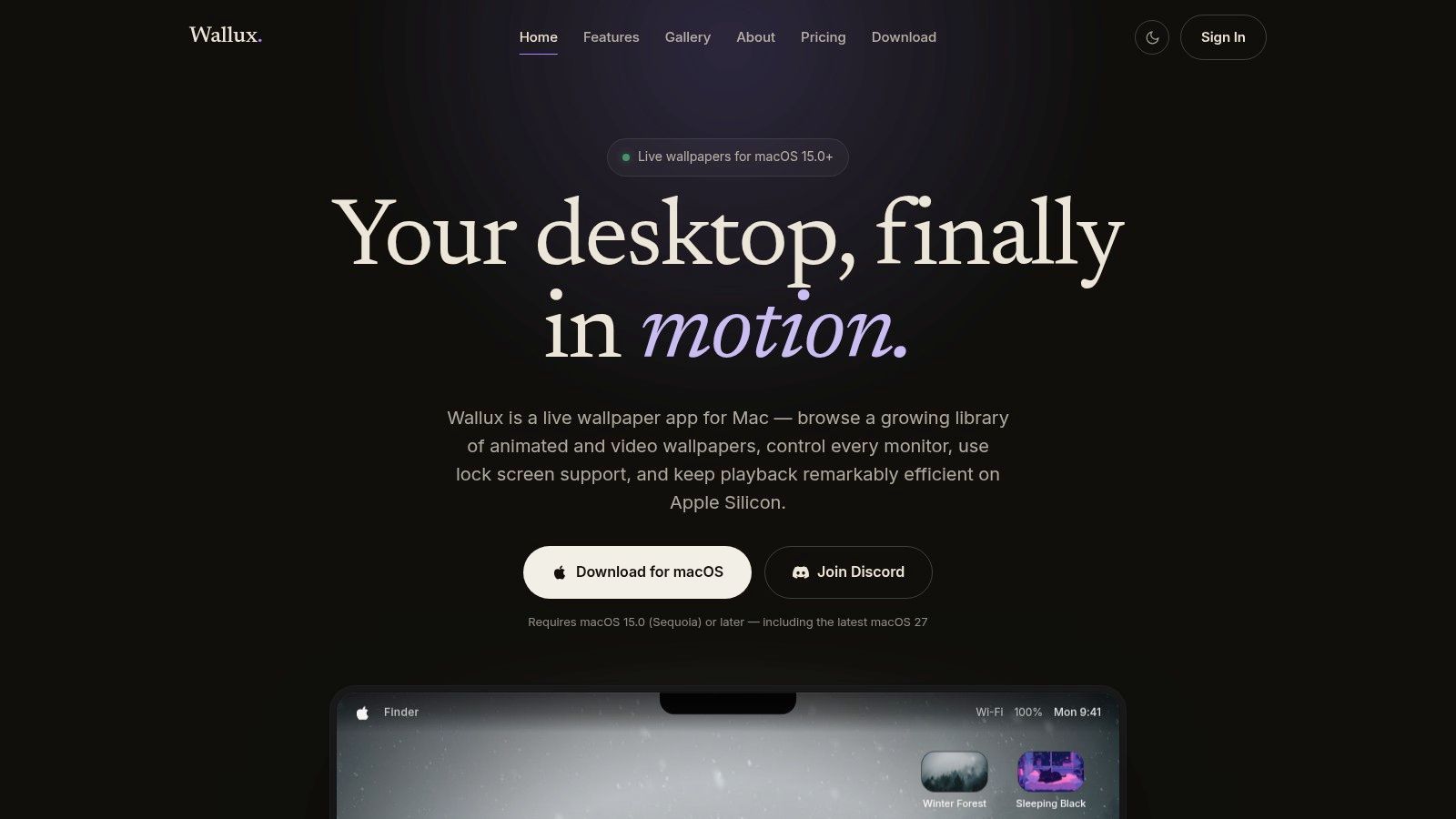
Its gallery includes winter-friendly scenes, so you can get to a festive desktop quickly without bringing your own files. It also handles per-monitor wallpapers, which is useful if one display gets the snowy forest and the other gets to remain a serious grown-up monitor for email and other acts of administrative theater.
Where it fits
Wallux makes sense if you want an integrated wallpaper app but don't need the same level of curation around Christmas and winter scenes that gifPaper offers. It's the more general-purpose pick. You get desktop support, lock screen support on newer macOS versions, and some extra visual effects for people who enjoy a little flourish.
The free tier helps. So does the privacy-minded pitch and the Apple Silicon focus. The trade-off is simple. A growing gallery is still a growing gallery.
Wallux is the app for people who want control and a modern engine first, then holiday flavor on top.
- What works well: Per-monitor setups, clean app design, built-in seasonal options.
- What doesn't: If you want a heavily curated Christmas aesthetic right now, the selection can feel smaller.
- Who should choose it: People who value efficiency and a polished utility more than a themed content library.
If your desktop setup is more "multiple displays and strict preferences" than "give me a cat by a fireplace immediately," Wallux is a solid fit.
3. iScreen
iScreen is less wallpaper app, more desktop customization toy chest. If your idea of holiday spirit includes clocks, calendars, widgets, system meters, photo panels, and a moving background all coexisting in a carefully arranged little kingdom, this one will make sense fast.
The video wallpaper support is the key bit here. You can loop your own Christmas scene, then stack widgets over it for a full holiday dashboard. It's a different philosophy from dedicated wallpaper apps. Less "set it and enjoy the ambience," more "build your own festive command center."
The real trade-off
That flexibility is nice until it isn't. Dedicated wallpaper apps usually feel simpler because they are simpler. iScreen gives you more freedom, but it also gives you more opportunities to overdecorate your desktop like a digital department store window.
If you only want a Christmas moving wallpaper, iScreen may be more app than you need. If you enjoy customizing every square inch of your Mac, it's a better fit.
- Best feature: Widgets and wallpaper in one app.
- Best use case: Students, tinkerers, and anyone who likes a themed desktop setup that looks intentionally assembled.
- Limitation: Live video on the lock screen isn't the main event here.
There's also a practical point. App Store distribution is convenient, but it comes with platform limits. For pure lock screen wallpaper ambition, dedicated direct-download Mac apps tend to have more room to operate.
4. Hologram
Hologram is for the bring-your-own-video crowd. Hologram lets you turn a video file, web page, or YouTube page into your desktop background. No curated holiday library, no decorative flourish, just a straightforward player for whatever loop you already found.
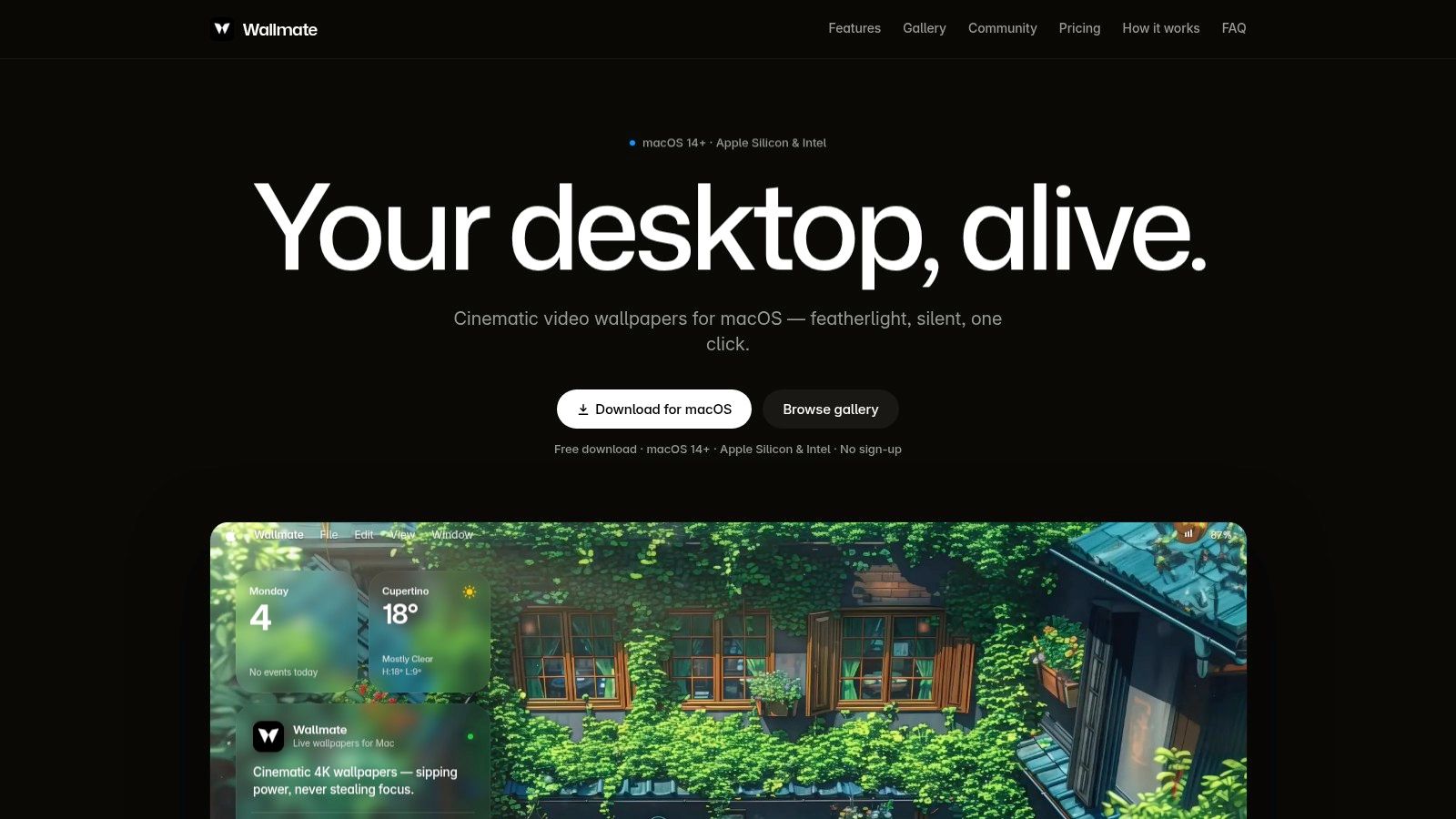
This is useful because there's a weird gap in the market. People can find holiday footage everywhere, but Mac users still struggle to identify true 4K loops that won't look blurry once they're used as a wallpaper. One reason is that most stock files weren't packaged for one-click desktop use in the first place. That gap is part of why so many Mac users ask why their Christmas wallpaper looks soft and wrong.
Best when you already found the perfect loop
Hologram's strength is flexibility. Drop in an MP4 fireplace. Point it at a snowy village video. Feed it a web-based ambient scene. Done.
Its weakness is also flexibility. You're responsible for quality control. If the loop stutters, has an awkward cut, or looks compressed, that's not Hologram being bad. That's Hologram faithfully showing you the thing you chose.
If you already have the video, Hologram is handy. If you still need the video, it gives you exactly zero help.
That makes it a good utility, not necessarily a complete Christmas moving wallpaper solution. Desktop use is where it shines. If lock screen support is your top priority, look elsewhere first.
5. Live Wallpapers HD & Weather
Some people want holiday atmosphere. Some people also want to know whether it's going to rain on the actual holiday atmosphere outside. Live Wallpapers HD & Weather is for that overlap.
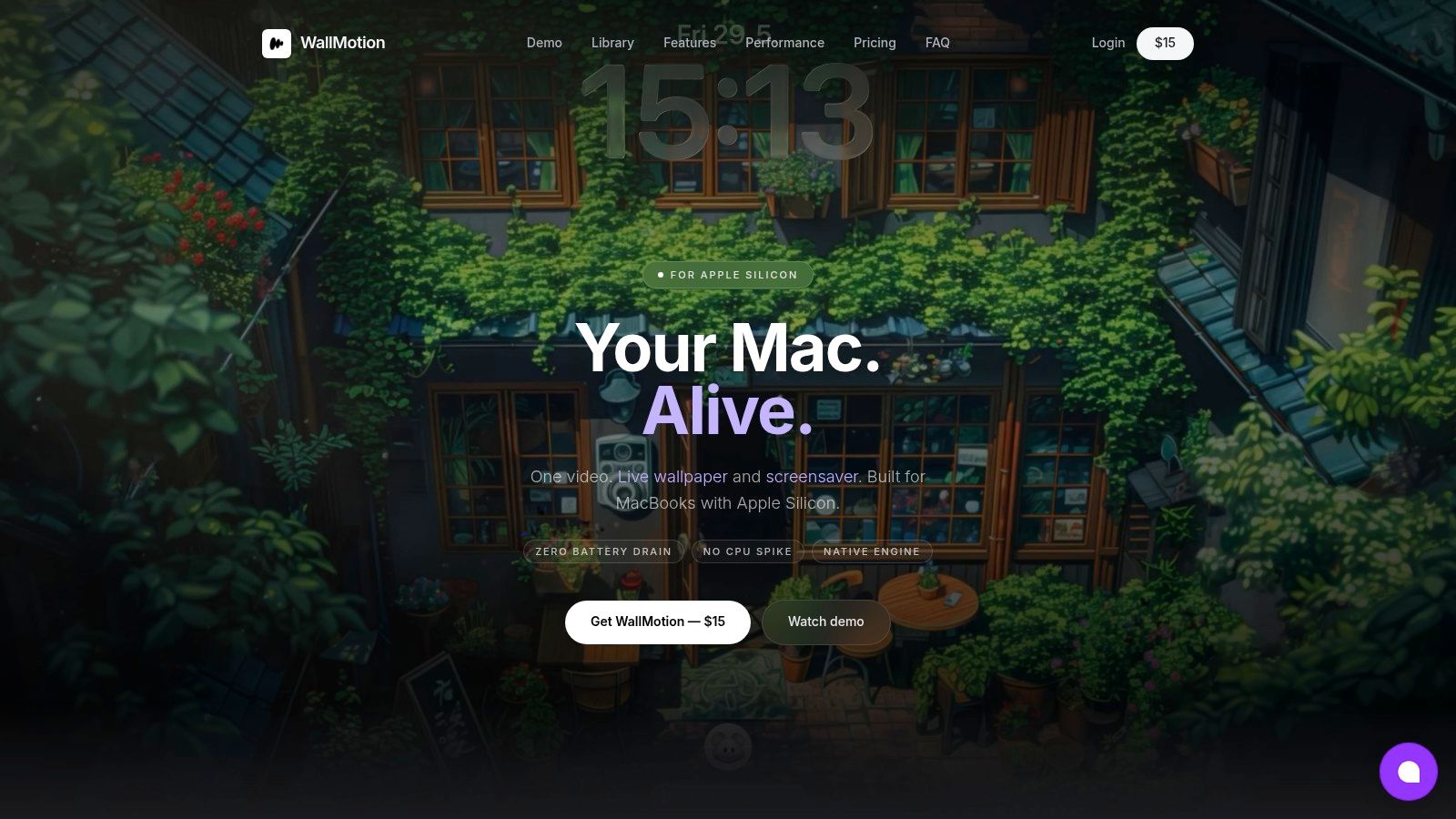
The app combines animated wallpapers with weather and clock overlays. Its library is broader than strictly Christmas, but that's not necessarily a problem. Winter forests, snowy scenes, and general cozy nature backgrounds still do the seasonal job without forcing every inch of the screen to scream Santa.
Why you might like it
This is the functional pick. If you enjoy information on the desktop, this app gives you moving scenery plus useful context. It feels a bit like a weather station that got dressed for December.
The compromise is purity. Overlay-heavy desktops don't feel as cinematic as a dedicated wallpaper app with a clean scene and nothing else. If you want a wallpaper to act like a miniature film, this isn't the strongest option.
For people still comparing setups, this guide to animated Christmas wallpaper ideas on Mac helps sort out when a simple animated desktop is enough and when you'll want proper lock screen video support too.
- Good fit: Anyone who likes practical desktop overlays.
- Less ideal: Minimalists, or people who want the wallpaper itself to do all the mood-setting.
- Bottom line: Handy and festive, just more dashboard than gallery.
6. Snowy
Snowy is delightfully narrow in purpose. Snowy doesn't try to be a wallpaper engine. It adds falling snow and holiday lights over whatever wallpaper you already use. That's it. And, respect for that.
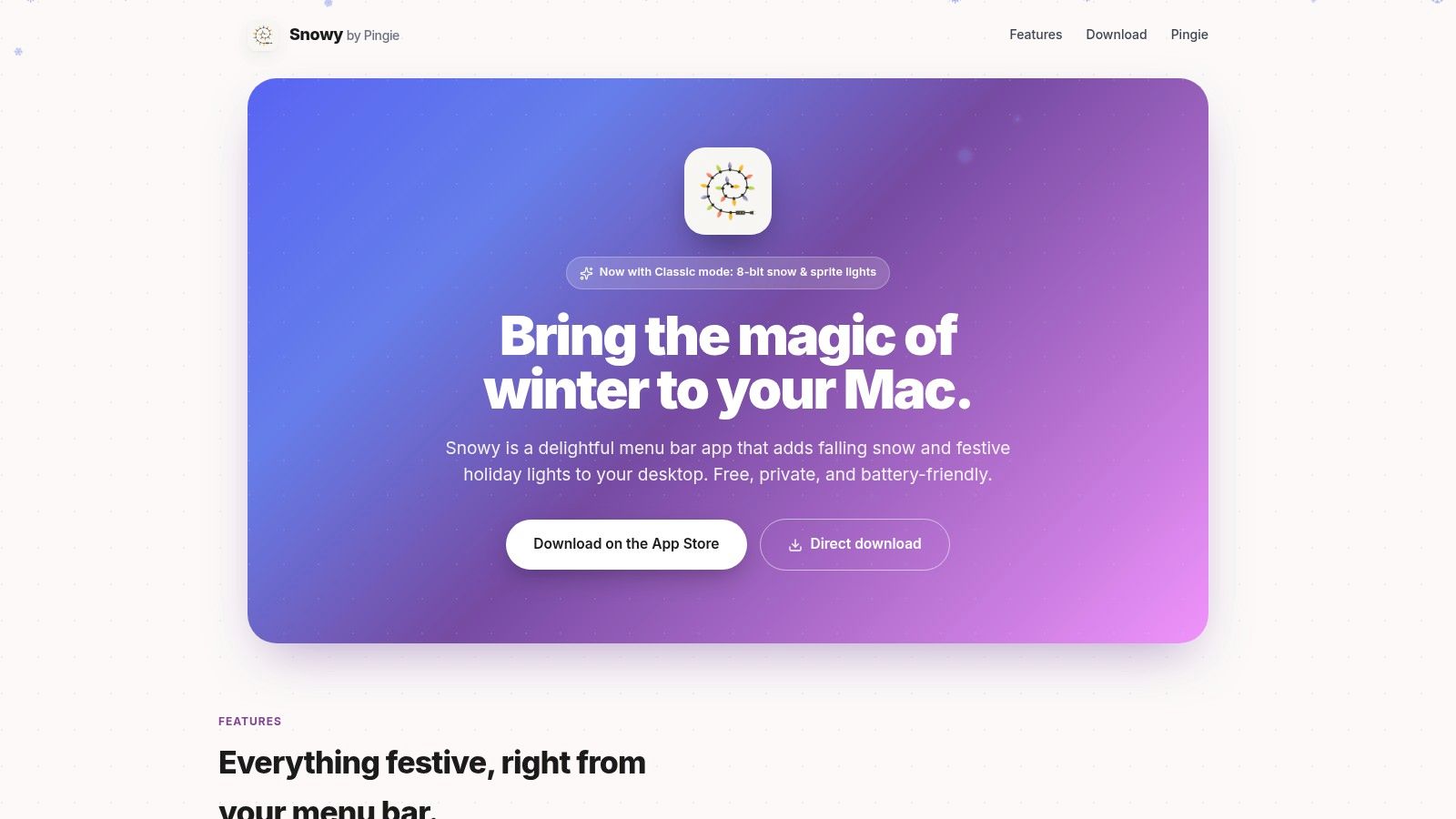
This is the easiest way to make a desktop festive without replacing your background. If you already love your current setup, Snowy acts like seasonal garnish. A little digital cinnamon on top.
Flair beats replacement
A lot of people don't need a full Christmas moving wallpaper. They just want movement. A bit of snowfall. Maybe some string lights. Snowy handles that with almost no learning curve because there isn't much to learn. Toggle it on, adjust the effect, move on with your life.
That simplicity is the whole appeal. It also means Snowy won't solve the "I want a living lock screen" problem. It's not trying to.
If you like the effect-layer idea, this roundup of snow animated backgrounds for Mac gives you more ways to combine snowfall with winter scenes that don't look like blurry old GIFs.
Some desktops need a whole makeover. Some just need snow.
Snowy is free, focused, and charming. That's enough.
7. YouTube
This is the chaotic free option. YouTube has an absurd amount of Christmas material, from fireplace loops to animated holiday streets to lofi winter rooms that look like someone turned seasonal nostalgia into a screensaver.
There are even free holiday apps on mobile platforms, including Christmas Live Wallpapers on the Apple App Store, which shows how common animated Christmas backgrounds have become on phones. Mac is different, though. Phone apps are easy to find. High-fidelity desktop and lock screen solutions are much rarer.
Infinite choice, uneven quality
YouTube works best when paired with a desktop wallpaper player like Hologram or another web wallpaper app. Search well, find a loop, paste the URL, and off you go. If you want complete niche nonsense like a sci-fi Christmas cantina or a 10-hour animated gingerbread train scene, YouTube is where that nonsense lives.
The downside is consistency. Loop quality varies. Some videos have awkward edits. Some are uploaded in ways that don't look great on a large Retina display. Some include ads, which is not the mood when you're trying to create winter serenity.
If you want to try the DIY route first, this guide on how to put video as a desktop background on Mac covers the basic setup. And if your side quest somehow becomes audio extraction, a YouTube to MIDI converter exists, because the internet remains gloriously unwell.
- Best part: Massive free selection.
- Worst part: You have to sort through the mess yourself.
- Who it suits: Tinkerers, niche hunters, and people who enjoy assembling a solution from separate parts.
Christmas Moving Wallpaper, 7-App Comparison
| Item | Implementation complexity | Resource requirements | Expected outcomes | Ideal use cases | Key advantages |
|---|---|---|---|---|---|
| gifPaper for Mac | Low, one-click setup | macOS 13+, 4K-ready GPU; one-time purchase | Native Aerial 4K lock-screen and desktop loops | Users wanting polished, native lock-screen wallpapers | Curated 4K library; native Apple Aerial format; simple setup |
| Wallux | Medium, configurable per-monitor options | macOS 15+ (best on Apple Silicon); very low CPU | Smooth, low-overhead animated wallpapers across displays | Performance-conscious users and multi-monitor setups | Apple Silicon optimization; per-monitor support; low CPU use |
| iScreen | High, many customization options | Moderate–high (widgets, multiple plugins) | Fully customized desktop with live widgets and video wallpapers | Users building a comprehensive desktop dashboard | Combines widgets and dynamic wallpapers in one suite |
| Hologram | Low, drag-and-drop simplicity | Low–moderate (depends on video source) | Any video or web page as desktop background | Users who have their own video loops or YouTube sources | Extremely flexible BYO-video approach; simple UI |
| Live Wallpapers HD & Weather | Medium, wallpaper + weather setup | Moderate (live weather updates; overlays); free/ad tier | Animated wallpapers with real-time weather and clock | Users wanting functional, informative animated backgrounds | Integrated weather and clock overlays; many themes |
| Snowy | Very low, toggle effects from menu bar | Minimal; Apple Silicon optimized; free | Festive overlays (snow, lights) atop existing wallpapers | Users who want holiday effects without replacing wallpaper | Lightweight, free overlay; works with any wallpaper |
| YouTube | Low–medium, sourcing + player app needed | Variable (streaming bandwidth; player app) | Vast selection of festive loops; quality varies | DIY users wanting unlimited free options and niche loops | Near-infinite free content and style variety |
How to Set Your Wallpaper (and a Final Tip)
You spend ten minutes picking the right snowy village loop, then another twenty deciding whether falling snow is charming or a cry for help. The actual setup part is the easy bit.
On a Mac, the primary choice is the type of motion you want. Some apps play video on the desktop. Some add festive flair like snow or lights over whatever wallpaper you already use. The small category that matters most uses Apple's native wallpaper system, because that gives you true video behavior across the desktop and lock screen instead of a fake desktop-only trick.
That difference shows up fast in daily use. Widget-heavy setups can look impressive, but they also make your desktop feel busy. A straight video wallpaper app is usually easier to live with. An overlay app like Snowy goes even lighter. Keep the wallpaper you already like, add snow, and stop fiddling.
If you want the cleanest native setup, gifPaper is still the one I would point to. It handles the lock screen, desktop, and screen saver in one place, which cuts out a lot of pointless setup friction. The practical advantage is control. You can leave a still frame up while working, then switch to full motion when you want the festive effect. That is easier on your eyes, and usually better for battery life too.
Quality matters more than the Christmas theme. A weak clip looks cheap on a Mac display fast, especially on a Retina screen. Bad crops, soft footage, and vertical phone video stretched across a desktop ruin the effect. Good apps and better libraries give you loops that fit the screen properly and hold up once the novelty wears off.
If you want to browse first, start with the fireplace wallpaper collection. If you already know you want native video on the lock screen and desktop, go straight to gifPaper for Mac. The trial gives you enough time to figure out whether you enjoy seeing it every day, which is the only test that matters for a holiday wallpaper.
One last practical tip. If you are stuck between full video wallpaper and festive overlay effects, start lighter. Falling snow over a static wallpaper usually gets most of the Christmas mood with less distraction, less battery drain, and far less risk of turning your Mac into a blinking department store window in December.
If your desktop still looks like a default placeholder, gifPaper is the tidy fix. Browse the live wallpaper gallery on the site, then use gifPaper for Mac to set a real looping wallpaper on your lock screen, desktop, and screen saver. It's direct-download, notarized by Apple, built for macOS 13 or later, and it costs less than a holiday sandwich.