
The Only Live Screensaver for Mac You Actually Need (in 2026)
You're going to stare at your Mac for hours anyway. It might as well be something you enjoy looking at. When people search for a live screensaver for mac, they're almost always looking for one thing: turning that boring, static background into a mesmerizing, looping video.
The term itself is a bit of a mashap. You're picturing a live wallpaper, but you want it to work as your screensaver, and—most importantly—on your lock screen.
Let's clear up the confusion and get you what you're actually looking for.
What Is a Live Screensaver for Mac Anyway?
The old-school screensaver had a practical job: to prevent images from burning into chunky CRT monitors. That problem doesn't exist anymore. Today, it's all about aesthetics. You want a desktop that feels alive, not like a corporate default.
From Practical to Pretty
The wish for a more dynamic desktop isn't new. Apple first tested these waters with dynamic wallpapers in macOS Mavericks way back in 2013, which simply changed based on the time of day. The idea really caught on with macOS Big Sur in 2020, which bundled a bunch of new animated backgrounds.
The trend exploded as remote work became standard practice, turning our desktops into a small digital sanctuary. By 2026, it feels like almost everyone with a Mac has at least tried to find some calming visuals to survive the endless stream of video calls.
But here's the problem: Apple's built-in options are… fine. They're a starting point, but they come with a lot of compromises.
You're not being picky for wanting something better. The default choices are limited. Your desire for a personalized, beautiful workspace is completely valid. If you have to answer emails in your pajamas, you deserve a decent view.
Defining Your Mac's Vibe
A great live wallpaper does more than just look pretty; it sets a mood. It's the difference between some generic landscape and a cozy, rain-streaked window that makes you want to grab a blanket. It's about finding that one perfect scene that makes you smile when you wake your Mac.
You can dig deeper into the different kinds of animated backgrounds in the guide on what live wallpapers are.
The real challenge has always been getting a seamless experience. You want a wallpaper that doesn't just work on your desktop but also greets you on the lock screen—without the clunky workarounds or performance hits that plague most third-party solutions. This is the specific Mac problem I'm here to solve.
Why Apple's Built-In Wallpapers Aren't Enough
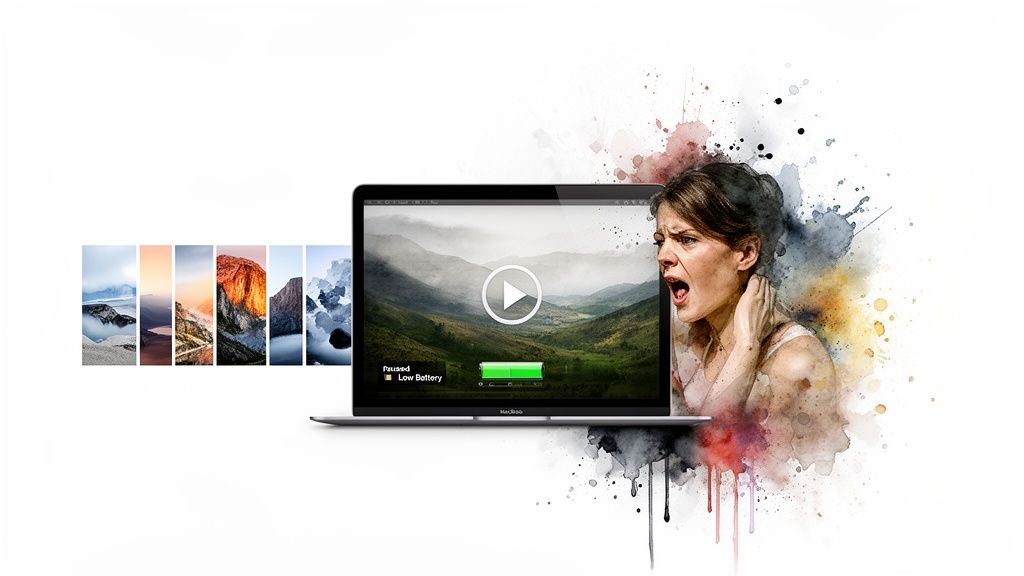
If you've ever watched your Mac's beautiful aerial wallpaper grind to a halt the second you unplug your laptop, you're not imagining things.
Apple's gorgeous live wallpapers are designed with one infuriating "feature": they stop moving the moment you switch to Low Power Mode or run on battery. This isn't a bug. It's a deliberate choice to save power, but it means your carefully curated vibe vanishes the instant you decide to work from the couch.
It's like buying a convertible that only opens in the garage.
The Problem with the Defaults
Beyond the battery issue, the built-in options just feel… generic. The scenes are beautiful, sure, but they have the distinct flavor of being chosen by a committee in Cupertino. They're one-size-fits-all, which means they don't quite fit anyone perfectly.
The real limitations hit you when you want more control.
- No Custom Videos: You can't use your own video clips. Period. You're stuck with Apple's collection of drone footage.
- Limited Selection: The library is finite and controlled entirely by Apple. Want a lofi anime scene or a cat judging you from beneath a Christmas tree? You're out of luck.
- Screensaver vs. Lock Screen: There's a huge technical gap between a simple screensaver and a true live lock screen. This is why so few apps can replicate that fluid, native feel.
The popular Aerial screensaver app brought Apple TV's larger video library to the Mac, but even that is just a screensaver. It can't touch your lock screen.
The frustration is real. You want a single, beautiful video that plays on your lock screen, animates as you log in, and settles on your desktop without compromise. Apple doesn't offer this. Most other apps can't.
Why Most Other Apps Can't Fix It
The core problem is technical. Most so-called "live wallpaper" apps for Mac are just glorified video players running on top of your desktop. Because of Apple's security rules (sandboxing), they can't touch the actual lock screen.
The result is a clunky overlay that doesn't feel integrated, often drains resources, and usually breaks the second you quit the app.
They might offer a "screensaver" function, but that's not the same thing. A true live lock screen is part of the operating system's startup sequence, which is why there's a world of difference between a static image and the more complex dynamic wallpapers on your Mac.
This is where a specialized tool becomes necessary—one that works with Apple's system instead of fighting against it. It's the only way to get the seamless experience you're actually looking for.
How to Set Up Your First Live Wallpaper
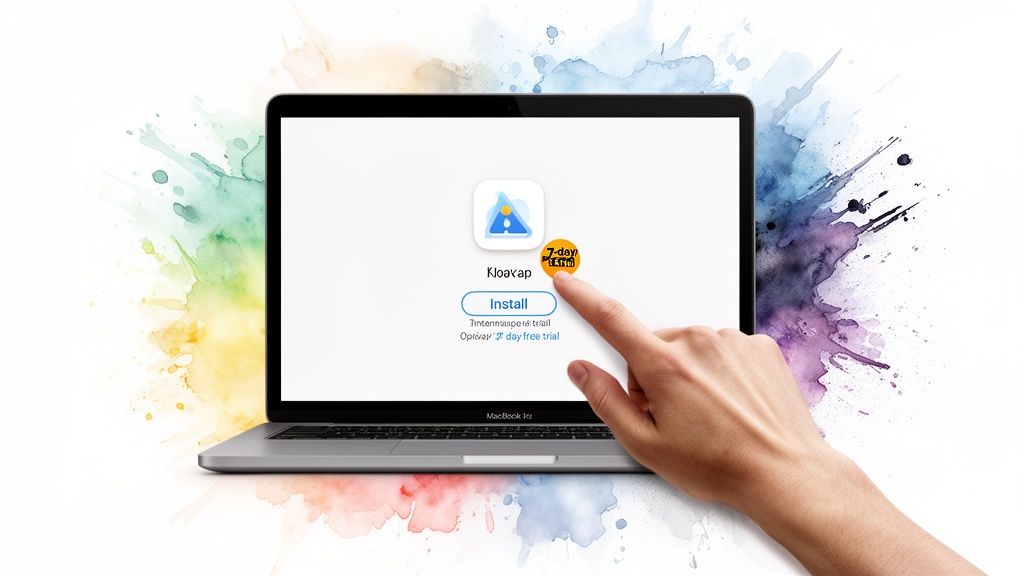
Alright, time to swap Apple's default gradient for something you actually want to look at. Getting your first live wallpaper running with gifPaper is less of a chore and more like an unboxing for your screen. No Terminal commands, no wrestling with System Settings. Just a few clicks.
First, grab the app from the gifPaper for Mac page.
Why isn't it on the Mac App Store? Simple: Apple's rules. To get a true animated lock screen—one that plays video the moment you wake your Mac—an app needs deeper access than the App Store's sandbox allows. I chose to build the best possible experience, and that meant distributing it directly. The app is fully notarized by Apple, which means they've scanned it and confirmed it's safe.
Installing and Activating Your Trial
Once the download finishes, drag the gifPaper icon into your Applications folder. You know the drill.
The first time you launch it, you'll see a prompt to start your free 7-day trial.
There are no hoops to jump through. No credit card required, no surprise auto-renewals. You get immediate access to everything—all 150+ wallpapers and every single feature. Just click to activate your trial, and you're in.
Think of the trial as a week-long test drive. You get the full experience to see if a living desktop is actually for you. If not, no harm done.
Choosing Your First Masterpiece
With the app open, you'll land in the wallpaper gallery. This is the fun part.
You can browse by category, or just scroll until something catches your eye. Maybe you need a cozy fireplace for a rainy afternoon, or a neon-drenched alley to make answering emails feel like you're in a sci-fi movie.
Find one you like? Click on it.
A preview will pop up. To set it, just hit the "Set Wallpaper" button. That's it. In a single click, the animated wallpaper is set on your lock screen, with a matching high-res still image on your desktop.
Go ahead, try it. Lock your Mac (Cmd + Ctrl + Q) and wake it back up. Magic.
This whole process is designed to be as simple as possible. If you want a more detailed breakdown, check out the complete guide on how to get live wallpapers on a Mac.
You've officially escaped the world of static backgrounds. Welcome to the other side.
Mastering Your Mac's New Aesthetic
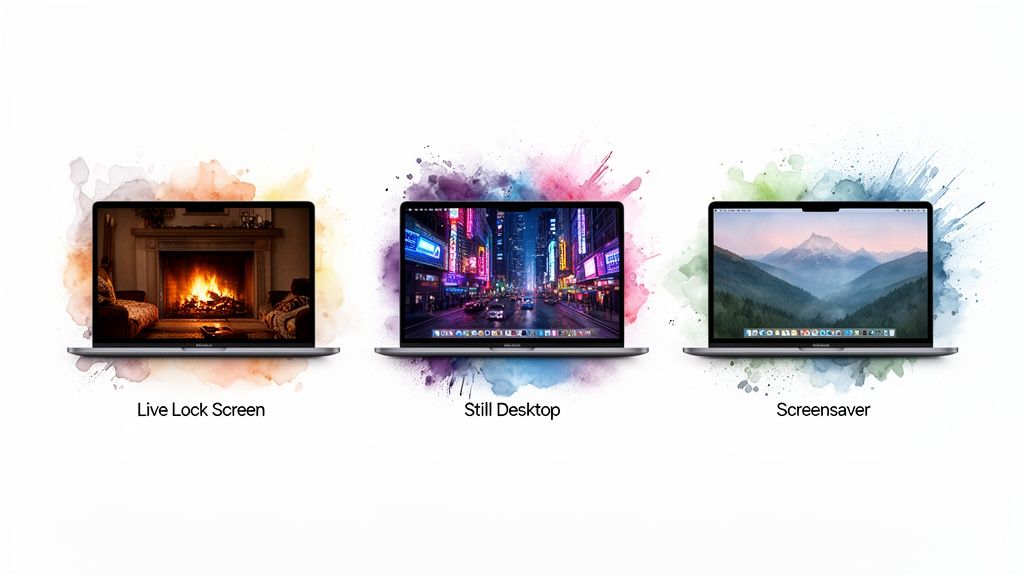
Alright, you've ditched the static background. Now for the fun part. gifPaper isn't just a one-trick pony; it's a whole system designed to make your Mac feel cohesive and, frankly, like it actually belongs to you.
It works across three places: your lock screen, your desktop, and your screensaver. Let's break down what that actually means.
The Live Lock Screen Experience
This is the main event. The first thing you see when you wake your Mac. Instead of a photo, you get a full-screen, looping video that gracefully slows to a halt as you type your password or use Touch ID.
It's not some clunky workaround. This uses Apple's native Aerial wallpaper format—the same system they built for their own video wallpapers.
That means you get that signature, buttery-smooth unlock animation, but with a wallpaper you actually chose. Wake your Mac to a moody city from our neon wallpaper collection or a peaceful, sun-drenched forest. Your call.
The Smart Desktop Wallpaper
By default, your desktop wallpaper shows a gorgeous, high-resolution still frame of the video you picked. This is on purpose. A constantly moving desktop can be a huge distraction, not to mention a guaranteed way to drain your MacBook's battery.
But what if you want the full animation? Just open the gifPaper app from your menu bar and flip the switch on "Animate on Desktop." Instant vibe. It's perfect for when you're plugged in and want a cozy fireplace crackling away while you procrastinate on a late-night project.
It's about having the choice. You get the beauty of a 4K wallpaper without the performance hit, and you can flip the switch for full motion whenever you want. All the vibe, none of the compromise.
The Glorious Return of the Screensaver
Remember screensavers? They're back, and they're finally worth looking at. The live screensaver for mac feature in gifPaper uses the same seamlessly looping videos. When your Mac goes idle, it transitions to the full-screen animated wallpaper you've already picked out.
So, why not just use Apple's built-in options? Here's a quick rundown of what you're getting.
gifPaper Features vs Standard Mac Options
The built-in Mac settings are fine, but they're limiting. You're stuck with Apple's choices and a clunky setup that treats your lock screen, desktop, and screensaver as separate things to manage.
| Feature | Standard macOS | gifPaper for Mac |
|---|---|---|
| Live Lock Screen | Limited selection, pauses on battery | Full library, always plays |
| Custom Videos | Not supported | 150+ curated wallpapers |
| Desktop Mode | Static or battery-draining video | Smart still-by-default, optional animation |
| Unified Setup | Separate settings for each | One-click sets lock, desktop, & screensaver |
gifPaper ties it all together. One click sets your chosen aesthetic everywhere.
This unified approach means you're not just changing a background; you're setting a mood for your entire Mac. You've earned the right to have a workspace that doesn't look like it came straight out of the box.
FAQs: Performance, Pricing, and Other Anxieties
Let's get right to it: performance. The idea of a 4K video looping on your desktop probably brings to mind a dead battery and fans spinning like a jet engine. It's a fair concern, and one I thought about constantly while building gifPaper.
A constantly animating desktop would be a resource hog. That's why gifPaper is smart about it. By default, it sets a beautiful, high-res still frame on your desktop. The full video animation only plays on the lock screen and screensaver, where the performance hit is basically zero.
How much power does it actually use?
When you do decide to enable the full animated desktop, it's as lightweight as possible. The app is heavily optimized for Apple Silicon (M1, M2, M3 and later), using hardware acceleration to let the Mac do what it does best.
In real-world terms, running an animated wallpaper on your desktop uses about as much CPU as having one extra, moderately busy browser tab open. The live lock screen and the live screensaver for mac feature use virtually no resources when they're not active.
The goal was never to build a "zero-impact" app—that's impossible. The goal was to build something so efficient that you'd never have to think about its performance. The smart, still-frame-by-default desktop is the key to that.
Is this going to be another annoying subscription?
Nope. Absolutely not. I can't stand subscriptions for simple utilities, so I didn't build one.
gifPaper is a one-time purchase of $4.99. That's the special launch price. You buy it once, you own it forever. That includes every future update and all the new wallpapers added down the road. No recurring fees, no gotchas.
Why isn't this on the Mac App Store?
The short answer: Apple's rules. The Mac App Store has strict security sandboxing that stops apps from modifying the lock screen. To pull off a true live lock screen—one that uses Apple's native Aerial format for that buttery-smooth unlock animation—the app had to be distributed directly.
Rest assured, the app is fully notarized by Apple. This just means Apple has scanned it for malicious code and confirmed it's safe to run on your Mac. It's the same reason you see other powerful system tools sold directly by their developers.
What if I don't like it?
Simple: if you don't love it, you get your money back. There's a 30-day, no-questions-asked money-back guarantee.
Just reply to your purchase confirmation email within 30 days and I'll process a full refund. The goal here is to make something people genuinely enjoy using. If it's not for you, you shouldn't have to pay for it.
Can I use my own videos?
Not right now. The focus is on providing a curated library of 150+ seamlessly looping, high-quality videos that are pre-optimized to look and perform great. This includes cozy fireplaces, neon cityscapes, chill lofi scenes, and an entire section dedicated to cats in all their various moods and settings.
What are the system requirements?
gifPaper requires macOS 26 (Tahoe) or later. It's optimized for Apple Silicon Macs but also works on modern Intel-based Macs that can run Tahoe.
Ready to give your Mac the background it deserves? You can try out every feature and all 150+ wallpapers completely free.
Start your gifPaper for Mac 7-day trial today. No credit card required.