Live Wallpaper Download: A Guide for Mac Users
Meta description: Mac live wallpaper download without the sketchy hacks. Set animated lock screens, desktop, and screen saver on macOS with a direct, notarized app.
You searched live wallpaper download because you're tired of looking at the same dead rectangle all day.
Fair. If your Mac gets eight-ish hours of your attention, caring what it looks like isn't frivolous. It's basic self-respect. You can only stare at the default Sonoma hill, gradient blob, or whatever tasteful beige Apple shipped this year for so long before your soul starts making fax machine noises.
The annoying part is what you find when you search. A pile of broken tutorials. Pixel soup masquerading as animation. Ancient GIFs wheezing like it's still 2009. Then a bunch of excellent Windows answers that all end with the same punchline: not for Mac. Very helpful. Love that for us.
The Unspoken Sadness of a Static Mac Wallpaper

Apple clearly knows animated backgrounds look good. The company ships those gorgeous aerial videos and system wallpapers that glide around like they own the place. Then it slams the gate shut when you want to use your own material. That's the part that drives people nuts. The capability is right there. The control is not.
If you came from Windows, the pain is even more specific. As WallsFlow notes about the Mac gap for live wallpaper users, Windows users have long relied on Wallpaper Engine, but Mac users searching "live wallpaper download" run into fragmented solutions instead. That's exactly the experience. You expect one sane app. You get browser extensions, static wallpaper apps pretending to be animated, and forum posts that read like cave paintings.
What most Mac results get wrong
A lot of Mac live wallpaper advice falls into three buckets:
- The hacky bucket. Overlay windows pretending to be wallpapers. Fine until Mission Control, sleep, login, or basic dignity enters the chat.
- The low-quality bucket. Compressed GIFs with crunchy edges and visible loops. Your Mac deserves better than a banner ad from the Bush administration.
- The Windows bucket. Great if you own a PC. Less useful if there's an Apple logo on the lid in front of you.
Your wallpaper isn't a productivity tool. It's also not nonsense. You're going to look at this machine constantly. Make it less boring.
Why this search exists in the first place
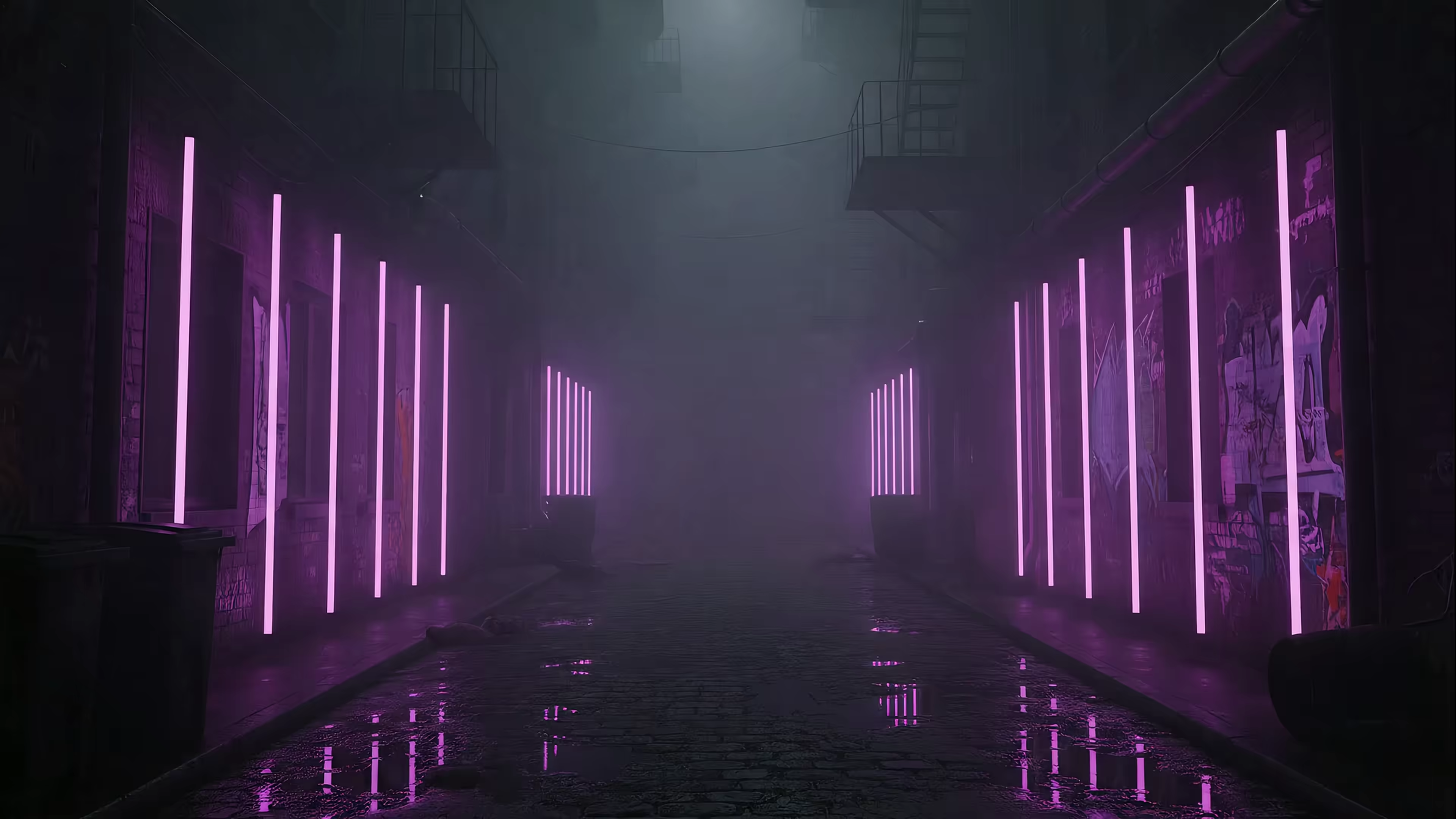
The demand isn't "I want motion for the sake of motion." It's more specific than that. People want a desktop that feels alive without looking chaotic. A rainy neon alley. Snow outside a quiet cabin. A fireplace loop that's all cozy, none of the smoke damage. Something that makes opening your laptop feel slightly less like returning to a spreadsheet monastery.
That frustration is why I built a Mac-native answer instead of another workaround. Not an overlay. Not a fake desktop layer. A real wallpaper setup that behaves like macOS should've allowed from the start.
The 7-Day Trial That Asks for Zero Commitment

The safest way to test a Mac live wallpaper setup is simple. Download the app directly, put it in Applications, open it, start the trial, and set something you want to look at.
The direct-download part tends to make people pause, which is understandable. Mac users have been trained to prefer the App Store. In this case, the App Store isn't the issue. Apple's sandboxing rules are. Lock screen control lives outside what a store app is allowed to do, so a proper lock screen wallpaper app has to be distributed directly.
The install is boring in the best way
Use the walkthrough on how to get live wallpapers on Mac if you want screenshots, but the short version is this:
- Download the app from the Mac app page.
- Drag it into Applications like a civilized person.
- Open it and approve the normal macOS prompts.
- Start the trial and use every feature before spending a cent.
The trial lasts 7 days, requires no credit card, and doesn't do the usual "free trial" theater where the app clings to your wallet like a barnacle. If you hate it, uninstall it and move on. No hostage negotiation.
Why direct download is still safe
The important detail isn't "App Store" versus "website." It's whether the app is trusted by macOS. This one is notarized by Apple, which means Apple has scanned it as part of the distribution process. That's the part that matters for safety.
Practical rule: if a Mac app needs system-level wallpaper behavior the App Store won't allow, direct download isn't automatically sketchy. Lack of notarization is sketchy. Those aren't the same thing.
There's another reason to try it before forming an opinion. A lot of people still assume live wallpapers will roast battery life and turn a MacBook into a hand warmer. That assumption hangs around because old implementations were messy. But a major adoption barrier is the outdated belief that animated wallpapers always tank performance, even though modern 4K video-based implementations on capable hardware can have minimal impact.
So yes, test it on your machine. That's what the trial is for.
One Click to a Living Lock Screen

This is the part most other Mac guides skip. They talk about animated desktops, then ignore the lock screen because their app can't really do it.
A proper setup changes that first moment when you open the lid. You pick a wallpaper in the gallery, click one button, and the same scene becomes your lock screen and desktop. No separate setup maze. No "desktop works, login screen sort of doesn't" weirdness.
What the lock screen actually does
When the Mac wakes, the wallpaper is animated. As you begin accessing your Mac, it slows down and settles the way Apple's own video wallpapers do. That detail matters more than feature lists. It feels native because it uses the system's own language instead of faking motion on top of the OS.
If you've been living with static login screens because every other option felt janky, this is usually the moment the whole thing clicks.
For lock-screen specifics, the guide on live wallpaper for lock screen on Mac shows the exact flow.
Why the desktop starts as a still image
The desktop doesn't need to be moving all the time to look good. By default, it uses a crisp still frame from the wallpaper video. That gives you the scene, the color, and the mood without unnecessary motion while you're working.
If you want full animation on the desktop, you can turn it on. But starting with a still frame is the sane default. Your eyes don't need a nightclub behind Finder windows.
A good live wallpaper should appear when you notice it, then get out of the way when you don't.
The technical bit that makes this work
The reason native Mac implementations feel different is the rendering path. Native Quartz Compositor and Metal API integration on M1+ chips delivers lower overhead and more reliable performance compared with overlay-based tricks. The desktop and lock screen don't need to fight each other. One click should set both, and they should behave like they were always meant to.
| Approach | What it feels like | Performance profile |
|---|---|---|
| Native wallpaper integration | Belongs in macOS | Lower overhead, more reliable |
| Overlay-style tricks | Looks clever until it breaks | More fragile |
| Old GIF-based setups | Motion, technically | Wasteful and ugly |
Fine-Tuning Your New Aesthetic

Once you've got the first wallpaper set, the fun part starts. Not "enterprise customization." Actual useful controls. The kind that let your Mac look exactly the way you wanted when you searched live wallpaper download in the first place.
The core settings are simple: whether the desktop stays still or fully animated, whether ambient audio plays, and whether you want the sharpest Retina-friendly version available. Then there's the screen saver, which Apple somehow let become boring for years before circling back.
Desktop motion, but on your terms
Some scenes work better as a still desktop. A snowy cabin. A dark mountain ridge. A low-lit room with city glow through the window. They give you atmosphere without pulling focus every time you switch apps.
Other scenes beg to move. Rain, fire, drifting space particles, train-window loops, neon reflections. If that's your taste, flip on full video animation and let it run.
A quick rule of thumb:
- Use still desktop mode for work-heavy days when you want the mood, not constant motion.
- Use animated desktop mode when the scene itself is the point.
- Pick slower loops if you're sensitive to visual distraction.
If you like cozy, study-with-the-rain-on loops, the lofi wallpaper collection is a good rabbit hole to fall into. If your taste runs more blacked-out city lights and moody shadows, the dark wallpaper collection exists for that exact temperament.
Ambient audio is great, until it isn't
Some wallpapers include ambient sound. Rain. Fireplace crackle. Room tone. Distant city noise. It works best when the sound feels like part of the scene, not a gimmick glued on later.
Not every wallpaper should have audio. Silence is often the better design choice, especially for wallpapers you leave up all day. A quiet cosmic loop doesn't need forced wind noise like it's auditioning for a meditation app.
A small warning: if you turn on fireplace audio during a meeting, someone will eventually ask whether you're on vacation. This is your burden now.
Retina quality and why video beats GIFs
On Mac, crispness matters. A wallpaper can have a lovely composition and still look wrong if the file format is fighting the display. Retina panels are cruel in a useful way. They expose every compression sin.
That's why I built around video wallpapers instead of GIFs. Better detail, smoother motion, cleaner looping. Also, less "forum signature from 2006."
If you want to make your own static concepts before choosing a loop, I Become's wallpaper generator is a handy way to mock up color palettes and moods. It's useful for testing aesthetic directions before you commit to a look.
Screen savers are good again
This might be the most unexpectedly satisfying feature. Set the same wallpaper as a screen saver, walk away, come back later, and your Mac is doing something better than a blank panel or a wall of drifting shapes.
That consistency matters. Lock screen, desktop, and screen saver should feel like one coherent environment, not three roommates who met on Craigslist.
When Things Go Sideways (They Probably Won't)
Most support questions come from design choices that are easy to mistake for bugs.
You set a wallpaper, go back to the desktop, and nothing's moving. That usually isn't failure. It's the default still-frame desktop mode doing exactly what it's supposed to do. The lock screen gets motion on wake. The desktop starts calmer. If you want full movement behind your icons, switch it on in settings.
Then there's audio. Some scenes have it, some don't. That's deliberate. Rain and fireplaces benefit from ambient sound. A lot of other scenes don't. Silence isn't missing content. It's restraint, a concept the internet generally avoids.
What usually happened
Here are the common "something's wrong" moments:
- The wallpaper looks static on desktop. Desktop animation is optional by design.
- A scene has no sound. Not every wallpaper includes ambient audio.
- The app wasn't in the App Store. Direct distribution is required for lock screen behavior that store sandboxing doesn't allow.
- You're worried about battery anyway. That's reasonable. Try a still desktop first, then enable motion only when you want it.
Why these trade-offs exist
The broader market has already moved past live wallpapers as pure novelty. The category has matured toward low energy usage and high customization, with control over things like colors, animation behavior, and other settings. In other words, people don't just want movement anymore. They want movement that behaves itself.
The right wallpaper is visible when you want atmosphere, invisible when you need to focus.
That's the whole job. Not maximal motion. Not feature confetti. Just a Mac that looks alive without acting like a toddler after too much birthday cake.
The Deal: A One-Time Purchase, Yours Forever
If the trial does the thing you wanted, the price is simple. It's $4.99 as a one-time purchase during launch. Not monthly. Not yearly. No subscription hiding in a trench coat pretending to be value.
That's for the full app: lock screen wallpaper, desktop wallpaper, screen saver support, and access to a curated library of 150+ looping 4K wallpapers with more added over time. You can browse some free options in the guide to free live wallpapers for desktop if you're still deciding what kind of scene you want living on your Mac.
There's also a 30-day money-back guarantee, which is the least dramatic way to remove hesitation. Try it. If it doesn't make your Mac feel better to use, get your money back and spend the five bucks on something fleeting and mediocre instead.
I've always preferred software that behaves like a normal purchase. You buy it. You own it. The app doesn't send recurring invoices like a tiny landlord.
Frequently Asked Questions
Is a direct live wallpaper download safe on Mac?
Yes, if the app is notarized by Apple. That's the key trust signal for direct Mac downloads. The App Store isn't the only safe distribution path.
Can I import my own videos?
Not currently. That's intentional. A curated library keeps quality, looping behavior, and compatibility consistent, instead of turning the app into a chaos bucket of mismatched files.
What's the difference between live and dynamic wallpapers on Mac?
People use those terms loosely. In practice, live wallpaper usually means an animated scene, while dynamic wallpaper can also mean a wallpaper that changes state based on system behavior or time. Apple also uses its own terminology in ways that don't exactly reduce confusion.
Does every wallpaper move on the desktop all the time?
No. Desktop motion can be optional. A still frame is often the default, with full animation available when you want it.
Will this work on any macOS version?
No. It requires macOS 26 (Tahoe) or later.
If you want the sane version of this whole experience, browse the wallpaper gallery on gifPaper, then try the Mac app when you're ready. It's a direct download, notarized by Apple, includes a 7-day free trial with no credit card, and the full app is $4.99 once if you decide your lock screen deserves a little drama.