How to Get a Moving Background for Mac (Without Killing Your Battery)
You spend half your life staring at your Mac. Making it look good isn't frivolous; it's basic ergonomics. A moving background for Mac can turn a sterile work tool into a space that feels like your own. But it shouldn't require setting some grainy, looping GIF from 2003 that grinds your fans to a halt.
It's about finding a way to bring your screen to life that's actually efficient and looks fantastic. This is the way.
Your Mac Deserves Better Than a Static Wallpaper
Apple's default macOS wallpapers are fine. They're pleasant, inoffensive, and about as exciting as unsalted crackers. But your Mac is where you work, create, and procrastinate. It deserves a personality.
Upgrading to a live wallpaper is a small change that makes a huge difference. Imagine waking your Mac to a gentle snowfall, a neon-drenched Tokyo alley, or a crackling fireplace. It sets a mood. It makes the hours you spend at your desk feel a little more intentional and a lot less like you're just staring into a digital void.
Why Your Mac Is Ready for This
Apple started teasing this idea back in 2017 with macOS High Sierra, introducing "dynamic" wallpapers that changed with the time of day. By the time macOS Sonoma rolled out in 2023, a huge chunk of users had them active. It proved there's a real appetite for desktops that do more than just sit there.
But there's a big difference between a wallpaper that shifts tones every few hours and one that's truly live. The naming is the first trap. You can learn more about the distinction in our article explaining what live wallpapers are. The key is finding an option that delivers cinematic quality without turning your MacBook into a space heater.
Getting Your Moving Background Set Up
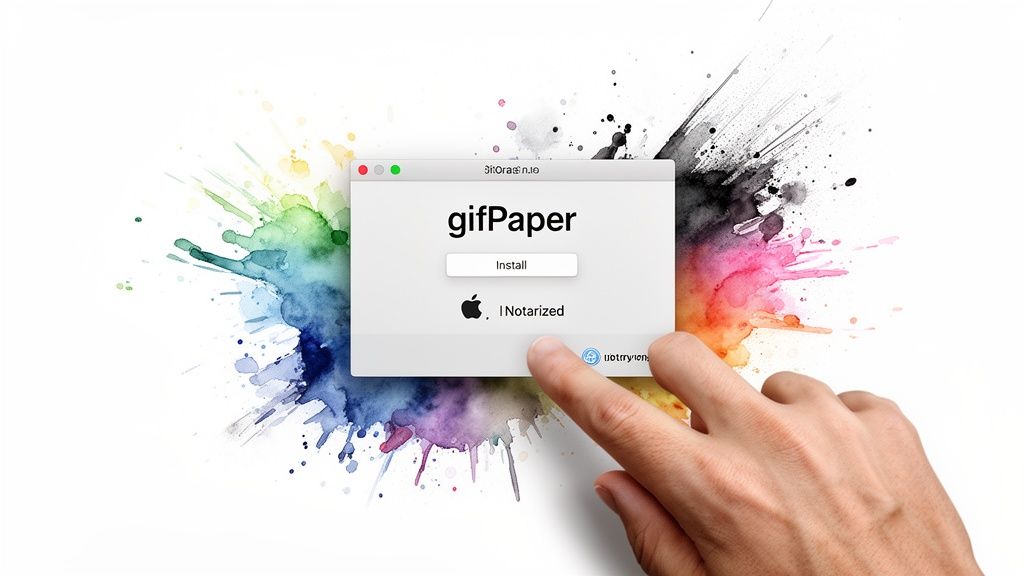
Alright, let's get this installed. The whole process uses an app called gifPaper. It's a one-time setup that takes just a couple of minutes, designed to be as painless as possible.
First thing, grab the 7-day free trial. No credit card required. Just download the app and see if you like it.
The Install
Once you have the .dmg file, just double-click it and drag the gifPaper icon into your Applications folder. It's the standard Mac install you've done a thousand times.
The app is notarized by Apple, which is their stamp of approval saying they've scanned it for malware and it's safe to run. I chose to distribute it directly (instead of the App Store) because Apple's sandboxing rules prevent apps from changing the lock screen—a key feature. You can find a more technical breakdown in our guide on how to get live wallpapers on Mac.
The very first time you open gifPaper, your Mac will ask for a couple of permissions. This is normal for any app that needs to change your desktop or screen saver.
The app needs this access to do its job, specifically to set the live wallpaper on your lock screen and manage the screen saver. Without it, it can't hook into the system to create that seamless, native effect.
macOS can be a bit overprotective sometimes. If you run into any snags with third-party apps, it's almost always related to macOS Accessibility Permissions. Knowing how to manage these is a good skill to have anyway.
Your First Launch
With permissions sorted, the app just tucks itself into your Mac's menu bar as a small icon. Click it, and the main window pops up—it's basically a browser for the whole wallpaper library.
From this one window, you can do everything:
- Browse the gallery: Jump between categories like
neon,lofi, orspace. - Preview anything: Just click a thumbnail to see the full 4K animation play, complete with its ambient audio.
- Set your wallpaper: See one you like? A single click on the "Set Wallpaper" button applies it everywhere—lock screen, desktop, and screen saver.
The whole point is to get you from a static background to something moving with the least amount of fuss. Setup is done. Now you can get lost trying to pick a scene that actually fits your vibe.
How It Actually Works: Lock Screen, Desktop, and Screen Saver
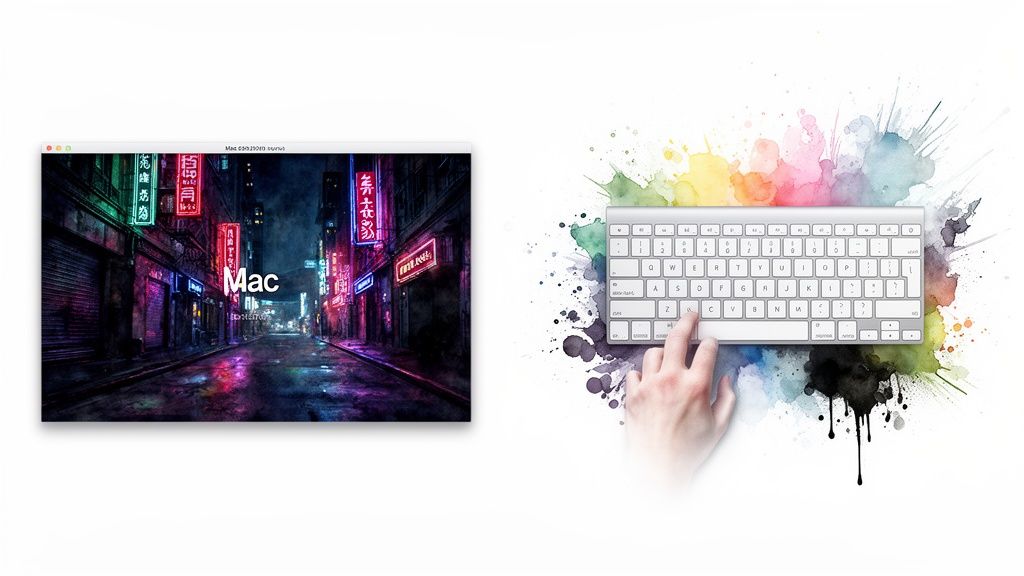
The magic isn't just the animation, but how it behaves. It's designed to give you that cool, cinematic moment when you wake your Mac without draining your battery while you're actually trying to work.
When you wake your Mac, the live wallpaper plays on your lock screen. As you type your password, the animation gently slows to a stop, settling into a crisp still frame the moment your desktop appears. It's a small detail, but it makes the whole experience feel polished and intentional.
This is the default behavior: full animation on the lock screen, beautiful static image on the desktop. You get all of the ambiance with none of the performance anxiety.
Setting a Wallpaper in One Click
Let's get one applied. Open gifPaper from your menu bar and find something that catches your eye. We'll use a classic from the neon collection for this walkthrough.
Find a wallpaper (or any other one you like), hover over the thumbnail, and click the Set Wallpaper button. That's it. There is no step two.
The app instantly applies it everywhere—lock screen and desktop. Go ahead, lock your Mac (Control-Command-Q) and wake it up. You'll see the animation. Log in, and it resolves into a perfect still image. One action handles everything.
This is what makes gifPaper feel different from other wallpaper apps. It uses Apple's native Aerial wallpaper format—the same system behind their own video screen savers—not some hacky overlay that just runs a video player behind your icons. That means it's efficient, stable, and feels like a built-in part of macOS, because it basically is.
Customizing Your New Moving Background
Alright, you've picked a wallpaper. The hard part's over. Now for the fun part: dialing it in. These aren't just settings; they're the difference between a background and an entire mood.
Add Some Ambiance (Or Don't)
Your new wallpaper isn't just a silent movie. A lot of them, especially the cozy ones, have built-in ambient audio. A subtle crackle, the sound of rain, the low hum of a neon sign. It can completely change the feel of your workspace.
Of course, sometimes you just want the visuals. A single click in the app's menu bar toggles the audio on or off. Simple.
To Animate or Not to Animate
By default, your desktop shows a high-res static frame of the wallpaper. This is intentional. It looks great, keeps things snappy, and has zero impact on your battery life. Most of the time, this is what you want.
But sometimes, you just want the full, constant motion.
For those moments, there's a toggle: Animate on Desktop. Flip it on, and your desktop plays the full video loop continuously. Every wallpaper is optimized for Retina displays, so whether it's moving or static, it's always sharp. It's perfect for when you're plugged in and want to go all-in on the vibe.
This whole idea of a more curated digital space is blowing up. The global market for digitally printed wallpaper hit USD 3.30 billion and is projected to skyrocket, all because people are tired of sterile, default backgrounds. You can read more on how the wallpaper market is evolving if you're into that sort of thing.
Bring Back the Screen Saver
Remember screen savers? They were a big deal before our displays got good enough to not burn-in from a static image. Well, they're back, and now they're actually worth watching.
Any wallpaper in the gifPaper library can be set as your Mac's screen saver. Instead of flying toasters or a blank screen, your Mac can drift through a cosmic nebula or display a serene Japanese garden when it's idle.
It's one of those set-it-and-forget-it features. You'll forget all about it until your Mac goes to sleep, and you're pleasantly surprised. It turns a purely functional utility into another small aesthetic upgrade.
Finding an Aesthetic That Doesn't Make You Want to Close Your Laptop
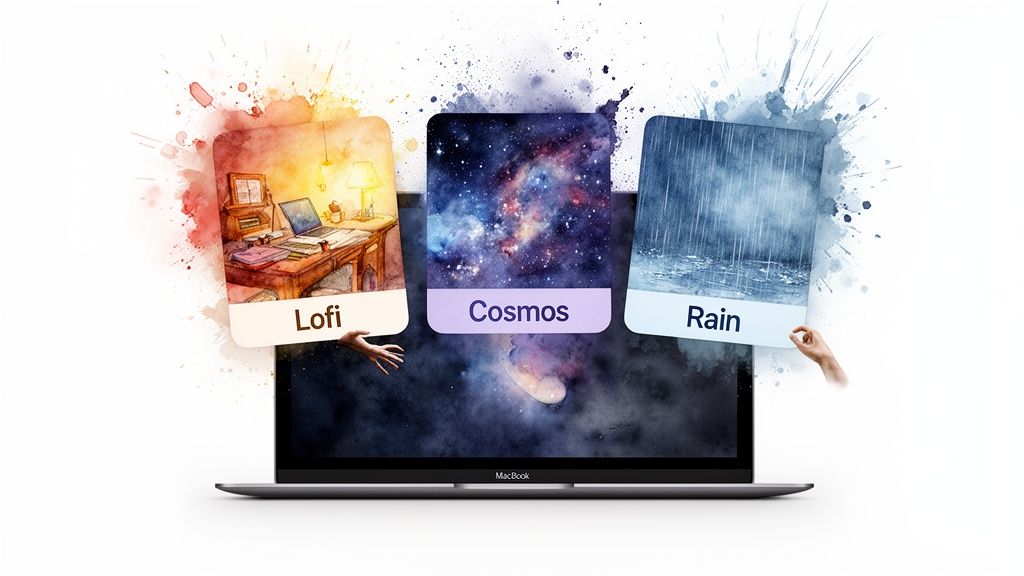
Okay, you've got the app installed. Now for the hard part: choosing a vibe. A great moving background isn't about the tech; it's about making your Mac feel less like a generic work machine and more like your own space.
This isn't just a folder of random video files. The whole gallery is a curated collection of over 150 seamless 4K loops built around specific moods. Your desktop can be a window, a mood board, or just something to stare at while you're procrastinating on that spreadsheet.
From Lofi Beats to Deep Space
The goal is to find a wallpaper you actually like looking at. Whether you're trying to build the perfect "lofi studying" atmosphere or turn your Mac into the command deck of a starship, there's a scene for it.
The lofi collection, for example, is full of rain-streaked windows and cozy, animated rooms. They're perfect for deep focus or just pretending you're the main character while you're actually just avoiding your email.
Finding Your Niche
Maybe lofi isn't your thing. No problem. The whole point is to browse and find something that clicks.
The best wallpaper is the one that makes you happy to open your laptop. It might be a neon-soaked city street, a calming forest scene, or a vast cosmic nebula. Your Mac is your personal space—it should reflect your taste.
Think about the atmosphere you're trying to create:
- For actually getting work done: The minimalist options are a good place to start. Less distraction, more mood.
- For cozy vibes: You can never go wrong with a crackling fireplace or a quiet winter scene.
- For a little inspiration (or dread): Some of the space and cosmic wallpapers have genuinely striking views of nebulae and distant planets.
Take a few minutes and just scroll through the gallery. You'll probably find a vibe you didn't even know you were looking for.
FAQ: Your Questions About Mac Moving Backgrounds
When an app starts messing with core parts of your Mac, it's smart to ask questions. You're right to be skeptical. Here are the straight answers.
Will a moving background drain my Mac's battery?
Less than you'd think. gifPaper is built on top of Apple's own native wallpaper system — the same tech that powers their video screen savers.
By default, the wallpaper on your desktop is a crisp still frame to save power. The full animation only plays on your lock screen when you wake your Mac. It's designed to be light, especially on Apple Silicon, so your battery life doesn't take a hit.
Why isn't this on the Mac App Store?
Good question. The short answer: Apple's App Store rules (specifically sandboxing) prevent any app from changing the lock screen wallpaper. To deliver that seamless lock-screen-to-desktop effect, the app has to be distributed directly.
That said, the app is fully notarized by Apple. This means they've scanned it for malware and confirmed it's safe to install on your Mac.
Can I use my own videos or GIFs?
Not right now. The entire library is curated to make sure every single background is a perfect, seamless 4K loop. That focus on quality is what sets it apart from apps that just let you drop in any random video file.
New wallpapers are added to the collection regularly to keep things fresh. And if you're curious about how these are different from older formats, our guide on the nuances of dynamic wallpapers on Mac breaks it all down.
What if I don't like it?
No problem at all. There's a 7-day free trial with full access, and you don't need a credit card to start.
If you decide to buy it (it's a $4.99 one-time purchase, not a subscription) and change your mind later, there's a 30-day money-back guarantee. The whole point is for you to love your wallpaper, not get stuck with something you don't.
Your Mac is where you do your best work, your most creative thinking, and maybe your most questionable online shopping at 2 a.m. It deserves to look good. Give gifPaper for Mac a try and see how a better background can change the whole feel of your setup.