Screen Saver Settings: A Mac User's Guide (and Upgrade)
Meta description: Mac screen saver settings, the annoying defaults, and the better modern alternative for lock screen, desktop, and idle visuals.
You stop typing for a minute. Your Mac decides you've entered a monastic state of inactivity. Then up pops some ancient little animation that looks like it was designed to entertain a dentist's waiting room in 2004.
And yes, technically, that's a screen saver.
Also yes, it's a bit ridiculous that anyone cares this much. But you're going to stare at this machine for hours. If your chair matters and your keyboard matters, the thing that fills your display when you're away from it also gets to matter. That isn't vanity. It's interior decorating for the rectangle that runs your life.
The trouble is that Apple's screen saver settings still treat the whole feature like a dusty utility instead of what it is now: ambient visual design with a side order of lock-screen behavior.
Why Your Mac's Screen Saver Is Probably Lying to You
The lie is in the name.
A screen saver sounds like it's protecting your display from some imminent disaster. On a modern Mac, that's mostly theater. The feature survives because the name survived, not because your laptop is desperately begging for a swarm of translucent bubbles to save it from doom.
The default experience is weirdly underwhelming
Many users don't touch screen saver settings until something annoys them.
Usually it's one of these:
- The saver looks dated. It kicks in and suddenly your expensive Retina display is hosting a museum exhibit called "early desktop whimsy."
- The timing feels wrong. It appears too fast when you're making coffee, or not fast enough when you're trying to hide your desktop from curious coworkers.
- The lock behavior is confusing. Sometimes your Mac asks for a password immediately. Sometimes it waits. Sometimes it seems to have made a secret pact with another setting.
None of this feels polished because the feature is carrying old assumptions. It was born to solve a hardware problem. Now it's mostly vibes, security timing, and habit.
Practical rule: treat screen saver settings on Mac as part visual preference, part lock-screen control. If you only think about the animation, you'll miss the settings that affect daily use.
The name stayed, the job changed
Old screen savers existed for a practical reason. Modern ones mostly exist because no one has invented a better mainstream label for "the thing your screen does when you're idle before or while it locks."
That's why the defaults feel stuck between eras. They're pretending to be a maintenance tool when they're really a tiny stage set that appears several times a day. Apple still frames the setting like housekeeping. Users experience it like décor.
And if you've ever looked at Flurry or one of the other stock options and thought, "this can't possibly be the final form," you are correct. Your instincts are healthy.
A Brief History of Flying Toasters and 3D Pipes
You stop working for five minutes, your screen lights up with some inherited bit of desktop theater, and suddenly your very modern Mac is acting like a 1994 office PC. That weirdness has a history.
Screen savers began as a hardware workaround. Old CRT displays could suffer burn-in if the same image sat there too long. Menu bars, status boxes, and terminal prompts could leave a permanent ghost on the screen. Back then, motion was protection.
The first one was gloriously boring
One of the earliest PC screen savers, SCRNSAVE, showed exactly how practical the idea was. It blanked the screen after a period of inactivity. No animation. No charm. Just prevention.
That was the whole job.
Then software developers turned it into a personality test
Once the technical problem had a basic fix, the fun started. Screen savers became one of the first pieces of software people used purely because they liked looking at it.
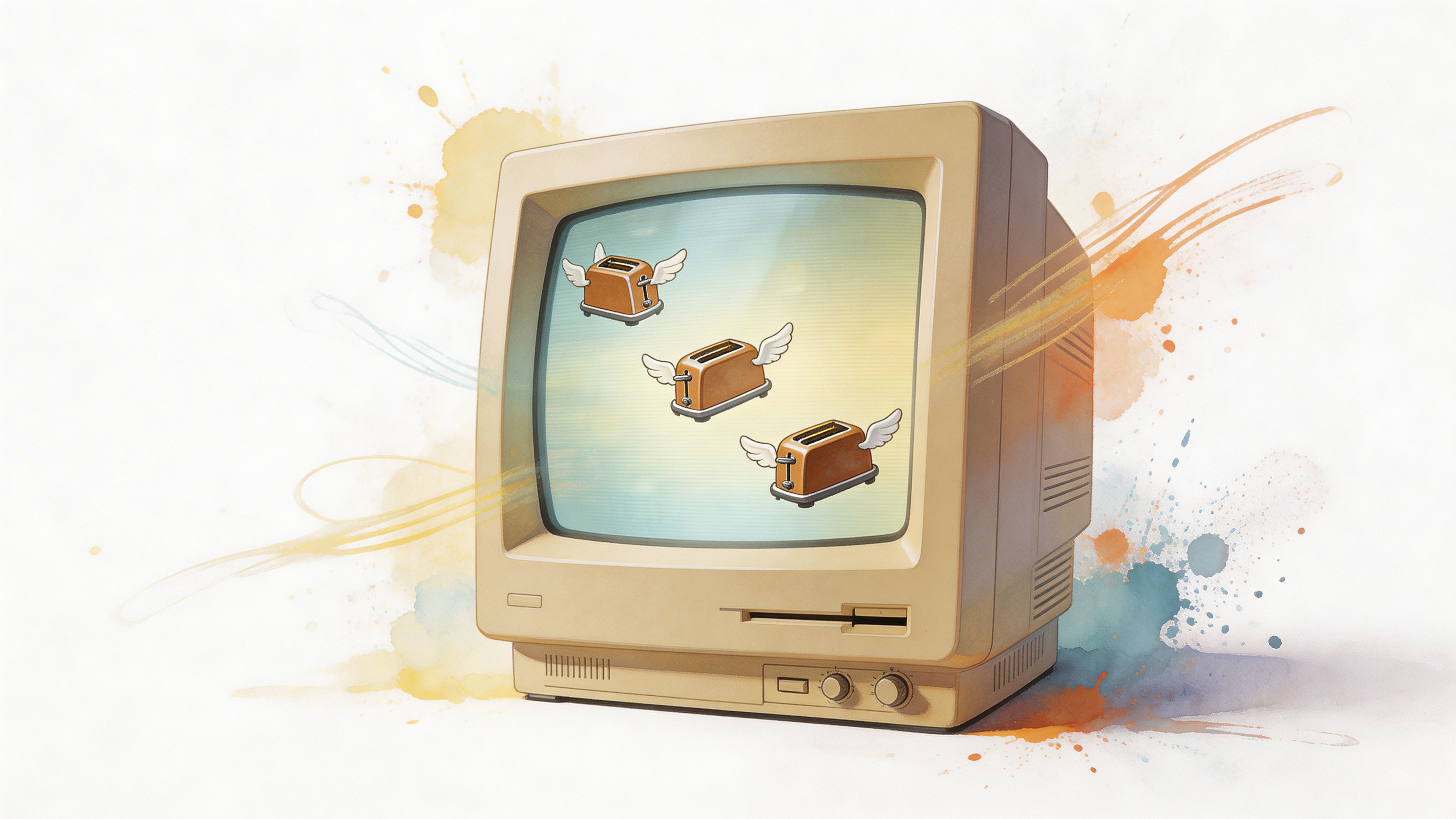
Berkeley Systems' After Dark became the big icon of the era. Its Flying Toasters lodged themselves directly into computer history. The point had already shifted. People were no longer just protecting expensive monitors. They were decorating boredom, signaling taste, and giving office computers a tiny pulse of life.
Yes, this is a ridiculous amount of meaning to hang on a flock of cartoon appliances. It is also completely accurate.
Microsoft helped make the genre unavoidable
Bundling screen savers into Windows put them in front of a huge audience, which is how classics like pipes, mazes, and abstract shapes became shared cultural furniture. Mental Floss's history of screen savers covers how quickly they moved from niche utility to standard desktop behavior.
A short version of the progression looks like this:
| Era | What screen savers were for | What they looked like |
|---|---|---|
| Early days | Preventing CRT burn-in | Blank screens or simple motion |
| 1990s boom | Utility plus personality | Toasters, pipes, mazes, odd little art projects |
| Modern Macs | Mostly idle visuals and lock-screen staging | Beautiful photos, abstract effects, and a few leftovers from another era |
That last row is the part that matters. The original problem is gone for many users. LCD and Retina displays do not need screen savers in the old sense, which makes the feature feel slightly absurd and oddly undercooked at the same time.
So yes, Flying Toasters matter, at least a little. They explain why modern screen savers still exist, and why the category now feels like a relic trying to justify itself. Once you see that, the better replacement becomes obvious. The modern answer is not a more nostalgic screen saver. It is something alive enough to deserve the screen.
How to Find and Change Screen Saver Settings on Mac
Apple keeps moving this stuff around like it's playing shell games with your patience.
On current macOS versions, screen saver settings live with lock behavior. On older versions, they're in the old familiar desktop area. Neither location is hard once you know it. The annoying part is pretending the naming is intuitive.
On newer macOS versions
If you're on a newer release, go to System Settings, then Lock Screen.
That's where Apple puts the options for when your Mac becomes idle, when it turns the display off, and when it asks for your password again. The screen saver choice may also appear under Screen Saver in the sidebar, depending on your version and how Apple felt that week.
What to look for:
- Start screen saver when inactive. This timer decides when the saver appears.
- Turn display off on battery or power adapter. This can interfere with the screen saver if it happens too soon.
- Require password after screen saver begins or display is turned off. This controls whether the saver is just visual fluff or also part of your security setup.
If your Mac goes black instead of showing the saver, the display-off timer is usually beating the saver to the punch.
On older versions
If you're on Monterey, Big Sur, or another older build, open System Preferences and then Desktop & Screen Saver.
This is the more civilized version of the setting panel. You get a list of saver styles on the left, a preview, and timing controls that don't feel buried in a filing cabinet.
Common built-in choices usually fall into a few buckets:
- Abstract animations. Fine if you enjoy watching your Mac impersonate an airport lounge TV.
- Photo-based savers. Better, but they depend entirely on the quality of the images you feed them.
- Minimal options. Good if you want the screen to feel calm instead of caffeinated.
What the options mean
A lot of Mac users click around these menus without knowing which settings matter in practice.
Here's the quick translation:
| Setting | What it does | What usually goes wrong |
|---|---|---|
| Inactive timer | Decides when the saver starts | Set too short and it appears while you're thinking |
| Password delay | Decides when a password is required | Set it poorly and you lose convenience or security |
| Photos source | Uses your own image library | Great in theory, chaotic if your library is full of screenshots |
| Show with clock | Overlays time information | Useful on some setups, clutter on others |
The Photos route sounds ideal until your screen saver starts serving up receipts, memes, accidental screenshots, and that one blurry photo of a sandwich you meant to send to no one. Curate first. Trust me.
If you want your Mac to look intentional, don't hand the job to an unfiltered camera roll.
A sane default setup
If you want something practical without overthinking it, start here:
- Set the idle trigger to a moderate delay so it doesn't appear every time you pause to think.
- Separate appearance from security by deciding whether you want instant password protection or a short grace period.
- Test while plugged in and on battery because macOS sometimes behaves differently depending on power state.
This won't make the built-in options thrilling. It will make them less annoying, which is the first victory.
Pro Tips for Your Lock Screen and Hot Corners
You step away for 20 seconds, come back, and your Mac has either locked like Fort Knox or stayed wide open like it has never heard of basic privacy. That is usually not a macOS bug. It is just the default setup doing what defaults do. Making reasonable people care way too much about a feature invented for dead CRT problems.
Use the password delay on purpose
The idle animation and the actual lock are separate controls. Apple does not make that especially obvious, which is why plenty of Macs end up annoying and insecure at the same time.
Set them based on the room you work in, not on some imaginary best practice. In a shared office, coffee shop, or house full of curious people, require the password quickly. In a private workspace, a short grace period is often the better trade-off because it stops the constant re-authentication loop every time you get up for water or turn around to answer a question.
What matters is the behavior after you stop using the Mac, not whether the screen saver itself looks busy or tasteful.
A setup that usually holds up:
- Fast password requirement if other people can physically reach your Mac
- Short grace period if you want less friction during brief breaks
- A quick test from the lock screen so you know the timing works the way you think it does
Hot Corners are still one of the best old Mac features
Hot Corners sound gimmicky right up until you assign one and use it for a week.
Open Desktop and Dock settings, choose Hot Corners, and dedicate one corner to starting the screen saver or locking the display. I prefer a corner you never hit by accident. Bottom-right tends to be safe. Top-left is chaos if you use Mission Control a lot.
The practical benefit is speed. You do not wait for an idle timer, and you do not have to remember a menu path. Throw the pointer into the corner, clear the screen, move on with your life.
Good uses include:
- Instant privacy when someone walks up
- A clean break before stepping away from your desk
- A muscle-memory shortcut that works faster than fiddling with settings
If you want a more deliberate setup, this Mac lock screen shortcut guide is a useful companion.
Hot Corners are one of those strangely durable Mac ideas. Slightly nerdy, mildly ridiculous, useful.
For people arriving from Windows
The adjustment is real. Windows trained a lot of people to treat screen savers as a category with its own little ecosystem. On macOS, the feature feels half-maintained, tucked away, and weirdly disconnected from how people use modern displays.
That is why former Wallpaper Engine users usually feel the gap immediately. They are not being picky. They are noticing that Apple's built-in options handle idle behavior well enough, but they do very little for the part you see. If you care how your machine looks when it is sitting there, old-school screen saver settings start to feel like leftovers from another era.
The Modern Screen Saver Isn't a Screen Saver at All
You step away from your Mac for coffee, glance back from across the room, and there it is. Another lazy stock animation drifting around like 2006 never ended. The machine is expensive. The display is gorgeous. The idle experience still looks like an afterthought.
A modern display does not need protection from burn-in in the old CRT sense. It needs to look good when idle, play nicely with locking, and avoid wasting resources for no visual payoff. That is a different job entirely.
The genuine successor is the live wallpaper
Once you stop treating screen savers as sacred, the obvious replacement is a live wallpaper. Same basic role. Better result. It keeps the screen interesting when the Mac is sitting there, and it can make the desktop, lock screen, and idle state feel like one setup instead of three disconnected features Apple forgot to reconcile.
That is why old screen saver settings feel weirdly small now. They still solve the historical problem. They just do very little for the part you have to look at.
If you want examples before committing, this roundup of cool Mac screen savers is a useful starting point.
What works and what doesn't
Some setups sound clever until you live with them for a week.
What works - Motion that feels calm instead of needy - Loops with enough resolution to look right on a Retina display - Backgrounds that feel built into macOS instead of slapped on top
What usually fails - Random video workarounds - Low-quality GIFs with visible compression - Full-screen tricks that break the illusion the second you click anything
Performance is the obvious objection. Fair enough. Nobody wants their Mac heating up just to display some moody rain loop.
In practice, the problem is usually bad implementation, not motion itself. A well-made live wallpaper using native macOS behavior can feel surprisingly light. A junky workaround feels junky immediately. That is the trade-off. Use something designed for the platform, or accept stutter, glitches, and battery drain.
Aesthetics are the whole point now
Yes, caring this much about an idle screen is slightly absurd. It is also completely reasonable if you spend all day staring at the thing.
Once burn-in panic is off the table, visuals become the feature. The right scene changes the mood of the desk in a way the default abstractions never do. If your taste runs warm and cozy, a fireplace-themed wallpaper makes more sense than another generic swirl. If you want something colder and louder, a neon collection exists for exactly that reason.
A useful modern setup should pass three simple tests:
| Question | Bad answer | Good answer |
|---|---|---|
| Does it look right on a Retina display? | Blurry or compressed | Crisp and intentional |
| Does it fit lock screen behavior? | Feels separate and awkward | Feels built into the system |
| Would you want to see it daily? | Tolerable | Pleasant, maybe even a little smug |
This represents the upgrade. A lot less relic. A lot more atmosphere.
Troubleshooting Common Screen Saver Problems
Sometimes the settings are correct and your Mac still acts like it didn't hear you. Charming.
Most failures come down to one of a few predictable conflicts.

When the screen saver won't start
First, check whether another setting is preventing idle behavior. Media playback, presentation tools, and some utility apps can keep the Mac "awake" even when you aren't touching it.
Then look at your timer settings. If the display turns off before the saver begins, you'll never see the saver.
A practical walkthrough for a more modern setup lives in this guide to a live screensaver for Mac.
When you only get a black screen
This is the classic one.
The screen saver isn't broken. Your display power settings are just winning the race. In many setups, the display is told to sleep before the screen saver gets a chance to appear.
Fix it by checking these in order:
- Display sleep timing. Make sure it doesn't happen before the saver starts.
- Battery versus power adapter behavior. Macs often treat them differently.
- Lock settings. A password prompt can make the transition feel abrupt if you're expecting a visual first.
When multiple displays behave oddly
macOS doesn't always make multi-display idle behavior feel elegant.
You may see mismatched timing, one display going dark before another, or visuals that don't look quite right across different sizes and aspect ratios. That's normal, in the most annoying sense of the word. Start by testing on a single display, then reconnect the others and verify what changes.
If a setup looks broken on multiple displays, simplify first. One display tells you whether the problem is timing, power behavior, or the visual itself.
Frequently Asked Questions About Mac Screen Savers
Do animated screen savers hurt battery life
Anything moving on screen uses more power than a static image or a sleeping display. The question is whether the trade-off bothers you.
For many users, the answer depends on when it runs. If your MacBook spends a lot of time unplugged, keep the idle timing conservative on battery. If it's mostly docked, you can afford to care more about appearance.
Can I use my own video as a screen saver on Mac
Sort of, but the built-in path isn't especially graceful.
Macs are much happier with Apple's own screen saver and wallpaper formats than with improvised video workarounds. That's why DIY setups often feel fiddly. You can make them work, but "possible" and "pleasant" are not the same thing.
What's the difference between the screen saver and the lock screen
The screen saver is what appears when your Mac is idle. The lock screen is the secured state that requires authentication.
They interact, but they aren't identical. That's why your Mac can show a saver without locking instantly, or lock in a way that seems to skip the visual entirely. The best setups treat them as related parts of one experience rather than two separate chores.
If you want that whole experience to look intentional instead of inherited from a previous decade, gifPaper is the cleanest version I've seen. The site lets you browse over a hundred high-definition wallpapers with ambient audio, and gifPaper for Mac ties the lock screen, desktop, and screen saver together using Apple's native format. It's a direct download, notarized by Apple, works on modern macOS releases, and the offer is straightforward: a week-long trial with no credit card, a modest one-time purchase at launch, plus a month-long money-back guarantee. If your Mac is going to idle in front of you all day, it might as well do it with some taste.